
1. Introduction
Thank you for choosing the iVOOMi Tucker Mechanical Keyboard. This manual provides essential information for setting up, operating, and maintaining your new keyboard. Please read it thoroughly to ensure optimal performance and longevity of your device.
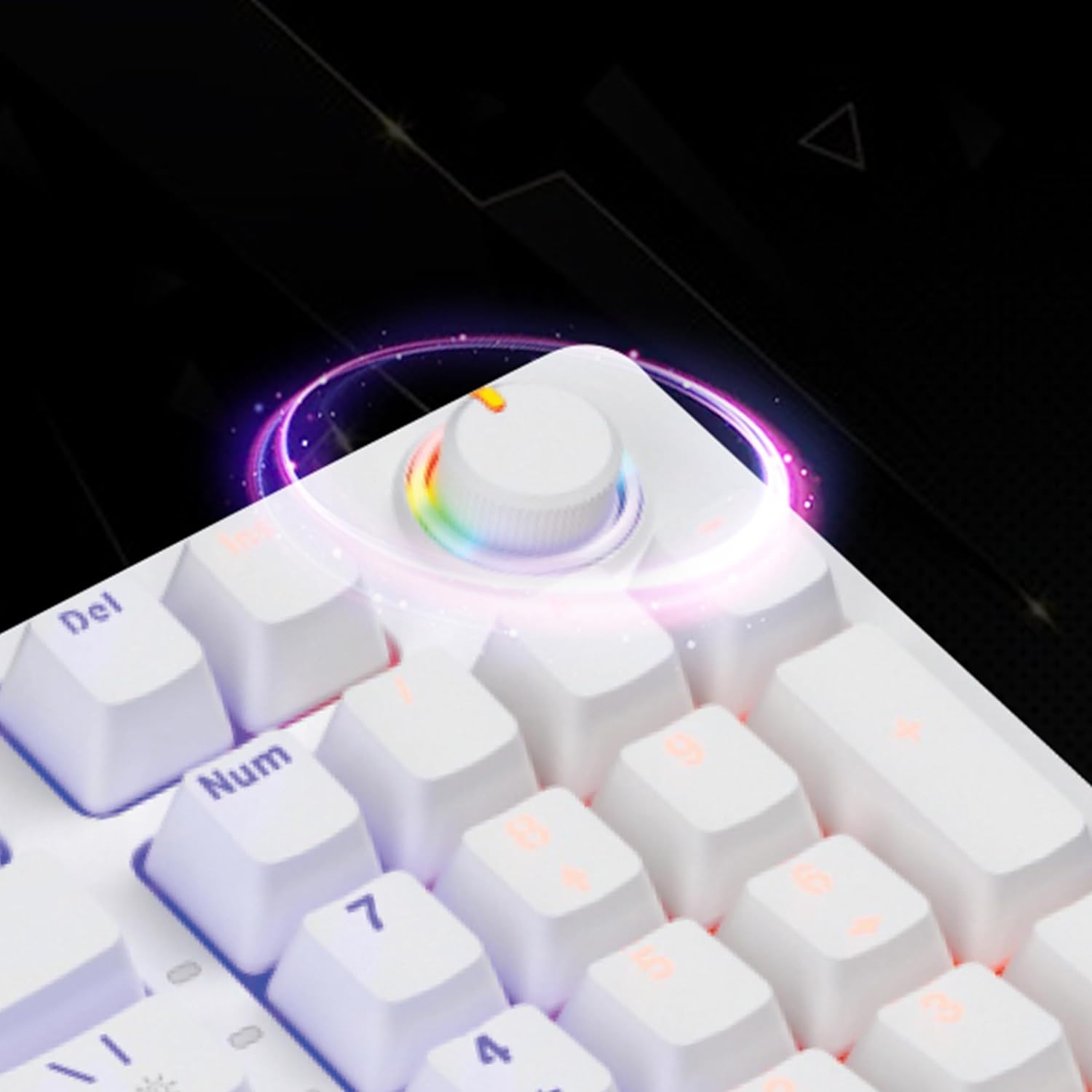
Image: Top-down view of the iVOOMi Tucker Mechanical Keyboard, showcasing its 97-key layout and vibrant rainbow backlighting.
2. Package Contents
- iVOOMi Tucker Mechanical Keyboard
- User Manual
- Warranty Card
3. Setup Instructions
- Unpack the Keyboard: Carefully remove the keyboard from its packaging.
- Connect to Device: Plug the USB-A connector of the keyboard cable into an available USB-A port on your computer (PC, Laptop, Gaming Console).
- Driver Installation: The keyboard is plug-and-play. Your operating system (Windows, macOS, Linux) will automatically detect and install the necessary drivers. No additional software installation is typically required.
- Initial Test: Open a text editor or browser and test typing to ensure all keys are functioning correctly.

Image: The iVOOMi Tucker Mechanical Keyboard shown with its USB-A cable, ready for connection to a device.
4. Operating Instructions
4.1. Backlight Control
The iVOOMi Tucker keyboard features 13 Rainbow Backlight modes. Use the function keys (Fn) in combination with specific keys to cycle through different lighting effects, adjust brightness, or turn the backlight on/off. Refer to the keycap legends for specific backlight control functions (e.g., Fn + Arrow keys, Fn + Ins/Home/PgUp/Del/End/PgDn).
4.2. Volume Knob
The dedicated volume knob located on the top right of the keyboard allows for easy audio adjustment. Rotate the knob clockwise to increase volume and counter-clockwise to decrease volume. Pressing the knob typically mutes or unmutes the audio.

Image: A close-up view of the multi-functional volume knob on the iVOOMi Tucker Mechanical Keyboard, highlighted with a rainbow glow.
4.3. Windows Lock Function
The Windows Lock function prevents accidental presses of the Windows key during gaming or intensive tasks. This can be activated or deactivated using a specific Fn key combination (e.g., Fn + Win key). When active, the Windows key will not register input.
4.4. Anti-Ghosting Keys
The keyboard features 25 anti-ghosting keys, ensuring that multiple key presses are registered simultaneously and accurately. This is particularly beneficial for fast-paced gaming and rapid typing, preventing missed inputs.

Image: A detailed view of a mechanical key switch on the iVOOMi Tucker Keyboard, with keycaps removed to show the switch mechanism.
5. Features Overview
The iVOOMi Tucker Mechanical Keyboard is designed for precision and durability, offering a superior typing and gaming experience.
- 97-Key Premium Mechanical Keyboard: Experience precision with a compact 97-key layout, ideal for typing enthusiasts and gamers. Each key press offers tactile feedback for an exceptional typing experience.
- RED OUTEMU High-End Mechanical Switches: Equipped with high-end RED OUTEMU switches, providing excellent responsiveness and a satisfying clicky feel.
- 13 Rainbow Backlight Modes: Customize your setup with various dynamic rainbow lighting effects.
- 25 Anti-Ghosting Keys: Ensures perfect accuracy by registering multiple key presses simultaneously, crucial for fast-paced gaming and typing.
- Windows Lock Function: Prevents accidental interruptions during critical tasks.
- Volume Knob: Easily adjust audio levels on-the-fly without interrupting workflow or gaming.
- BIS Approved: Meets Bureau of Indian Standards (BIS) for safety and quality.

Image: The iVOOMi Tucker Mechanical Keyboard, highlighting its mechanical nature and vibrant backlighting.
5.1. Product Video
Video: A short preview showcasing the key features and design of the iVOOMi Tucker Mechanical Keyboard, including its backlighting and volume knob.
6. Compatibility
The iVOOMi Tucker Mechanical Keyboard offers versatile compatibility with a range of operating systems:
- Windows
- macOS
- Linux
It is compatible with Gaming Consoles, Laptops, and PCs.
7. Specifications
| Feature | Detail |
|---|---|
| Brand | iVOOMi |
| Model Number | IV-WM503 |
| Model Name | Tucker White |
| Connectivity Technology | USB-A |
| Keyboard Description | Gaming |
| Number of Keys | 97 |
| Switch Type | RED OUTEMU Mechanical (Clicky) |
| Keyboard Backlighting | 13 Rainbow Backlight Modes (RGB) |
| Anti-Ghosting | 25 Keys |
| Special Features | Backlit, Ergonomic, Hotkeys and Media Keys, Integrated Stand, Volume Roller, Windows Lock Function |
| Compatible Devices | Gaming Console, Laptop, PC |
| Compatible OS | Windows, Mac, Linux |
| Colour | White |
| Material | Acrylonitrile Butadiene Styrene |
8. Maintenance and Care
- Cleaning: Use a soft, dry cloth to wipe the surface of the keyboard. For deeper cleaning, use compressed air to remove dust and debris from between the keycaps. Avoid using harsh chemicals or abrasive materials.
- Spills: In case of liquid spills, immediately disconnect the keyboard from your computer. Turn it upside down to drain excess liquid and allow it to dry completely before reconnecting. Do not use a hairdryer as excessive heat can damage components.
- Storage: Store the keyboard in a cool, dry place away from direct sunlight and extreme temperatures.
9. Troubleshooting
9.1. Keyboard Not Responding
- Ensure the USB cable is securely plugged into both the keyboard and the computer.
- Try plugging the keyboard into a different USB port on your computer.
- Test the keyboard on another computer to determine if the issue is with the keyboard or the original computer.
- Restart your computer.
9.2. Backlight Not Working
- Check if the backlight is turned off or set to the lowest brightness level using the Fn key combinations.
- Ensure the keyboard is properly connected and receiving power.
9.3. Keys Not Registering
- Clean the affected keys to remove any debris that might be obstructing the switch.
- If the issue persists, contact customer support.
10. Warranty Information
The iVOOMi Tucker Mechanical Keyboard comes with a 1-Year Warranty from the date of purchase. This warranty covers manufacturing defects and malfunctions under normal use. It does not cover damage caused by misuse, accidents, unauthorized modifications, or normal wear and tear. Please retain your proof of purchase for warranty claims.
11. Customer Support
For any queries, technical assistance, or warranty claims, please contact iVOOMi Customer Support:

Image: iVOOMi Customer Support contact details.
- Phone: 93358 28282
- Email: customercare@ivoomi.co
- Operating Hours: Monday to Saturday, 9:30 AM - 6:00 PM