
Introduction
Thank you for choosing the UISCOM 88-Key Semi-Weighted Digital Piano. This manual provides essential information for the proper setup, operation, and maintenance of your instrument. Please read it thoroughly before use to ensure optimal performance and longevity.

Figure 1: UISCOM 88-Key Semi-Weighted Digital Piano (Black model shown).
What's in the Box
Please check that all the following items are included in your package:
- UISCOM 88-Key Semi-Weighted Digital Piano
- Adjustable Stand
- Sustain Pedal
- Power Supply (AC adapter)
- Carrying Case
- Music Rest
- User Manual (this document)
Setup
1. Unboxing and Inspection
Carefully remove all components from the packaging. Inspect each item for any signs of damage. If any items are missing or damaged, please contact customer support.

Figure 2: Digital piano components neatly packaged.
2. Assembling the Stand
The included stand is designed for stability and ease of use. Follow these steps to assemble it:
- Unfold the X-style stand to its desired height.
- Secure the height adjustment mechanism by tightening the knob or engaging the locking pin.
- Place the digital piano securely on the stand's support arms.
- Ensure the piano is stable and does not wobble before use.
Video 1: Detailed instructions for assembling the keyboard stand.

Figure 3: The digital piano correctly placed on its X-style stand.
3. Connecting Power and Pedals
Locate the connection ports on the rear panel of the piano:
- Connect the AC adapter to the DC IN port and plug it into a power outlet.
- Plug the sustain pedal into the SUSTAIN port.
- For private practice, connect headphones to the 3.5mm HEADPHONE jack.
- Use the MIDI/USB ports for connecting to computers or smart devices for music learning and composition.
- The MP3 input allows connection of external audio sources.
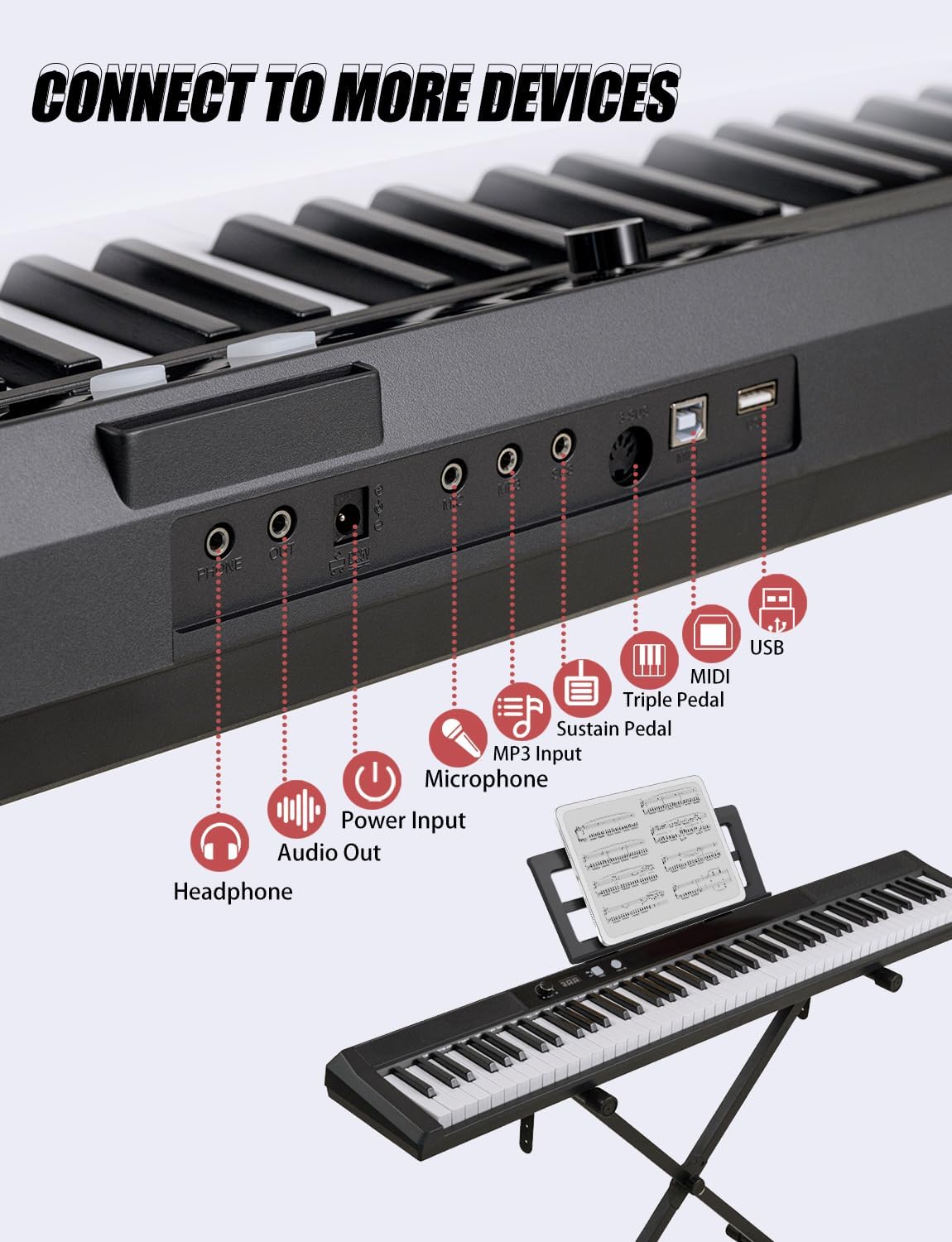
Figure 4: Overview of the piano's rear connection panel.
4. Installing the Music Rest
Insert the music rest into the designated slot on the top panel of the piano. This provides a stable surface for your sheet music or tablet.
Operating Instructions
1. Power On/Off
Press the POWER button to turn the digital piano on or off. The display will illuminate when powered on.
2. Volume Control
Use the VOLUME knob or buttons to adjust the overall sound level. Adjust to a comfortable listening level.
3. Tone, Rhythm, and Demo Selection
The UISCOM digital piano offers a variety of sounds and features:
- TONE: Select from 128 different instrument tones. Use the SELECT knob to browse and choose your desired tone.
- RHYTHM: Choose from 128 preset rhythms to accompany your playing.
- DEMO: Play through 80 built-in demo songs.

Figure 5: Control panel for selecting tones, rhythms, and demo songs.
4. Semi-Weighted Keys
The 88 semi-weighted keys provide a realistic piano feel. The sound intensity varies with the force of your touch, allowing for expressive playing. These keys offer a faster rebound and lighter touch compared to fully weighted keys, which is beneficial for beginners.
5. MIDI & Bluetooth Connectivity
Enhance your musical experience with connectivity options:
- MIDI: Connect the piano to a computer or smartphone via MIDI for seamless integration with music learning software and composition tools.
- Bluetooth: Pair with smart devices to stream audio or use compatible apps.
6. Headphone Usage (Silent Practice Mode)
For private practice without disturbing others, plug headphones into the 3.5mm HEADPHONE jack. The internal speakers will automatically mute.

Figure 6: Enjoy quiet practice sessions with headphones.
7. Recording Function
Use the RECORD button to capture your performances. Press once to start recording, and again to stop. You can then use the PLAY button to listen to your recorded music.
8. Other Functions
Explore additional features for enhanced musical expression:
- Dual Keyboard: Allows splitting the keyboard into two sections for duet playing.
- Metronome: Provides a steady beat for practice.
- Transposition: Change the key of the music without changing your fingering.
- Chord: Auto-chord functionality for accompaniment.
- Split: Divides the keyboard into two independent sections with different tones.
- Touch: Adjust the touch sensitivity of the keys.
Maintenance
To ensure the longevity and optimal performance of your digital piano, follow these maintenance guidelines:
- Cleaning: Use a soft, dry cloth to wipe the surface of the piano. Avoid using abrasive cleaners, waxes, or solvents.
- Storage: When not in use, cover the piano with the provided carrying case to protect it from dust and moisture. Store in a cool, dry place away from direct sunlight or extreme temperatures.
- Handling: Always handle the piano with care. Avoid dropping it or subjecting it to strong impacts.
Troubleshooting
If you encounter any issues with your UISCOM digital piano, please refer to the following common troubleshooting steps:
- No Sound:
- Ensure the power adapter is securely connected and the piano is turned on.
- Check the volume level.
- If headphones are plugged in, unplug them to enable speaker output.
- Keys Not Responding:
- Verify the piano is powered on.
- Ensure no foreign objects are lodged between the keys.
- Distorted Sound:
- Lower the volume to see if distortion is due to excessive volume.
- Check external audio connections (if any) for proper seating.
If the problem persists after trying these steps, please contact UISCOM customer service for further assistance.
Specifications
| Brand | UISCOM |
| Model Number | 2001 |
| Number of Keys | 88 |
| Key Type | Semi-weighted, Velocity-sensitive |
| Tones | 128 |
| Rhythms | 128 |
| Demo Songs | 80 |
| Connectivity | MIDI, Bluetooth, USB, 3.5mm Jack (Headphones, MP3 Input) |
| Power Source | AC adapter |
| Product Dimensions | 9.25"D x 51.2"W x 3.5"H |
| Item Weight | 15 pounds (approx. 18.16 lbs shipping weight) |
| Special Features | Semi-weighted keys, Recording, Dual Tone, Metronome, Transposition, Chord, Split, Touch Sensitivity |
Warranty and Support
UISCOM is committed to 100% customer satisfaction. For any questions, concerns, or warranty claims, please contact our customer support team. Refer to your purchase documentation for specific warranty details.
You can visit the UISCOM Store on Amazon for more information and support.