
Gtheos Captain 800
Gtheos Captain 800 Wireless Gaming Headset User Manual
Model: Captain 800
Introduction
Thank you for choosing the Gtheos Captain 800 Wireless Gaming Headset. This manual provides essential information for setting up, operating, and maintaining your headset to ensure optimal performance and longevity. Please read this manual thoroughly before using the product.
Package Contents
- 1x Gtheos Captain 800 Gaming Headset (Wireless)
- 1x 2-in-1 USB Dongle & Type-C Dongle
- 1x 3.5mm Audio Cable
- 1x USB Charging Cable (Power Cable)
- 1x User Manual (this document)
Product Overview
The Gtheos Captain 800 is an over-ear gaming headset designed for comfort and high-quality audio. It features dynamic RGB lighting, memory material and breathable earmuffs, a 50mm dynamic driver, and an ENC noise-canceling microphone. Connectivity options include 2.4GHz wireless (via USB/Type-C dongle), Bluetooth, and a 3.5mm wired connection. The headset offers over 45 hours of gaming battery life with 24-bit audio precision and clarity.
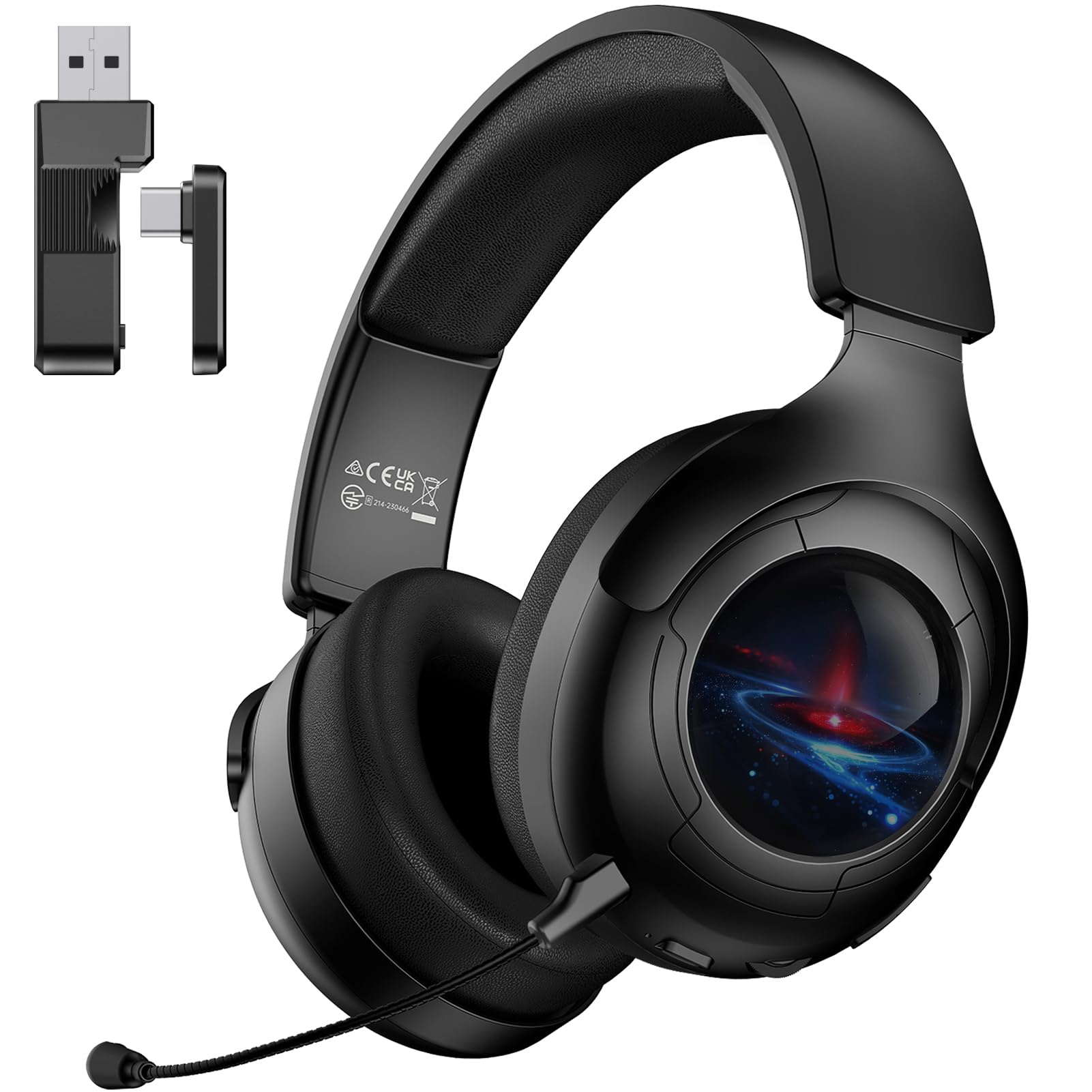
Figure 1: Gtheos Captain 800 Wireless Gaming Headset. This image displays the headset with its dynamic RGB lighting active, showcasing its over-ear design and integrated microphone.
Key Features:
- Dynamic RGB Light: Customizable lighting effects for an immersive gaming experience.
- Memory Material & Breathable Earmuffs: Designed for extended comfort during long gaming sessions.
- 24-Bit Audio Precision and Clarity: High-fidelity audio for detailed soundscapes.
- ENC Noise Canceling Mic: Ensures clear voice communication by reducing background noise.
- 45H+ Gaming Battery Life: Extended usage on a single charge.
- 50mm Dynamic Driver: Delivers powerful and clear audio.
- Multi-Platform Connectivity: 2.4GHz wireless (USB & Type-C dongle), Bluetooth, and 3.5mm wired.
Setup Instructions
1. Charging the Headset
Before first use, fully charge the headset. Connect the supplied USB charging cable to the headset's charging port and the other end to a USB power source (e.g., computer USB port, USB wall adapter). The LED indicator on the headset will show charging status and turn off or change color when fully charged.
2. Connecting to Devices
2.1. 2.4GHz Wireless Connection (USB/Type-C Dongle)
- Insert the 2-in-1 USB/Type-C dongle into an available USB-A or Type-C port on your gaming console (PS5, PS4, Nintendo Switch in docked mode), PC, or laptop.
- Power on the headset. The headset will automatically attempt to connect to the dongle.
- Once connected, the LED indicator on both the headset and dongle will show a stable light.
- On your device, ensure the audio output is set to "Gtheos Captain 800" or similar.
Video 1: This video demonstrates the 2.4GHz wireless connection process, showing the 2-in-1 USB/Type-C dongle being inserted into both USB-A and Type-C ports on various devices, followed by the headset connecting wirelessly.
2.2. Bluetooth Connection
- With the headset powered on, press and hold the Bluetooth pairing button (refer to product diagram for location) until the LED indicator flashes rapidly, indicating pairing mode.
- On your mobile device, PC, or other Bluetooth-enabled device, go to Bluetooth settings and search for available devices.
- Select "Gtheos Captain 800" from the list to pair.
- Once paired, the LED indicator on the headset will show a stable light.
2.3. 3.5mm Wired Connection
- Connect one end of the supplied 3.5mm audio cable to the 3.5mm jack on the headset.
- Connect the other end to the 3.5mm audio output port on your device (e.g., controller, PC, mobile phone).
- In wired mode, the headset's power is not required for audio, but some features like RGB lighting or the microphone may require the headset to be powered on.
Operating Instructions
Power On/Off
- Power On: Press and hold the Power button for approximately 3 seconds.
- Power Off: Press and hold the Power button for approximately 3 seconds.
Volume Control
Use the volume roller or dedicated volume buttons located on the headset (refer to product diagram for exact location) to adjust the audio volume up or down.
Microphone Usage
- The headset features an ENC noise-canceling microphone for clear communication.
- Mute/Unmute: Press the microphone mute button (refer to product diagram) to toggle the microphone on or off. An indicator light on the microphone or headset may show its current status.
- Ensure the microphone is positioned correctly near your mouth for optimal voice pickup.
RGB Lighting Control
The headset features dynamic RGB lighting. A dedicated button (refer to product diagram) may be available to cycle through different lighting modes or turn the lighting on/off. Consult the quick start guide for specific button functions.
Maintenance and Care
- Cleaning: Use a soft, dry cloth to clean the headset. Do not use abrasive cleaners, solvents, or harsh chemicals.
- Storage: Store the headset in a cool, dry place away from direct sunlight, high humidity, and extreme temperatures.
- Battery Care: To prolong battery life, avoid fully discharging the headset frequently. Charge it regularly, even if not in use for extended periods.
- Cable Management: Avoid sharp bends or excessive pulling on the cables to prevent damage.
Troubleshooting
No Audio / Low Volume
- Ensure the headset is powered on and fully charged.
- Check the volume level on both the headset and your connected device.
- For wireless connections, verify the headset is properly paired/connected to the dongle or via Bluetooth.
- For wired connections, ensure the 3.5mm cable is securely plugged into both the headset and the device.
- Confirm the correct audio output device is selected in your device's sound settings.
Microphone Not Working
- Check if the microphone is muted using the mute button on the headset.
- Ensure the microphone is properly attached (if detachable) and positioned correctly.
- Verify the correct microphone input device is selected in your device's sound settings.
- Test the microphone with another application or device to rule out software issues.
Connectivity Issues
- 2.4GHz Wireless: Ensure the dongle is securely inserted and the headset is within range. Try re-pairing if necessary by powering off and on the headset.
- Bluetooth: Ensure Bluetooth is enabled on your device and the headset is in pairing mode. Forget the device from your Bluetooth settings and re-pair if connection fails.
- Avoid sources of interference (e.g., Wi-Fi routers, other wireless devices) that may affect wireless performance.
Specifications
| Model Name | Captain 800 |
| Brand | Gtheos |
| Connectivity Technology | 2.4GHz Wireless, Bluetooth, Wired (3.5mm Jack) |
| Headphones Form Factor | Over Ear |
| Driver Size | 50mm Dynamic Driver |
| Microphone Type | ENC Noise Canceling Mic |
| Battery Life | 45+ Hours (Gaming) |
| Material | Acrylonitrile Butadiene Styrene (ABS), Metal, Leather |
| Control Type | Voice Control (via microphone), Physical Buttons (volume, mute, power) |
| Included Components | Headset, 2-in-1 USB/Type-C Dongle, 3.5mm Cable, Power Cable, User Manual |
| Item Weight | 431 g |
| Color | Black |
Warranty and Support
Gtheos products are designed for reliability and performance. For warranty information, technical support, or customer service inquiries, please refer to the contact information provided on the product packaging or visit the official Gtheos website. Please retain your proof of purchase for warranty claims.
Manufacturer: Gtheos
Related Documents - Captain 800
 |
Captain 300 Wireless Gaming Headset Quick Start Guide A quick start guide for the Captain 300 wireless gaming headset, covering setup, pairing, and troubleshooting for 2.4GHz and Bluetooth connections. |
 |
Gtheos Captain 300 Wireless Gaming Headphones User Manual Comprehensive user manual for the Gtheos Captain 300 2.4GHz wireless and Bluetooth gaming headphones, detailing setup, features, and usage for PC, PlayStation, Xbox, and Nintendo Switch. |
 |
Shenzhen Jiutong zhichuang technology Co., Ltd Model Difference Declaration for Wireless Gaming Headsets Declaration confirming model differences for Shenzhen Jiutong zhichuang technology Co., Ltd wireless gaming headsets, including model numbers, trademarks, and FCC ID. |
Ask a question about this manual
Ask about setup, troubleshooting, compatibility, parts, safety, or missing instructions. Manuals+ will review the question and use this page’s manual context to help answer it.