1. Introduction
This manual provides comprehensive instructions for the installation, operation, and maintenance of your Generic Car Navigation Android TS18 Single Motherboard 6+128. This product is designed as a core component for advanced car infotainment systems, offering Android operating system capabilities with 6GB RAM and 128GB internal storage. Please read this manual thoroughly before installation and use to ensure proper function and longevity of the device.
2. Safety Information
- Professional Installation Recommended: Due to the complex nature of car electronics and the need for precise wiring, professional installation by a qualified technician is strongly recommended.
- Electrical Safety: Ensure the vehicle's power is disconnected before attempting any installation or wiring. Incorrect wiring can cause damage to the motherboard, vehicle electronics, or lead to fire hazards.
- Handling Precautions: The motherboard contains sensitive electronic components. Handle with care, avoiding static electricity discharge. Do not touch exposed circuits.
- Environmental Conditions: Do not expose the device to moisture, extreme temperatures, or direct sunlight for prolonged periods.
- Ventilation: Ensure adequate ventilation around the installed motherboard to prevent overheating.
3. What's in the Box
The product package includes the following item:
- Generic Car Navigation Android TS18 Single Motherboard 6+128 (Motherboard only)
No additional accessories, cables, or mounting hardware are included with this motherboard.
4. Setup and Installation
This section outlines the general steps for installing the TS18 Single Motherboard. Professional installation is highly recommended.
- Preparation: Disconnect the vehicle's battery. Carefully remove existing car navigation or audio components to access the installation area.
- Mounting: The motherboard supports Dashboard Mount and Panel Mount configurations. Secure the motherboard in the designated location within the vehicle's dashboard or panel, ensuring it is stable and has adequate clearance for connections and ventilation.
- Power Connection: Connect the motherboard to the vehicle's power supply according to the wiring diagram provided with your specific car navigation system. Ensure correct polarity and fuse protection.
- Display Connection: Connect the motherboard to the compatible touchscreen display unit using the appropriate display cable.
- Peripheral Connections: Connect other necessary peripherals such as GPS antenna, Wi-Fi antenna, USB devices, audio output, and camera inputs. Refer to the specific port labels on the motherboard.
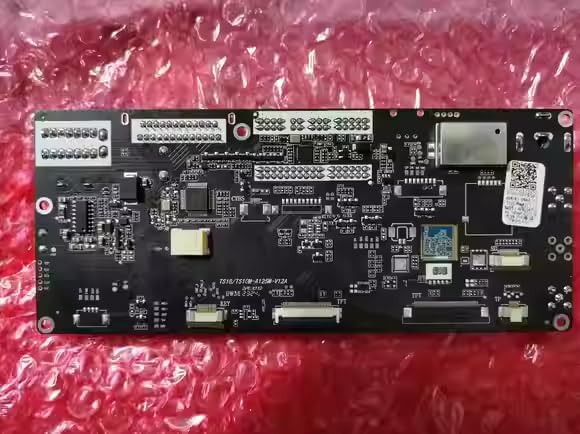
Figure 4.1: Front view of the TS18 Single Motherboard, showing various integrated circuits and connection points.
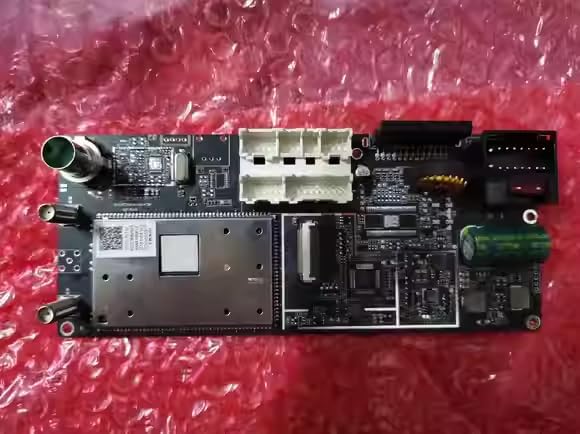
Figure 4.2: Rear view of the TS18 Single Motherboard, highlighting various input/output connectors for power, display, and peripherals.
- Final Checks: Double-check all connections for security and correctness. Reconnect the vehicle's battery.
5. Operating Instructions
Once installed and powered on, the TS18 Single Motherboard will boot into the Android operating system. Interaction is primarily via a connected touchscreen display.
- Power On/Off: The system typically powers on automatically with the vehicle's ignition. To power off, follow the shutdown procedure within the Android system settings or turn off the vehicle's ignition.
- Touchscreen Interface: Navigate the Android interface by tapping, swiping, and pinching on the connected touchscreen display.
- Wi-Fi Connectivity: To connect to a Wi-Fi network, go to Android Settings > Network & Internet > Wi-Fi. Select your desired network and enter the password if required.
- Navigation: The system supports Road map type navigation. Access pre-installed navigation applications or download new ones from the app store. Ensure the GPS antenna has a clear view of the sky for optimal signal reception.
- System Information: You can view detailed system information, including CPU, GPU, memory, and software versions, through the Android settings menu.

Figure 5.1: Example of the Android system information screen, displaying hardware specifications and storage details.
6. Maintenance
- Cleaning: Use a soft, dry, lint-free cloth to clean the motherboard if it becomes dusty. Do not use liquid cleaners or solvents.
- Software Updates: Periodically check for system software updates through the Android settings menu to ensure optimal performance and security.
- Environmental Control: Ensure the operating environment within the vehicle remains within reasonable temperature and humidity ranges to prevent damage to electronic components.
7. Troubleshooting
If you encounter issues with your TS18 Single Motherboard, refer to the following common troubleshooting steps:
| Problem | Possible Cause | Solution |
|---|---|---|
| No Power | Incorrect power connection, blown fuse, vehicle battery low. | Check all power connections. Inspect vehicle fuses. Ensure vehicle battery is charged. |
| No Display | Display cable disconnected, incompatible display, display unit fault. | Verify display cable connection. Ensure display unit is compatible and functional. |
| No Sound | Audio cables disconnected, volume muted, amplifier issue. | Check audio output connections. Adjust volume settings in Android. Verify external amplifier if used. |
| GPS Signal Loss | GPS antenna disconnected, obstructed view of sky, faulty antenna. | Ensure GPS antenna is securely connected and has a clear line of sight to the sky. |
| Wi-Fi Connection Issues | Incorrect password, out of range, Wi-Fi antenna issue. | Verify Wi-Fi password. Move closer to the Wi-Fi source. Check Wi-Fi antenna connection. |
| System Unresponsive | Software glitch, overheating. | Perform a system restart (if possible via power cycle). Ensure adequate ventilation. |
If the problem persists after attempting these solutions, please contact your seller or a qualified service technician for further assistance.
8. Specifications
| Feature | Detail |
|---|---|
| Product Dimensions | 30 x 10 x 20 inches |
| Item Model Number | motherboard 6+128 |
| Brand | Generic |
| Vehicle Service Type | Car |
| Special Feature | Touchscreen (requires compatible display) |
| Connectivity Technology | Wi-Fi |
| Map Type | Road |
| Included Components | Motherboard only |
| Mounting Type | Dashboard Mount, Panel Mount |
| Resolution | 0000 (Actual resolution depends on connected display) |
| Operating System | Android |
| Display Type | Touchscreen (requires compatible display) |
9. Warranty and Support
For warranty information and technical support, please refer to the terms and conditions provided by your retailer or contact the seller directly. Keep your purchase receipt as proof of purchase for any warranty claims.


