
Introduction
The MatataStudio Coding Set Pro is an innovative STEM robot designed for children aged 4 and above to learn early programming concepts through hands-on play. This set provides a screen-free and engaging way for kids to develop problem-solving, critical thinking, creativity, and cooperation skills. By placing physical coding blocks on a control board, children can program the MatataBot to navigate playmats, draw, and even create music, making abstract coding ideas tangible and fun.

This image shows a child placing a coding block onto the control board, with the MatataBot and Command Tower on a playmat, demonstrating the hands-on nature of the coding set.
Package Contents
Your MatataStudio Coding Set Pro includes the following components:
- 1 MatataBot Robot
- 1 Command Tower with Picture Recognition Camera
- 1 Control Board
- 99 Coding Blocks (various types for movement, turns, actions, music)
- 1 Double-Sided Playing Card (Map)
- 3 Family Challenge Books
- 3 Artist Warm-up Cards
- 3 Musician Warm-up Cards
- Obstacles and Flags
- 1 USB-C Cable
- 1 Washable Marker
- 1 User Manual
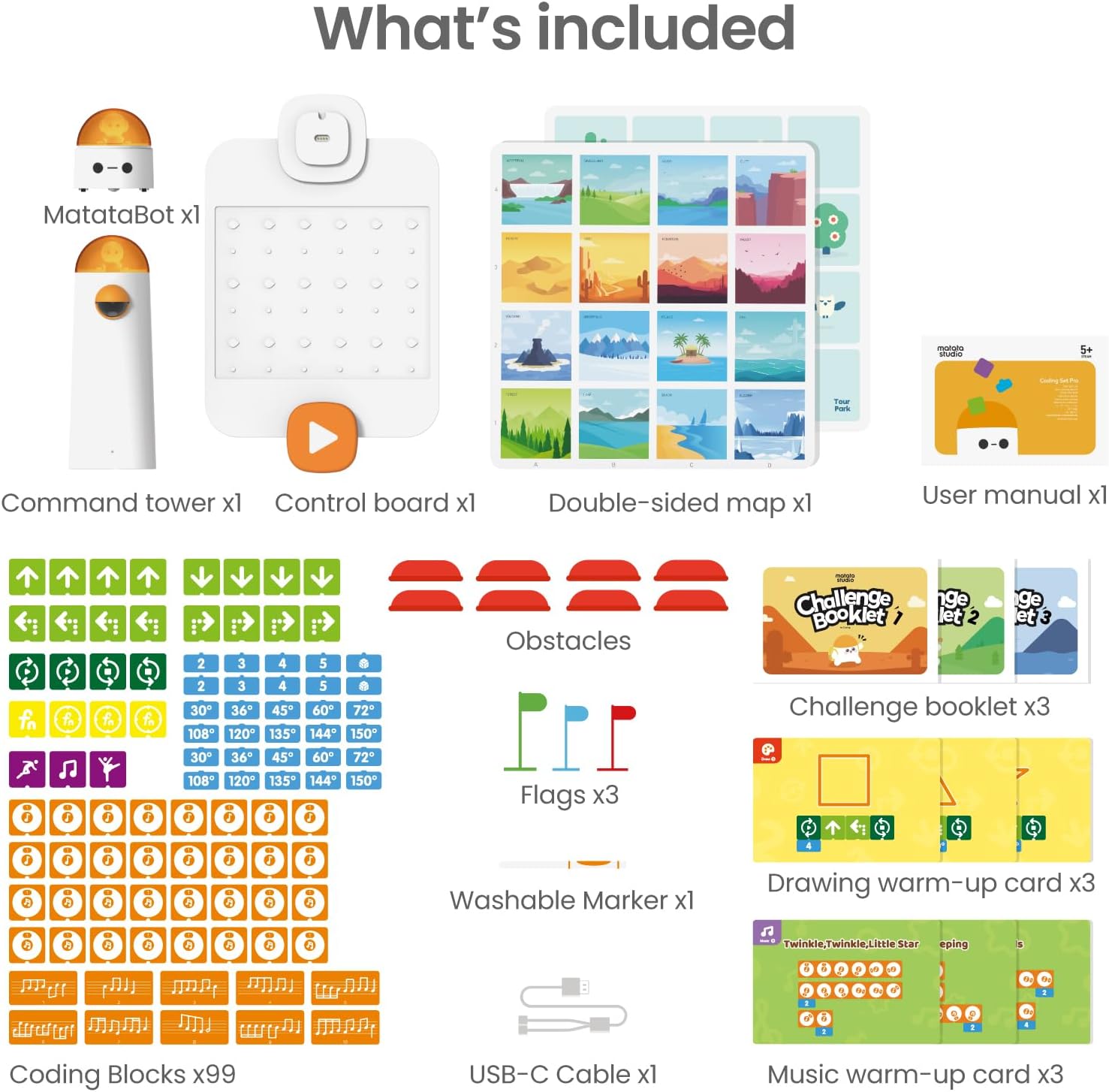
This image displays all the items you will find in your MatataStudio Coding Set Pro package, including the MatataBot, Command Tower, Control Board, a variety of coding blocks, a double-sided map, user manual, obstacles, flags, challenge booklets, drawing warm-up cards, music warm-up cards, a washable marker, and a USB-C cable.
Getting Started
Charging the Devices
Before first use, ensure both the MatataBot and the Command Tower are fully charged. Connect the provided USB-C cable to the charging ports on each device and plug it into a suitable USB power source. An indicator light will show the charging status and turn off when fully charged.
Initial Connection
- Turn on the MatataBot and the Command Tower using their respective power buttons.
- Place the MatataBot on the playing card (map).
- Ensure the Command Tower is placed near the control board. The devices will automatically connect.

This quick guide illustrates the initial steps: 1. Turn on and connect the MatataBot and Command Tower. 2. Plan your robot's route by placing coding blocks on the control board. 3. Press the 'Go' button to execute the code.
Operating Instructions
The MatataStudio Coding Set Pro uses physical coding blocks to control the MatataBot. The Command Tower's camera reads the sequence of blocks placed on the control board and transmits the instructions to the robot.
Basic Coding Concepts
Children will learn fundamental coding concepts such as:
- Sequencing: Arranging commands in a specific order.
- Conditions: Understanding 'if-then' logic (e.g., if obstacle, then turn).
- Debugging: Identifying and correcting errors in a code sequence.

This image shows a selection of the physical coding blocks used to program the MatataBot, each featuring intuitive graphic symbols for movements, turns, and actions.
Creating Paths and Movements
- Identify the desired path or action for the MatataBot on the playing card.
- Select the appropriate coding blocks (e.g., forward, turn left, turn right).
- Place the coding blocks in the correct sequence on the control board.
- Press the 'Go' button on the control board. The Command Tower will scan the blocks, and the MatataBot will execute the programmed movements.
Exploring Geometry
Use the drawing warm-up cards and the washable marker to guide the MatataBot in drawing various geometric shapes. By programming precise movements and turns, children can create squares, triangles, and more complex patterns.

This image demonstrates how to program the MatataBot to draw various geometric shapes, such as a square, a house, and stars, by arranging specific coding blocks for movement and rotation.
Learning Music
With the musician warm-up cards and specific music coding blocks, children can compose simple melodies. Program the MatataBot to play different notes and sequences, introducing them to basic musical concepts through coding.

This image shows the MatataBot and Command Tower with coding blocks arranged to create musical sequences, allowing the robot to play different notes and melodies.
Creative Play and Challenges
The set includes three family challenge books that offer progressive tasks, guiding children from easy to advanced coding scenarios. Additionally, the open-ended nature of the coding blocks encourages free play and imaginative problem-solving, allowing children to create their own games and scenarios.

This collage illustrates diverse ways to engage with the MatataStudio Coding Set Pro, from constructing structures with building blocks to navigating custom-made environments and interacting with figures on the playmat.

This image highlights the 'Endless Fun' aspect, showing the MatataBot programmed with specific coding blocks to perform singing and dancing actions, indicated by musical notes and a dance icon.
Care and Maintenance
- Cleaning: Wipe the MatataBot, Command Tower, and control board with a soft, dry cloth. Avoid using harsh chemicals or abrasive materials.
- Battery Care: Recharge the devices regularly to maintain battery health. Do not expose batteries to extreme temperatures.
- Storage: Store all components in a cool, dry place away from direct sunlight when not in use. Keep coding blocks organized to prevent loss.
- Washable Marker: Ensure the washable marker cap is securely replaced after each use to prevent drying.
Troubleshooting Guide
If you encounter any issues with your MatataStudio Coding Set Pro, please refer to the following common solutions:
- Robot Not Moving:
- Ensure both the MatataBot and Command Tower are powered on and fully charged.
- Verify that the MatataBot is placed correctly on the playing card.
- Check if the coding blocks are securely placed on the control board and are clearly visible to the Command Tower's camera.
- Incorrect Movement:
- Review the sequence of coding blocks on the control board for any errors or misplaced blocks.
- Ensure the playing card is flat and free from obstructions.
- Connection Issues:
- Turn off and restart both the MatataBot and Command Tower.
- Ensure they are within close proximity for optimal connection.
Product Specifications
| Feature | Detail |
|---|---|
| Product Dimensions | 13.86 x 9.72 x 4.41 inches |
| Item Weight | 3.3 pounds |
| ASIN | B0D6BNK414 |
| Item Model Number | Coding Set |
| Manufacturer Recommended Age | 8 - 9 years (Note: Product description suggests 4+) |
| Batteries | 2 Lithium Polymer batteries required (included) |
| Manufacturer | Matatalab |
Warranty Information and Customer Support
The MatataStudio Coding Set Pro comes with a worry-free 12-month warranty from the date of purchase. This warranty covers manufacturing defects and ensures the quality of your product.
For any questions, technical assistance, or warranty claims, please contact MatataStudio customer service. Refer to the contact information provided in the product packaging or visit the official MatataStudio website for support details.