1. Introduction and Overview
The Micsig VATO2004 is a portable, split-type automotive diagnostic oscilloscope designed for field use. It features a 200MHz bandwidth, 4 analog channels, and a 1GSa/s sampling rate, with a 50Mpts memory depth. This device connects to Android platforms or other devices via USB-C, offering a user-friendly interface for various automotive diagnostic tests.

Figure 1.1: Micsig VATO2004 Automotive Oscilloscope main unit.
2. Key Features
- Bandwidth: 200MHz
- Sampling Rate: 1GSa/s
- Memory Depth: 50Mpts
- Analog Channels: 4
- Battery: 7500mAh lithium battery for extended field testing.
- Connectivity: Easy connections to Android tablets, smartphones, and PC computers via USB-C.
- Automotive Tests: Supports various communication tests including Ignition, CAN, Camshaft sensors, cooling fan actuators, and more.
- User Interface: Features a friendly UI design with one-click test functionality and CAN/LIN bus decoding.
2.1. Specifications
| Feature | Specification |
|---|---|
| Model | VATO2004 |
| Max Bandwidth | 200MHz |
| Analog Channels | 4 |
| Rise Time | <1.8ns |
| Max. Sampling Rate | 1GSa/s |
| Memory Depth | 50Mpts |
| DC Gain Accuracy | ≤2% |
| Input Impedance | 1MΩ||14pF |
| Interfaces | USB Type-C, DC power |
| Battery (optional) | 7.4V, 7500mAh Li-ion battery |
| Dimension | 140*215*52mm |
| Net Weight | 640g |
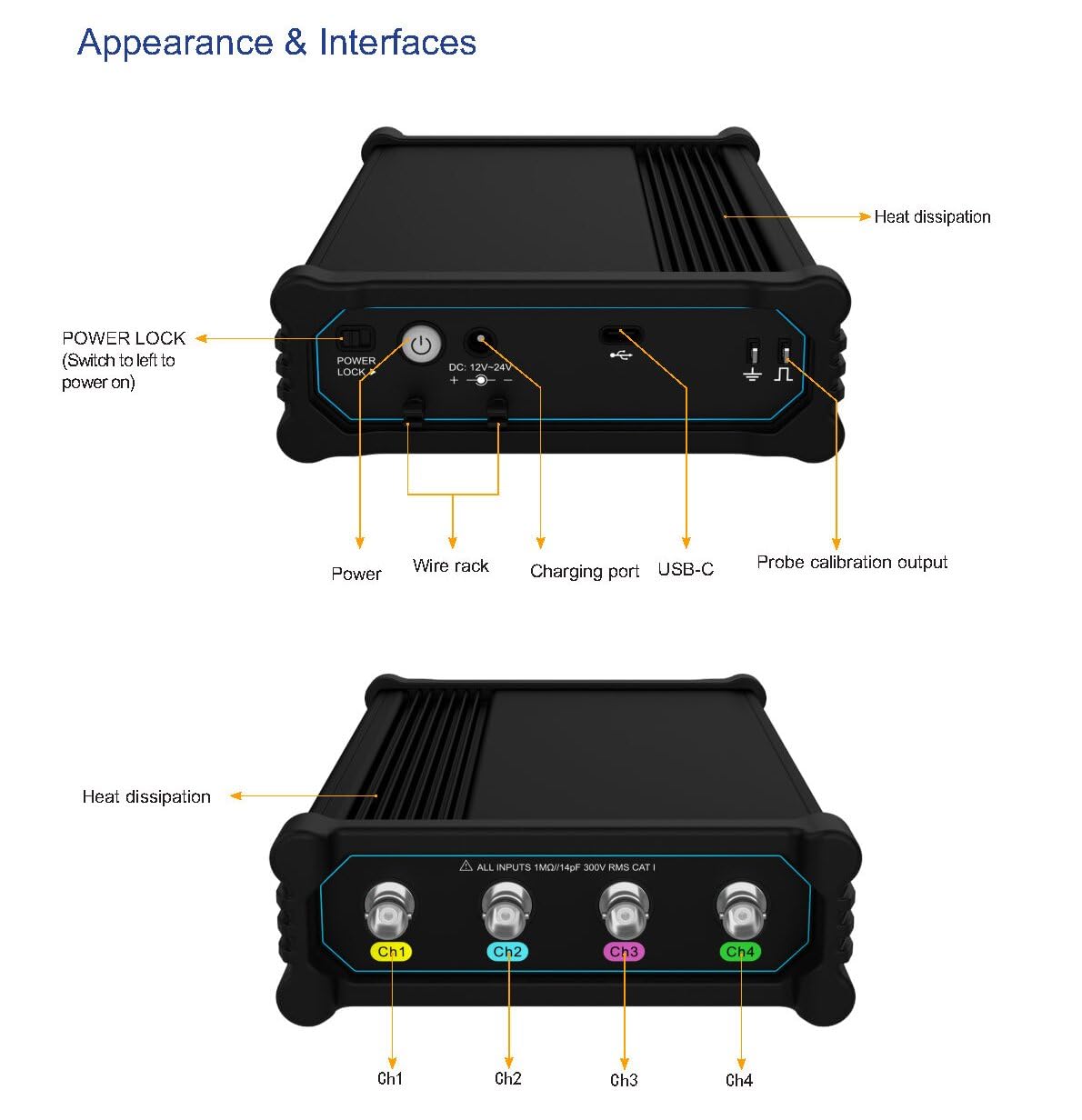
Figure 2.1: Front and rear views of the Micsig VATO2004, highlighting input channels, power, and USB-C ports.
3. Setup and Connections
The VATO2004 oscilloscope is designed for flexible connectivity, allowing it to be used with various Android devices and PC computers via its USB-C port.
3.1. Connecting to a Tablet or Smartphone
- Ensure your Android tablet or smartphone has the Micsig VTO application installed.
- Connect the VATO2004 unit to your device using a USB-C cable.
- Upon connection, your device may prompt you to allow the VTO application to access the USB device. Grant permission to proceed.
- The oscilloscope interface should now be displayed on your device, ready for use.
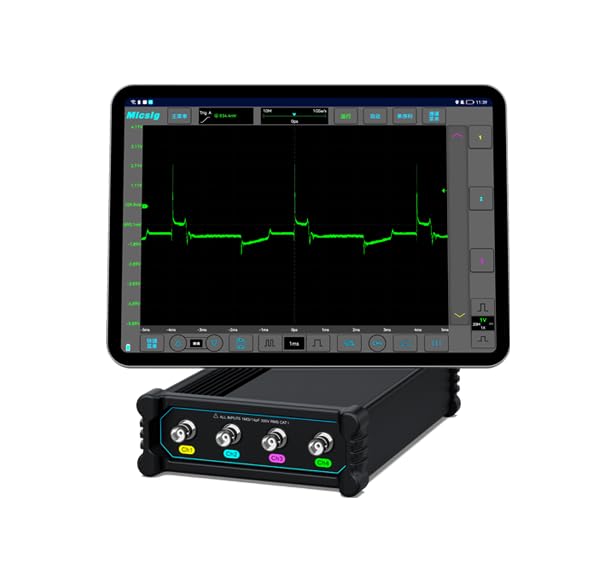
Figure 3.1: VATO2004 connected to a tablet, showing the oscilloscope interface.
3.2. Connecting to a PC Computer
- Install the Micsig VTO software on your PC.
- Connect the VATO2004 unit to your PC using a USB-C cable.
- Launch the Micsig VTO software. The software should detect the connected oscilloscope and display its interface.
3.3. Powering the Device
The VATO2004 can be powered via its DC 12V-24V input or its internal 7500mAh lithium battery. Ensure the power lock switch is in the 'on' position for operation.
Video 3.1: Official Micsig video demonstrating the VTO2004's features, including USB-C connectivity to various devices and its user interface. This video highlights the ease of connecting the oscilloscope to tablets, smartphones, and PCs, and shows the device in operation.
4. Operation
The Micsig VATO2004 offers a streamlined diagnostic experience through its intuitive Android-based application.
4.1. One-Click Test Functionality
The device includes a "One-Click Test" feature for common automotive diagnostic scenarios. Select the desired test item from the menu, and the oscilloscope will automatically configure the settings for the test, simplifying the diagnostic process.

Figure 4.1: Screenshot of the VATO2004 interface showing the "One-Click Test" menu and examples of automotive waveforms such as CAN bus, primary ignition voltage, and carbon canister solenoid valve signals.
4.2. CAN and LIN Bus Decoding
The VATO2004 supports decoding for CAN (Controller Area Network) and LIN (Local Interconnect Network) bus signals. This feature allows for detailed analysis of communication protocols within vehicle systems, aiding in diagnosing network-related issues.
5. Maintenance
To ensure the longevity and optimal performance of your Micsig VATO2004 oscilloscope, follow these general maintenance guidelines:
- Keep the device clean and free from dust and debris. Use a soft, dry cloth for cleaning.
- Store the oscilloscope in a cool, dry place, away from direct sunlight and extreme temperatures.
- Handle probes and cables with care to prevent damage. Inspect them regularly for wear and tear.
- Charge the internal lithium battery regularly, even when not in frequent use, to maintain battery health.
- Avoid exposing the device to liquids or corrosive substances.
6. Troubleshooting
If you encounter issues with your Micsig VATO2004, consider the following common troubleshooting steps:
- No Waveform Display: If the screen shows "Wait" or no waveform appears, ensure the USB-C connection is secure and the device is powered on. Try disconnecting and reconnecting the USB-C cable.
- Software Connection Issues: If the application fails to connect, try restarting both the VATO2004 unit and the application on your tablet/smartphone/PC. Ensure all necessary permissions for USB access are granted.
- Factory Reset: As a last resort for persistent software issues, a factory reset of the oscilloscope settings may resolve the problem. Refer to the application's menu for this option.
- Cable Integrity: Inspect the USB-C cable for any signs of damage. A faulty cable can prevent proper communication.
7. Warranty and Support
For warranty information, technical support, or service inquiries, please refer to the official Micsig website or contact their customer service department. Keep your purchase receipt as proof of purchase for warranty claims.
Manufacturer: Shenzhen Micsig Technology Co., Ltd.


