
Apexcam X80PRO
Apexcam Action Camera X80PRO User Manual
Model: X80PRO
Introduction
This manual provides detailed instructions for the proper use, setup, and maintenance of your Apexcam Action Camera X80PRO. Please read this manual thoroughly before operating the device to ensure optimal performance and longevity.
The Apexcam X80PRO is a high-performance action camera designed to capture your adventures in stunning 4K/60FPS video and 48MP photos. It features a touch screen, built-in WiFi, and is waterproof up to 40 meters with its included housing, making it suitable for a wide range of sports and outdoor activities.
Package Contents
Upon opening the package, verify that all components are present:
- Apexcam X80PRO Action Camera
- Waterproof Housing
- 2 x 1350mAh Rechargeable Batteries
- 64GB SD Card
- External Microphone
- Remote Control
- Mounting Accessories Kit (various mounts, straps, adhesives)
- USB Cable
- User Manual (this document)
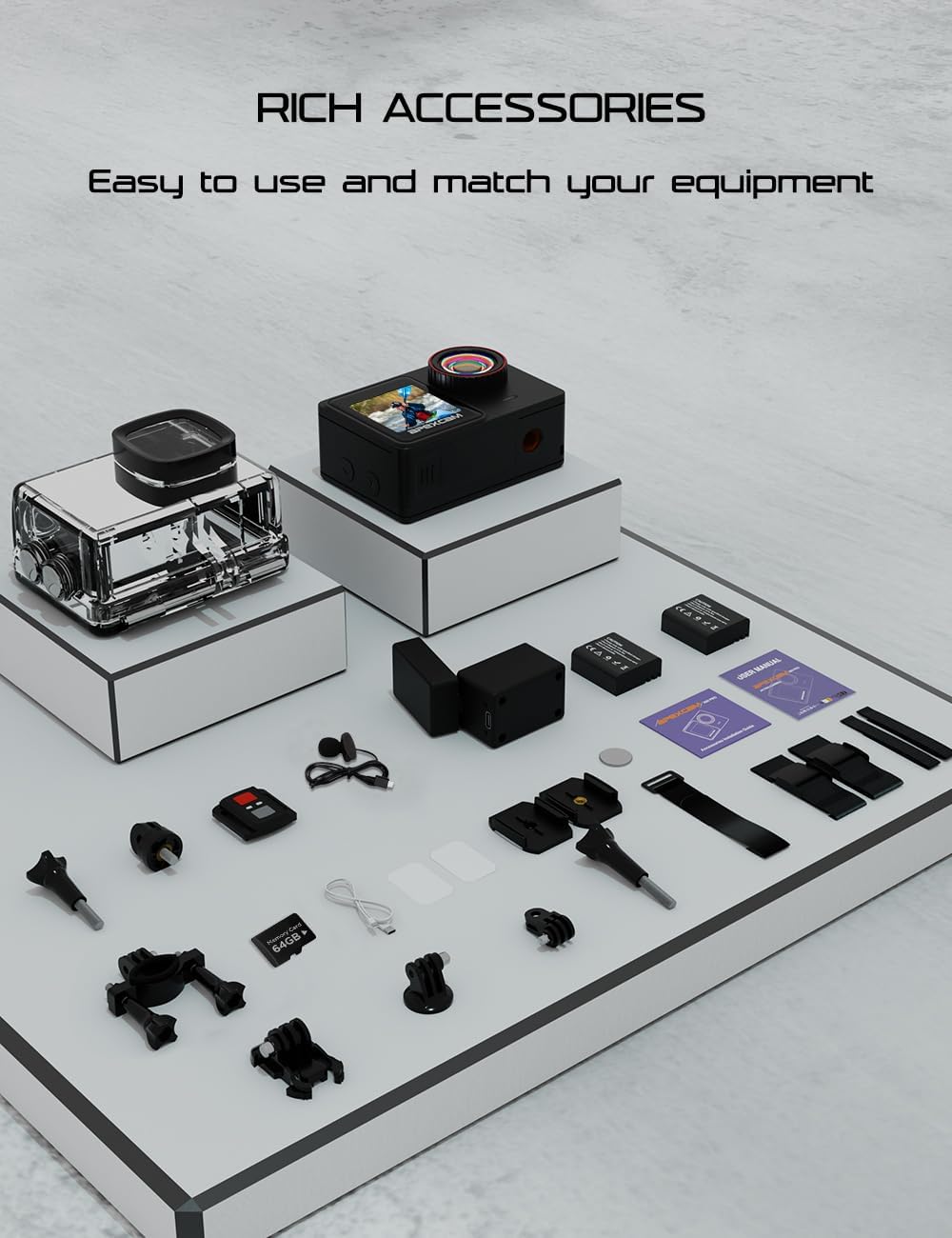
Image: Apexcam X80PRO Action Camera with its comprehensive accessory kit, including batteries, SD card, external microphone, remote control, and various mounting options.
Product Overview
The Apexcam X80PRO features a dual-screen design for versatile shooting and a user-friendly touch interface.

Image: The Apexcam X80PRO Action Camera highlighting its front and rear dual screens, allowing for easy framing whether shooting from the front or back.
Key Features:
- 4K/60FPS Video & 48MP Photos: Capture high-resolution footage and stills.
- Touch Screen: Intuitive control and preview.
- Pre-Rec Mode: Records 5 seconds of video before the shutter button is pressed, ensuring no moment is missed.
- Waterproof up to 40 Meters: With the included waterproof housing, suitable for various water sports.
- Multi-function Camera: Supports loop recording, slow motion, time-lapse, photo lapse, and self-timer delay.
- Long Battery Life: Two 1350mAh batteries provide extended recording time.
- Built-in Wi-Fi: For easy download and sharing via the "LIVE DV" app.
- External Microphone Support: For enhanced audio recording.
Setup
1. Battery Installation and Charging
- Open the battery compartment cover on the bottom of the camera.
- Insert the 1350mAh battery, ensuring the correct orientation.
- Close the battery compartment cover securely.
- Connect the camera to a power source using the provided USB cable to charge the battery. The charging indicator light will illuminate.
- A full charge typically takes approximately 2-3 hours. The indicator light will change or turn off when charging is complete.
2. Micro SD Card Installation
The camera supports Micro SD cards up to 128GB. A 64GB SD card is included.
- Locate the Micro SD card slot on the side of the camera.
- Insert the Micro SD card with the gold contacts facing the back of the camera until it clicks into place.
- To remove, gently push the card in until it clicks, then release. The card will spring out.
- Important: Format the Micro SD card in the camera before first use to ensure compatibility and optimal performance. Navigate to Settings > Format SD Card.
3. Attaching the Waterproof Housing
For underwater use or protection against dust and impact, use the included waterproof housing.
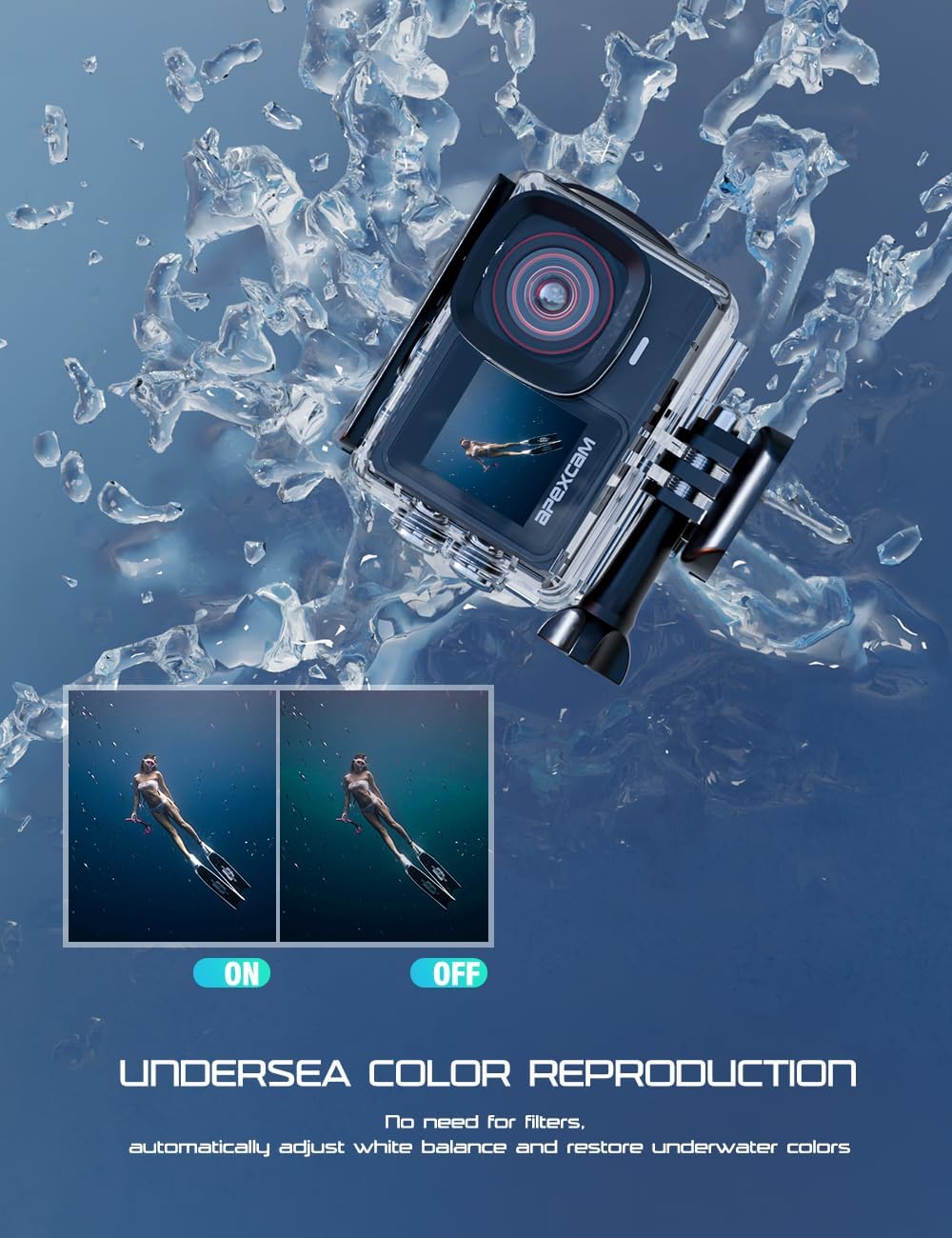
Image: The Apexcam X80PRO Action Camera securely enclosed within its waterproof housing, demonstrating its capability for underwater use.
- Ensure the camera is clean and dry before placing it into the housing.
- Open the latch on the top of the waterproof housing.
- Carefully insert the camera into the housing, ensuring it fits snugly.
- Close the latch firmly until it clicks, creating a watertight seal.
- Pre-dive Check: Before submerging the camera with the housing, perform a leak test by placing the empty housing in water for a few minutes to ensure no water enters.
Operating Instructions
1. Power On/Off
- Power On: Press and hold the Power/Mode button (usually on the front or top) for 3 seconds.
- Power Off: Press and hold the Power/Mode button for 3 seconds.
2. Navigating the Interface
The X80PRO features a responsive touch screen for easy navigation. You can also use the physical buttons.

Image: The Apexcam X80PRO Action Camera's touch screen interface, displaying options for 4K 60FPS video recording and other settings.
- Touch Screen: Swipe left/right to switch between video, photo, and playback modes. Tap icons to access settings or change options.
- Power/Mode Button: Short press to cycle through modes (Video, Photo, Playback, Settings).
- Shutter/OK Button: Press to start/stop recording or take a photo. In menus, it acts as an "OK" button.
- Up/Down Buttons: Navigate through menu options.
3. Recording Video
- Ensure the camera is in Video Mode (indicated by a video camera icon).
- Press the Shutter/OK button to start recording. A red recording indicator will flash.
- Press the Shutter/OK button again to stop recording.
4. Taking Photos
- Switch to Photo Mode (indicated by a camera icon).
- Press the Shutter/OK button to take a photo.
5. Pre-Rec Mode
This feature saves 5 seconds of video before you press the shutter button, ideal for capturing unexpected moments.
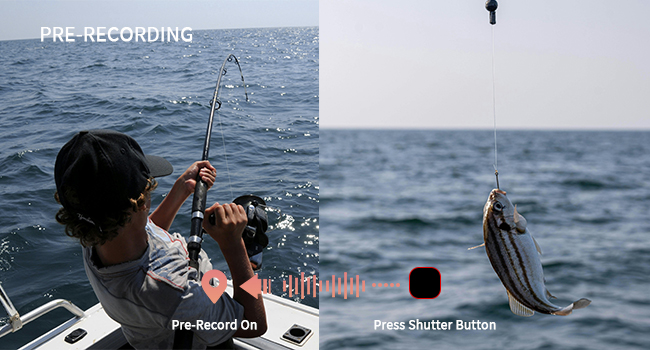
Image: A visual representation of the Pre-Recording feature, showing how the camera continuously buffers video and saves the preceding 5 seconds when the shutter button is pressed, as depicted in a fishing scenario.
- Enable Pre-Rec Mode in the camera settings.
- When enabled, the camera continuously buffers video. When you press the Shutter button, it will save the current recording along with the previous 5 seconds.
6. Wi-Fi Connectivity
Connect your camera to a smartphone or tablet via Wi-Fi using the "LIVE DV" app for remote control, live preview, and file transfer.
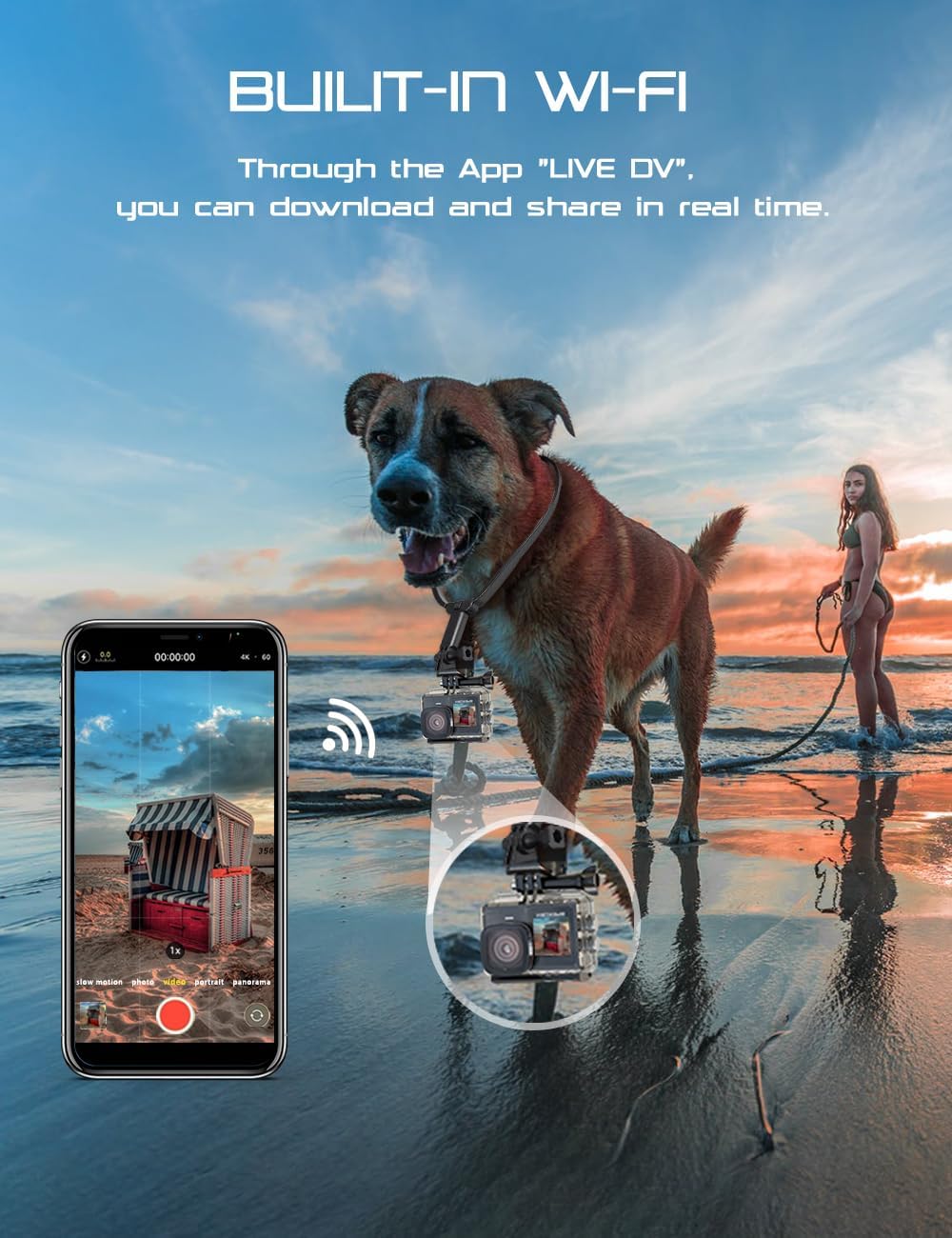
Image: The Apexcam X80PRO Action Camera wirelessly connected to a smartphone, demonstrating the built-in Wi-Fi feature for remote control and content sharing.
- Download the "LIVE DV" app from your device's app store.
- On the camera, enable Wi-Fi (usually found in settings or by a dedicated Wi-Fi button). The camera's Wi-Fi name and password will appear on the screen.
- On your smartphone/tablet, go to Wi-Fi settings and connect to the camera's Wi-Fi network using the provided password.
- Open the "LIVE DV" app. You can now control the camera, view live footage, and download files.
7. Using the Remote Control
The included remote control allows for convenient operation from a distance.
- Ensure the remote control battery is installed.
- Pair the remote control with the camera (refer to camera settings for pairing instructions, typically found under "Remote Control" or "Wireless").
- Use the dedicated buttons on the remote to start/stop recording or take photos.
8. Special Modes
The Apexcam X80PRO offers various shooting modes to enhance your creative possibilities.
- Slow Motion: Records video at a higher frame rate, allowing for smooth slow-motion playback.

Image: A visual example of slow motion, showing blurred movement of people cycling, illustrating the effect of capturing fast action in detail.
- Time-Lapse: Captures a series of photos at set intervals and stitches them into a video, ideal for showing gradual changes.

Image: A time-lapse photograph showing star trails across the night sky above a mountain, demonstrating the camera's capability for capturing long-duration events.
- Burst Photo: Takes multiple photos in quick succession, perfect for capturing fast-moving action.

Image: A sequence of burst photos capturing a skier in mid-air, illustrating the camera's ability to freeze fast-paced action in multiple frames.
- Loop Recording: Records video continuously, overwriting the oldest files when the memory card is full.
- Photo Lapse: Similar to time-lapse but saves individual photos instead of a video.
- Self-timer Delay: Sets a delay before a photo is taken.
Maintenance
1. Cleaning the Camera and Housing
- After each use, especially in saltwater, rinse the waterproof housing with fresh water and allow it to air dry.
- Use a soft, lint-free cloth to clean the camera lens and screens. Avoid abrasive materials.
- For stubborn smudges, a lens cleaning solution designed for optics can be used sparingly.
2. Battery Care
- Store batteries in a cool, dry place when not in use.
- Do not expose batteries to extreme temperatures or direct sunlight.
- If storing for extended periods, charge batteries to approximately 50% capacity.
3. SD Card Care
- Always format the SD card in the camera, not on a computer, for best compatibility.
- Avoid removing the SD card while the camera is powered on or recording.
- Regularly back up your footage to a computer or external storage device.
Troubleshooting
| Problem | Possible Cause | Solution |
|---|---|---|
| Camera does not power on. | Battery is dead or not inserted correctly. | Charge the battery. Reinsert the battery correctly. |
| Cannot record video/take photos. | SD card is full, corrupted, or not inserted. | Insert a valid SD card. Format the SD card. Delete old files to free space. |
| Poor video/photo quality (choppy, grainy). | Incorrect resolution/frame rate settings. Low light conditions. SD card speed. | Adjust settings to 4K/60FPS. Ensure adequate lighting. Use a high-speed (U3 or V30) SD card. |
| Wi-Fi connection issues. | Incorrect password. Distance from camera. App issues. | Re-enter password. Stay within Wi-Fi range. Restart camera and app. |
| Camera freezes or becomes unresponsive. | Software glitch. | Remove and reinsert the battery to force a restart. |
Specifications
| Feature | Detail |
|---|---|
| Brand | Apexcam |
| Model Number | X80PRO |
| Video Resolution | 4K/60FPS |
| Photo Resolution | 48MP |
| Waterproof Depth | Up to 40 meters (with waterproof housing) |
| Screen Size | 2 Inches (visible screen diagonal) |
| Battery Capacity | 2 x 1350mAh Lithium Ion |
| Connectivity | Wi-Fi |
| Storage | Micro SD (up to 128GB, 64GB included) |
| Dimensions | 2.49 x 1.65 x 1.21 inches |
| Weight | 1.08 pounds |
| Special Features | Touch Screen, Pre-Rec Mode, External Microphone Support, Dual Screen |
Warranty and Support
Apexcam is committed to providing high-quality products and excellent customer service. For warranty information and technical support, please refer to the following:
- Warranty: Please retain your proof of purchase for warranty claims. Specific warranty terms may vary by region.
- Customer Support: For assistance with product setup, troubleshooting, or general inquiries, please visit the official Apexcam website or contact their customer service team.
- Online Resources: Additional FAQs and support resources may be available on the Apexcam brand store: Apexcam Store on Amazon.
Related Documents - X80PRO
 |
Apexcam X60 Pro Action Camera User Manual Explore the full capabilities of your Apexcam X60 Pro action camera with this detailed user manual. Learn about setup, video and photo settings, modes, connectivity, and accessories for capturing your adventures. |
 |
Apexcam M80 Action Camera User Manual This user manual provides comprehensive instructions for operating the Apexcam M80 Action Camera. It covers safety precautions, setup, basic operations like taking photos and videos, WiFi connectivity, settings, playback, remote control usage, waterproof case instructions, and troubleshooting tips. |
 |
ApexCam M80 Air Action Camera User Manual and Guide Comprehensive guide to the ApexCam M80 Air action camera, covering setup, modes, settings, app connectivity, battery, waterproof case, and remote operation. Learn how to use your camera effectively for all your adventures. |
 |
Apexcam M90 Action Camera User Manual Comprehensive user manual for the Apexcam M90 Action Camera, detailing setup, operation, features, safety precautions, and troubleshooting. |
 |
ApexCam M80 Air Action Camera User Manual User manual for the ApexCam M80 Air action camera, covering setup, features, settings, connectivity, and troubleshooting. |
 |
ApexCam M80 Air Action Camera User Manual Comprehensive user manual for the ApexCam M80 Air action camera, detailing setup, operation, video and photo settings, system configurations, WiFi connectivity, and remote control usage. |