
HP TPN-Q221
HP Portable Laptop User Manual
Model: TPN-Q221
1. Introduction
Welcome to the user manual for your new HP Portable Laptop. This guide provides essential information to help you set up, operate, maintain, and troubleshoot your device. Please read this manual thoroughly to ensure optimal performance and longevity of your laptop.
Your HP Portable Laptop features a 14-inch HD display, an Intel Quad-core processor, 8GB RAM, and a 128GB SSD, running on Windows 11 Home. It is designed for everyday productivity and entertainment.
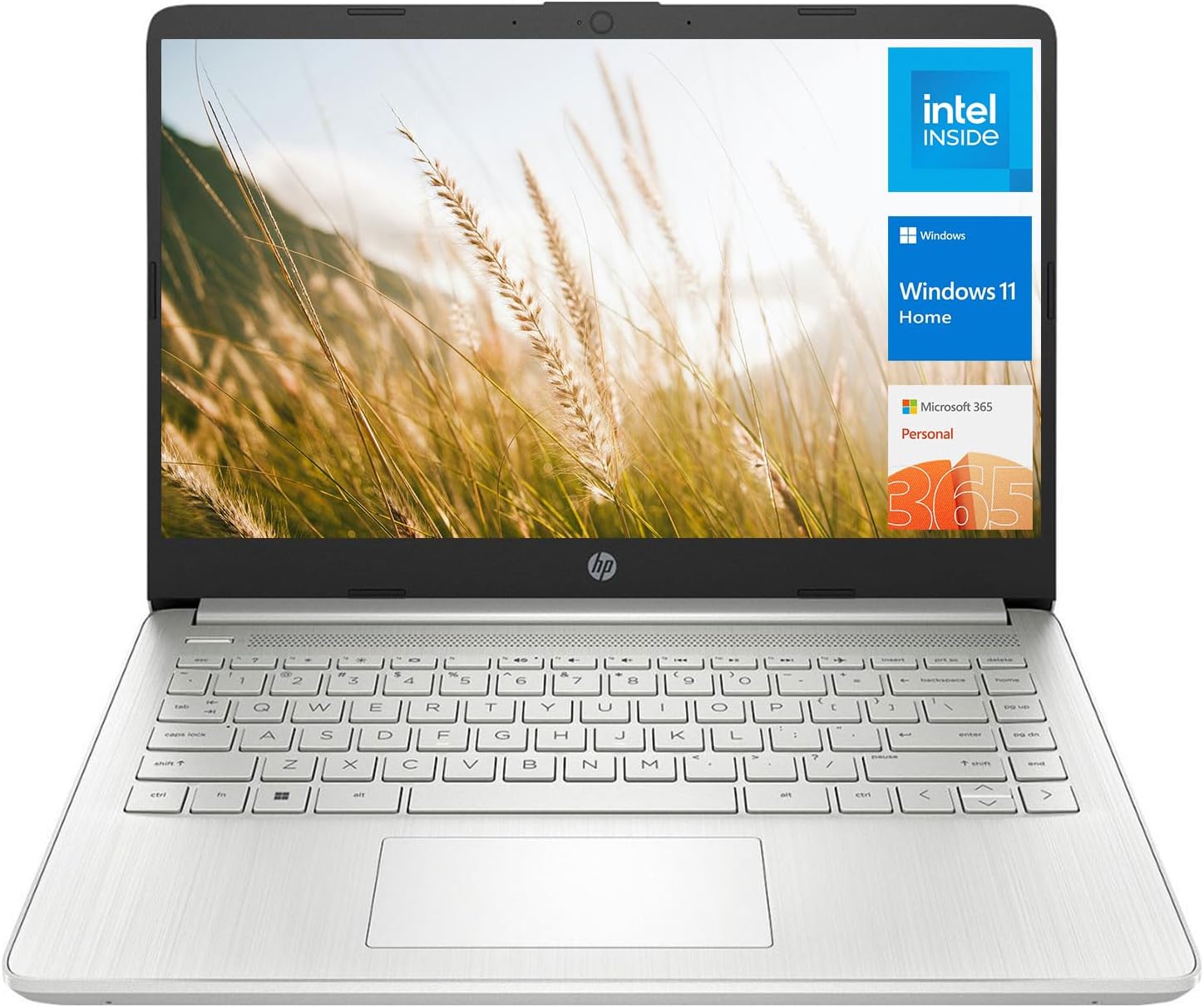
Figure 1.1: Front view of the HP Portable Laptop, showcasing its sleek design and display.
2. Safety Information
To prevent injury or damage to your laptop, please observe the following safety precautions:
- Do not expose the laptop to extreme temperatures, humidity, or direct sunlight.
- Use only the original power adapter and battery provided with your laptop.
- Avoid placing heavy objects on the laptop or dropping it.
- Keep liquids away from the laptop to prevent electrical short circuits.
- Do not attempt to disassemble or repair the laptop yourself. Refer to qualified service personnel.
- Ensure proper ventilation to prevent overheating. Do not block air vents.
3. Initial Setup
3.1 Unboxing and First Power On
- Carefully remove the laptop and all accessories from the packaging.
- Connect the AC adapter to the laptop's power port (AC smart pin) and then plug it into a power outlet.
- Open the laptop lid. The laptop may power on automatically, or you may need to press the power button.
- Follow the on-screen instructions to complete the Windows 11 Home setup, including language selection, network connection, and user account creation.
3.2 Understanding Your Laptop's Ports
Familiarize yourself with the various ports available on your HP Portable Laptop:

Figure 3.1: Overview of the laptop's connectivity ports.
- Multi-format SD media card reader: For inserting SD cards.
- AC smart pin: For connecting the power adapter.
- HDMI 1.4b: For connecting to external displays or projectors.
- USB Type-A (5Gbps signaling rate): Two ports for connecting USB devices like mice, keyboards, or external drives.
- USB Type-C (5Gbps signaling rate): One port for connecting compatible USB-C devices.
- Headphone/microphone combo: For connecting headphones, speakers, or a headset with a microphone.
4. Operating Your Laptop
4.1 Basic Operations
- Power On/Off: Press the power button to turn on. To shut down, click the Start button, then Power > Shut down.
- Sleep Mode: Close the lid or click Start > Power > Sleep to enter sleep mode.
- Using the Touchpad: The integrated touchpad supports multi-touch gestures for navigation.
- Keyboard Functions: Utilize function keys (F1-F12) for quick access to settings like volume, brightness, and Wi-Fi.
4.2 Connecting to Wi-Fi
- Click the Wi-Fi icon in the taskbar (bottom right corner).
- Select your desired Wi-Fi network from the list.
- Enter the network security key (password) if prompted, then click "Next" or "Connect".
4.3 Using External Devices
You can connect various external devices to your laptop:
- USB Devices: Plug USB flash drives, external hard drives, or printers into the USB Type-A or Type-C ports.
- External Display: Connect a monitor or TV using an HDMI cable to the HDMI 1.4b port.
- Audio Devices: Plug headphones or external speakers into the headphone/microphone combo jack.

Figure 4.1: The laptop in a typical work environment, demonstrating multi-tasking capabilities.

Figure 4.2: The laptop being used for video communication or entertainment.
5. Maintenance and Care
5.1 Cleaning Your Laptop
- Screen: Use a soft, lint-free cloth slightly dampened with water or a screen cleaner. Do not spray liquid directly onto the screen.
- Keyboard and Chassis: Use a soft cloth to wipe surfaces. For stubborn dirt, a slightly damp cloth can be used. Avoid abrasive cleaners.
- Vents: Use compressed air to clear dust from the ventilation openings.
5.2 Battery Care
- Avoid completely discharging the battery frequently.
- Store the laptop in a cool, dry place if not used for extended periods.
- It is recommended to keep the battery charge between 20% and 80% for optimal longevity.
5.3 Software Updates
Regularly update your Windows operating system and drivers to ensure security, performance, and compatibility.
- Windows Updates: Go to Settings > Windows Update and check for updates.
- Driver Updates: Visit the official HP support website for the latest drivers for your model.
6. Troubleshooting
This section addresses common issues you might encounter with your laptop.
| Problem | Possible Cause | Solution |
|---|---|---|
| Laptop does not power on. | No power, discharged battery, faulty power adapter. | Ensure AC adapter is securely connected and power outlet is working. Charge battery for at least 30 minutes before attempting to power on. |
| No Wi-Fi connection. | Wi-Fi disabled, incorrect password, router issue. | Check Wi-Fi settings in Windows. Verify Wi-Fi password. Restart your router and modem. |
| Screen is blank or flickering. | Display driver issue, external monitor conflict, hardware problem. | Try pressing Fn + F4 (or similar display toggle key). Update graphics drivers. If using an external monitor, disconnect it. |
| Laptop is running slow. | Too many programs running, low disk space, malware. | Close unnecessary applications. Free up disk space. Run a virus scan. Check for Windows updates. |
For more complex issues, please refer to the HP support website or contact customer service.
7. Technical Specifications
Below are the detailed specifications for your HP Portable Laptop (Model TPN-Q221):

Figure 7.1: Processor performance overview.

Figure 7.2: Physical dimensions and weight of the laptop.
| Component | Specification |
|---|---|
| Processor | Intel Pentium Silver N5030 (4 Cores, 4 Threads, 4MB L2 Cache, up to 3.1 GHz) |
| RAM | 8GB DDR4 3200 MHz |
| Storage | 128GB PCIe NVMe M.2 SSD |
| Display | 14-inch HD (1366 x 768), micro-edge, anti-glare |
| Graphics | Intel UHD Graphics (Integrated) |
| Operating System | Windows 11 Home |
| Wireless Connectivity | Wi-Fi (802.11ax) |
| Ports | 1x Multi-format SD media card reader, 1x AC smart pin, 1x HDMI 1.4b, 2x USB Type-A (5Gbps), 1x USB Type-C (5Gbps), 1x Headphone/microphone combo |
| Webcam | Integrated Webcam |
| Dimensions (WxDxH) | 12.76 x 8.86 x 0.71 inches |
| Weight | 3.24 lbs |
| Color | Silver |
8. Warranty and Support
Your HP Portable Laptop comes with a standard manufacturer's warranty. For detailed warranty terms and conditions, please refer to the documentation included with your purchase or visit the official HP support website.
For technical assistance, driver downloads, or service inquiries, please visit the HP Support website:
Please have your laptop's serial number and model number (TPN-Q221) ready when contacting support.
Ask a question about this manual
Ask about setup, troubleshooting, compatibility, parts, safety, or missing instructions. Manuals+ will review the question and use this page’s manual context to help answer it.