
1. Introduction
This user manual provides comprehensive instructions for the KUIIYER Bluetooth Barcode Scanner, Model U2-B. Please read this manual carefully before using the device to ensure proper operation and to maximize its performance and lifespan. This scanner is designed for efficient and accurate barcode reading in various environments.

Image 1.1: KUIIYER Bluetooth Barcode Scanner, showing the scanner unit, USB charging cable, and 2.4G wireless dongle.
2. Package Contents
Verify that all items are present in the package:
- KUIIYER Bluetooth Barcode Scanner (Model U2-B)
- USB Charging Cable
- 2.4G Wireless USB Dongle
- Quick Start Guide (refer to this manual for detailed instructions)
3. Product Overview
The KUIIYER Bluetooth Barcode Scanner features an 800 x 600 pixel CMOS image sensor for accurate and fast scanning of various barcode types. It offers multiple connectivity options and scanning modes to suit diverse operational needs.

Image 3.1: Key components of the scanner, including the 800x600 pixel CMOS scanning window, built-in auxiliary light, scan button, USB charging port, Bluetooth receiver, indicator light, buzzer, and 2000 mAh battery. Dimensions are 3.7 inches (9.5cm) length and 6.3 inches (16cm) height.
Key Features:
- Advanced CMOS Sensor: 800 x 600 pixel CMOS for 1D, 2D, QR, and screen code scanning.
- Multiple Connectivity: Bluetooth, 2.4GHz Wireless, and USB Wired connections.
- Long Battery Life: 2000mAh Lithium Ion battery for extended use.
- Versatile Scanning Modes: Manual Trigger, Auto-sensing Scan, and Continuous Scan.
- Data Storage: Storage mode for up to 50,000 barcodes.
- Durable Design: IP54 dust and waterproof rating, shockproof against 1.5m (5ft) drops.
- Multi-language Support: Supports 32 languages.
4. Setup and Connection
4.1 Charging the Scanner
Before first use, fully charge the scanner. Connect the USB charging cable to the scanner's USB port and the other end to a power adapter (not included) or a computer's USB port. The indicator light will show charging status.
4.2 Connection Modes
The scanner supports three connection methods:
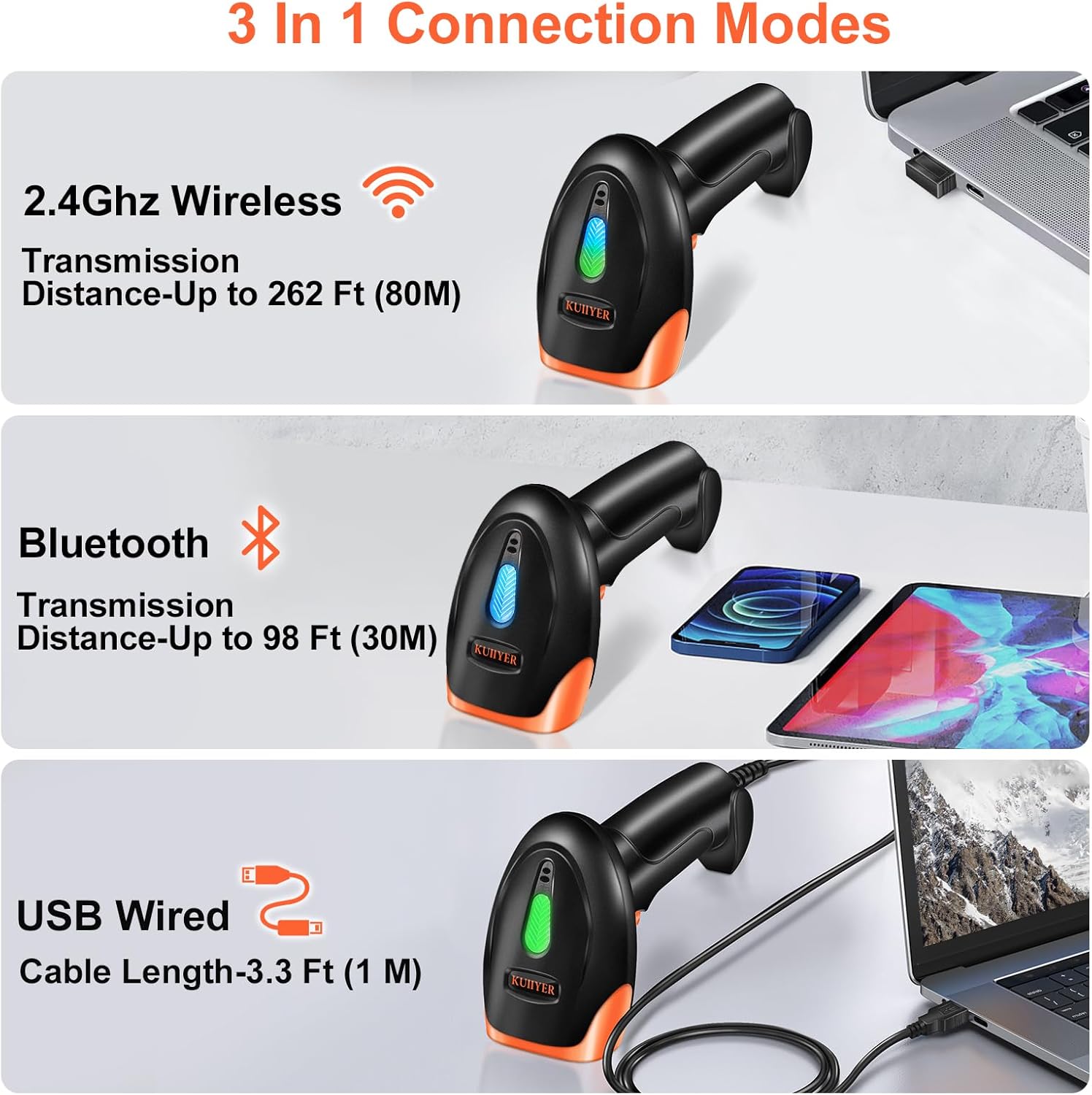
Image 4.1: Visual representation of the three connection options: 2.4GHz Wireless (up to 262 ft/80m), Bluetooth (up to 98 ft/30m), and USB Wired (3.3 ft/1m cable length).
- 2.4GHz Wireless Connection:
- Insert the 2.4G wireless USB dongle into an available USB port on your computer or POS system.
- Turn on the scanner. It should automatically connect to the dongle. The indicator light will confirm connection.
- This mode offers a transmission distance of up to 262 feet (80 meters).
- Bluetooth Connection:
- Ensure the scanner is powered on.
- On your device (smartphone, tablet, computer), enable Bluetooth and search for available devices.
- Select "KUIIYER Scanner" (or similar name) from the list to pair.
- The scanner's indicator light will change to confirm successful pairing.
- This mode supports devices like iPad, iPhone, Android, and offers a transmission distance of up to 98 feet (30 meters).
- Note: If the scanner times out and shuts off, you may need to manually reconnect it from your device's Bluetooth settings.
- USB Wired Connection:
- Connect the scanner directly to your computer or POS system using the provided USB cable.
- The scanner will function as a plug-and-play device, requiring no additional drivers.
- This mode also charges the scanner.
5. Operating Instructions
5.1 Scanning Barcodes
Point the scanner's window at the barcode and press the scan button. The scanner will emit a light beam to read the barcode. A successful scan is typically indicated by a beep and a change in the indicator light.

Image 5.1: The scanner's CMOS technology supports various barcode types including UPC/EAN, Code-128, QR, Data Matrix, as well as fuzzy, damaged, curved, screen, and colorful codes.
5.2 Scanning Modes
The scanner offers three operational modes, which can be configured by scanning specific setup codes (refer to the physical manual for these codes):
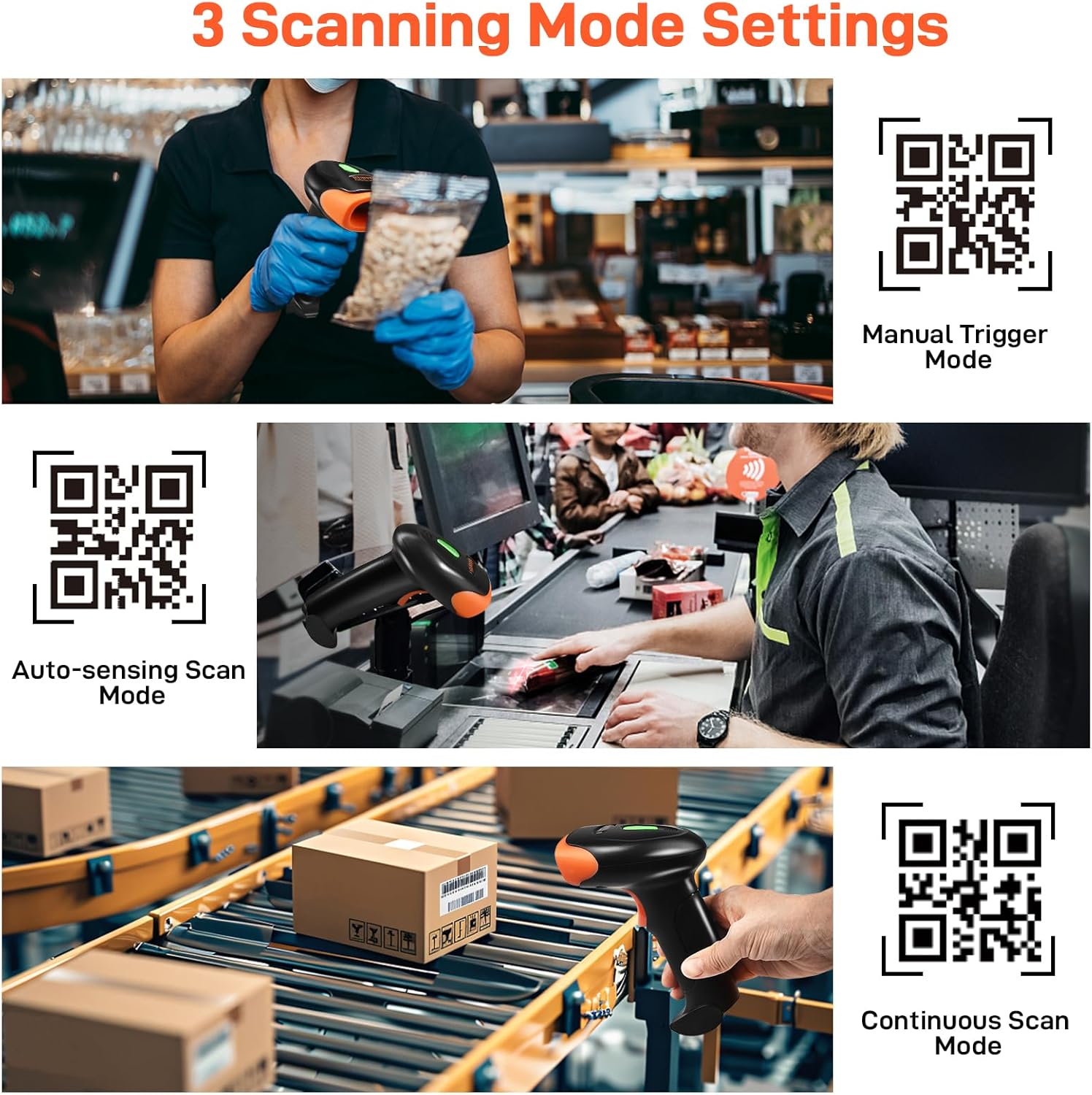
Image 5.2: Depicts the three available scanning modes: Manual Trigger Mode (scan upon button press), Auto-sensing Scan Mode (scans when a barcode is presented), and Continuous Scan Mode (scans continuously).
- Manual Trigger Mode: The scanner reads a barcode only when the scan button is pressed.
- Auto-sensing Scan Mode: The scanner automatically detects and reads a barcode when it is presented within its scanning range.
- Continuous Scan Mode: The scanner continuously emits a scan beam and reads any barcode it detects.
5.3 Data Uploading Modes
The scanner supports two methods for uploading scanned data:
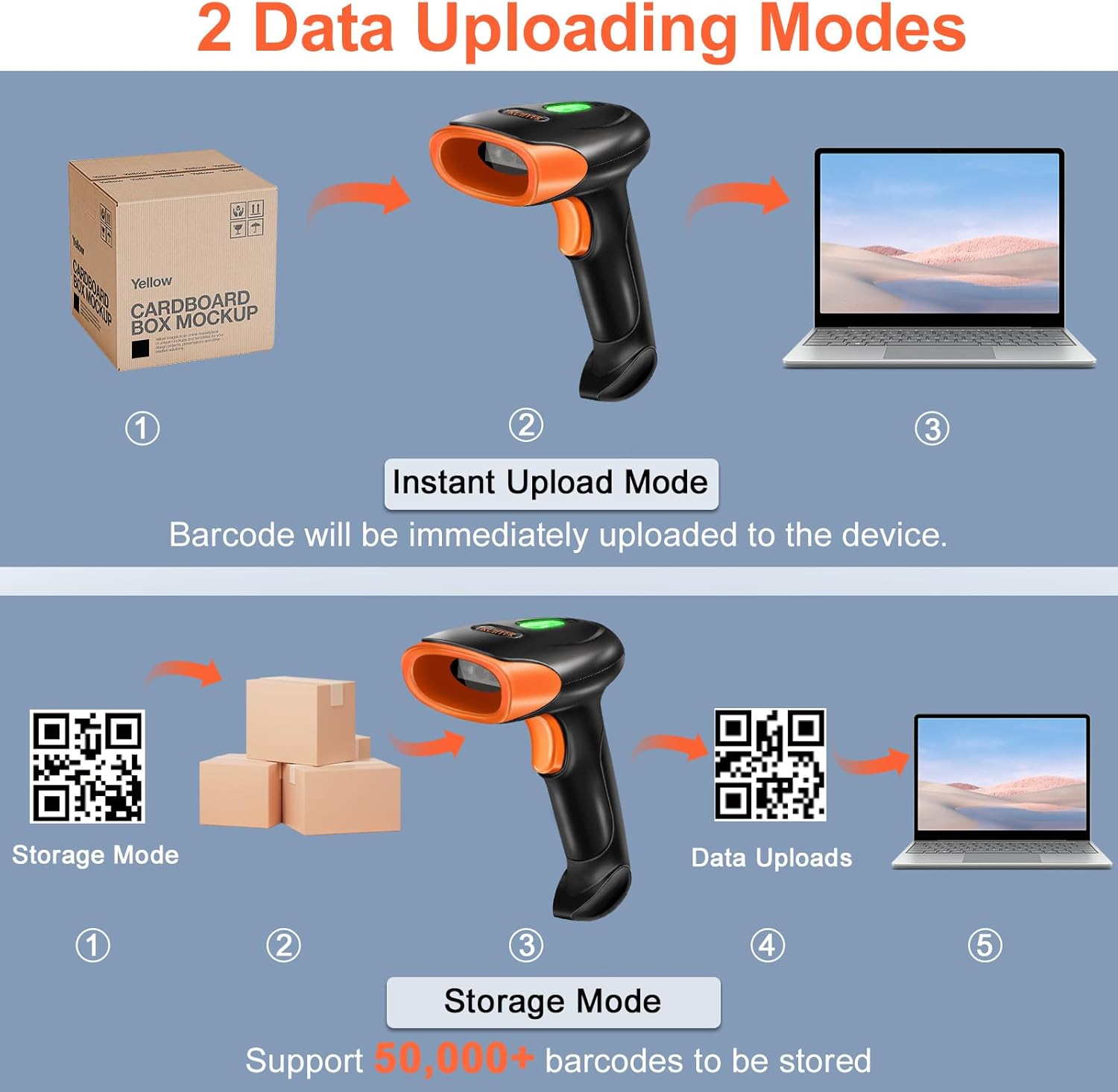
Image 5.3: Illustrates Instant Upload Mode, where barcodes are immediately sent to the connected device, and Storage Mode, which allows storing over 50,000 barcodes internally before uploading.
- Instant Upload Mode: Barcodes are transmitted to the connected device immediately after scanning. This is the default mode.
- Storage Mode: Scanned barcodes are stored in the scanner's internal memory. The scanner can store over 50,000 barcodes. Data can be uploaded to the connected device later by scanning a specific upload code (refer to the physical manual).
6. Maintenance
6.1 Cleaning
To maintain optimal performance, keep the scanner's scanning window clean. Use a soft, dry, lint-free cloth to gently wipe the surface. Avoid using abrasive cleaners or solvents that could damage the device.
6.2 Battery Care
The scanner is equipped with a 2000mAh Lithium Ion battery. For best battery life:
- Avoid fully discharging the battery frequently.
- Charge the scanner regularly, even if not in constant use.
- Store the scanner in a cool, dry place when not in use for extended periods.
6.3 Durability
The scanner features an IP54 dust and waterproof rating and is designed to withstand drops from up to 1.5 meters (5 feet). While durable, avoid intentional drops or exposure to extreme conditions to prevent damage.

Image 6.1: The scanner's high-strength ABS+PC material shell provides shockproof and drop-proof performance, supporting drops up to 1.5m/5ft. It also highlights support for multiple languages including English, Spanish, German, Japanese, French, Italian, and Polish.
7. Troubleshooting
| Problem | Possible Cause | Solution |
|---|---|---|
| Scanner does not turn on. | Low battery. | Charge the scanner using the provided USB cable. |
| Scanner not connecting via Bluetooth. | Scanner timed out; device Bluetooth off; incorrect pairing. | Ensure scanner is on. Check device's Bluetooth settings. Re-pair if necessary. If scanner timed out, manually reconnect from device's Bluetooth settings. |
| Scanner not connecting via 2.4GHz wireless. | Dongle not properly inserted; scanner out of range. | Ensure dongle is securely inserted. Move scanner closer to the dongle. |
| Scanner not reading barcodes. | Barcode damaged/unclear; incorrect scanning mode; scanner window dirty. | Ensure barcode is clear. Try different scanning modes. Clean the scanning window. |
| Data not uploading in Instant Upload Mode. | Not properly connected to device; device not ready to receive input. | Verify connection (Bluetooth, 2.4G, USB). Ensure the target application on your device is active and ready for input. |
8. Specifications
| Feature | Detail |
|---|---|
| Model Number | U2-B |
| Scanning Technology | 800 x 600 Pixel CMOS Image Sensor |
| Supported Barcodes (1D) | EAN-13, EAN-8, UPC-A, UPC-E, Code 128, Code 39, Code93, Interleaved 2 of 5, Industrial 2 of 5, Matrix 2 of 5, Code 11, CodaBar, MSI-Plessey, GS1 Databar(RSS) |
| Supported Barcodes (2D) | QR Code, Data Matrix, PDF417, Micro QR, Aztec |
| Connectivity | Bluetooth, 2.4G Wireless, USB Cable |
| Bluetooth Transmission Range | Up to 98 ft (30m) |
| 2.4G Wireless Transmission Range | Up to 262 ft (80m) |
| Battery Type | 1 x Lithium Ion (2000mAh) |
| Product Dimensions | 3.7 x 2.4 x 6.3 inches |
| Item Weight | 10.2 ounces |
| Durability Rating | IP54 (Dust and Waterproof), 1.5m (5ft) drop resistance |
| Compatible Operating Systems | Windows, macOS, Linux, iOS, Android |
| Compatible Systems | Universal POS systems (Note: Not Compatible with Square POS system) |
9. Warranty and Support
9.1 Warranty Information
The KUIIYER Bluetooth Barcode Scanner comes with a 90-day unconditional return policy and a 24-month promise for any quality-related issues. This warranty covers defects in materials and workmanship under normal use.
9.2 Customer Support
For any questions, concerns, or technical assistance, please contact KUIIYER's professional customer support team. They are committed to handling your issues and providing assistance within 12 hours.
Please refer to your purchase documentation or the KUIIYER official website for specific contact details.