
AVM FRITZ!Box 7690
FRITZ!Box 7690 User Manual
Model: FRITZ!Box 7690
1. Introduction
The FRITZ!Box 7690 is a high-performance Wi-Fi 7 DSL router designed for fast and stable internet connections. It integrates advanced features such as VDSL Supervectoring, WLAN Mesh, and a DECT base station for telephony and Smart Home applications. This manual provides essential information for setting up, operating, maintaining, and troubleshooting your FRITZ!Box 7690.

Image: The FRITZ!Box 7690, a white router with red accents and indicator lights.
2. Safety Information
- Use only the power adapter supplied with the device.
- Do not expose the device to moisture, dust, or extreme temperatures.
- Ensure adequate ventilation around the device. Do not cover ventilation slots.
- Do not open the device casing. Repairs should only be performed by qualified personnel.
- Keep the device away from medical equipment, as radio signals may interfere.
3. Package Contents
Verify that all items are present in the package:
- FRITZ!Box 7690
- Power adapter
- 4-meter DSL connection cable
- 1.5-meter LAN cable
- TAE/RJ11 adapter
- Installation guide

Image: The retail packaging for the FRITZ!Box 7690, highlighting key features like Wi-Fi 7 and Smart Home.
4. Product Overview
The FRITZ!Box 7690 features various ports and indicators for connectivity and status monitoring.
Front Panel Indicators
- Power/DSL: Indicates power status and DSL connection activity.
- WLAN: Indicates Wi-Fi network status.
- Fon/DECT: Indicates DECT telephony and Smart Home function status.
- Connect/WPS: Used for WPS (Wi-Fi Protected Setup) and connecting new devices.
- Info: Provides general status information and error indications.

Image: The FRITZ!Box 7690 with its indicator lights illuminated, emphasizing its Wi-Fi 7 capability.
Rear Panel Ports
- DSL: For connecting to your DSL line.
- Fon 1 / Fon 2: For connecting analog telephones or answering machines.
- WAN/LAN 2.5G: A 2.5 Gigabit Ethernet port that can be configured as a WAN port for fiber optic modems or as an additional LAN port.
- LAN 2.5G: A 2.5 Gigabit Ethernet port for connecting network devices.
- LAN 1 / LAN 2: Gigabit Ethernet ports for connecting network devices.
- Power: For connecting the power adapter.
- USB: For connecting USB devices like printers or storage.
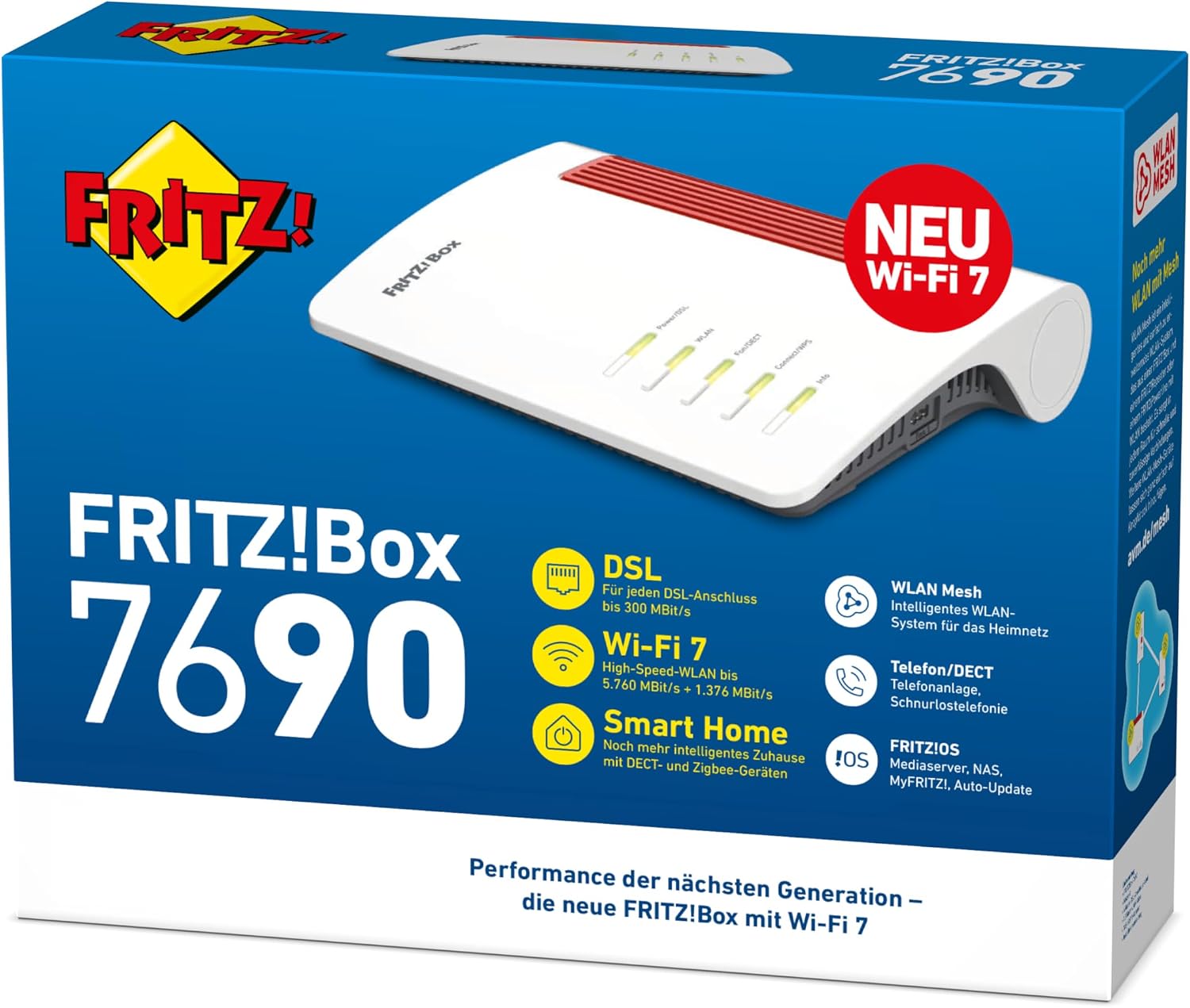
Image: A detailed view of the rear panel of the FRITZ!Box 7690, showing all connection ports and their labels, including DSL, Fon, LAN, WAN, and USB.
5. Setup
5.1 Initial Connection
- Connect the FRITZ!Box to your DSL line using the provided DSL connection cable. Use the TAE/RJ11 adapter if necessary.
- Connect the power adapter to the FRITZ!Box and plug it into a power outlet. The Power/DSL LED will start blinking and then light up continuously when the DSL connection is established.
- Connect your computer to the FRITZ!Box using the provided LAN cable or connect wirelessly using the Wi-Fi network name (SSID) and network key found on the bottom of the FRITZ!Box.
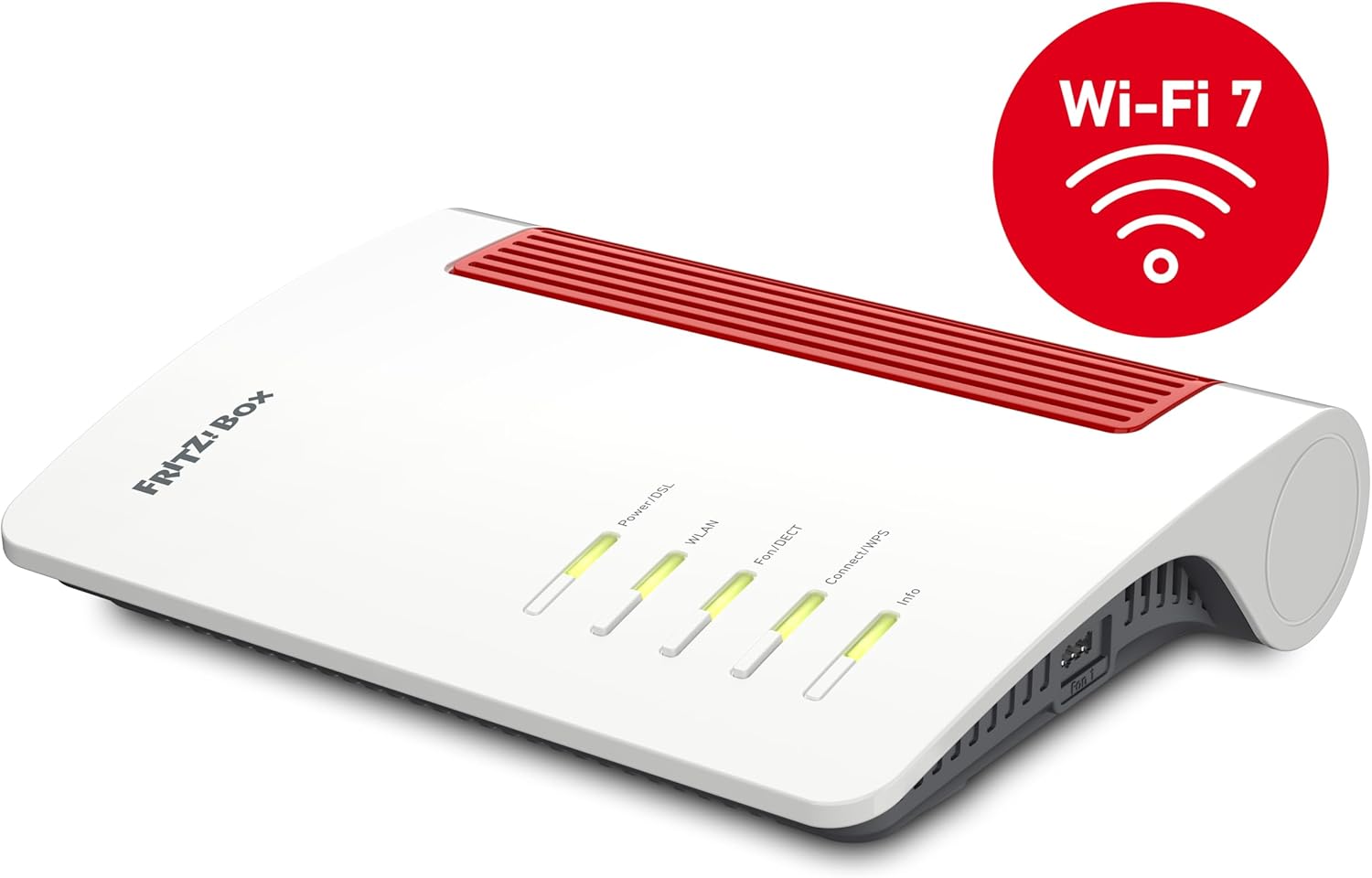
Image: The FRITZ!Box 7690 connected to a DSL wall socket with a gray cable, illustrating the initial setup.
5.2 Configuration via Web Interface
- Open a web browser and enter
http://fritz.boxor192.168.178.1in the address bar. - Follow the on-screen wizard to configure your internet access, telephony, and Wi-Fi settings. You will need your internet service provider's connection details.
- Set a strong password for accessing the FRITZ!Box web interface.
6. Operating
6.1 Wi-Fi Network
The FRITZ!Box 7690 supports Wi-Fi 7 for high-speed wireless connectivity. You can manage your Wi-Fi settings, including network name (SSID), security key, and guest access, through the web interface.
- WLAN Mesh: For extended Wi-Fi coverage, integrate FRITZ!Repeaters or other FRITZ!Box devices into a Mesh network. The FRITZ!Box acts as the Mesh Master, ensuring seamless roaming and optimal performance.

Image: An illustration depicting a Mesh Wi-Fi network, showing two FRITZ!Box devices communicating to provide seamless coverage throughout a home.
6.2 Telephony (DECT)
The integrated DECT base station allows you to connect up to six cordless telephones (e.g., FRITZ!Fon) and use various telephony features.
- Register new DECT phones via the web interface or by pressing the Connect/WPS button on the FRITZ!Box.
- Configure answering machines, call diversions, and phone books.

Image: A FRITZ!Fon cordless telephone placed on a table, demonstrating the DECT telephony feature of the FRITZ!Box.
6.3 Smart Home
The FRITZ!Box 7690 supports Smart Home devices via DECT ULE and Zigbee, allowing you to control smart plugs, radiator controls, and lighting.
- Add new Smart Home devices through the FRITZ!Box web interface.
- Create routines and schedules for automated control.

Image: An illustration of the FRITZ! Smart Home ecosystem, showing the FRITZ!Box at the center surrounded by various smart devices like light bulbs, smart plugs, and radiator controls.
7. Maintenance
- Software Updates: Regularly check for and install FRITZ!OS updates via the web interface to ensure optimal performance, security, and new features.
- Cleaning: Clean the device with a soft, dry cloth. Do not use liquid cleaners.
- Placement: Place the FRITZ!Box in a central location for optimal Wi-Fi coverage, away from other electronic devices that may cause interference.
8. Troubleshooting
| Problem | Possible Cause | Solution |
|---|---|---|
| No internet connection | DSL cable not connected or faulty; incorrect internet settings. | Check DSL cable connection. Verify internet settings in the FRITZ!Box web interface. Contact your ISP if necessary. |
| Poor Wi-Fi signal or slow speed | Interference from other devices; router placed in a suboptimal location; outdated Wi-Fi drivers on client devices. | Relocate the FRITZ!Box to a central position. Check for interference sources. Update Wi-Fi drivers. Consider using FRITZ!Repeaters for Mesh Wi-Fi. |
| DECT phone not registering | DECT function disabled; phone too far from base station; maximum number of phones reached. | Ensure DECT is enabled in the FRITZ!Box web interface. Move phone closer to the FRITZ!Box. Check registered devices. |
| Cannot access web interface | Incorrect IP address/URL; network connection issue. | Ensure your device is connected to the FRITZ!Box. Try http://fritz.box or 192.168.178.1. Restart the FRITZ!Box. |
9. Specifications
| Feature | Detail |
|---|---|
| Model Name | FRITZ!Box 7690 |
| Model Number | 20003057 |
| Dimensions (L x W x H) | 25 x 18.4 x 4.8 cm |
| Weight | 660 g |
| WLAN Standard | Wi-Fi 7 (802.11be), Wi-Fi 6 (802.11ax), Wi-Fi 5 (802.11ac), Wi-Fi 4 (802.11n) |
| WLAN Speed (5GHz) | Up to 5,760 MBit/s |
| WLAN Speed (2.4GHz) | Up to 1,376 MBit/s |
| DSL Support | VDSL Supervectoring (up to 300 MBit/s), ADSL2+ |
| Ethernet Ports | 1 x 2.5 Gigabit WAN/LAN, 1 x 2.5 Gigabit LAN, 2 x Gigabit LAN |
| Telephony | DECT base station for up to 6 cordless phones, 2 x analog (a/b) ports |
| USB Ports | 1 x USB 2.0 for storage media and printers |
| Operating System | FRITZ!OS |
| Special Features | Internet security, remote access, guest mode, parental controls, LED display, WLAN Mesh, Smart Home (DECT ULE, Zigbee) |
10. Warranty and Support
AVM provides a manufacturer's warranty for the FRITZ!Box 7690. Please refer to the warranty card included in your package or visit the official AVM website for detailed warranty terms and conditions.
For technical support, frequently asked questions, and driver downloads, please visit the AVM support portal:
You can also find additional resources and community support on the official FRITZ! website:
Related documentsFRITZ!Box 7690


Ask a question about this manual
Ask about setup, troubleshooting, compatibility, parts, safety, or missing instructions. Manuals+ will review the question and use this page’s manual context to help answer it.