
KUIIYER U2
KUIIYER USB Barcode Scanner User Manual
Model: U2
Product Overview
The KUIIYER USB Barcode Scanner is a wired handheld device designed for efficient and accurate scanning of 1D, 2D, and QR codes. Featuring an upgraded 800 x 600 pixel CMOS image sensor and built-in auxiliary light, it offers reliable performance in various environments. This plug-and-play scanner is compatible with Windows, macOS, Linux, and universal POS systems, making it suitable for a wide range of applications including retail, libraries, and warehouses.
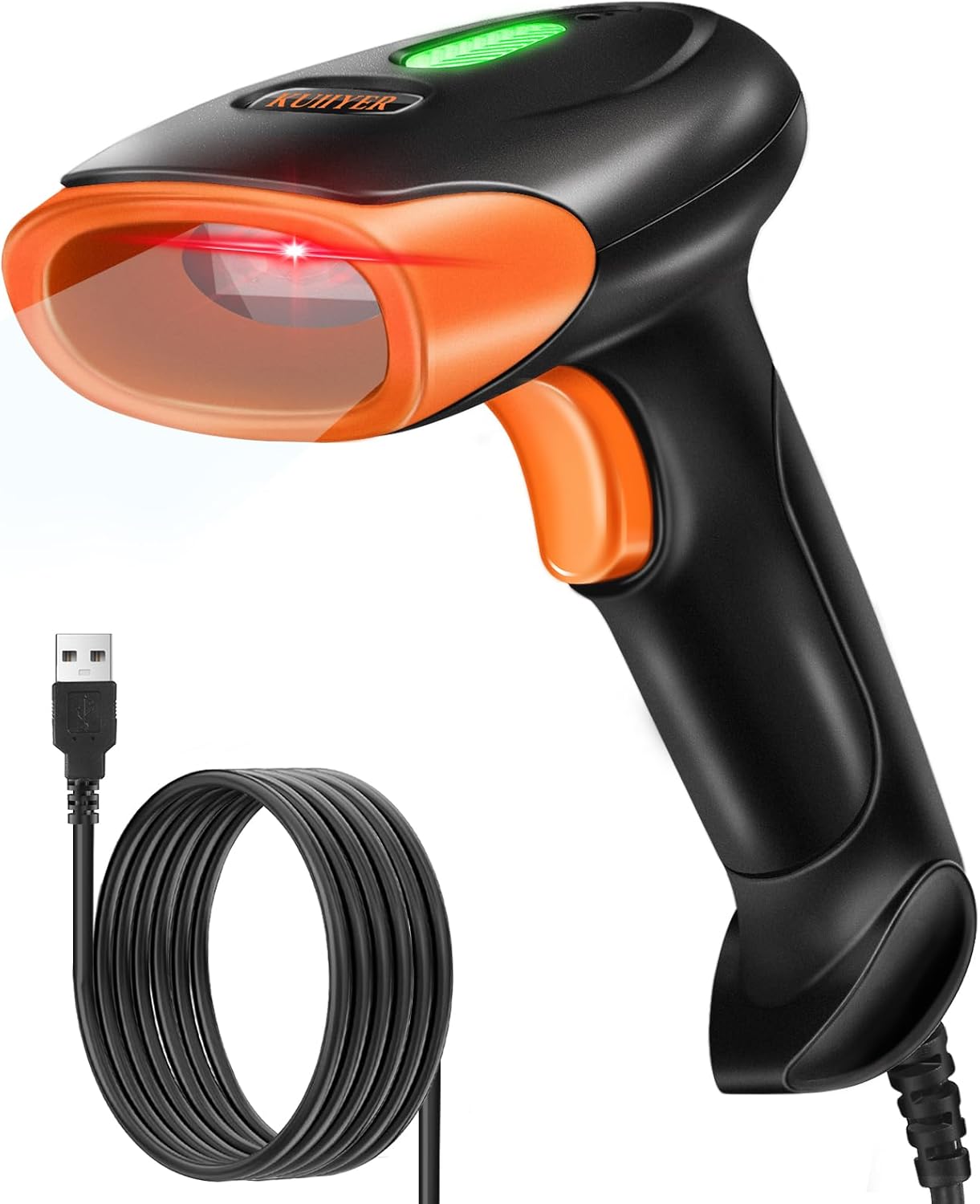
Image: The KUIIYER USB Barcode Scanner, a black and orange handheld device with a USB cable.
Key Features:
- Advanced CMOS Scanning: Upgraded 800 x 600 pixel CMOS image sensor for faster and more accurate scanning of 1D, 2D, and QR codes, including screen codes.
- Plug and Play Connectivity: Direct USB connection to PC/POS systems, requiring no driver or software installation. Compatible with Windows, macOS, Linux, and universal POS systems (Note: Not compatible with Square POS system).
- Built-in Auxiliary Light: Ensures reliable scanning performance in various lighting conditions, including low-light environments.
- Multiple Scanning Modes: Supports Manual Trigger Mode, Auto-sensing Scan Mode, and Continuous Scan Mode for versatile operation.
- Wide Application Range: Ideal for use in libraries, supermarkets, pharmacies, restaurants, hotels, warehouses, and logistics.
- Durable Design: IP54 dust and waterproof rating with a high-strength ABS+PC material shell, capable of withstanding drops up to 1.5m/5ft.
- Multi-Language Support: Designed for international use with support for 29 multi-language settings.
Setup
Connecting the Scanner:
- Locate the USB cable attached to the KUIIYER Barcode Scanner.
- Insert the USB connector into an available USB port on your computer (PC, Laptop, Desktop) or POS system.
- The scanner is designed for plug-and-play operation. Your operating system (Windows, macOS, Linux) should automatically recognize the device without requiring additional driver installation.
- Once connected, the scanner will emit a short beep and the indicator light will illuminate, indicating it is ready for use.

Image: The KUIIYER barcode scanner connected to a laptop via its USB cable, illustrating the plug-and-play setup.
Note: This scanner is compatible with systems that have a USB port. It does not support iPad, Google tablets, smartphones, or similar devices without a standard USB port. It is also not compatible with Square POS systems.
Operating Instructions
Scanning Barcodes:
To scan a barcode, point the scanning window of the device towards the barcode you wish to read. Ensure the barcode is within the scanner's field of view.
Scanning Modes:
The KUIIYER Barcode Scanner supports three primary scanning modes, which can be configured using specific setup codes found in the comprehensive user manual (PDF document). The default mode is typically Manual Trigger Mode.
- Manual Trigger Mode: Press and hold the scan button to activate the scanner. Release the button to stop scanning. This mode is ideal for precise, on-demand scanning.
- Auto-sensing Scan Mode: The scanner automatically detects a barcode when it is presented within its scanning range and activates the scan. This mode is useful for hands-free operation.
- Continuous Scan Mode: The scanner continuously emits its scanning beam, reading any barcode that passes through its field. This mode is suitable for high-volume scanning environments.
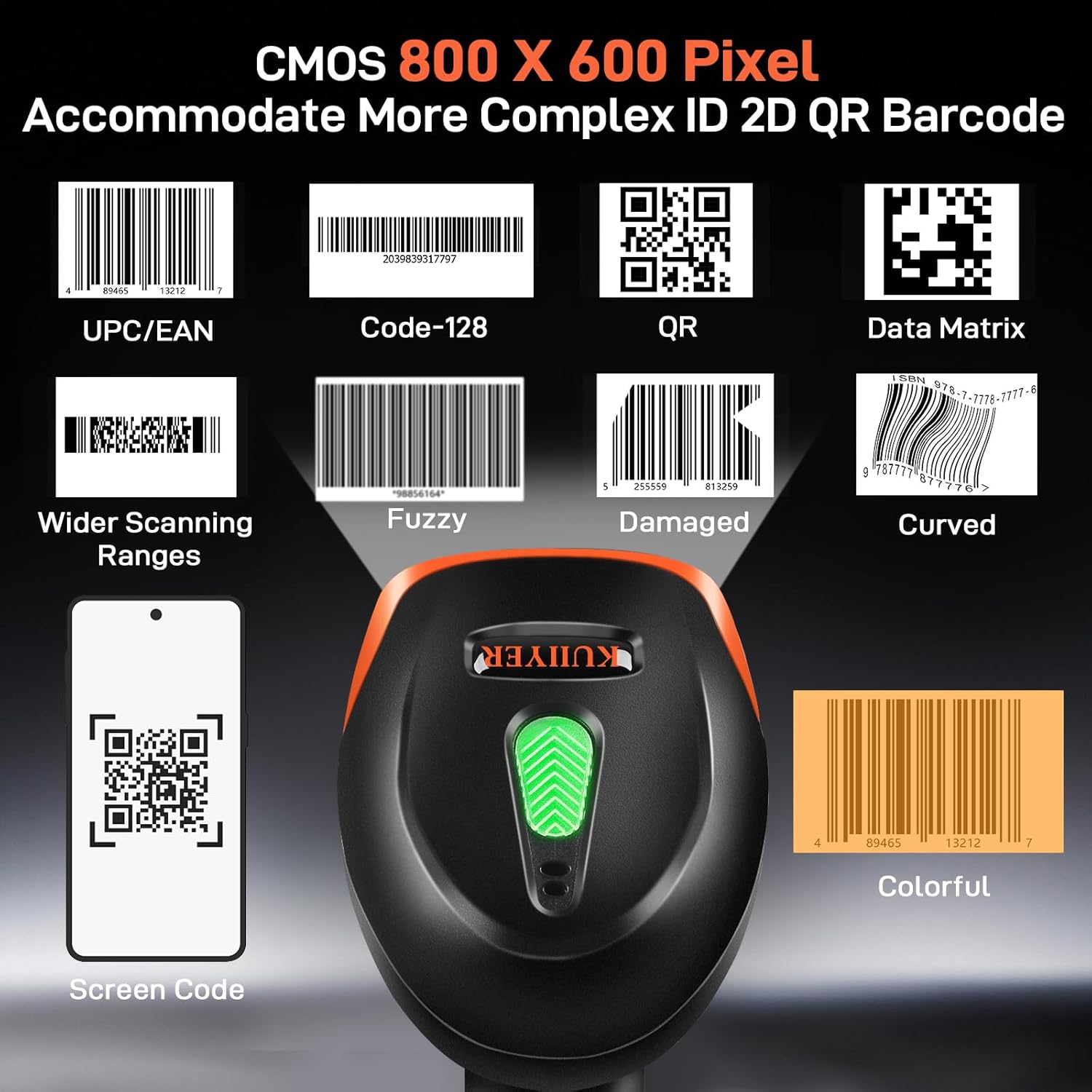
Image: Visual representation of the three scanning modes: Manual Trigger Mode (person scanning a bag), Auto-sensing Scan Mode (scanner on a counter), and Continuous Scan Mode (scanner scanning boxes on a conveyor).
Supported Barcode Types:
This scanner is capable of reading a wide variety of 1D and 2D barcode symbologies, including complex, fuzzy, damaged, curved, screen, and colorful codes.
- 1D Codes: EAN-13, EAN-8, UPC-A, UPC-E, Code 128, Code 39, Code93, Interleaved 2 of 5, Industrial 2 of 5, Matrix 2 of 5, Code 11, CodaBar, MSI-Plessey, GS1 Databar (RSS), etc.
- 2D Codes: QR Code, Data Matrix, PDF417, Micro QR, Aztec, etc.

Image: A diagram illustrating various 1D and 2D barcode types that the scanner can read, including UPC/EAN, Code-128, QR, Data Matrix, and examples of fuzzy, damaged, curved, screen, and colorful codes.
Maintenance
Cleaning the Scanner:
To ensure optimal performance and longevity of your scanner, keep the scanning window clean. Use a soft, lint-free cloth lightly dampened with water or a mild, non-abrasive cleaning solution. Avoid using harsh chemicals or abrasive materials that could scratch the scanning window.
Durability and Storage:
The scanner features an IP54 dust and waterproof rating and a high-strength ABS+PC material shell, providing excellent shockproof and drop-proof performance. While designed to be robust, avoid unnecessary drops or impacts. Store the scanner in a cool, dry place away from direct sunlight and extreme temperatures when not in use.

Image: An illustration showing the scanner's durability against drops and its support for multiple languages, including English, Spanish, German, Japanese, French, Italian, and Polish.
Troubleshooting
- Scanner not recognized by computer:
Ensure the USB cable is securely connected to both the scanner and the computer's USB port. Try a different USB port or a different computer to rule out port or system issues. Verify that your operating system is Windows, macOS, or Linux, as the scanner is not compatible with mobile devices or certain POS systems like Square.
- Scanner not reading barcodes:
Check if the barcode is clean and undamaged. Ensure sufficient lighting; the built-in auxiliary light should assist in low-light conditions. Make sure the scanner is in the correct scanning mode (e.g., Manual Trigger Mode requires pressing the button). Try scanning a different, known-good barcode to test functionality. Ensure the barcode type is supported by the scanner.
- No data output after scanning:
Confirm that the application you are using (e.g., Word, Excel, Notepad) is active and ready to receive input. The scanner acts like a keyboard, so ensure the cursor is in the desired input field.
- Incompatibility with Square POS System:
Please note that this scanner is explicitly stated as not compatible with Square POS systems. If you are using Square POS, this scanner will not function with it.
Specifications
| Feature | Detail |
|---|---|
| Product Dimensions | 3.7 x 2.4 x 6.3 inches (9.5 x 6 x 16 cm) |
| Item Weight | 9.1 ounces |
| Model Number | U2 |
| Manufacturer | KUIIYER |
| Country of Origin | China |
| Compatible Devices | Laptop, Desktop, POS (excluding Square POS) |
| Power Source | Corded Electric (USB Cable) |
| Connectivity Technology | USB Cable |
| Scanning Technology | 800 x 600 Pixel CMOS Image Sensor |
| Durability Rating | IP54 Dust and Waterproof |
| Drop Resistance | Up to 1.5m / 5ft |
Warranty and Support
Warranty Information:
KUIIYER offers a 24-Month Warranty for any quality-related issues with your barcode scanner. Additionally, a 90-DAYS Unconditional Return policy is in place for customer satisfaction.
Customer Support:
For any inquiries, technical assistance, or warranty claims, please contact the KUIIYER professional customer support team. They are committed to handling your issues and providing assistance within 12 hours.
For a more detailed guide and advanced settings, please refer to the official User Manual PDF document:
Related Documents - U2
 |
KUIIYER Barcode Scanner User Manual and Technical Specifications Comprehensive guide for KUIIYER barcode scanners, covering product features, wireless and Bluetooth connectivity, technical parameters, operation modes, language settings, and after-sale service. Includes detailed instructions for various models like KU061, KU062, KU063 and their PRO versions. |
 |
KUIIYER KU060 Barcode Scanner User Manual This manual provides operational details, technical specifications, interface settings, scanning modes, troubleshooting, and after-sales service information for the KUIIYER KU060 Wired Barcode Scanner. |
 |
KUIIYER KU066PRO Time Attendance Machine User Manual Comprehensive user manual for the KUIIYER KU066PRO Time Attendance Machine, covering installation, device components, parameter settings, user registration, shift scheduling, attendance rules, advanced settings, report generation, and after-sale service information. |
 |
Sycreader U2-B Wireless 2D Barcode Scanner Instruction Manual Comprehensive instruction manual for the Sycreader U2-B Wireless 2D Barcode Scanner, detailing its features, technical specifications, installation, configuration settings, troubleshooting, and maintenance. Includes FCC compliance information. |