
1. Introduction
This manual provides essential instructions for setting up, operating, maintaining, and troubleshooting your YHWHHI F11 11-inch Android 14 Tablet. Please read this manual thoroughly before using your device to ensure proper function and longevity.
1.1 Package Contents
Verify that all items are present in your product package:
- 1 x YHWHHI Android Tablet (Model F11)
- 1 x Power Adapter
- 1 x Type-C Cable
- 1 x Tablet Case
- 1 x Keyboard
- 1 x OTG Adapter
- 1 x Stylus
- 1 x Screen Protector
- 1 x User Manual (this document)
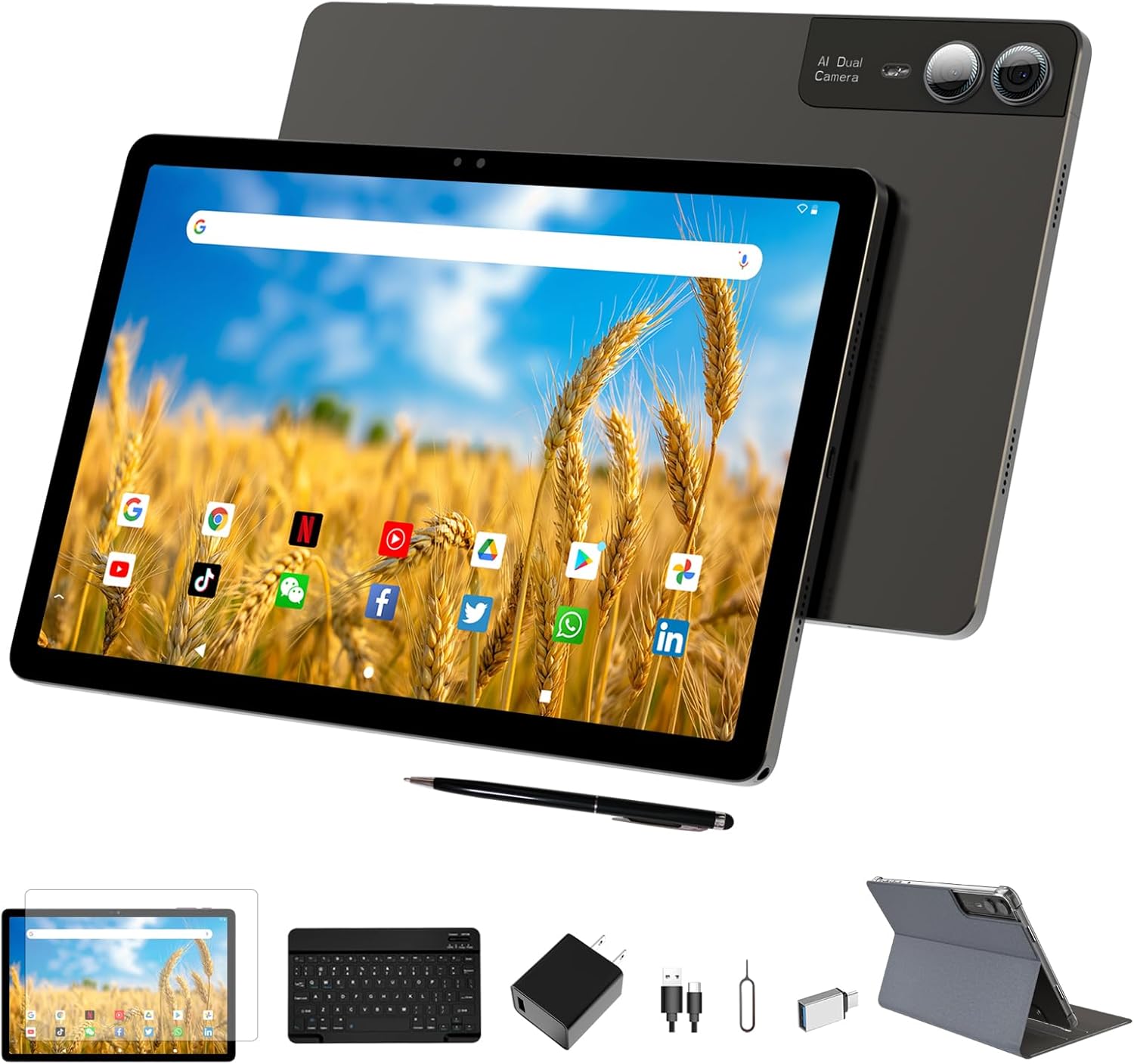
Image 1.1: The YHWHHI F11 Tablet shown with its included accessories: keyboard, stylus, case, power adapter, Type-C cable, OTG adapter, and screen protector.
2. Product Overview
The YHWHHI F11 is an 11-inch Android 14 tablet designed for versatile use. It features a 2K display, an octa-core processor, and comes with a keyboard, stylus, and case for enhanced functionality.

Image 2.1: The YHWHHI F11 Tablet in a case with an attached keyboard, highlighting its Android 14 operating system, Unisoc T616 processor, 11-inch 2K display, 9000mAh battery, 18GB RAM, 128GB ROM, 13MP main camera, fast charging, and quad stereo speakers.
2.1 Physical Features
- Display: 11-inch 2K (2000x1200) touch screen with a 16:10 aspect ratio.
- Dimensions: Approximately 10.01 x 6.62 x 0.3 inches (25.4 x 16.8 x 0.76 cm).
- Weight: Approximately 1.03 pounds (467 grams).
- Cameras: 13MP Rear Camera, 5MP Front Camera, 5MP Macro Camera.
- Ports: Type-C port for charging and data transfer.
- Audio: Quad stereo speakers.
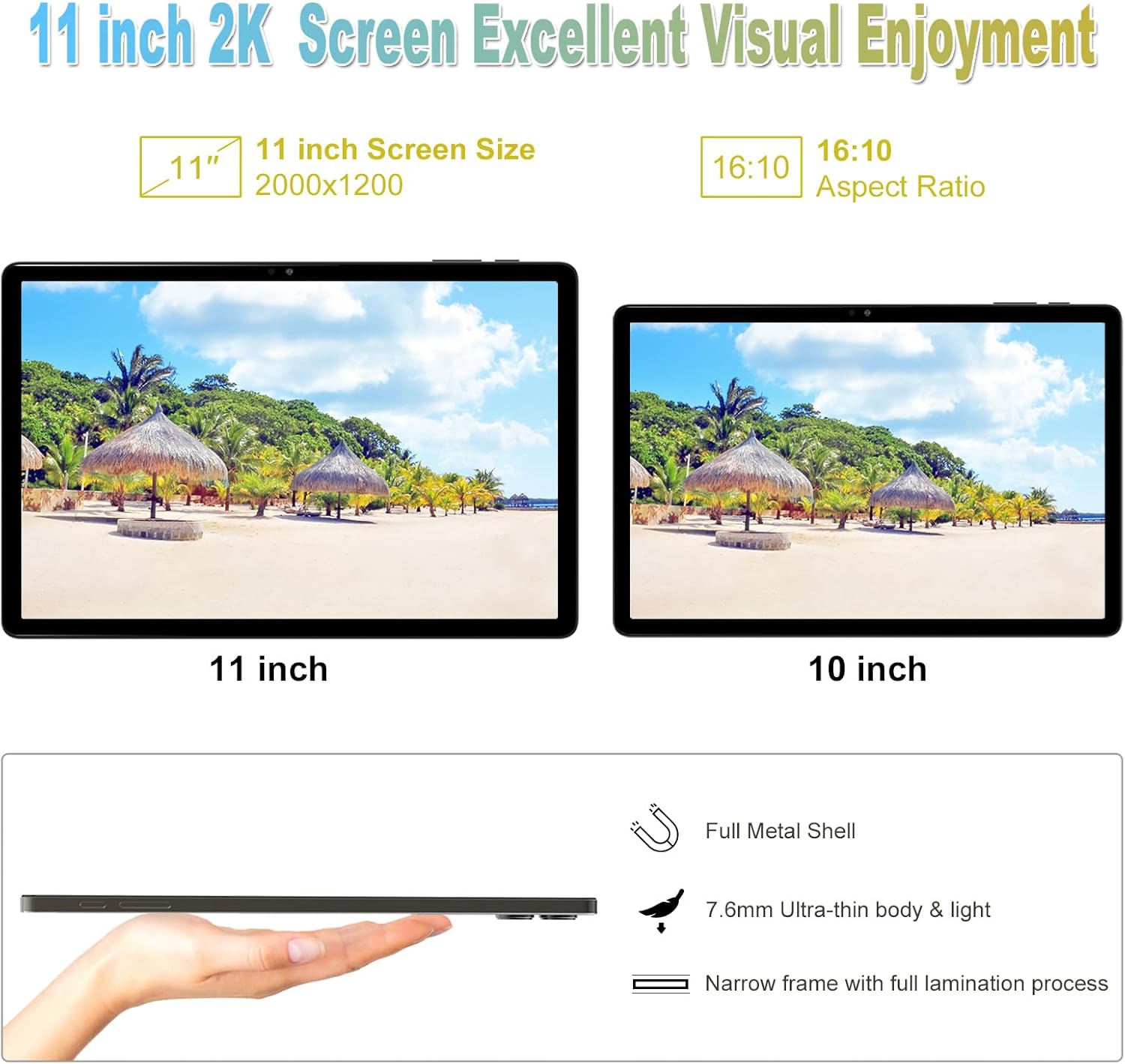
Image 2.2: A visual comparison of the 11-inch 2K display with a 10-inch display, illustrating the larger screen size. The image also shows the tablet's ultra-thin 7.6mm body and full metal shell.
3. Setup
3.1 Initial Charging
- Connect the provided Type-C cable to the tablet's charging port.
- Plug the other end of the cable into the power adapter.
- Insert the power adapter into a wall outlet.
- Allow the tablet to charge until the battery indicator shows 100% for optimal initial use.

Image 3.1: The YHWHHI F11 Tablet connected to a Type-C charger, displaying a 75% charge level. This image also highlights the 9000mAh battery, fast charging support, and quad speakers.
3.2 Power On/Off
- To Power On: Press and hold the Power button until the YHWHHI logo appears on the screen.
- To Power Off: Press and hold the Power button until the power options menu appears. Select 'Power off'.
- To Restart: Press and hold the Power button until the power options menu appears. Select 'Restart'.
3.3 Connecting Accessories
3.3.1 Keyboard
The included keyboard connects via Bluetooth.
- Ensure the keyboard is charged and powered on.
- On your tablet, go to Settings > Connected devices > Bluetooth.
- Enable Bluetooth and scan for available devices.
- Select the keyboard from the list and follow any on-screen pairing instructions.
3.3.2 Stylus
The included stylus is typically passive and does not require pairing. It can be used directly on the screen for navigation or writing.
4. Operating the Tablet
4.1 Basic Navigation
- Touch: Tap an icon to open an app or select an item.
- Swipe: Drag your finger across the screen to scroll through pages or content.
- Pinch-to-Zoom: Place two fingers on the screen and move them apart or together to zoom in or out.
- Home Screen: Tap the home button to return to the main screen.
- Recent Apps: Tap the recent apps button to view and switch between recently used applications.
4.2 Connectivity
4.2.1 Wi-Fi Connection
- Go to Settings > Network & internet > Wi-Fi.
- Toggle Wi-Fi to 'On'.
- Select your desired Wi-Fi network from the list.
- Enter the password if prompted and tap 'Connect'.
4.3 Storage Management
The tablet has 128GB of internal storage, expandable up to 1TB via a Micro SD card.

Image 4.1: The YHWHHI F11 Tablet's internal components, emphasizing the Unisoc T616 Octa-Core Processor, 18GB RAM (6GB+12GB virtual RAM), 128GB ROM, and support for Micro SD card expansion up to 1TB.
4.3.1 Inserting a Micro SD Card
- Locate the SIM/SD card tray on the side of the tablet.
- Use the provided SIM ejector tool to open the tray.
- Place the Micro SD card into the designated slot on the tray.
- Carefully reinsert the tray into the tablet.
4.4 Camera Usage
The tablet features a triple camera system: a 13MP rear camera, a 5MP front camera, and a 5MP macro camera.

Image 4.2: The rear of the YHWHHI F11 Tablet showing the AI Dual Camera module with a 13MP rear camera and a 5MP macro camera. The image also displays the 5MP front camera and example photos taken with the tablet.
- Open the Camera application.
- Tap the shutter button to take a photo.
- Switch between front, rear, and macro cameras using the on-screen icons.
- Select video mode to record videos.
4.5 Versatile Usage
The YHWHHI F11 tablet supports various applications for productivity and entertainment.

Image 4.3: The YHWHHI F11 Tablet being used in different settings: for reading documents, for studying with a child, for business analysis with a keyboard, and for watching videos with a keyboard.
5. Maintenance
5.1 Battery Care
- Avoid fully discharging the battery frequently.
- Do not expose the tablet to extreme temperatures.
- Use only the provided charger and cable.
5.2 Cleaning
- Use a soft, lint-free cloth to clean the screen and body.
- Avoid using harsh chemicals or abrasive materials.
- Do not spray cleaners directly onto the tablet.
5.3 Software Updates
Regularly check for and install system updates to ensure optimal performance and security.
- Go to Settings > System > System update.
- Follow the on-screen instructions to check for and install updates.
6. Troubleshooting
| Issue | Possible Solution |
|---|---|
| Tablet does not power on | Ensure the battery is charged. Press and hold the power button for 10-15 seconds to force a restart. |
| Slow performance | Close unnecessary apps. Clear cache. Check for system updates. Free up storage space. |
| Wi-Fi connection issues | Restart the tablet and router. Forget and reconnect to the Wi-Fi network. Ensure you are within range. |
| Accessories not connecting | Ensure Bluetooth is enabled on the tablet and the accessory is in pairing mode. Check battery levels of accessories. |
| Screen unresponsive | Restart the tablet. If the issue persists, contact customer support. |
7. Specifications
| Feature | Detail |
|---|---|
| Brand | YHWHHI |
| Model Name | F11 |
| Operating System | Android 14 |
| Screen Size | 11 Inches |
| Screen Resolution | 2000 x 1200 Pixels (2K) |
| Processor | Unisoc T616 Octa-Core (2 GHz) |
| RAM | 18GB (6GB physical + 12GB extended) |
| Internal Storage | 128GB |
| Expandable Storage | Up to 1TB via Micro SD card |
| Rear Camera | 13 MP |
| Front Camera | 5 MP |
| Macro Camera | 5 MP |
| Battery Capacity | 9000 mAh |
| Average Battery Life | Up to 15 hours (e-book), 8 hours (video) |
| Wireless Connectivity | 802.11ac (2.4G + 5G WiFi) |
| Audio | Quad Stereo Speakers |
| Dimensions (LxWxH) | 10.01 x 6.62 x 0.3 inches |
| Item Weight | 1.03 pounds |
8. Warranty and Support
YHWHHI is committed to product quality and customer experience. For any inquiries or support needs, please contact our customer service team.
8.1 Contact Information
- Email: YHWHHI-US@outlook.com
- Amazon Support: Log in to your Amazon buyer account, find your order, and click 'Get Help'.
Please retain your proof of purchase for warranty claims.