
1. Introduction
This manual provides detailed instructions for the proper use, setup, and maintenance of your NUROUM HP31SN Wireless Headset. Please read this manual thoroughly before using the product to ensure optimal performance and longevity.
1.1 Package Contents
Verify that all items are present in your package:
- 1x HP31SN Headset
- 1x USB Charging/Data Cable
- 1x User Manual
1.2 Key Features
- AI-Powered ENC Noise Cancellation: Suppresses up to 99.9% of background noise for clear calls.
- Bluetooth 5.3 & Multi-Point Connection: Ensures fast pairing, stable connectivity up to 33 feet, and simultaneous connection to two devices.
- Easy Controls: Intuitive buttons for call management and audio control, including a dedicated mute button.
- Long Battery Life: Up to 35 hours of talk time and 45 hours of music playback on a single charge.
- All-Day Comfort & Ergonomic Design: Features pillow-soft ear cushions, a stretchable headband, 250° rotatable boom mic, and 180° rotatable ear muff for versatile wearing.
- Versatile Connectivity & Broad Compatibility: Connects via Bluetooth or USB-A/Type-C cable, compatible with Windows, Mac, Linux, Android, iOS, and platforms like Teams, Zoom, Webex.
2. Product Overview
2.1 Headset Components and Controls
Familiarize yourself with the various parts and controls of your HP31SN headset.

Image: Headset controls diagram.
- Volume +: Press once to increase volume. Press and hold for 1 second to skip to the next track.
- Volume -: Press once to decrease volume. Press and hold for 1 second to go to the previous track.
- MFB (Multi-Function Button): Press once to answer/end calls. Press and hold for 1 second to reject calls.
- Mute Button: Press once to mute/unmute the microphone.
- Power ON/OFF Switch: Slide to turn the headset on or off.
- 250° Rotatable Boom Mic: The microphone boom can be rotated 250 degrees to be worn on either the left or right ear.
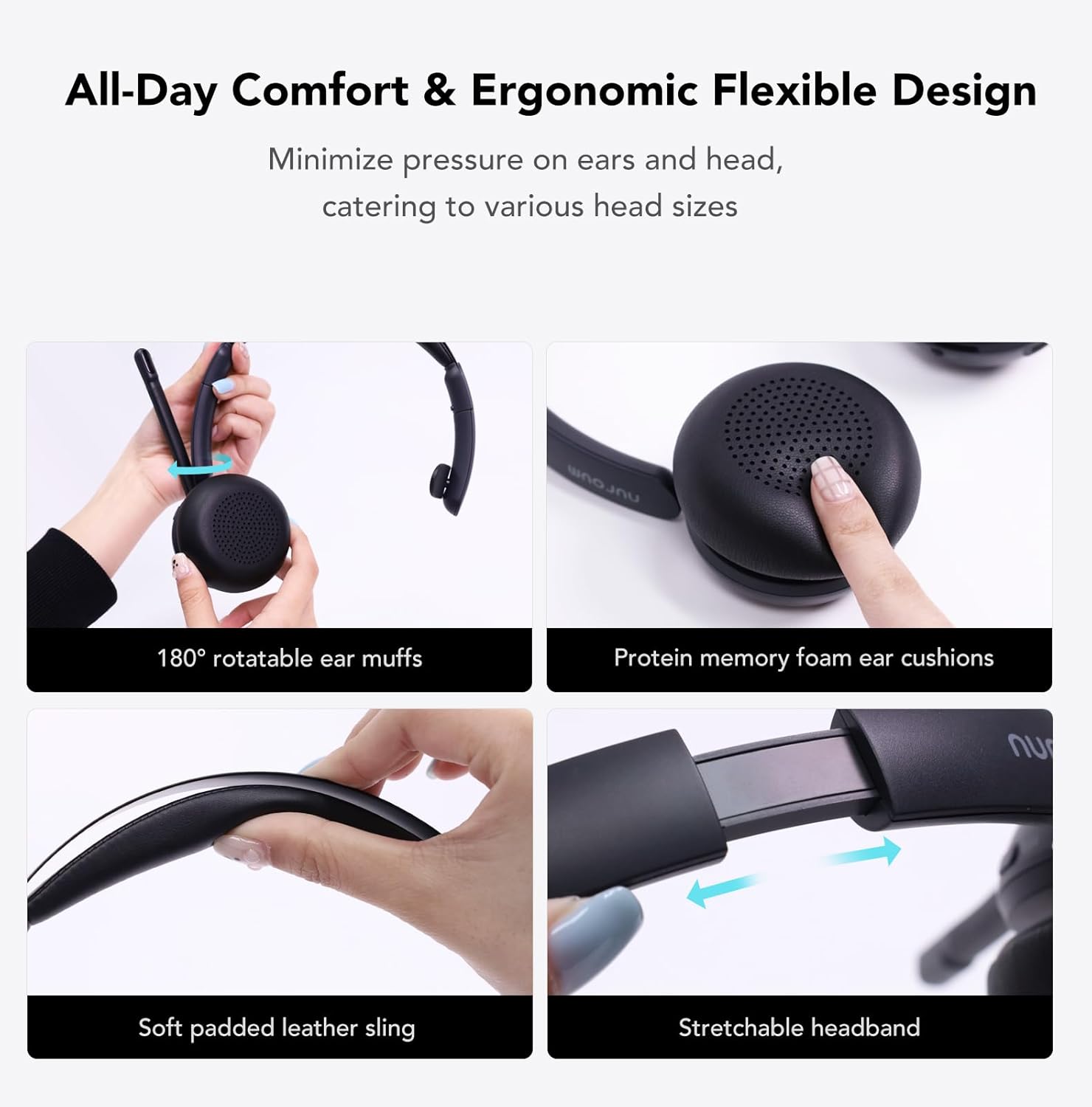
Image: Microphone boom rotation.
3. Getting Started
3.1 Charging the Headset
Before first use, fully charge the headset. A full charge takes approximately 2 hours.

Image: Headset charging options.
- Connect the provided USB cable to the headset's Type-C port.
- Connect the other end of the USB cable to a power source (e.g., computer USB port, USB wall adapter).
- The LED indicator on the headset will show charging status (refer to LED indicator section for details).
3.2 Powering On/Off
- To Power On: Slide the Power ON/OFF switch to the 'ON' position. The LED indicator will light up.
- To Power Off: Slide the Power ON/OFF switch to the 'OFF' position. The LED indicator will turn off.
3.3 Bluetooth Pairing
The headset supports Bluetooth 5.3 for quick and stable connections.

Image: Bluetooth pairing and multi-point connection.
- Ensure the headset is powered off.
- Press and hold the MFB button for approximately 3-5 seconds until the LED indicator flashes blue and red alternately, indicating pairing mode.
- On your device (smartphone, tablet, computer), enable Bluetooth and search for available devices.
- Select "NUROUM HP31SN" from the list of devices.
- Once connected, the LED indicator will flash blue slowly.
3.4 Multi-Point Connection
The HP31SN headset can connect to two Bluetooth devices simultaneously.
- Pair the headset with the first device as described in section 3.3.
- Turn off Bluetooth on the first device. The headset will re-enter pairing mode.
- Pair the headset with the second device.
- Turn on Bluetooth on the first device. The headset should automatically connect to both devices.
- You can now seamlessly switch between audio sources from both connected devices.
3.5 Wired Connection
If Bluetooth is not available or the battery is low, you can use the headset as a wired USB headset.

Image: Wired connection options and device compatibility.
- Connect the provided USB cable to the headset's Type-C port.
- Connect the other end of the USB cable to your computer's USB-A or USB-C port.
- The computer should automatically recognize the headset as an audio device.
4. Operation
4.1 Call Management
- Answer Call: Press the MFB button once.
- End Call: Press the MFB button once during an active call.
- Reject Call: Press and hold the MFB button for 1 second when an incoming call rings.
- Mute/Unmute Microphone: Press the Mute button once during a call.
4.2 Audio Playback
- Play/Pause: Press the MFB button once.
- Volume Up: Press the Volume + button once.
- Volume Down: Press the Volume - button once.
- Next Track: Press and hold the Volume + button for 1 second.
- Previous Track: Press and hold the Volume - button for 1 second.
4.3 AI-Powered ENC Noise Cancellation
The headset features advanced Environmental Noise Cancellation (ENC) to ensure your voice is heard clearly, even in noisy environments. This feature is always active during calls.
Image: AI-Powered ENC Noise Cancellation in action.
4.4 Official Product Video
Watch the official product video for a visual guide on features and usage.
Video: NUROUM HP31DN/SN Wireless Headset with Mic for Work. This video demonstrates the headset's features, including noise cancellation, multi-point connection, and long battery life.
5. Comfort and Ergonomics
The HP31SN headset is designed for extended wear comfort.

Image: Ergonomic design features for comfort.
- 180° Rotatable Ear Muff: Adjust the ear muff for a comfortable fit on your ear.
- Protein Memory Foam Ear Cushion: Provides soft cushioning for prolonged use.
- Soft Padded Leather Sling: Reduces pressure on the head.
- Stretchable Headband: Adjusts to various head sizes for a secure and comfortable fit.
6. Battery Information
The HP31SN headset offers extended battery performance.

Image: Battery life overview.
- Charging Time: Approximately 2 hours for a full charge.
- Talk Time: Up to 35 hours.
- Music Playback Time: Up to 45 hours.
7. Compatibility
The HP31SN headset is broadly compatible with various devices and communication platforms.

Image: Device and platform compatibility.
- Operating Systems: Compatible with Windows, Mac, Linux, Android, and iOS.
- Devices: PCs, Macs, Laptops, Cell Phones, Tablets.
- Platforms: Works seamlessly with popular conferencing applications such as Teams, Zoom, Webex, Google Meet, Skype, GoToMeeting, and more.
8. Technical Specifications
| Feature | Specification |
|---|---|
| Model Name | AW-HP31SN |
| Connectivity Technology | Wireless (Bluetooth) |
| Wireless Communication Technology | Bluetooth 5.3 |
| Bluetooth Range | 33 Feet (10 meters) |
| Noise Control | AI-Powered ENC Noise Cancellation |
| Battery Life (Talk Time) | Up to 35 Hours |
| Battery Life (Music Playback) | Up to 45 Hours |
| Charging Time | Approx. 2 Hours |
| Earpiece Shape | On Ear (Single Ear) |
| Microphone Rotation | 250° |
| Ear Muff Rotation | 180° |
| Material | Fabric, Leather, Plastic |
| Item Weight | 0.33 Kilograms (11.6 ounces) |
| Color | Grey |
9. Troubleshooting
If you encounter issues with your headset, refer to the following common problems and solutions:
| Problem | Solution |
|---|---|
| Headset does not power on. | Ensure the headset is charged. Connect it to a power source using the USB cable. |
| Cannot pair with device. | Ensure the headset is in pairing mode (LED flashing blue/red). Turn off and on Bluetooth on your device. Move the headset closer to your device. |
| No audio or poor audio quality. | Check device volume and headset volume. Ensure the headset is selected as the audio output device on your computer/phone. Re-pair the headset. |
| Microphone not working. | Ensure the microphone is not muted. Check that the headset is selected as the input device in your application settings. Adjust the microphone boom closer to your mouth. |
| Multi-point connection issues. | Ensure both devices have Bluetooth enabled and the headset is connected to both. Disconnect and reconnect from both devices. |
10. Maintenance
- Clean the headset regularly with a soft, dry cloth.
- Avoid exposing the headset to extreme temperatures, humidity, or direct sunlight.
- Do not attempt to disassemble or modify the headset, as this will void the warranty.
- Store the headset in a cool, dry place when not in use.
11. Safety Information
- Do not use the headset at high volume levels for extended periods to prevent hearing damage.
- Be aware of your surroundings when using the headset, especially in situations requiring attention (e.g., driving, walking near traffic).
- Keep the headset away from children and pets.
- Use only the provided charging cable or a certified equivalent.
12. Warranty and Support
Your NUROUM HP31SN Wireless Headset comes with a standard manufacturer's warranty. For detailed warranty information, please refer to the warranty card included in your package or visit the official NUROUM website.
For technical support, troubleshooting assistance, or any product-related inquiries, please contact NUROUM customer service through the contact information provided on the official website or your purchase platform.


