1. Introduction
This manual provides detailed instructions for the SENGBIRCH iPad Pro 13-inch Keyboard Case. Please read this manual carefully before use to ensure proper operation and to maximize the product's lifespan. Keep this manual for future reference.
Package Contents:
- 1 x SENGBIRCH Keyboard Case
- 1 x USB-C Charging Cable
- 1 x User Manual
- Note: iPad tablet and Apple Pencil are not included.
2. Compatibility
This keyboard case is specifically designed for the following iPad models:
- iPad Pro 13-inch (M4) 2024
- iPad Pro 13-inch (M5) 2025
Important: This case is not compatible with any other iPad models, including previous generations of iPad Pro 13-inch or other iPad sizes.
3. Setup Guide
3.1 Inserting Your iPad
- Open the keyboard case.
- Align your iPad Pro 13-inch with the case's frame, ensuring the camera cutout matches the iPad's camera.
- Gently press the iPad into the case until it is securely seated. Ensure all edges are properly protected.
3.2 Charging the Keyboard
Before initial use, fully charge the keyboard. The keyboard has a built-in rechargeable battery.
- Locate the USB-C charging port on the side of the keyboard case.
- Connect the provided USB-C cable to the keyboard's charging port and the other end to a USB power adapter (not included).
- The charging indicator light will illuminate. Once fully charged, the light will change or turn off. A full charge takes approximately 3 hours.

Image: Detailed view of the keyboard case ports and slots, including the USB-C charging interface, power switch, camera hole, Apple Pencil loop, and durable hinge.
3.3 Bluetooth Pairing
To connect the keyboard to your iPad:
- Ensure the keyboard is charged.
- Turn on the keyboard using the power switch (usually located near the charging port). The indicator light will flash, indicating it's in pairing mode.
- On your iPad, go to Settings > Bluetooth.
- Turn on Bluetooth. Your iPad will search for available devices.
- Select "SENGBIRCH Keyboard" (or similar name) from the list of devices.
- If prompted, enter the pairing code displayed on your iPad screen using the keyboard, then press Enter.
- Once paired, the indicator light on the keyboard will stop flashing, and your iPad will show the keyboard as "Connected."
4. Operating Instructions
4.1 Keyboard Functions
The keyboard features a standard 83-key layout with additional function keys for iPad control.
- Multimedia Shortcuts: A full row of multimedia shortcuts allows easy control of volume, media playback, and other iPad functions.
- Backlight Control: The keyboard features a 7-color rainbow backlight.
- Press the Light Bulb key to cycle through backlight colors.
- Press Fn + Light Bulb key to adjust backlight brightness (3 levels) or turn it off.
- Breathing frequency adjustment is also available for the backlight.

Image: Overview of keyboard functionality, including 360° rotation, backlight options, and battery performance (3 hours charging, 60 days standby, 90 hours work time with backlight off).
4.2 Touchpad Usage
The integrated touchpad supports multi-touch gestures for enhanced productivity.
- Turning On/Off: Press Fn + T to enable or disable the touchpad.
- Cursor Control: Move your finger across the touchpad to control the cursor on your iPad screen.
- Single Tap: Functions as a left-click.
- Two-Finger Scroll: Swipe two fingers up or down to scroll through content.
- Multi-touch Gestures: Refer to your iPad's settings for additional gesture customization and functionality.
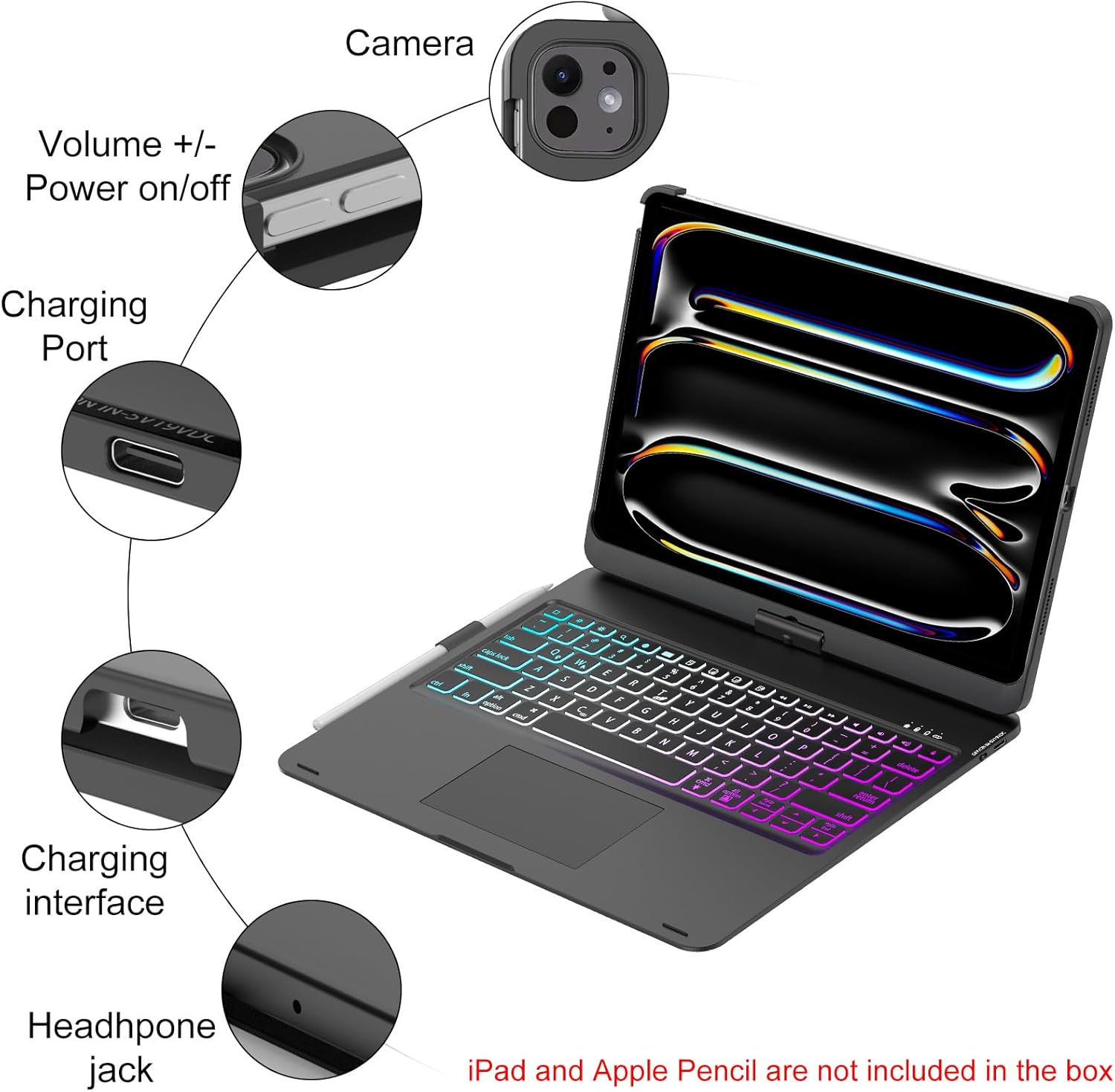
Image: The keyboard's multitouch trackpad, illustrating its location and the key combination for activation/deactivation.
4.3 360° Rotation and Usage Modes
The case features a 360° rotatable hinge and a 180° flip capability, allowing for versatile usage modes.
- Laptop Mode: Use your iPad like a traditional laptop for typing and productivity.
- Stand Mode: Fold the keyboard back to prop up your iPad for viewing content.
- Tent Mode: Invert the case to create a stable tent-like stand, ideal for watching videos or presentations.
- Tablet Mode: Fold the keyboard completely behind the iPad for a pure tablet experience.
- Corner Mode: Adjust the angle for comfortable drawing or writing.
- Share Mode: Rotate the screen to easily share content with others.
- Protect Mode: Close the case to fully protect your iPad and keyboard.

Image: Visual representation of the seven adaptable usage modes, showcasing the case's flexibility for different scenarios.
5. Maintenance
5.1 Cleaning
- To clean the case exterior, use a soft, damp cloth. Avoid harsh chemicals or abrasive cleaners.
- For the keyboard keys, use a soft brush or compressed air to remove dust and debris. Wipe gently with a slightly damp cloth if necessary.
- Ensure no liquid enters the keyboard or charging ports.
5.2 Battery Care
- To prolong battery life, avoid fully discharging the keyboard frequently.
- Charge the keyboard regularly, even if not in constant use.
- Store the keyboard in a cool, dry place when not in use for extended periods.
6. Troubleshooting
6.1 Keyboard Not Connecting via Bluetooth
- Check Battery: Ensure the keyboard is sufficiently charged.
- Power On: Verify the keyboard's power switch is in the 'ON' position.
- Bluetooth On iPad: Confirm Bluetooth is enabled on your iPad (Settings > Bluetooth).
- Re-pair: If previously paired, try forgetting the device on your iPad and re-pairing it. Go to iPad Bluetooth settings, tap the 'i' icon next to the keyboard name, and select 'Forget This Device'. Then, repeat the pairing steps.
- Restart Devices: Restart both your iPad and the keyboard, then attempt pairing again.
6.2 Keys Not Responding
- Check Connection: Ensure the keyboard is properly connected via Bluetooth.
- Battery Level: A low battery can cause intermittent key response. Charge the keyboard.
- Interference: Move away from other wireless devices that might cause interference.
6.3 Touchpad Not Working
- Activate Touchpad: Ensure the touchpad is enabled by pressing Fn + T.
- Bluetooth Connection: Verify the keyboard is connected to the iPad.
- iPad Settings: Check iPad accessibility settings for any touchpad-related configurations.
6.4 Backlight Issues
- Brightness Adjustment: Press Fn + Light Bulb to cycle through brightness levels.
- Battery Level: Backlight functionality may be limited or disabled at very low battery levels. Charge the keyboard.
7. Specifications
| Feature | Detail |
|---|---|
| Product Dimensions | 11.2"L x 9.54"W x 0.59"H (285mm x 242mm x 15mm) |
| Item Weight | 2.64 pounds (1.2 kg) |
| Connectivity Technology | Bluetooth, USB-C (for charging) |
| Keyboard Description | Multi-functional, Touchpad, 7-Color Backlight |
| Special Features | 360° Rotatable, Backlit, Multi-Touch Keyboard, Rechargeable |
| Battery Type | Lithium Ion (included) |
| Charging Time | Approximately 3 hours |
| Working Time (Backlight Off) | Up to 90 hours |
| Standby Time | Up to 60 days |

Image: Dimensions and weight specifications of the keyboard case.
8. Warranty and Support
8.1 Product Warranty
SENGBIRCH products are manufactured with quality and reliability in mind. For specific warranty details and terms, please refer to the product packaging or contact SENGBIRCH customer support.
8.2 Customer Support
If you encounter any issues or have questions regarding your SENGBIRCH iPad Pro 13-inch Keyboard Case, please contact our customer support team. We are committed to providing assistance and ensuring your satisfaction.
- Contact Method: Please refer to the contact information provided on the product packaging or the official SENGBIRCH website.
- When contacting support, please have your product model number and purchase details ready.


