
1. Introduction
This manual provides detailed instructions for the installation, operation, and maintenance of your Jufodrca 9-inch IPS Touch Screen Car Radio. Designed specifically for Jeep Grand Cherokee models from 2011 to 2013, this system integrates advanced features such as Wireless Carplay, Android Auto, 5G WiFi, GPS, and a backup camera to enhance your driving experience. Please read this manual thoroughly before installation and use to ensure proper functionality and safety.

Figure 1: Jufodrca Car Radio with included backup camera and key feature icons.
2. Product Overview and Key Features
The Jufodrca car radio offers a range of functionalities designed for convenience and entertainment:
- Wireless Carplay & Android Auto: Seamlessly integrate your iOS or Android smartphone for navigation, music, messages, and voice assistant access on the 9-inch HD screen.
- 9-inch HD IPS Touch Screen: Features a 1280*800 resolution display with 2.5D tempered glass for clear visuals and enhanced durability.
- 5G WiFi & GPS: Connect to WiFi for online maps, app downloads (e.g., YouTube, Waze), and real-time content. Integrated GPS supports various navigation applications.
- Steering Wheel Control (SWC): Control essential functions like calls, volume, and media playback directly from your steering wheel buttons for safer driving.
- 1080P Rear Camera: Includes a high-definition rear view camera for a wider, clearer field of view, reducing blind spots during parking and reversing.
- Bluetooth 4.0: Provides quick and stable connection for hands-free calling and Bluetooth music streaming.
- FM/RDS Radio: Access multiple radio modes for enhanced listening pleasure with station information display.
- Audio Equalizer (EQ): Customize sound effects with a 15-band equalizer for an immersive audio experience.
- Mirror Link: Synchronize your smartphone screen content to the car radio display for large-screen viewing of navigation, videos, and other applications.

Figure 2: Overview of the Jufodrca car radio's integrated features.
3. Compatibility Check
Before installation, it is crucial to verify the compatibility of this car radio with your Jeep Grand Cherokee (2011-2013) model. Compatibility depends on the screw hole placement of your vehicle's air conditioning control panel in the center console.
- Compatible: If the screw holes are located on the left and right sides of the air conditioning control panel (as shown in Diagram A).
- Not Compatible: If the screw holes are located above the air conditioning control panel (as shown in Diagram B).
Please check your vehicle's air conditioning control panel carefully to confirm compatibility before proceeding with installation.

Figure 3: Air conditioning control panel compatibility check.
4. Packing List
Verify that all items listed below are included in your package. If any items are missing or damaged, please contact customer support.
- Jufodrca Car Radio Unit
- Backup Camera
- Crowbar (for panel removal)
- Power Cable
- RCA Cable
- GPS Antenna
- Microphone
- 2*USB Cables (4-pin and 6-pin)
- Reversing Cable
- CANBUS Decoder (if applicable for your vehicle)
- Radio Antenna
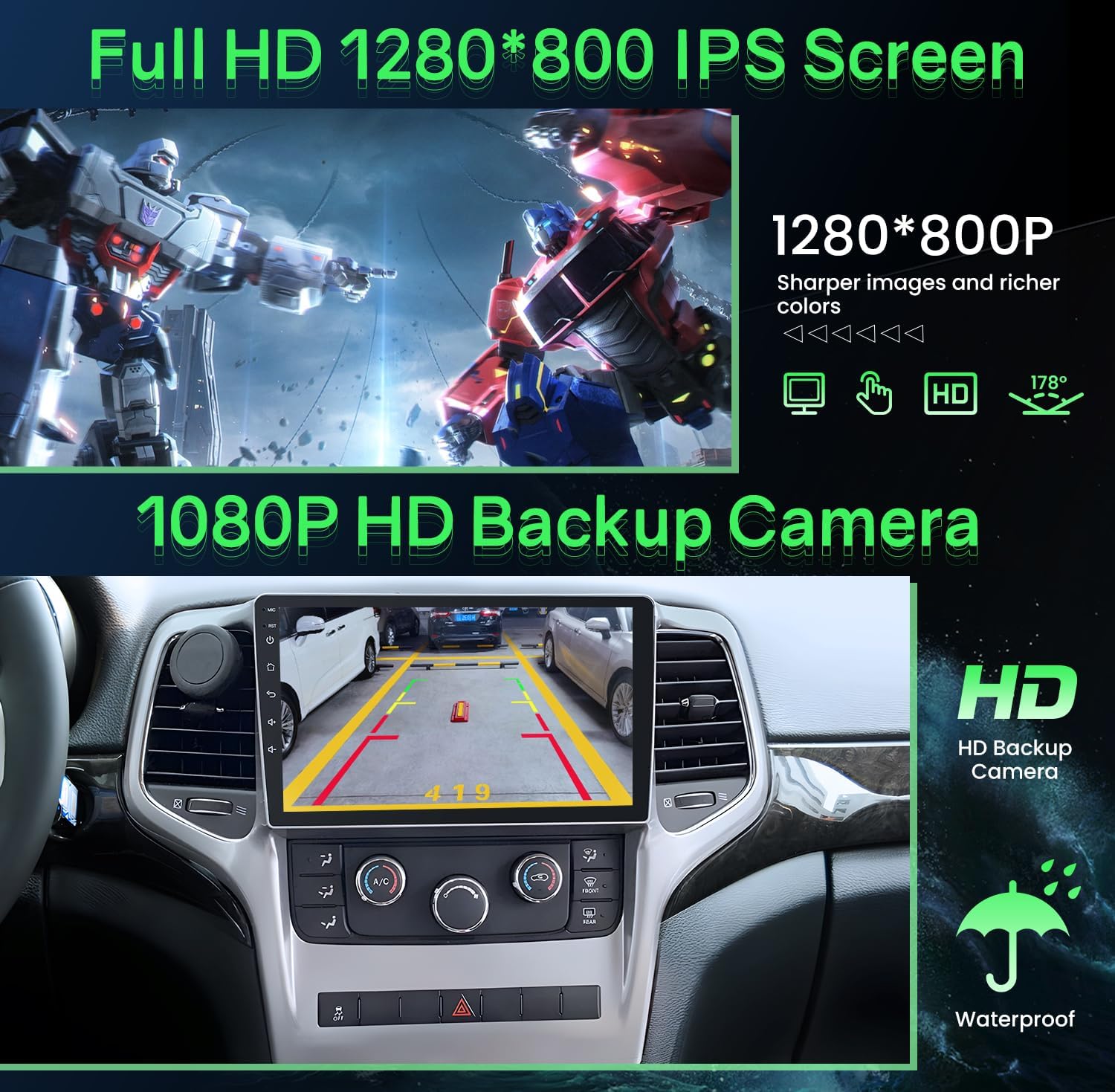
Figure 4: Illustrated packing list of included components.
5. Setup and Installation
Professional installation is recommended. Ensure the vehicle's battery is disconnected before starting any electrical work.
5.1. Radio Wiring Diagram
Refer to the following diagram for proper connection of the car radio's power, audio, and data cables. Note that the 4G Antenna is not applicable for 4Core models.

Figure 5: Jufodrca Car Radio Wiring Diagram.
5.2. Rear Camera Installation
The included 1080P rear camera provides essential visual guidance. Follow these steps for installation:
- Connect the red cable (1) of the camera to the positive (+) terminal of your vehicle's backup light.
- Connect the black cable (2) of the camera to the negative (-) terminal of your vehicle's backup light or a suitable ground point.
- Connect the camera's video output cable (3) to the 'CAM IN' input on the car radio.
- Locate the 'pin 3' wire on the car radio's harness (often labeled 'BACK' or 'REVERSE'). Peel off the protective adhesive and connect this wire (4) to the reversing cable (usually a short red wire extending from the video cable near the radio). This signal tells the radio to switch to the camera view when reverse gear is engaged.

Figure 6: Rear Camera Installation Schematic Diagram.
6. Operating Instructions
6.1. Wireless Carplay & Android Auto
Connect your smartphone wirelessly via Bluetooth and WiFi to access Carplay (for iOS) or Android Auto (for Android devices). This allows you to use phone functions like navigation, music, messaging, and voice assistants (Siri/Google Assistant) directly on the car radio's display.

Figure 7: Wireless Carplay and Android Auto interface.
6.2. GPS Navigation & 5G WiFi
After connecting the unit to a 5G WiFi network (e.g., via your phone's hotspot), you can download offline maps or use online navigation applications. The system supports various navigation apps available in the app store. The 5G WiFi provides faster data transmission and read/write speeds compared to 2.4G WiFi.

Figure 8: GPS Navigation and 5G WiFi functionality.
6.3. Steering Wheel Control (SWC)
Once properly wired, you can program your vehicle's steering wheel buttons to control the car radio. This typically includes functions like answering calls, adjusting volume, and changing tracks or videos. Refer to the system settings for SWC configuration.

Figure 9: Steering Wheel Control in action.
6.4. Mirror Link
The Mirror Link feature allows you to display your smartphone's screen directly onto the car radio. This is useful for viewing content or using apps that are not natively supported by Carplay or Android Auto.
6.5. Bluetooth & FM/RDS Radio
Use Bluetooth 4.0 for hands-free calls and streaming audio from your phone. The FM/RDS radio function allows you to tune into local radio stations and view station information (if broadcasted).

Figure 10: Bluetooth and FM RDS Radio interfaces.
6.6. Audio Equalizer (EQ)
Access the built-in 15-band equalizer through the system settings to fine-tune your audio output. Adjust various frequency bands to match your personal preference or vehicle acoustics.
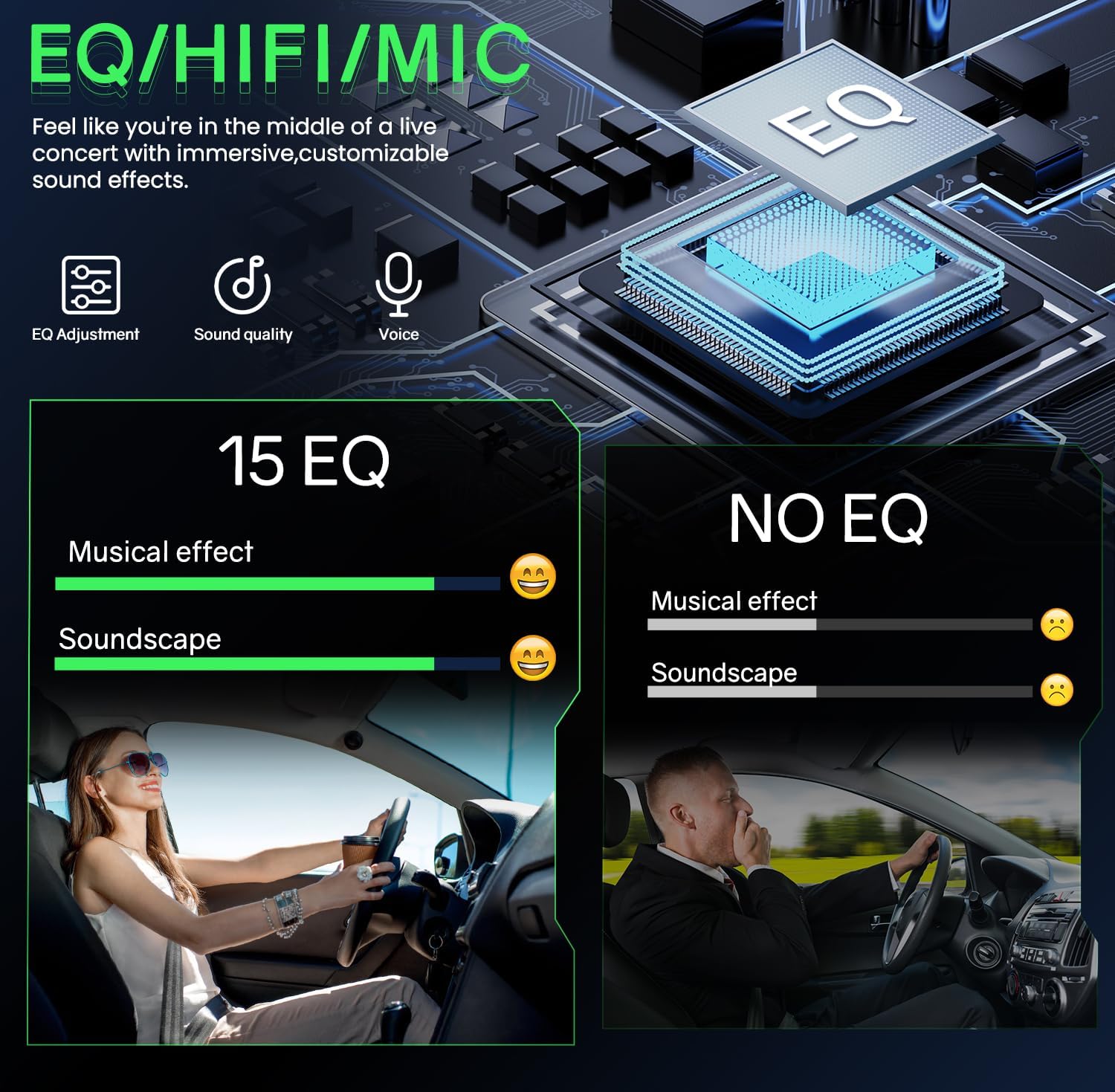
Figure 11: Audio Equalizer (EQ) settings interface.
7. Maintenance
To ensure the longevity and optimal performance of your Jufodrca car radio, follow these general maintenance guidelines:
- Screen Cleaning: Use a soft, lint-free cloth specifically designed for electronics to clean the touch screen. Avoid abrasive cleaners or harsh chemicals.
- Software Updates: Periodically check for available software updates through the system settings or the manufacturer's website to ensure you have the latest features and bug fixes.
- Cable Connections: Ensure all cables are securely connected. Loose connections can lead to intermittent issues.
- Environmental Conditions: Avoid exposing the unit to extreme temperatures, direct sunlight for prolonged periods, or excessive moisture.
8. Troubleshooting
If you encounter issues with your car radio, refer to the following common troubleshooting steps:
8.1. Common Issues and Solutions
- No Power/Unit Not Turning On:
- Check all power cable connections. Ensure the main power harness is securely plugged in.
- Verify the vehicle's fuse for the radio is intact.
- Ensure the ignition wire (ACC) is receiving power when the vehicle is on.
- Volume Control Problems:
- Navigate to Settings > Factory Settings > Car Model.
- On the right-hand side of the screen, you will see options like "DVD" or "DVD AMP". Select one or the other to resolve volume control issues.
- Connectivity Issues (Carplay/Android Auto/Bluetooth):
- Ensure Bluetooth and WiFi are enabled on both the car radio and your smartphone.
- Forget and re-pair the device in Bluetooth settings.
- Restart both the car radio and your smartphone.
- Check for any software updates for the car radio.
- Screen Freezes or Unresponsive:
- Perform a soft reset by pressing and holding the power button (if available) or turning off the vehicle and restarting it.
- If the issue persists, a factory reset may be necessary (note: this will erase all user data and settings).
- No Sound:
- Check volume levels on both the radio and any connected devices.
- Verify speaker wire connections.
- Ensure the correct audio source is selected.
9. Specifications
| Feature | Specification |
|---|---|
| Model Number | Jufodrca-64G |
| Display Size | 9 Inches |
| Display Resolution | 1280*800 IPS HD Touchscreen |
| Processor | 4-Core |
| RAM | 2GB |
| ROM (Internal Storage) | 64GB |
| Connectivity | Bluetooth 4.0, USB, 5G Wi-Fi |
| Special Features | Android Auto, Apple CarPlay, FM/RDS, DSP, GPS, SWC, Mirror Link, 1080P Backup Camera |
| Compatible Devices | Smartphone |
| Audio Output Mode | Stereo, Surround |
| Surround Sound Channel Config. | 5.1 |
| Number of Channels | 6 |
| Item Weight | 3.8 pounds (1.73 Kilograms) |
| Package Dimensions | 17.99 x 13.54 x 4.8 inches |
10. Warranty and Support
This Jufodrca car radio comes with a 2-year warranty from the date of purchase. This warranty covers manufacturing defects and malfunctions under normal use.
For technical support, warranty claims, or any questions regarding your product, please contact Jufodrca customer service through the retailer where you purchased the item or refer to the contact information provided in your product packaging.