
WUYJTIF 4+32GB
User Manual: TV98 ATV Ultra HD 8K Smart TV Box
Brand: WUYJTIF | Model: 4+32GB
Introduction

Image: The TV98 ATV Ultra HD 8K Smart TV Box and its accompanying remote control. The box is compact and black, with a digital clock display, and the remote is sleek with various navigation and function buttons.
The WUYJTIF TV98 ATV Ultra HD 8K Smart TV Box is a powerful media player designed to transform your television into a smart entertainment hub. Featuring an Amlogic S905W2 quad-core processor, Mali-G31 GPU, and support for 8K HDR content, this device delivers a high-quality viewing experience. It runs on Android 11 (upgradable to 14) and offers dual-band Wi-Fi (2.4G & 5G) and Bluetooth 5.0 connectivity for seamless streaming and interaction. This manual provides essential information for setting up, operating, and maintaining your TV box.
Setup Guide
Package Contents
- TV98 ATV Ultra HD 8K Smart TV Box
- Remote Control
- Power Adapter (DC 5V/2A)
- HDMI Cable
- User Manual (this document)
Connecting Your Device

Image: Diagram illustrating the various ports on the TV98 Smart TV Box, including TF Card slot, USB 2.0 ports, AV Out, SPDIF, LAN (RJ45), HDMI Out, and DC Power input.
- Connect to TV: Plug one end of the HDMI cable into the HDMI OUT port on the TV box and the other end into an available HDMI input on your television. For older TVs, use the AV (3-in-1) port with a compatible AV cable (not included).
- Connect Power: Insert the power adapter into the DC 5V/2A port on the TV box, then plug the adapter into a wall outlet.
- Connect to Network (Optional):
- Wired Connection: Connect an Ethernet cable from your router to the LAN (RJ45) port on the TV box.
- Wireless Connection: The device supports 2.4G and 5G Wi-Fi. You will configure this during the initial software setup.
- Insert Storage (Optional): If using external storage, insert a TF card into the TF CARD slot or connect a USB drive to one of the USB 2.0 ports.
- Power On: Turn on your television and select the correct HDMI input source. The TV box should automatically power on and display the boot screen.
Operating Instructions
Initial Setup and Android Interface
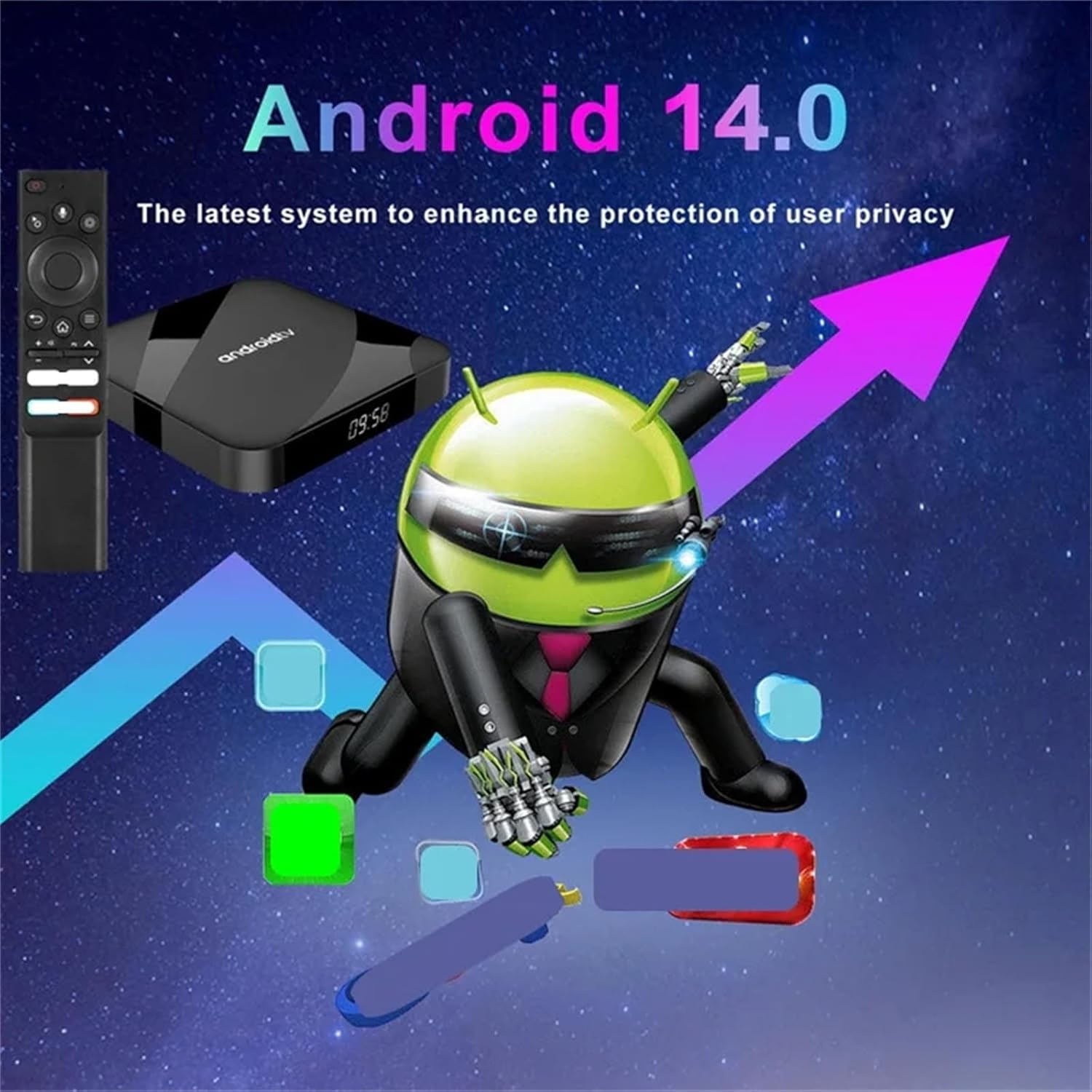
Image: A graphic representing the Android 14 operating system, highlighting its focus on user privacy and an enhanced experience.
Upon first boot, you will be guided through an initial setup process. This includes selecting your language, connecting to a Wi-Fi network (if not using wired Ethernet), and logging into your Google account. Once complete, you will be presented with the Android TV home screen, which provides access to installed applications, settings, and media content.
Remote Control Functions
The included remote control allows for easy navigation and control of your TV box. Familiarize yourself with its buttons:
- Power Button: Turns the device on/off or puts it into standby.
- Navigation Pad (Directional Buttons & OK): Used to move through menus and select items.
- Back Button: Returns to the previous screen.
- Home Button: Returns to the Android TV home screen.
- Menu Button: Accesses context-sensitive options.
- Volume Buttons: Adjusts audio volume.
- Voice Control Button: Activates voice search or commands (if supported by the application).
- Dedicated App Buttons: (If present) Quick access to specific streaming services.
Key Features and Usage
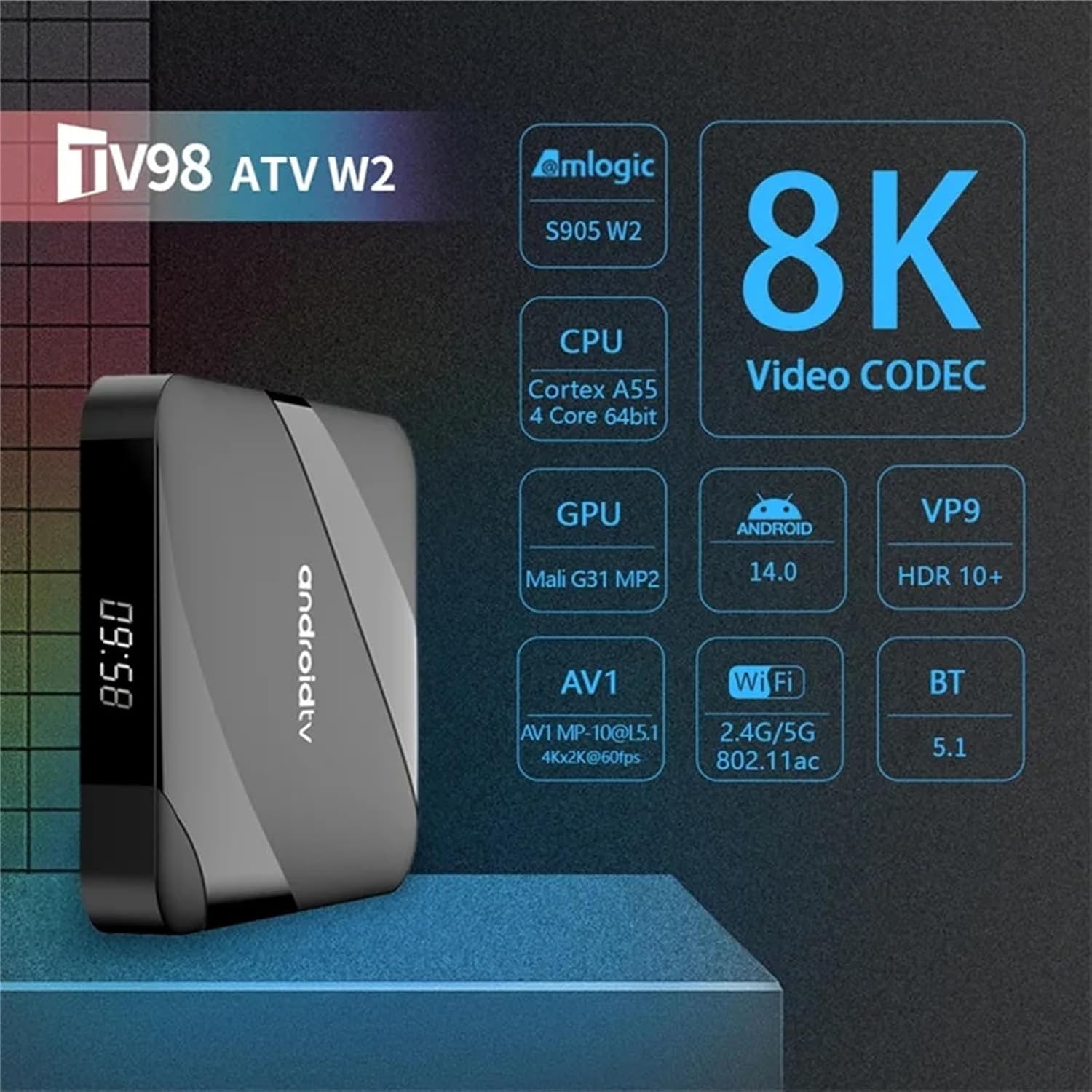
Image: An infographic detailing the core features of the TV98 ATV W2, including Amlogic S905W2 CPU, 8K Video CODEC, Android 14, Mali G31 MP2 GPU, VP9, HDR10+, AV1, Wi-Fi (2.4G/5G), and Bluetooth 5.1.
- 8K HDR Content Playback: The device supports 8K resolution and HDR10+ for vivid, detailed visuals. Ensure your TV is 8K compatible and that the content source provides 8K HDR.
- Application Installation: Access the Google Play Store to download and install a wide variety of applications, including streaming services, games, and utility apps.
- Dual-Band Wi-Fi Connectivity: Utilize the 2.4G or 5G Wi-Fi for stable and fast internet access, crucial for high-definition streaming and online gaming.
- Gaming Experience: With support for Vulkan 1.1 and OpenGL ES3.2, the TV box offers enhanced graphics for a smoother gaming experience. Connect compatible Bluetooth game controllers for optimal play.

Image: A scene depicting a user playing a video game on a large screen, with the TV98 Smart TV Box and a gamepad visible, illustrating its gaming capabilities.
- Media Playback: Play local media files from USB drives or TF cards. The device supports various video codecs including AV1, VP9, and H.265.
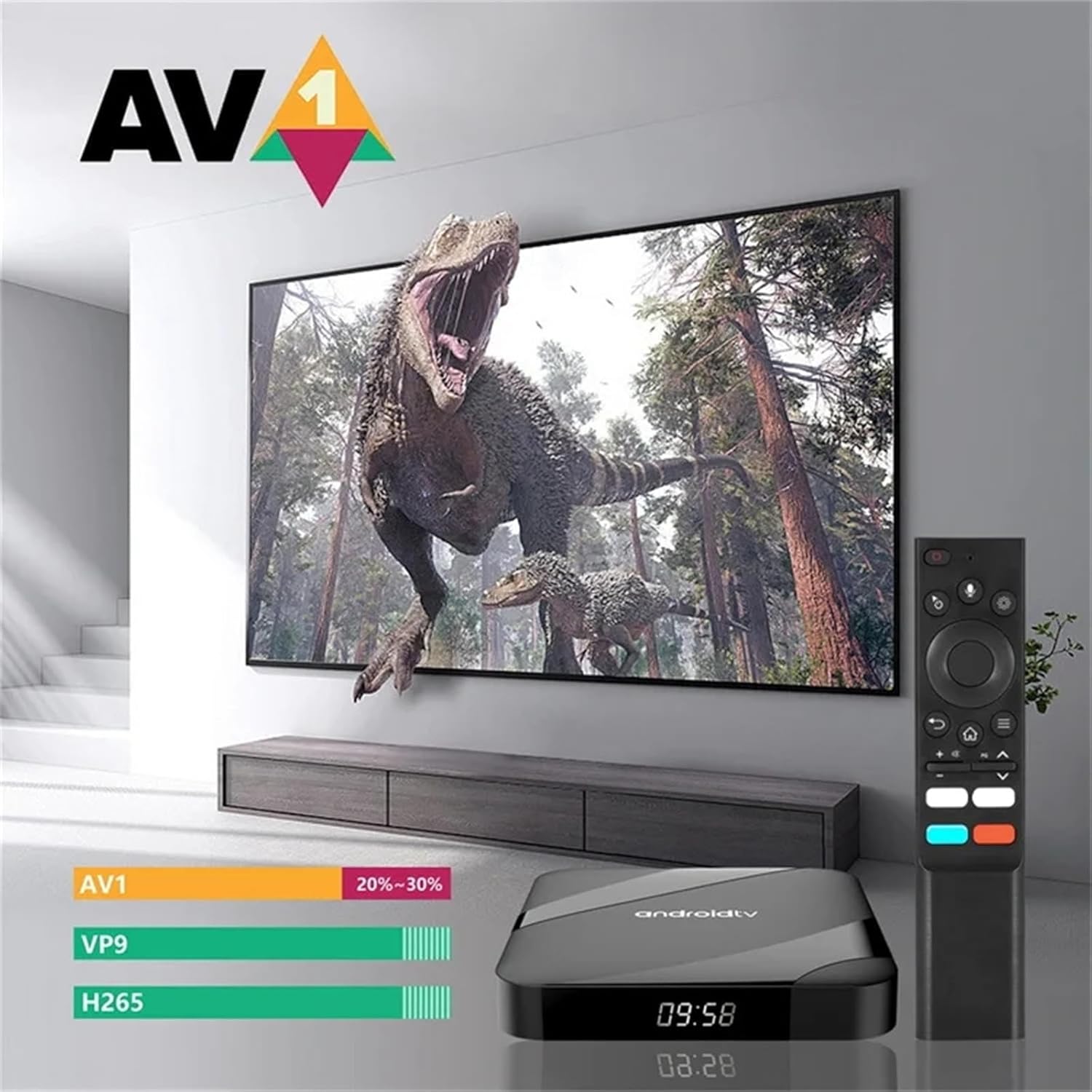
Image: A visual representation highlighting the efficiency of the AV1 video codec compared to VP9 and H.265, showing a 20-30% reduction in bandwidth usage for the same quality.
- Screen Mirroring: Utilize Airplay, DLNA, or Miracast to mirror content from your smartphone or tablet to your TV screen.

Image: A collage showing various uses of the TV98 Smart TV Box, including Airplay, DLNA, Miracast, playing games, watching movies, music sharing, and working conferences.
Maintenance
To ensure the longevity and optimal performance of your TV98 Smart TV Box, follow these maintenance guidelines:
- Cleaning: Use a soft, dry cloth to clean the exterior of the device. Do not use liquid cleaners or abrasive materials. Ensure the device is powered off and unplugged before cleaning.
- Ventilation: Do not block the ventilation openings on the device. Ensure it is placed in a well-ventilated area to prevent overheating.
- Software Updates: Periodically check for system updates in the device settings. Keeping the software updated ensures you have the latest features, security patches, and performance improvements.
- Power Cycle: If the device becomes unresponsive, unplug the power adapter, wait 10 seconds, and then plug it back in to perform a power cycle.
Troubleshooting
If you encounter issues with your TV98 Smart TV Box, refer to the following common problems and solutions:
| Problem | Possible Cause / Solution |
|---|---|
| No power / Device not turning on |
|
| No display on TV |
|
| Remote control not working |
|
| Wi-Fi connection issues |
|
| Applications freezing or slow performance |
|
Specifications
Image: An infographic summarizing the key technical specifications of the TV98 ATV W2, including processor, GPU, video codecs, and connectivity.
| Feature | Detail |
|---|---|
| CPU | Amlogic S905W2, Quad core ARM Cortex-A35 (up to 1.2 GHz) |
| GPU | Penta Core Mali-G31 750MHz (Supports Vulkan 1.1, OpenGL ES3.2) |
| SDRAM | 4GB (for 4+32GB model) |
| EMMC Flash | 32GB (for 4+32GB model) |
| Wi-Fi | 802.11 b/g/n 2.4G + 5G |
| Bluetooth | BT5.1 |
| Operating System | Android 11 (upgradable to 14) |
| Video Output | HDMI 2.0 (supports max 4Kx2K display, 8K HDR) |
| Video Codecs | AV1, VP9, H.265 |
| USB Ports | 2 x High speed USB 2.0 (supports U DISK and USB HDD) |
| Card Reader | TF Card reader |
| Audio Output | SPDIF Coaxial (Optical) |
| AV Output | AV (3 in 1) port |
| Ethernet | RJ45 10M/100M |
| Power Supply | DC Jack 5V/2A |
| Product Dimensions | 3.8 x 1.35 x 0.62 inches |
Warranty and Support
WUYJTIF products are designed for reliability and performance. This product comes with a standard manufacturer's warranty against defects in materials and workmanship. Please refer to the warranty card included in your package for specific terms and conditions, including the warranty period and coverage details.
For technical support, troubleshooting assistance, or warranty claims, please contact WUYJTIF customer service through the retailer where you purchased the product or visit the official WUYJTIF support website (if available). Please have your product model number (4+32GB) and purchase information ready when contacting support.
Note: Warranty terms may vary by region and retailer. Keep your proof of purchase for warranty validation.
Related documents4+32GB

Ask a question about this manual
Ask about setup, troubleshooting, compatibility, parts, safety, or missing instructions. Manuals+ will review the question and use this page’s manual context to help answer it.