
1. Product Overview
The GOODTAC S1-S Smart Door Lock offers advanced security and convenient keyless entry for your home or office. This lock is designed for doors with a thickness of 70mm and integrates multiple access methods including fingerprint, secure code, and smartphone application control.
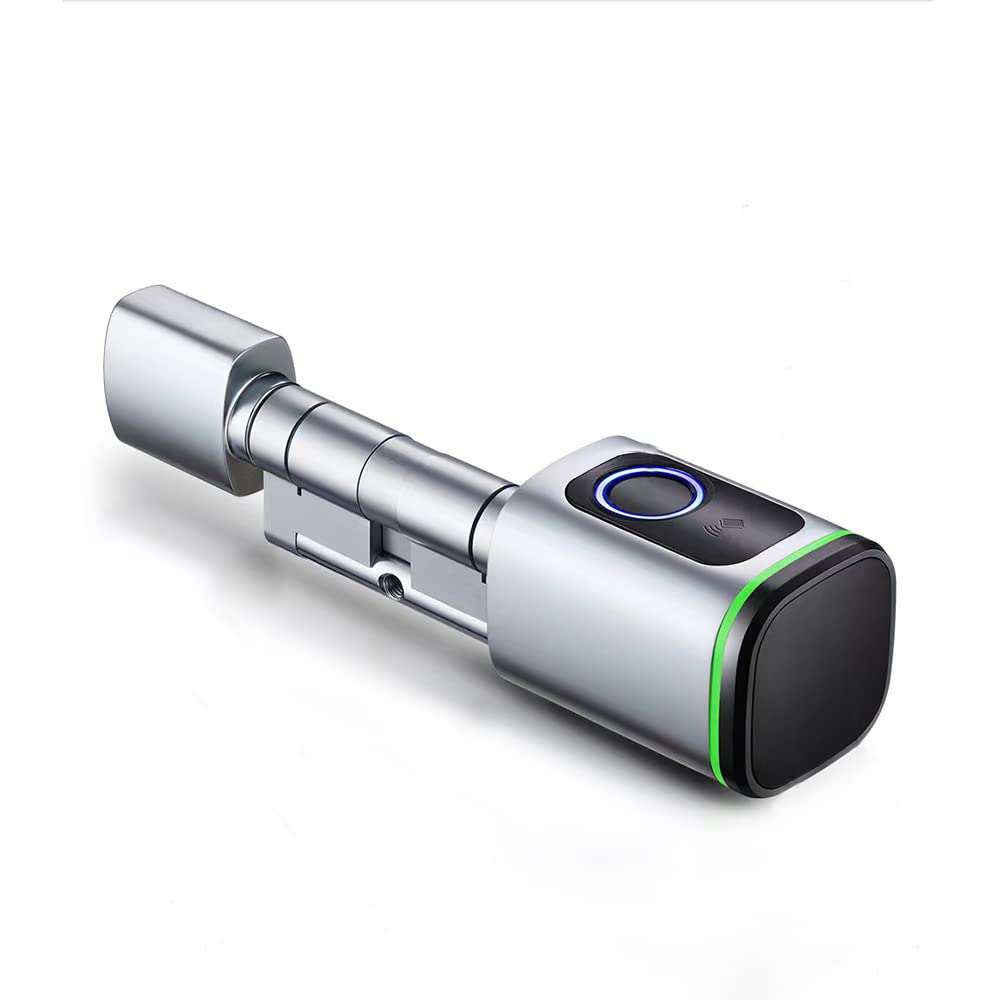
Image 1.1: Front view of the GOODTAC S1-S Smart Door Lock.
Key Features:
- Keyless Entry: Unlock your door using a secure code, fingerprint, or the dedicated smartphone application.
- Remote Access: Monitor and control your lock from any location using the Tuya APP on your smartphone or tablet.
- Enhanced Security: Features a Grade C lock cylinder for high security and an anti-peeping password function.
- Emergency Power Supply: Equipped with a low battery alarm and a Type-C charging port for temporary power using a power bank or phone charger.
- Easy Installation: Designed for straightforward DIY setup without extensive modifications.
2. Setup & Installation
This section provides general guidelines for installing your GOODTAC S1-S Smart Door Lock. For detailed, step-by-step instructions, please refer to the separate installation guide included in your product packaging. Ensure your door thickness is 70mm for proper fitment.
- Prepare the Door: Ensure the door is clean and the existing hardware is removed. Verify that the door thickness is compatible (70mm).
- Install the Mortise Lock: Insert the mortise lock into the door edge and secure it with screws.
- Install Front Panel: Attach the front panel (exterior side) to the door, ensuring the spindle and cables pass through the door hole correctly.
- Install Rear Panel: Connect the cables from the front panel to the rear panel (interior side). Secure the rear panel to the door using the provided screws.
- Insert Batteries: Open the battery cover on the rear panel and insert the required batteries (typically 4x AA, though not specified, common for smart locks).
- Test Operation: After installation, test all functions including mechanical key, fingerprint, and keypad entry to ensure proper operation before closing the door.
3. Operating Instructions
The GOODTAC S1-S Smart Door Lock offers multiple ways to access your property. Familiarize yourself with these methods for optimal use.
3.1. Tuya APP Control
The Tuya APP allows for remote control and management of your lock. Download the Tuya Smart app from your device's app store.
- Download & Register: Install the Tuya Smart app and create an account.
- Add Device: Follow the in-app instructions to add your S1-S Smart Door Lock. This typically involves putting the lock into pairing mode.
- Remote Unlock: Once paired, you can remotely unlock/lock the door, manage user access, view access logs, and receive real-time notifications.
3.2. Fingerprint Entry
The integrated biometric sensor allows for quick and secure access.
- Enroll Fingerprints: Access the lock's programming menu (via keypad or app) to enroll new fingerprints. Follow the voice prompts or app instructions to scan your finger multiple times.
- Unlock: Place your enrolled finger firmly on the fingerprint sensor. The lock will unlock if the fingerprint is recognized.
3.3. Keypad Code Entry
Use a numerical code for entry. The lock supports an anti-peeping password feature.
- Set User Codes: Program unique user codes through the lock's menu or the Tuya APP.
- Unlock: Enter your user code followed by the '#' key.
- Anti-Peeping Feature: To prevent others from guessing your code, you can enter random digits before and after your actual code. For example, if your code is 123456, you can enter 987123456321#. The lock will still recognize the correct sequence within the longer input.
3.4. Mechanical Key Entry
In case of emergency or battery depletion, the lock can be opened with a traditional mechanical key.
- Locate the keyhole (usually concealed).
- Insert the provided mechanical key and turn to unlock.
4. Maintenance
Proper maintenance ensures the longevity and reliable operation of your smart door lock.
- Battery Replacement: The lock will emit a low battery alarm when power is critical. Replace all batteries promptly with new, high-quality alkaline batteries.
- Emergency Power: If batteries are completely depleted, connect a power bank or phone charger to the Type-C charging port on the exterior panel to temporarily power the lock for entry.
- Cleaning: Wipe the lock's exterior surfaces with a soft, dry cloth. Avoid using abrasive cleaners or solvents that could damage the finish or electronic components.
- Fingerprint Sensor: Keep the fingerprint sensor clean and dry for optimal performance.
5. Troubleshooting
Refer to this section for common issues and their solutions.
| Problem | Possible Cause | Solution |
|---|---|---|
| Lock does not respond. | Dead batteries. | Replace batteries or use emergency Type-C power. |
| Fingerprint not recognized. | Dirty sensor, improperly enrolled fingerprint, or wet finger. | Clean sensor, re-enroll fingerprint, ensure finger is dry. |
| Keypad code not working. | Incorrect code, lock not in active state, or keypad malfunction. | Verify code, ensure lock is awake, try re-entering code. |
| Cannot connect to Tuya APP. | Bluetooth/Wi-Fi issue, lock not in pairing mode, or app error. | Check phone's connectivity, put lock in pairing mode, restart app. |
6. Specifications
| Feature | Detail |
|---|---|
| Brand | GOODTAC |
| Model Number | S1-S |
| Lock Type | Biometric |
| Material | Aluminum |
| Item Dimensions (L x W x H) | 4.75 x 1.65 x 1.65 inches |
| Item Weight | 1.2 Pounds |
| Special Feature | Anti-Peeping Password |
| Control Method | App, Remote |
| Included Components | Card, Key |
| Compatible Door Thickness | 70mm (for this variant) |
| Color | Silver |
7. Warranty & Support
For warranty information and technical support, please refer to the documentation included with your product or contact GOODTAC customer service directly. Keep your purchase receipt as proof of purchase for any warranty claims.
Contact Information: Please visit the official GOODTAC website or refer to your product packaging for the most up-to-date customer support contact details.