Introduction
This manual provides detailed instructions for the setup, operation, maintenance, and troubleshooting of your new Slim Portable Wireless Bluetooth Keyboard. Please read this manual thoroughly before using the device to ensure optimal performance and longevity.
The keyboard features a slim design, 7-color backlighting, a built-in trackpad, and multi-device Bluetooth connectivity, making it suitable for various operating systems including iOS, Android, Mac OS, and Windows.
Package Contents
- 1 x 10-inch Bluetooth Keyboard
- 1 x Charging Cable
- 1 x User Manual (this document)
Setup
1. Charging the Keyboard
Before initial use, fully charge the keyboard. Connect the provided charging cable to the keyboard's charging port and to a USB power source (e.g., computer, USB wall adapter). The charging indicator light will illuminate during charging and turn off when fully charged.
A full charge typically takes 2-3 hours and provides over 50 hours of continuous operation or 90-180 days of standby time.

Figure 1: Keyboard Charging Port and Battery Information. This image illustrates the location of the charging port and provides details on battery life, including auto-connection, 2-3 hour charge time, 60-90 hours of continuous use, and 90-180 days of standby.
2. Powering On/Off
Locate the power switch on the side or back of the keyboard. Slide the switch to the "ON" position to power on the keyboard. Slide it to "OFF" when not in use to conserve battery.
3. Bluetooth Pairing
The keyboard uses Bluetooth 5.0 for a stable connection up to 33 feet (10 meters).
- Ensure the keyboard is charged and powered on.
- Activate Bluetooth on your device (tablet, smartphone, computer).
- On the keyboard, press the Fn key simultaneously with one of the device selection keys (Q, W, or E) to enter pairing mode for that channel. For example, press Fn + Q. The Bluetooth indicator light on the keyboard will blink.
- On your device, search for Bluetooth devices. The keyboard will appear as "Bluetooth Keyboard" or a similar name. Select it to pair.
- Once paired, the Bluetooth indicator light on the keyboard will stop blinking.
The keyboard supports connecting to up to three devices. Use Fn + Q, Fn + W, and Fn + E to assign and switch between paired devices.

Figure 2: Wide Compatibility. This image demonstrates the keyboard's compatibility with various operating systems and devices, including Android, Windows, Mac OS, and iOS, shown with different tablets, laptops, and smartphones.
Operating Instructions
1. Basic Typing
The keyboard functions like a standard QWERTY keyboard. The scissor-mechanism keys provide a quiet and responsive typing experience.

Figure 3: Typing on the Keyboard. This image shows a user's hands positioned for typing on the keyboard, with a tablet displaying a screen in the background, illustrating typical usage.
2. Backlight Control
The keyboard features 7 switchable backlight colors. To change the backlight color, press the Fn key simultaneously with the backlight key (often indicated by a light bulb icon).
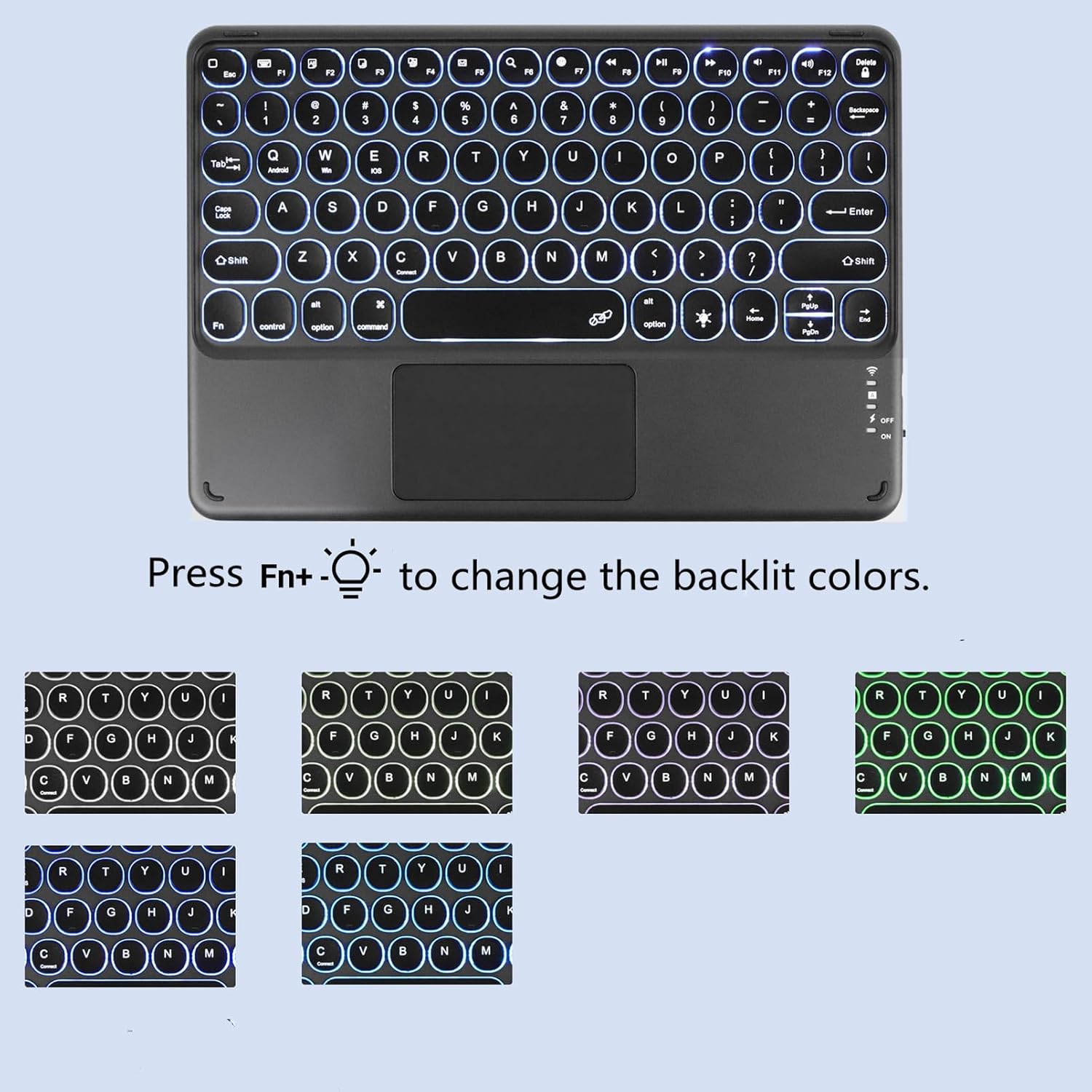
Figure 4: Backlight Color Control. This image highlights the keyboard's backlighting feature and instructs users to press the Fn key combined with the light bulb icon key to cycle through the available 7 backlight colors, which are visually represented.
3. Using the Trackpad
The integrated trackpad allows for precise cursor control. It supports standard touch gestures for navigation and clicking.
- Single Tap: Functions as a left-click.
- Two-Finger Tap: Functions as a right-click.
- Two-Finger Scroll: Drag two fingers up or down to scroll.

Figure 5: Precise Trackpad Usage. This image demonstrates a hand using the integrated trackpad on the keyboard, with an enlarged view of the trackpad area to emphasize its functionality for precise cursor control.
4. Switching Between Devices
If you have paired the keyboard with multiple devices, you can switch between them by pressing Fn + Q, Fn + W, or Fn + E, corresponding to the channel you assigned during pairing.
Maintenance
1. Cleaning
To clean the keyboard, power it off and disconnect any cables. Use a soft, lint-free cloth slightly dampened with water or a mild cleaning solution. Avoid excessive moisture and harsh chemicals. Do not spray cleaners directly onto the keyboard.
2. Battery Care
- Avoid fully discharging the battery frequently.
- Store the keyboard in a cool, dry place when not in use for extended periods.
- Charge the keyboard periodically if stored for a long time to prevent deep discharge.
Troubleshooting
| Problem | Possible Cause | Solution |
|---|---|---|
| Keyboard does not power on. | Low battery or power switch is off. | Charge the keyboard. Ensure the power switch is in the "ON" position. |
| Unable to pair via Bluetooth. | Keyboard not in pairing mode, Bluetooth off on device, or interference. | Ensure keyboard is in pairing mode (Fn + Q/W/E). Verify Bluetooth is enabled on your device. Move closer to the device and away from potential interference sources. Try restarting both devices. |
| Keyboard disconnects frequently or lags. | Low battery, distance from device, or interference. | Charge the keyboard. Reduce the distance between the keyboard and your device. Minimize other wireless devices nearby. |
| Certain keys or trackpad not responding. | Software glitch, physical obstruction, or hardware issue. | Restart the keyboard and your connected device. Ensure no debris is under the keys. If the issue persists, contact customer support. |
| Backlight not working or changing colors. | Incorrect key combination or low battery. | Ensure you are pressing Fn + backlight key. Charge the keyboard fully. |
Specifications
| Model Number | Rechargeable Keyboard with Trackpad |
| Connectivity Technology | Bluetooth 5.0 |
| Operating Distance | Up to 33 feet (10 meters) |
| Product Dimensions | 9.76 x 5.9 x 0.31 inches (248 x 150 x 8 mm) |
| Item Weight | 0.49 lbs (224 g) |
| Number of Keys | 87 |
| Backlight Colors | 7 (RGB support) |
| Battery Type | Rechargeable (1 x 9V battery included) |
| Charging Time | 2-3 hours |
| Continuous Operation Time | >50 hours |
| Standby Time | 90-180 days |
| Compatible Operating Systems | iOS, Android, Mac OS, Windows, Chrome OS, Linux |
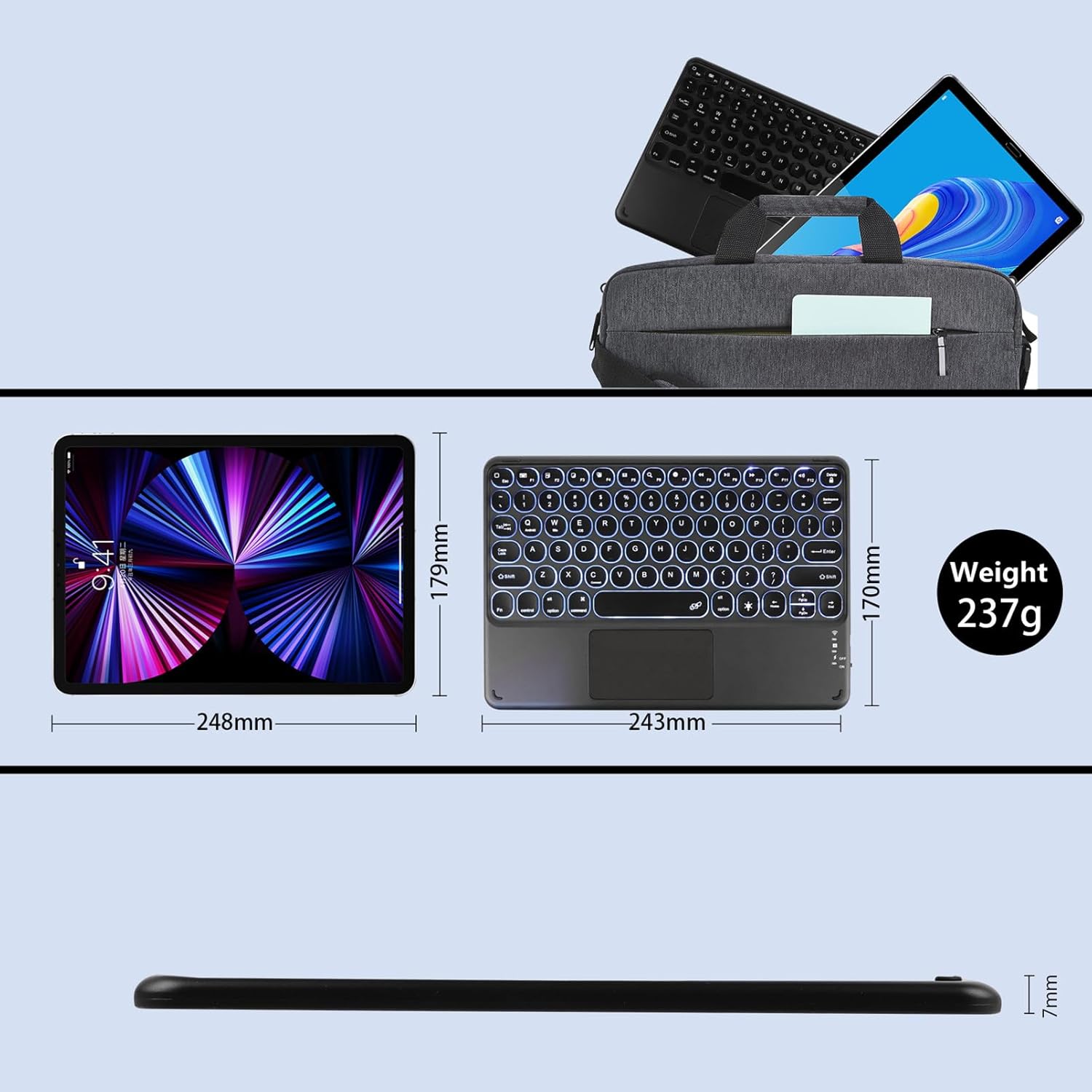
Figure 6: Keyboard Dimensions and Weight. This image provides a visual representation of the keyboard's length, width, and thickness in millimeters, alongside its weight in grams, for clear understanding of its physical specifications.
Warranty Information
This product comes with a limited warranty. Please refer to the warranty card included with your purchase or contact the seller for specific warranty terms and conditions. The warranty typically covers manufacturing defects for a specified period from the date of purchase.
Customer Support
If you encounter any issues or have questions not covered in this manual, please contact the seller or manufacturer for assistance. Provide your product model number and purchase details when seeking support.
Manufacturer: 3C Light


