
1. Introduction
This manual provides instructions for the Voacle RG Cube Retro Handheld Game Console. This device features an Android 13 operating system, a Unisoc T820 processor, and a 3.95-inch IPS touch screen. It is designed for portable gaming and multimedia entertainment.
Please read this manual thoroughly before using the device to ensure proper operation and to maximize your user experience.

Image 1.1: The Voacle RG Cube Retro Handheld Game Console, showcasing its design and screen.
2. Product Overview
2.1. Components and Controls
Familiarize yourself with the various components and controls of your RG Cube console:

Image 2.1: Detailed diagram illustrating the layout of buttons, joysticks, and ports on the RG Cube console.
- Left Joystick: For directional control in games and menu navigation.
- D-Pad: Digital directional input.
- Function Key: Specific functions depending on the application or game.
- Return Key: Navigates back in menus or applications.
- Game Keys (A, B, X, Y): Primary action buttons.
- Right Joystick: For camera control or secondary directional input.
- VOL +/-: Adjusts system volume.
- Power Key: Powers the device on/off or puts it to sleep.
- START/SELECT: Standard game control buttons.
- LB(L1)/RB(R1) & LT(L2)/RT(R2): Shoulder and trigger buttons for additional game controls.
- Air Outlet: Ventilation for heat dissipation.
- USB Port: For charging and data transfer.
- TF/INT. Card Slot: For inserting a microSD card for expanded storage.
- Indicator Light: Displays device status (e.g., charging, power on).
2.2. What's in the Box
Upon unboxing, verify that all items are present:
- 1 x RG Cube Game Console
- 1 x USB Cable
- 1 x Screen protector

Image 2.2: The RG Cube console and its included accessories: USB cable and screen protector.
3. Setup
3.1. Initial Charging
Before first use, fully charge the RG Cube console. Connect the included USB Type-C cable to the console's USB port and a compatible USB power adapter (not included). The indicator light will show charging status.
3.2. Inserting a MicroSD Card
The console comes with a 128GB SD card pre-installed. If you wish to expand storage, insert a compatible microSD card (up to 2TB) into the TF/INT. Card slot. Ensure the card is inserted correctly until it clicks into place.
3.3. Applying the Screen Protector
Carefully clean the screen using the provided wipes. Align the screen protector with the console's screen and gently apply it, smoothing out any air bubbles.
4. Operating Instructions
4.1. Power On/Off and Sleep Mode
- Power On: Press and hold the Power Key until the screen illuminates.
- Power Off: Press and hold the Power Key, then select 'Power Off' from the on-screen options.
- Sleep Mode: Briefly press the Power Key to put the device into sleep mode or wake it up.
4.2. Basic Navigation (Android 13)
The RG Cube runs on Android 13. Navigate using the touch screen, joysticks, or D-pad. Swipe, tap, and use the physical buttons for menu selection and application control.
4.3. Game Play
The console supports over 20 game formats and comes with a 128GB SD card containing 4720 pre-installed games. To play:
- Access the game launcher or emulator application.
- Select your desired game from the list.
- Use the joysticks, D-pad, and game keys for control.
Users can download additional games in relevant formats. Ensure compatibility with the Android 13 system.
4.4. Connectivity
- Wi-Fi (2.4/5G 802.11a/b/g/n/ac): Access Wi-Fi settings through the Android system menu to connect to wireless networks. This enables online multiplayer and content downloads.
- Bluetooth 5.0: Pair Bluetooth gamepads, headsets, or other accessories via the Android Bluetooth settings.
- HDMI Output: Connect the console to a TV or monitor using an HDMI cable (not included) for a larger display. This allows for an enhanced gaming experience on a bigger screen.
- Moonlight Streaming: The device supports Moonlight streaming, allowing you to play PC games smoothly on your RG Cube. Refer to Moonlight application instructions for setup.
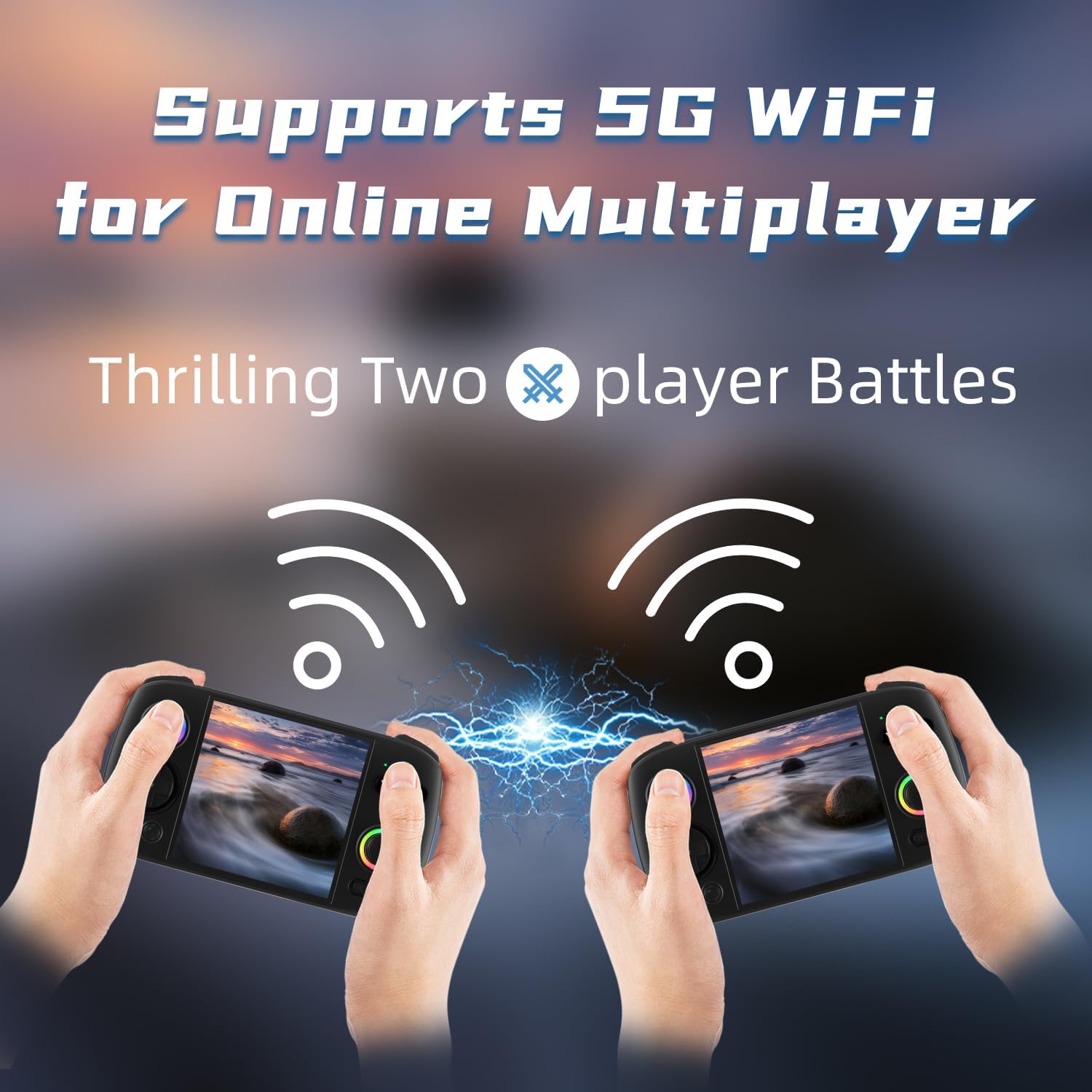
Image 4.1: Two RG Cube consoles demonstrating 5G WiFi support for online multiplayer gaming.

Image 4.2: The RG Cube console connected to a monitor, illustrating its capability for Moonlight streaming of PC games.
4.5. RGB Joystick Lighting
The joysticks feature 16 million color RGB lighting. You can customize the light effects (e.g., constant light, breath, rainbow, marquee, chasing, gaming) through the device settings to match your preference.
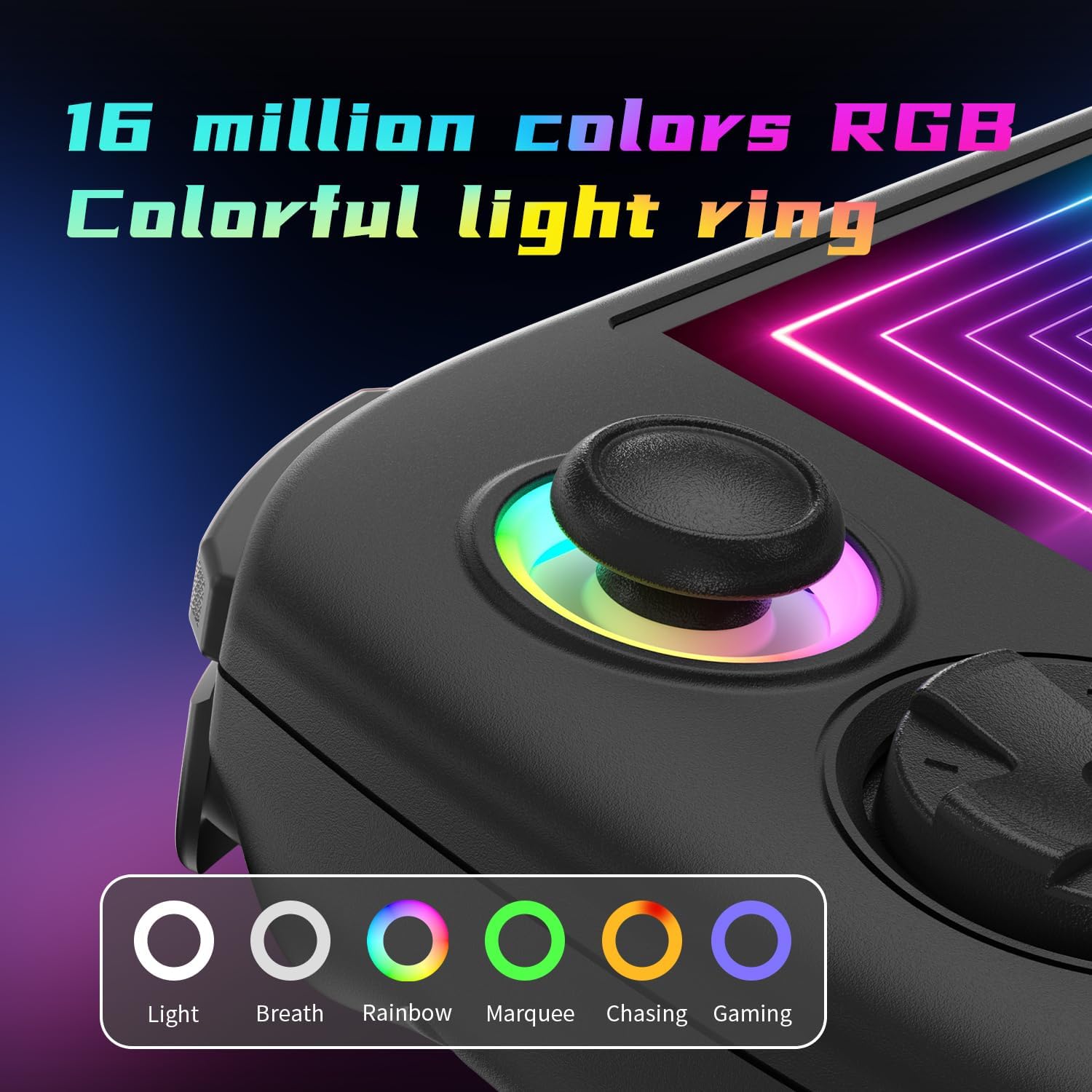
Image 4.3: Close-up of the RG Cube's joystick, highlighting the 16 million color RGB lighting and various effect options.
5. Maintenance
5.1. Cleaning
Use a soft, dry cloth to clean the console's exterior. For the screen, use a screen-specific cleaning solution and a microfiber cloth. Avoid harsh chemicals or abrasive materials.
5.2. Battery Care
The RG Cube is equipped with a 5200mAh lithium polymer battery. To prolong battery life:
- Avoid fully discharging the battery frequently.
- Store the device in a cool, dry place when not in use for extended periods.
- Use the provided USB Type-C cable for charging.

Image 5.1: Internal view of the RG Cube, highlighting its 5200mAh battery and estimated 7-hour battery life.
5.3. Software Updates
The device supports FOTA (Firmware Over-The-Air) wireless upgrades. Regularly check for and install system updates to ensure optimal performance and access to new features.
6. Troubleshooting
If you encounter issues with your RG Cube, refer to the following common solutions:
| Problem | Possible Solution |
|---|---|
| Device does not power on. | Ensure the battery is charged. Connect to a power source and try again. If unresponsive, perform a hard reset by holding the power button for 10-15 seconds. |
| Games are not loading or performing poorly. | Verify that the game files are in a supported format. Ensure the microSD card is properly inserted. Close background applications to free up RAM. Check for system updates. |
| Wi-Fi or Bluetooth connectivity issues. | Ensure Wi-Fi/Bluetooth is enabled in settings. Restart the console and your router/Bluetooth device. Check for interference from other wireless devices. |
| Screen is unresponsive or frozen. | Perform a soft reset by holding the Power Key until the device restarts. If the issue persists, a factory reset may be necessary (note: this will erase all user data). |
| Battery drains quickly. | Reduce screen brightness. Close unused applications. Disable Wi-Fi/Bluetooth when not in use. Check for background processes consuming power. |
7. Specifications
| Feature | Detail |
|---|---|
| Model | RGCube |
| Operating System | Android 13 |
| Processor | Unisoc T820 (6nm EUV 5G SOC chip) |
| GPU | Quad Core Mali-G57 850MHz |
| RAM | 8GB LPDDR4X |
| Internal Storage | 128GB (via included SD card) |
| Expandable Storage | Supports TF card up to 2TB |
| Screen | 3.95-inch IPS Touch Screen, OCA full lamination, 720x720 resolution |
| Wi-Fi | 2.4/5G 802.11a/b/g/n/ac |
| Bluetooth | 5.0 |
| Battery | 5200mAh Lithium Polymer, up to 7 hours battery life |
| Charging | USB Type-C, supports fast charging |
| Audio | High fidelity dual speakers, 3.5mm stereo headphone jack |
| Video Output | HDMI output (supports 1080p) |
| Controls | Hall joystick, Six-axis gyroscope sensor, RGB joystick lighting |
| Dimensions | 7.48 x 4.33 x 1.57 inches (190 x 110 x 40 mm) |
| Weight | 14.1 ounces (0.4 kg) |
| Material | Plastic |
| Recommended Age | 12 years and up |
8. Warranty and Support
For warranty information and technical support, please refer to the documentation provided with your purchase or contact Voacle customer service directly. Contact details can typically be found on the manufacturer's official website or through your retailer.