
Introduction
Thank you for choosing the Inefala 8-Core 6+128G Android 13 Car Stereo Upgrade Radio. This manual provides essential information for the proper installation, operation, and maintenance of your new car stereo system. Please read this manual thoroughly before use to ensure optimal performance and safety.
Product Overview
This advanced car stereo system is specifically designed for Nissan Sentra models from 2013 to 2017. It features a large 10.1-inch capacitive touchscreen, powered by an 8-core processor and Android 13 operating system, offering 6GB RAM and 128GB ROM for smooth performance and ample storage. Key features include:
- Seamless Smartphone Integration: Built-in wireless/wired CarPlay and Android Auto for easy access to phone features like navigation, music, calls, and messages.
- Advanced Navigation: Integrated GPS module supports offline maps (e.g., Waze) and online navigation via Wi-Fi/hotspot.
- High-Resolution Display: 1280x720 resolution touchscreen supporting 1080P video playback. Customizable with 19 background wallpapers and 59 desktop themes.
- Enhanced Audio Experience: Features a 32-band audio equalizer for superior sound customization.
- Bluetooth 5.0 Connectivity: Supports hands-free calling, phone book download, and music streaming with a built-in microphone.
- FM/RDS Radio: Preset up to 18 stations for real-time channel broadcasts, weather forecasts, and road conditions.
- Safety Features: Equipped with an AHD camera for clear reversing images and supports original steering wheel controls.
Specifications
| Brand | Inefala |
| Model Name | Inefala 8-Core 6+128G Android 13 Car Stereo Upgrade Radio |
| Operating System | Android 13 |
| CPU | 8-Core AC8257, 2.0 GHz |
| Memory (RAM + ROM) | 6GB RAM + 128GB ROM |
| Screen Size | 10.1 inches |
| Screen Resolution | 1280 x 720 |
| Touch Screen Type | Capacitive |
| Display Type | LCD |
| Bluetooth Version | 5.0 |
| Radio Tuner | FM/RDS (Chip: 8035) |
| Power Amplifier Chip | 7388 |
| Audio Decoder | BU32107 |
| USB Interface | Dual USB |
| Rear Camera Standard | AHD720 & CVBS |
| Factory Setup Keyword | 1234 |
| Mounting Type | Dashboard Mount |
| Included Components | Android Radio Unit, Power Cable, Original USB Cable, RCA Harness, GPS Antenna, AHD Backup Camera, Rear Camera Input Cable, External Microphone, 2 USB Cables, Installation Tool |
Setup
1. Compatibility Check
This replacement dashboard panel assembly is designed for Nissan Sentra models from 2013 to 2017. It is crucial to verify that the top clasp of your car's original frame is horizontal. If the shape is vertical, this unit is not compatible. Please also compare the power cable port shown in the product details with your original car's port before proceeding with installation.
2. Package Contents
Ensure all components listed below are present in your package:
- 1 × Inefala Android Radio Unit for Nissan Sentra
- 1 × Power Cable
- 1 × Original USB Cable
- 1 × RCA Harness
- 1 × GPS Antenna
- 1 × AHD Backup Camera
- 1 × Rear Camera Input Cable
- 1 × External Microphone
- 2 × USB Cables
- 1 × Installation Tool
3. Installation Overview
Installation typically involves removing the original car stereo, connecting the new unit's wiring harness, and mounting the new display. The unit supports most stock features, including the power amplifier and backup camera. For the power amplifier, you may need to connect the AMP control wire from the original plug to the ACC power cable. Professional installation is recommended if you are unfamiliar with car electronics.
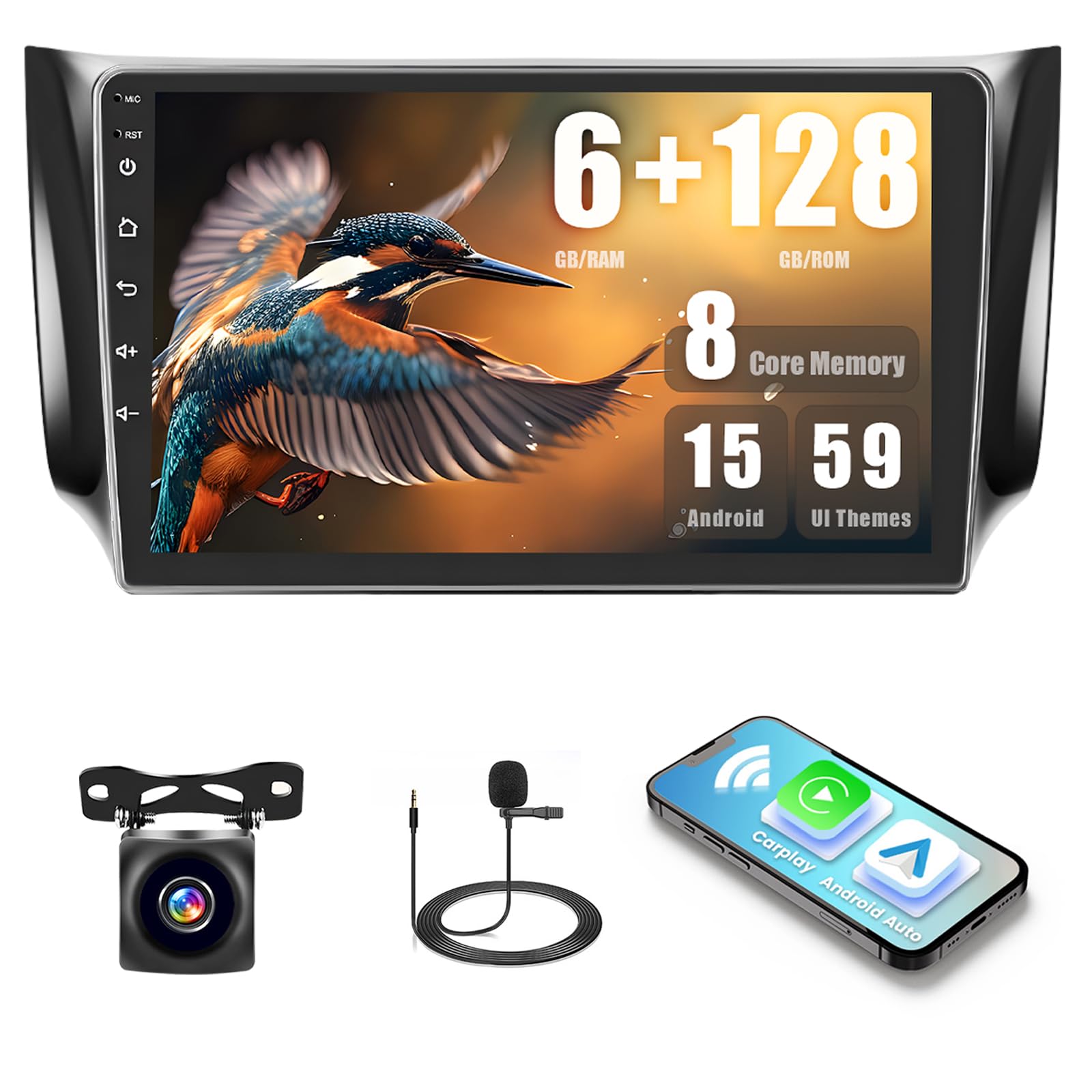
Image: Comparison of the dashboard before and after installing the Inefala car stereo in a Nissan Sentra. The image highlights the integrated look of the new 10.1-inch display.
Operating Instructions
1. Display and Interface
The 10.1-inch capacitive touchscreen offers intuitive control. The display resolution is 1280x720, supporting 1080P video playback for clear visuals. You can customize the interface by touching the color circle in the lower-left corner to switch between 19 backgrounds, or long-press on the main interface to select from 59 desktop themes.

Image: Demonstrates the variety of 59 desktop themes and 19 wallpaper options available on the Inefala car stereo, allowing for personalized interface customization.
2. CarPlay & Android Auto / Mirror Link
Connect your smartphone for seamless integration. This unit supports both wireless and wired CarPlay and Android Auto. You can synchronize your phone's screen via a Wi-Fi hotspot or by using your phone's original USB cable. This allows for voice control and easy access to your phone's apps for navigation, music, calls, and messages.

Image: Illustrates the wireless CarPlay, Android Auto, and Mirror Link functionalities, showing how a smartphone can connect and display apps like YouTube, Spotify, and Waze on the car stereo screen.
3. GPS Navigation
The stereo has a built-in GPS unit. You can use pre-installed navigation software like Waze and free maps offline without an internet connection. For online maps and real-time traffic updates, connect to Wi-Fi or a mobile hotspot. You can also download additional navigation apps from the Google Play Store.

Image: Displays the GPS navigation interface with map routes and distance information, alongside icons for Wi-Fi and hotspot connectivity, indicating internet access for online services.
4. Bluetooth 5.0
Pair your phone via Bluetooth 5.0 for hands-free communication and audio streaming. The built-in microphone ensures clear voice pickup during calls, and your car's speakers will play the audio from the other end. You can also download your phone's contact list and stream music directly to the stereo.

Image: Shows the Bluetooth interface for hands-free calling and music playback, along with the FM/RDS radio interface displaying station frequencies and controls.
5. FM/RDS Radio
The integrated FM/RDS radio allows you to listen to your favorite stations. You can preset up to 18 stations for quick access. The RDS function provides real-time information such as station names, program types, weather forecasts, and road conditions.
6. Steering Wheel Control (SWC)
The unit supports learning functions for your car's original steering wheel buttons. This allows you to control various stereo functions, such as volume, track changes, and mode switching, directly from your steering wheel for convenience and safety.

Image: Features the steering wheel control learning interface, allowing users to map functions to their car's steering wheel buttons. Also shows a clear AHD reversing camera view with parking guidelines.
7. AHD Reversing Image
When connected to the included AHD backup camera, the stereo automatically displays a high-definition rear view on the screen when you shift into reverse. This feature enhances safety and aids in parking maneuvers.
Maintenance
To ensure the longevity and optimal performance of your Inefala car stereo, follow these maintenance guidelines:
- Screen Cleaning: Use a soft, lint-free cloth to gently wipe the touchscreen. For stubborn smudges, slightly dampen the cloth with water or a screen-safe cleaner. Avoid harsh chemicals or abrasive materials.
- Temperature Control: Avoid exposing the unit to extreme temperatures, both hot and cold, for extended periods.
- Software Updates: Periodically check for available software updates to ensure you have the latest features and bug fixes. Follow the instructions provided with the update.
- Cable Connections: Ensure all cables are securely connected. Loose connections can lead to intermittent issues.
Troubleshooting
If you encounter issues with your car stereo, refer to the following common problems and solutions:
- No Power: Check all power cable connections. Ensure the ACC wire is properly connected. Verify your car's fuse box for any blown fuses related to the stereo.
- No Sound: Check speaker connections. Ensure the volume is not muted or set to minimum. Verify the audio output settings. If using an external amplifier, ensure its control wire is connected.
- Touchscreen Unresponsive: Try restarting the unit. If the issue persists, a factory reset might be necessary (see below).
- GPS Not Working: Ensure the GPS antenna is properly installed and has a clear view of the sky. Check GPS settings within the unit.
- Bluetooth Connection Issues: Ensure Bluetooth is enabled on both the stereo and your phone. Delete previous pairings and try reconnecting.
- Backup Camera Not Displaying: Check the rear camera input cable connection. Ensure the camera is receiving power and is functioning correctly.
Factory Settings Password
The factory setup keyword (password) for this unit is 1234. Use this with caution as incorrect changes can affect system performance.
If problems persist after attempting these solutions, please contact customer support.
Warranty and Support
Specific warranty details and direct support contact information are not provided in the product description. Please refer to your purchase documentation or contact the retailer for information regarding warranty coverage and technical support for your Inefala car stereo.