
1. Product Overview
The AUCARAUTO 12.1 Inch Android 13 Car Radio Head Unit is a state-of-the-art multimedia system designed to upgrade your Toyota Tacoma (2005-2015) with modern features and enhanced performance. This unit features a large, responsive multi-touch screen and runs on the latest Android 13 operating system.
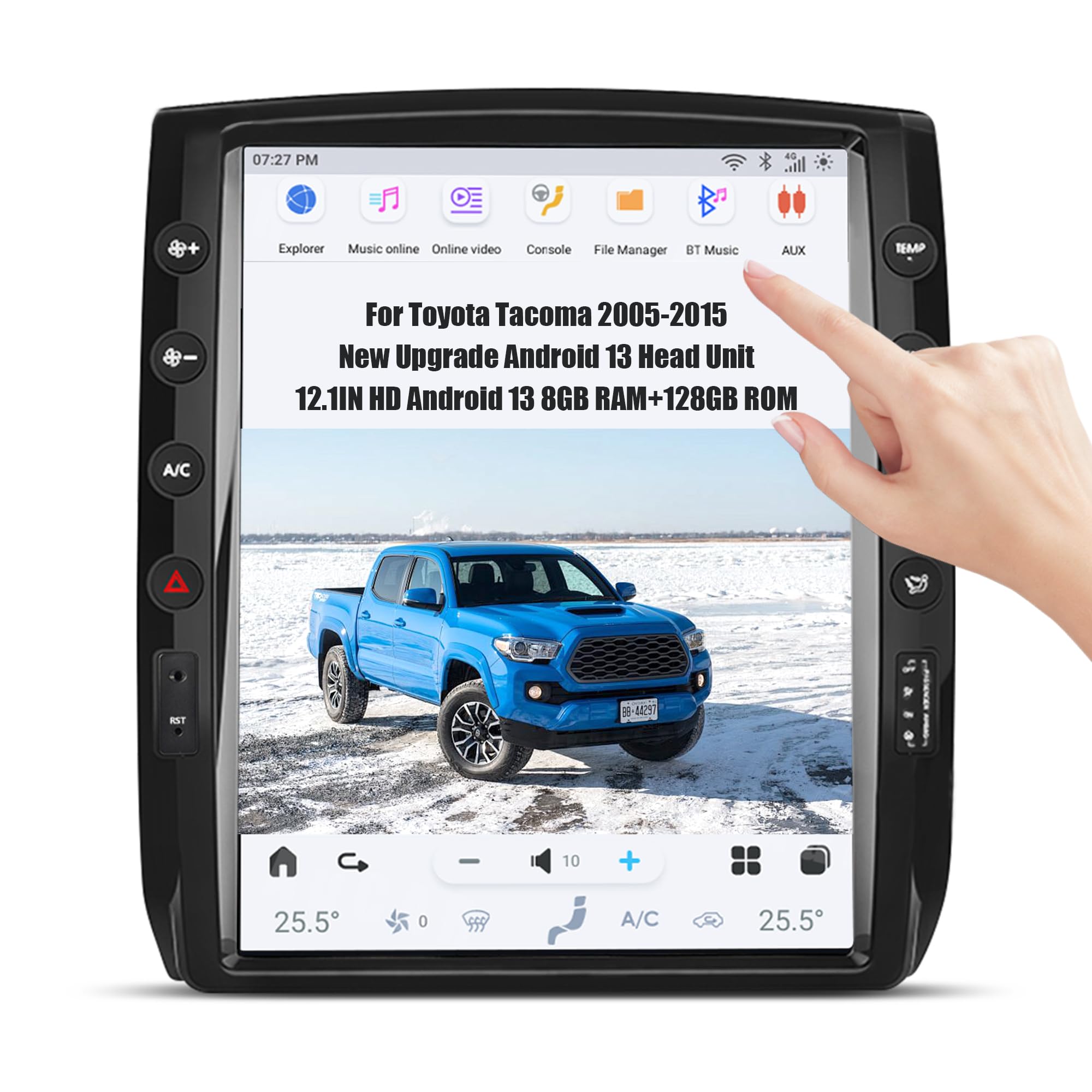
Figure 1: AUCARAUTO 12.1 Inch Android 13 Car Radio Head Unit
Key Features:
- Android 13.0 OS with Snapdragon 665AIE processor (8 Cores)
- 8GB RAM + 128GB ROM for fast performance and ample storage
- 12.1-inch 1280*800 capacitive Multi-Touch screen
- Wireless Carplay & Android Auto support
- Built-in 4G SIM card support, WiFi, Bluetooth 5.0, GPS Navigation
- Supports OEM functions including steering wheel control, original amplifier, sound system, radar, rear view camera, and AC control.
2. Setup and Installation
2.1 Pre-Installation Checklist
- Ensure your Toyota Tacoma is within the 2005-2015 model years.
- Identify if your vehicle has an OEM JBL system. Specific cables are included for this.
- Gather necessary tools: car trim removal tool, No. 10 socket tool, flat-head screwdriver.
- For safety, disconnect the car battery before starting installation.
2.2 Removing the Original Head Unit
- Use a car trim removal tool to carefully pry off the air conditioning panel. Unplug the corresponding cable.
- Use a No. 10 socket tool to remove the four screws fixing the original car frame.
- Remove the head unit and unplug all cables behind it.
- Remove the two fixing clips above the instrument panel.
- Use a tool to pry off the instrument panel trim.
- Remove the OEM radio frame.
- Remove the OEM emergency light control panel.
- Remove the four Phillips head screws from the AC controller.
- Use a flat-head screwdriver to pry open the AC controller trim frame clips.
- Take out the removed original car screen frame and use a flat-head screwdriver to remove the 10 yellow clips.
- Remove the air conditioning vents by prying out the two limiting clips above them.
- Remove the 4WD controller and the airbag control switch by pressing the limiting clips inward.
Video 1: Detailed installation guide for the 12.5" Car Radio for Toyota Tacoma (2005-2015).
2.3 Installing the New Head Unit
- Install the 10 yellow clips onto the new device's frame.
- Install the air conditioning vents, aligning them correctly.
- Install the AC controller and tighten the four fixing screws.
- Install the 4WD controller and airbag control switch.
- Connect the device cables as shown in the provided wiring diagram (refer to the installation guide).
- Mount the rearview camera onto the vehicle's license plate and connect the extension cable. Route the extension cable along the underside of the vehicle to the car radio compartment.
- Connect the red wire from the camera extension cable to the positive (+) wire of the reverse light using a "T-tap" connector. (Note: Only low-end models need this connection; high-end models do not. Refer to the wiring diagram for details).
- Connect the blue wire from the camera extension cable to the Rear CAM control.
- Connect the yellow connector from the camera extension cable to the reverse signal input cable.
- Connect the cables for air conditioning, emergency lights, etc.
- Finally, install the device into the dashboard, ensuring all clips snap into place.

Figure 2: Before and After Installation of the Head Unit
Video 2: Installation process for Toyota Tacoma Android Screen.
Video 3: Unboxing and package contents for the 11.5" Tacoma head unit.
Video 4: Overview of included package components.
3. Operating Instructions
3.1 Initial Power-On and System Overview
Upon first power-on, the unit will boot into the Android 13 operating system. The 12.1-inch capacitive multi-touch screen provides a responsive user experience. The system features an 8-core Snapdragon 665AIE processor, 8GB RAM, and 128GB ROM for smooth operation and ample storage.

Figure 3: Snapdragon 665AIE Processor for enhanced performance.
3.2 Core Functions
- Wireless Carplay & Android Auto: Connect your smartphone wirelessly for navigation, music, calls, and more.
- Bluetooth 5.0: Enjoy hands-free phone calls and synchronize your contact list.
- GPS Navigation: Utilize built-in offline maps or connect to online maps via WiFi.
- Radio: Access AM/FM radio with RDS functionality via the NXP6686 Radio Chip.
- Audio Output: Experience powerful sound with 4*45W audio output, 7850 amplifier, and 9 Equalizers for sound customization.
- USB & AUX-IN: Connect external devices for media playback.
- Steering Wheel Control: Integrate with your vehicle's existing steering wheel controls for convenience.
- OEM Functions: The unit is fully compatible with OEM intouch, supporting original amplifier, sound system, radar, rear view camera, and AC control.

Figure 4: The head unit supports various OEM functions.

Figure 5: Seamless integration with Wireless Carplay and Android Auto.
3.3 User Interface and Settings
Navigate through the intuitive Android interface. Customize your experience through various settings:
- Homepage Style: Choose between Modern or Classic layouts.
- Day and Night Mode: Set to Auto, Day, or Night for optimal visibility.
- Language & Units: Select your preferred language and measurement units (Metric/US).
- Radio Region: Adjust radio frequencies for your geographical location (e.g., N. America, Europe).
- Audio Settings: Fine-tune sound with the Equalizer, MIC Gain, and Sound Gain options.
- Video in Motion: Enable or disable video playback while the vehicle is in motion.
- App Customization: Set default navigation apps, boot animations, and manage automatic application startup.
- Split Screen: Long press an app icon to enter split-screen mode, allowing two applications to run simultaneously.
Video 5: Demonstration of Android 13 features and UI for Toyota Tacoma.
4. Maintenance
To ensure optimal performance and longevity of your AUCARAUTO head unit, follow these maintenance guidelines:
- Screen Cleaning: Use a soft, lint-free cloth to clean the screen. For stubborn smudges, lightly dampen the cloth with water or a screen-safe cleaner. Avoid harsh chemicals.
- Software Updates: Regularly check for system updates via the 'SystemUpdater' app or through the 'Upgrade' option in System Settings to ensure you have the latest features and security patches.
- Storage Management: Periodically clear unnecessary files and apps to maintain optimal performance.
5. Troubleshooting
If you encounter any issues, refer to the following common problems and solutions:
- Slow Carplay/Android Auto Connection (Zlink): If connection is slow, ensure your phone's software is up to date and try restarting both the head unit and your phone.
- Distorted Sound Quality: Check all audio connections. Adjust the Equalizer and Sound Gain settings in the Audio menu. Ensure proper wiring, especially if your vehicle has a JBL amplifier.
- Factory Backup Camera Not Displaying: Verify that the separate connection for the factory camera is correctly installed and configured. Some setups may require additional wiring or adapters.
- AC Cold/Hot Air Reverse Problem: This can occur in some older Tacoma models. To resolve, raise the temperature on the head unit to 80°F (or equivalent), then press and hold the front window heat button for 10-15 seconds. The AC data should reset to normal use.
Video 6: Solution for reversed AC cold/hot air in some Tacoma models.
For further assistance, please contact online tech support.
6. Specifications
| Feature | Description |
|---|---|
| Brand | AUCARAUTO |
| Model Name | DS8-732 S3 |
| Compatible Vehicle | Toyota Tacoma (2005-2015) |
| Screen Size | 12.1 Inches |
| Display Type | 1280*800 resolution capacitive Multi-Touch LCD |
| Operating System | Android 13.0 OS |
| Processor | Snapdragon 665AIE (8 Cores) |
| Memory | 8GB RAM + 128GB ROM |
| Connectivity | 4G SIM card, Wireless Carplay & Android Auto, Bluetooth 5.0, Built-in WiFi, USB |
| Audio Output | 4*45W, 7850 amplifier, 9 Equalizers, AM/FM with RDS, AUX-IN |
| Navigation | Built-in GPS Offline Map, Supports Online Map |
| Control Method | Touchscreen, Steering Wheel Control |
| Dimensions (L x W x H) | 8"L x 4"W x 4"H |
7. Warranty and Support
AUCARAUTO provides online technical support for this product. For any installation or operational queries, please refer to the detailed installation manual provided or contact our support team. Demo videos are also available online for visual guidance.