
XNY XNY-103-4G-F
XNY Wireless 4G Home Alarm System User Manual
Model: XNY-103-4G-F
1. Introduction
The XNY-103-4G-F is a sophisticated wireless home alarm system designed to provide comprehensive security for your property. Featuring dual network connectivity (WiFi and 4G GSM), app control, and support for numerous wireless accessories, this system offers reliable protection and convenient management.
This manual provides detailed instructions for the installation, operation, and maintenance of your XNY alarm system. Please read it thoroughly before use to ensure proper functionality and to maximize your system's security capabilities.
2. Package Contents
Verify that all items listed below are included in your package. If any components are missing or damaged, please contact customer support.
- 1 x XNY Alarm Host (Main Control Panel)
- 1 x PE-513 Alarm Siren
- 5 x PIR Motion Detectors
- 10 x Door/Window Sensors
- 3 x RFID Cards
- 3 x Remote Controls
- 1 x SOS Button
- 1 x Power Adapter
- 1 x User Manual (this document)

Image 2.1: Overview of the XNY-103-4G-F Wireless 4G Home Alarm System kit components.
3. Product Overview
3.1 Main Control Panel
The main control panel serves as the central hub for your alarm system. It features a 2.4-inch TFT display and a numeric keypad for direct interaction.

Image 3.1: Front view of the XNY Alarm Host, showing the display, speaker, RFID area, and key buttons.
- 2.4-inch Display Screen: Shows system status, time, temperature, and menu options.
- Speaker: Provides audio alerts and voice prompts.
- RFID Area: For disarming the system using RFID cards.
- Arm Button: Activates the alarm system.
- SOS Button: Triggers an emergency alarm.
- Disarm Button: Deactivates the alarm system.
3.2 Side Panel Connections
The side panel of the alarm host provides essential ports for power, siren, and SIM card insertion.

Image 3.2: Side view of the XNY Alarm Host, detailing connection ports.
- Battery Switch: Controls the internal backup battery.
- Microphone: For voice monitoring and intercom functions.
- 3.5mm Siren Connector: For connecting the external alarm siren.
- SIM Card Slot: Insert a 2G/3G/4G SIM card for GSM network functionality.
3.3 Back Panel
The back panel includes the anti-tamper bracket for secure mounting.

Image 3.3: Back view of the XNY Alarm Host, showing the anti-tamper bracket.
- Anti-tamper Bracket: Used for wall mounting and triggers an alarm if the panel is removed from its mounted position while armed.
4. Setup
4.1 Initial Power-Up and SIM Card Installation
- Ensure the battery switch on the side of the alarm host is in the OFF position.
- Insert a compatible 2G/3G/4G SIM card into the SIM card slot. Ensure the SIM card is active and has sufficient credit for calls and SMS.
- Connect the power adapter to the Type C power connector and plug it into a power outlet.
- Flip the battery switch to the ON position. The system will power on.
- The display will show the boot-up sequence. Follow on-screen prompts for initial language selection.
4.2 App Installation and Configuration
The XNY alarm system can be controlled via the Tuya Smart or Smart Life mobile application. This allows for remote arming/disarming, status monitoring, and system settings management.
- Download the "Tuya Smart" or "Smart Life" app from your smartphone's app store (available for iPhone and Android).
- Register for an account or log in if you already have one.
- Add a new device in the app. Select "Security & Video Surveillance" > "Alarm (Wi-Fi)" or similar category.
- Follow the in-app instructions to connect the alarm host to your 2.4 GHz Wi-Fi network. Note: 5G Wi-Fi networks are not supported.
- Once connected, you can access the alarm system's functions and settings through the app.

Image 4.1: The alarm system supports dual WiFi and 4G networks, and integrates with smart home platforms.
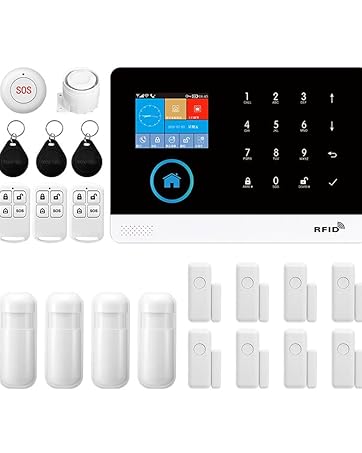
Image 4.2: Remote control of the alarm system via the mobile application.
4.3 Pairing Wireless Sensors and Accessories
The system supports up to 90 wireless accessories. Follow these general steps to pair motion detectors, door/window sensors, remote controls, and RFID cards.
- On the alarm host, navigate to the "Accessories" or "Pairing" menu.
- Select the type of accessory you wish to add (e.g., "Add Detector," "Add Remote").
- Activate the accessory according to its specific instructions (e.g., trigger a motion detector, open a door/window sensor, press a button on the remote, tap an RFID card).
- The alarm host will confirm successful pairing. You can then rename the sensor in the app for easier identification (e.g., "Front Door," "Living Room Motion").
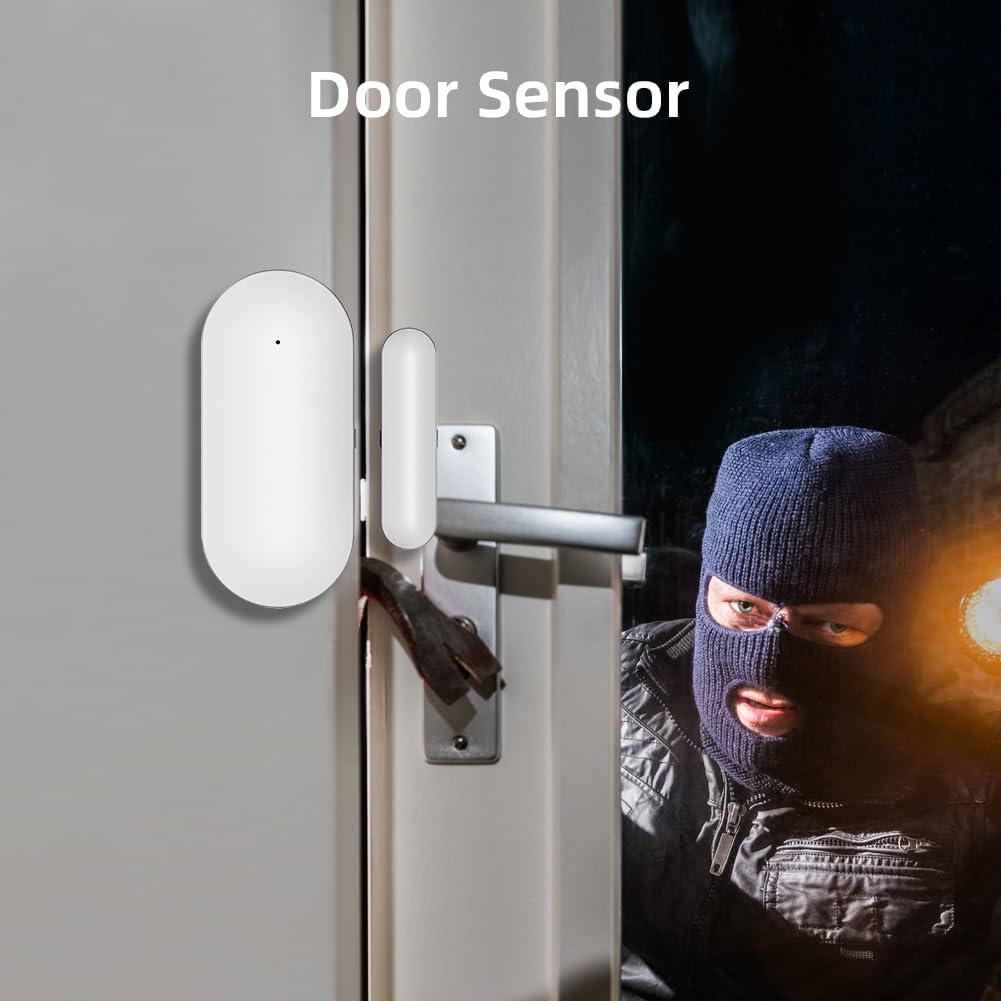
Image 4.3: Example of a door sensor installation.

Image 4.4: Example of a motion sensor detection area.
5. Operating Instructions
5.1 Arming and Disarming the System
You can arm or disarm your system using the keypad, remote control, RFID card, or the mobile app.
- Keypad: Press the ARM button to arm, or the DISARM button to disarm. You may be prompted for your PIN.
- Remote Control: Press the lock icon to arm, or the unlock icon to disarm.
- RFID Card: Tap a registered RFID card on the RFID area of the main panel to disarm the system.
- Mobile App: Use the "Arm" or "Disarm" functions within the Tuya Smart/Smart Life app.
5.2 Scheduled Arming and Disarming
The system allows you to set schedules for automatic arming and disarming, which can be configured via the mobile app or the main panel's menu.

Image 5.1: Configuring scheduled arming and disarming via the mobile app.
- Access the "Schedule" settings in the app or on the main panel.
- Set specific times and days for the system to arm (e.g., "Away" mode) or disarm.
- You can also configure an entry/exit delay to prevent false alarms when you enter or leave the premises.
5.3 Emergency SOS Function
In case of an emergency, press the SOS button on the main panel or the dedicated SOS button accessory. This will immediately trigger the alarm and send notifications to pre-set emergency contacts.
5.4 Notifications and Alerts
When an alarm is triggered, the system will respond in multiple ways:
- The external siren will activate at 120 decibels.
- The mobile app will receive real-time push notifications.
- The system will send SMS messages to pre-configured phone numbers.
- The system will make calls to pre-configured phone numbers.
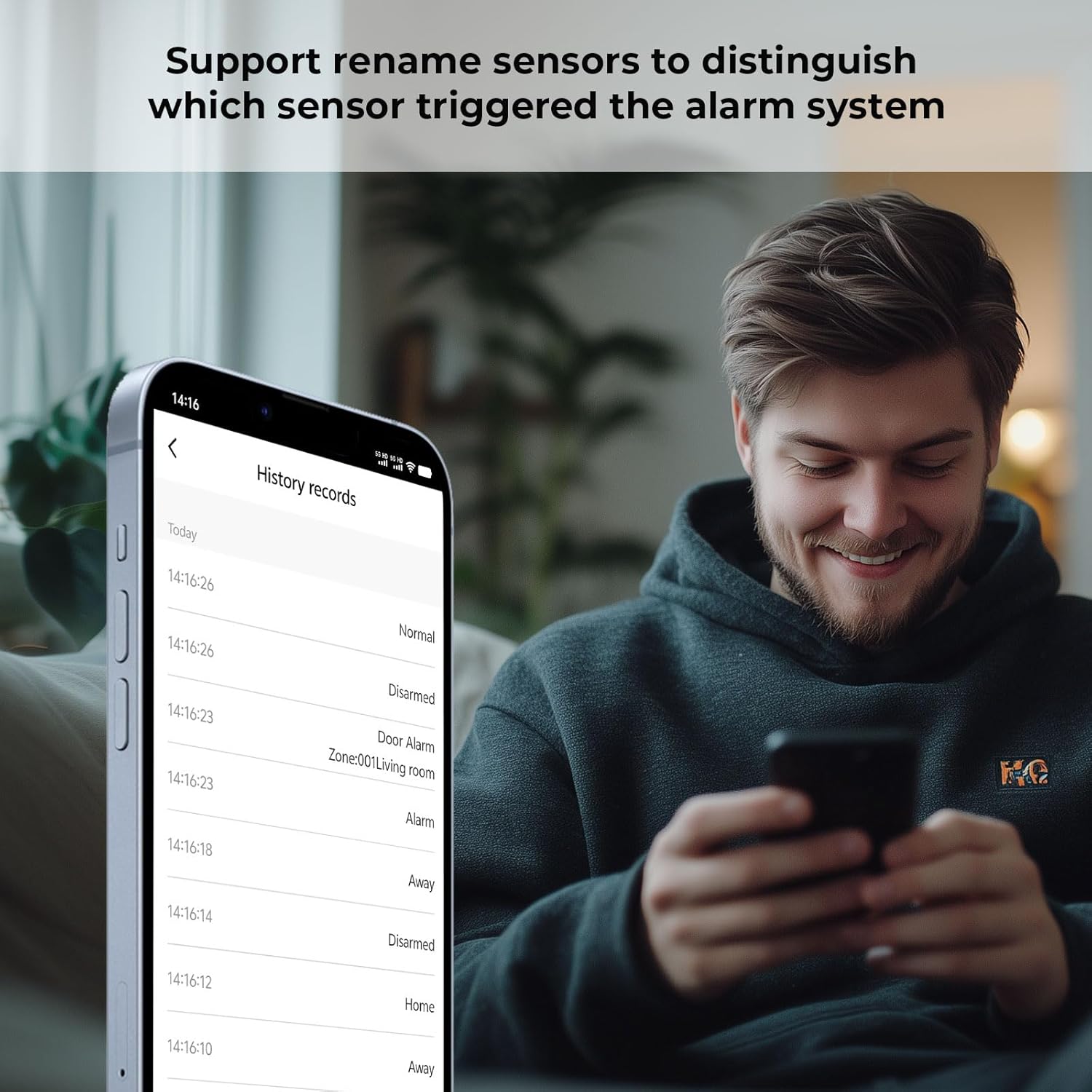
Image 5.2: Viewing alarm history and sensor triggers in the mobile app.
5.5 Language Selection
The alarm host supports 10 built-in languages for menu display, voice instructions, and SMS settings. You can change the language through the system settings menu on the main panel.

Image 5.3: Language selection options on the XNY alarm system.
6. Maintenance
6.1 Battery Management
The main alarm host includes a built-in Lithium-ion backup battery. This battery provides power during outages, ensuring continuous operation. Sensors are typically battery-powered and will require periodic battery replacement.
- Monitor battery levels for all wireless sensors via the mobile app.
- Replace sensor batteries promptly when low battery alerts are received. Refer to individual sensor manuals for specific battery types.
- Ensure the main host's battery switch is ON for backup power functionality.
6.2 Cleaning
Clean the alarm host and sensors with a soft, dry cloth. Avoid using abrasive cleaners, solvents, or excessive moisture, as these can damage the devices.
7. Troubleshooting
- System not powering on: Check power adapter connection and ensure the battery switch is in the ON position.
- No app notifications: Verify Wi-Fi connectivity of the alarm host and ensure your phone has an internet connection. Check app notification settings on your phone and within the Tuya Smart/Smart Life app.
- No SMS/Call notifications: Ensure a valid 2G/3G/4G SIM card is inserted, activated, and has sufficient credit. Check GSM signal strength on the alarm host display. Verify emergency contact numbers are correctly configured.
- Sensor not triggering alarm: Check sensor battery level. Re-pair the sensor with the alarm host. Ensure the sensor is within range and correctly installed (e.g., door/window sensors aligned, motion sensor clear of obstructions).
- False alarms: Adjust sensor sensitivity if applicable. Ensure motion detectors are not placed near heat sources or in direct sunlight. Check for proper entry/exit delay settings.
- Wi-Fi connection issues: Ensure your Wi-Fi network is 2.4 GHz. Restart your router and the alarm host. Re-enter Wi-Fi credentials.
8. Specifications
| Feature | Specification |
|---|---|
| Model Number | XNY-103-4G-F |
| Manufacturer | XNY |
| Dimensions (L x W x H) | 16 x 10.01 x 2.01 cm |
| Weight | 1.13 Kilograms |
| Power Source | Battery powered (Lithium-ion included) |
| Connectivity Technology | Wireless (2.4 GHz Wi-Fi, 2G/3G/4G GSM) |
| Sound Level | 120 Decibels |
| Control Method | Application, Keypad, Remote Control, RFID Card |
| Compatible Devices | Amazon Alexa, Google Assistant, Smartphone |
| Installation Method | DIY Wireless |
| Display | 2.4-inch TFT Screen |
| Supported Accessories | Up to 90 wireless detectors/remotes |
9. Warranty and Support
For warranty information and technical support, please refer to the documentation provided with your purchase or contact XNY customer service directly. Details are typically available on the manufacturer's official website or through your retailer.
Please retain your proof of purchase for warranty claims.
Ask a question about this manual
Ask about setup, troubleshooting, compatibility, parts, safety, or missing instructions. Manuals+ will review the question and use this page’s manual context to help answer it.