
1. Introduction
The SK-R420 is a sophisticated 42-channel MIDI guidance control panel designed for professional live streaming and video production environments. It facilitates precise control over video image search, entry/exit point prefabrication, and other essential functions. Utilizing MIDI, USB, and LAN communication technologies, this panel offers bidirectional communication with popular live streaming software such as vMix, Xinxiang, FiarPlay, and TCLiveSP. Its robust aluminum alloy CNC body ensures durability, while its integrated power and communication via a standard USB cable provide convenience for on-site operators.
2. Safety Information
- Read all instructions carefully before operating the device.
- Do not expose the device to water, moisture, or extreme temperatures.
- Ensure proper ventilation to prevent overheating.
- Use only the provided USB cable for power and communication.
- Do not attempt to disassemble or modify the device. Refer all servicing to qualified personnel.
- Keep the device away from strong magnetic fields.
- Clean the device with a soft, dry cloth. Avoid using harsh chemicals or abrasive cleaners.
3. Package Contents
Verify that all items are present in the package:
- SK-R420 Replay Control Panel
- USB Cable
4. Product Overview
The SK-R420 control panel features a comprehensive layout designed for intuitive operation. Below are images highlighting its key components and interfaces.

Figure 4.1: Top View of SK-R420 Control Panel. This image displays the primary control surface, including the 42 backlit keys, the precision damping search knob (jog wheel), and the fader for smooth transitions. The layout is optimized for quick access to replay and event control functions.

Figure 4.2: Angled View with Connectivity Ports. This perspective highlights the side panel, revealing the ON/OFF switch, RS232 port, USB port, and LAN port. These interfaces enable versatile connectivity options for integration into various production setups.
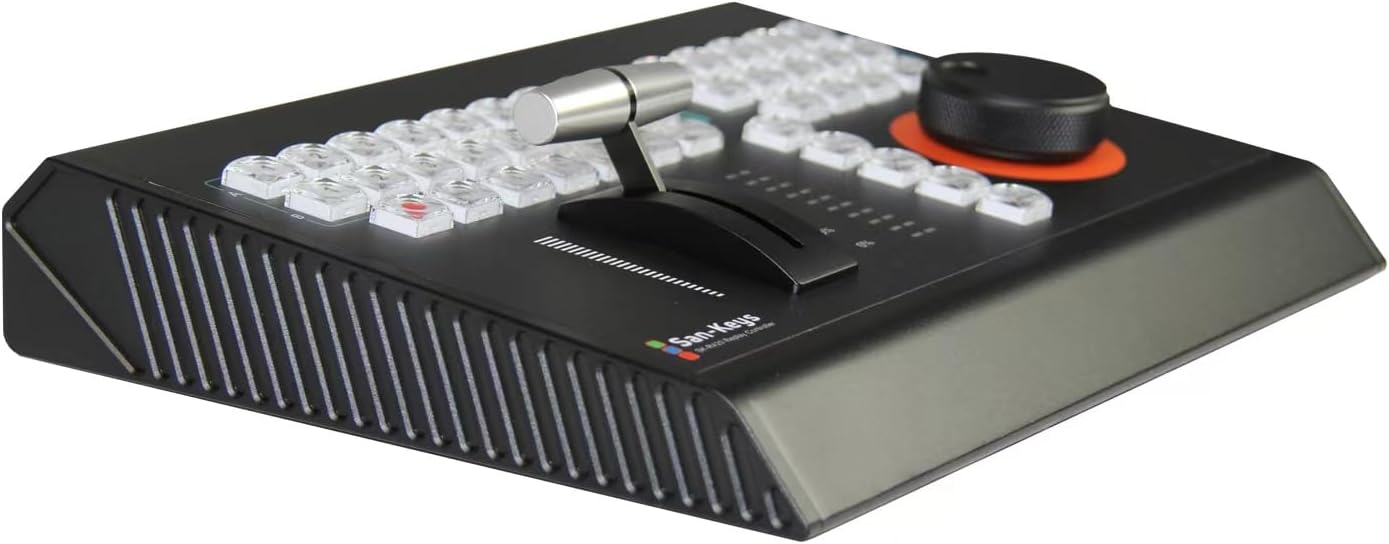
Figure 4.3: Detail of Fader and Keys. A closer look at the fader mechanism, designed for smooth and precise control over video playback speed or transitions. Adjacent keys are visible, indicating their clear labeling and ergonomic placement.

Figure 4.4: Rear Connectivity. This image provides a clear view of the rear panel, emphasizing the RS232, USB, and LAN ports, along with the power switch. The robust metal casing and ventilation grilles are also visible.

Figure 4.5: Jog Wheel and Key Layout. This view emphasizes the damping search knob, crucial for precise frame-by-frame navigation and content scrubbing. The surrounding keys are clearly visible, indicating their functions for various replay operations.
5. Setup
5.1 Connecting the Control Panel
- Power and USB Connection: Connect the supplied USB cable from the SK-R420's USB port to an available USB port on your computer (PC). The device is designed for integrated power supply and communication via this single USB connection.
- Optional LAN Connection: For network-based control, connect an Ethernet cable from the SK-R420's LAN port to your network router or switch.
- Optional RS232 Connection: If your setup requires RS232 communication, connect a compatible RS232 cable from the SK-R420's RS232 port to your control system.
- Power On: Flip the ON/OFF switch located on the side of the panel to the 'ON' position. The panel will power on and initiate communication with the connected computer.
5.2 Software Installation and Configuration
The SK-R420 is compatible with mainstream live streaming software. While specific driver installation may not be required for basic USB HID functionality, it is recommended to ensure your chosen software is updated to its latest version for optimal performance and compatibility.
- Software Compatibility: The panel supports bidirectional communication with software such as vMix, Xinxiang, FiarPlay, and TCLiveSP.
- Configuration: Refer to your specific live streaming software's documentation for instructions on configuring MIDI or control surface inputs. The SK-R420 will typically appear as a MIDI or generic control device.
6. Operating Instructions
The SK-R420 is designed for fast and efficient real-time video image search and prefabrication functions. Its 42 keys and damping search knob provide comprehensive control.
6.1 Key Functions
The panel features 42 programmable keys. While specific functions may vary based on your software configuration, common operations include:
- Replay Control: Keys for play, pause, stop, fast forward, rewind, and slow motion.
- Event Marking: Buttons for marking in-points and out-points for replay segments.
- Channel Selection: Keys to select specific video channels or camera inputs (e.g., CAM/OUT, A/B).
- Shortcut Keys: Dedicated keys for common operations or custom macros (e.g., SHIFT, 5, 10, 20, NOW, LIVE).
- Navigation: UP, DOWN, LEFT, RIGHT, MOVE for navigating menus or timelines.
- Copy/Event ID: Functions for managing event IDs and copying settings.
6.2 Damping Search Knob (Jog Wheel)
The third-generation damping search knob provides tactile feedback and precise control for scrubbing through video timelines. Rotate the knob to navigate frames or adjust playback speed. Its damping mechanism allows for fine adjustments and quick sweeps.
6.3 Fader Control
The integrated fader allows for smooth, analog-style control over parameters such as playback speed, transition rates, or audio levels, depending on your software's mapping. The percentage indicators next to the fader provide visual feedback on its current position.
6.4 Bidirectional Communication
The SK-R420 supports bidirectional communication, meaning it not only sends commands to your software but can also receive feedback. This allows for real-time status updates, illuminated key feedback, and synchronized control between the hardware and software interface.
7. Maintenance
- Cleaning: Use a soft, dry, lint-free cloth to clean the surface of the control panel. For stubborn dirt, slightly dampen the cloth with water. Avoid using solvents, alcohol, or abrasive cleaners, as these can damage the finish and components.
- Storage: When not in use for extended periods, store the device in a cool, dry place, away from direct sunlight and extreme temperatures.
- Cable Management: Ensure all cables are connected securely and are not under strain. Avoid sharp bends or kinks in the cables.
8. Troubleshooting
| Problem | Possible Cause | Solution |
|---|---|---|
| Device not powering on. | USB cable not connected or faulty; power switch off. | Ensure USB cable is securely connected to both the panel and a powered USB port on your computer. Check the ON/OFF switch. Try a different USB port or cable. |
| Panel not recognized by software. | Incorrect software settings; driver issues; USB connection problem. | Verify software MIDI/control surface settings. Restart the software and the control panel. Ensure your operating system recognizes the device. Update software to the latest version. |
| Keys or knob not responding. | Software mapping issue; communication error. | Check your software's control mapping settings. Restart the device and software. Ensure no other applications are interfering with the MIDI/USB connection. |
| Intermittent connection. | Loose cable connection; USB port issues; electromagnetic interference. | Secure all cable connections. Try a different USB port. Keep the device away from strong electromagnetic sources. |
9. Specifications
| Feature | Detail |
|---|---|
| Model | SK-R420 |
| Number of Keys | 42 |
| Connectivity Technology | USB, RS232, LAN |
| Hardware Interface | Micro USB 2.0 Type B |
| Compatible Devices | PC (Keyboard) |
| Material Type | Metal (Aluminum Alloy CNC) |
| Color | Black |
| Item Weight | 9.9 pounds (4.49 kg) |
| Product Dimensions (L x W x H) | 12.32 x 9.64 x 2.2 inches (31.29 x 24.49 x 5.59 cm) |
| Special Feature | Velocity Sensitive Keys, Damping Search Knob |
| Included Components | USB Cable |
10. Warranty and Support
For information regarding warranty coverage, please refer to the warranty card included with your purchase or visit the manufacturer's official website. Specific warranty terms and conditions may vary by region and retailer.
For technical support, troubleshooting assistance beyond this manual, or inquiries about replacement parts, please contact the retailer or the manufacturer's customer service department. Keep your purchase receipt and product serial number handy when contacting support.