
1. Introduction
Thank you for choosing the Plyisty HD 1080P WiFi Door Peephole Camera. This device provides enhanced security for your home by offering a clear, wide-angle view of your doorstep, accessible remotely via a mobile application. Please read this manual thoroughly before installation and use to ensure proper operation and to maximize the product's lifespan.
2. Safety Information
- Ensure the power supply is connected correctly before initial use. A red indicator light confirms successful power connection.
- Do not expose the device to extreme temperatures, humidity, or direct sunlight.
- Avoid using harsh chemicals or abrasive cleaners on the camera. Use a soft, dry cloth for cleaning.
- Do not attempt to disassemble or repair the device yourself. Contact customer support for assistance.
- Keep the device out of reach of children.
3. Package Contents
Verify that all items listed below are included in your package:
- 1 x WiFi Door Peephole Camera
- 1 x SIM Card Pin (for reset)
- 1 x Power Cable (Micro USB)
- 1 x User Manual

This image displays the main components included in the product package: the silver and black peephole camera unit, a black USB charging cable, and a small metal SIM card ejector pin, which is used for resetting the device.
4. Product Overview
Familiarize yourself with the different parts of your Plyisty Door Peephole Camera:
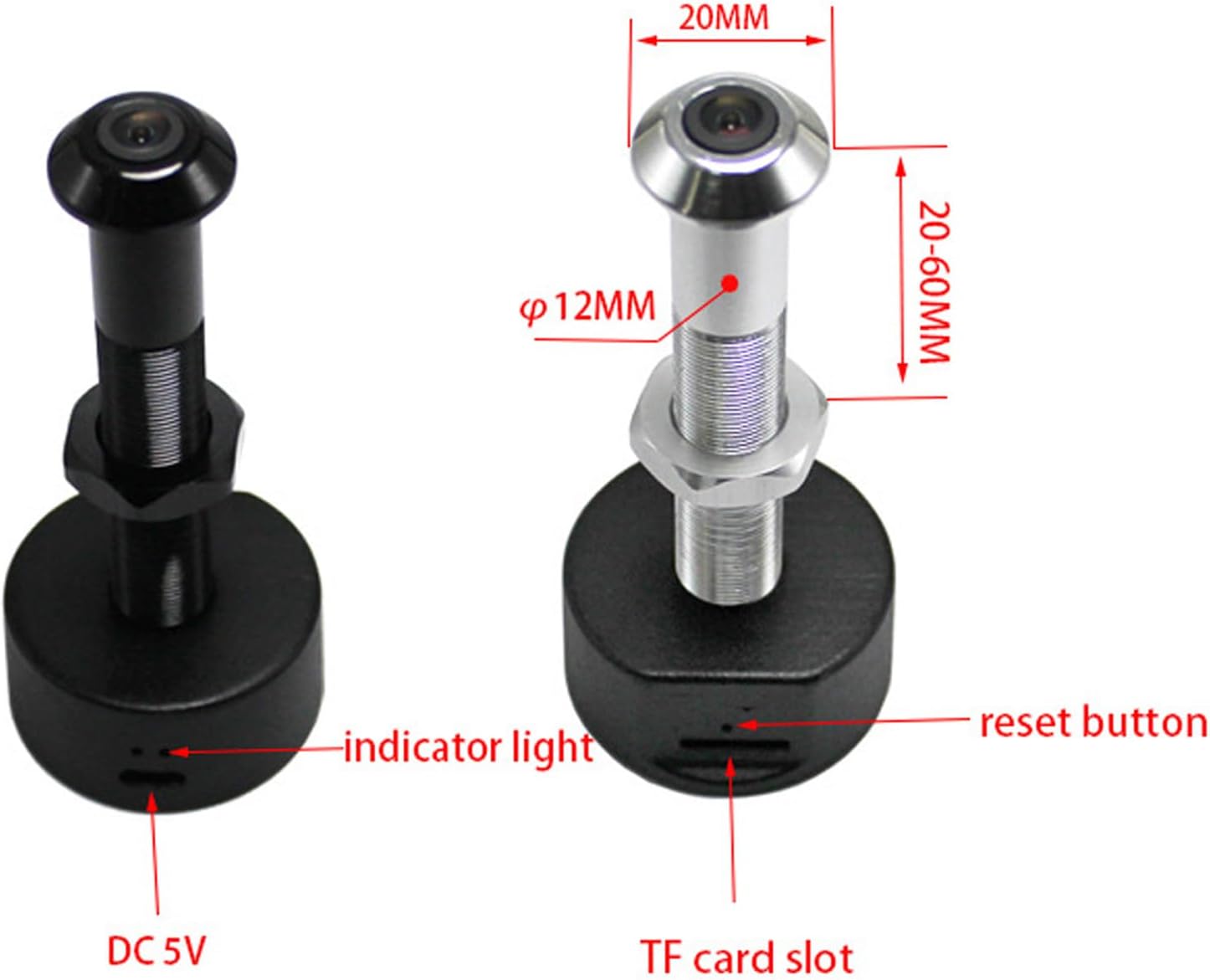
This diagram illustrates the key features of the peephole camera. It highlights the indicator light, the reset button, the DC 5V power input port, and the TF (MicroSD) card slot for local storage. Dimensions for door thickness and peephole diameter are also shown.
- Camera Lens: 1080P HD resolution with a 170° wide-angle view.
- Indicator Light: Provides status feedback (e.g., power, connection).
- Reset Button: Used to reset the device to factory settings.
- DC 5V Port (Micro USB): For power connection.
- TF Card Slot: Supports up to 128GB memory card for local video storage (memory card not included).
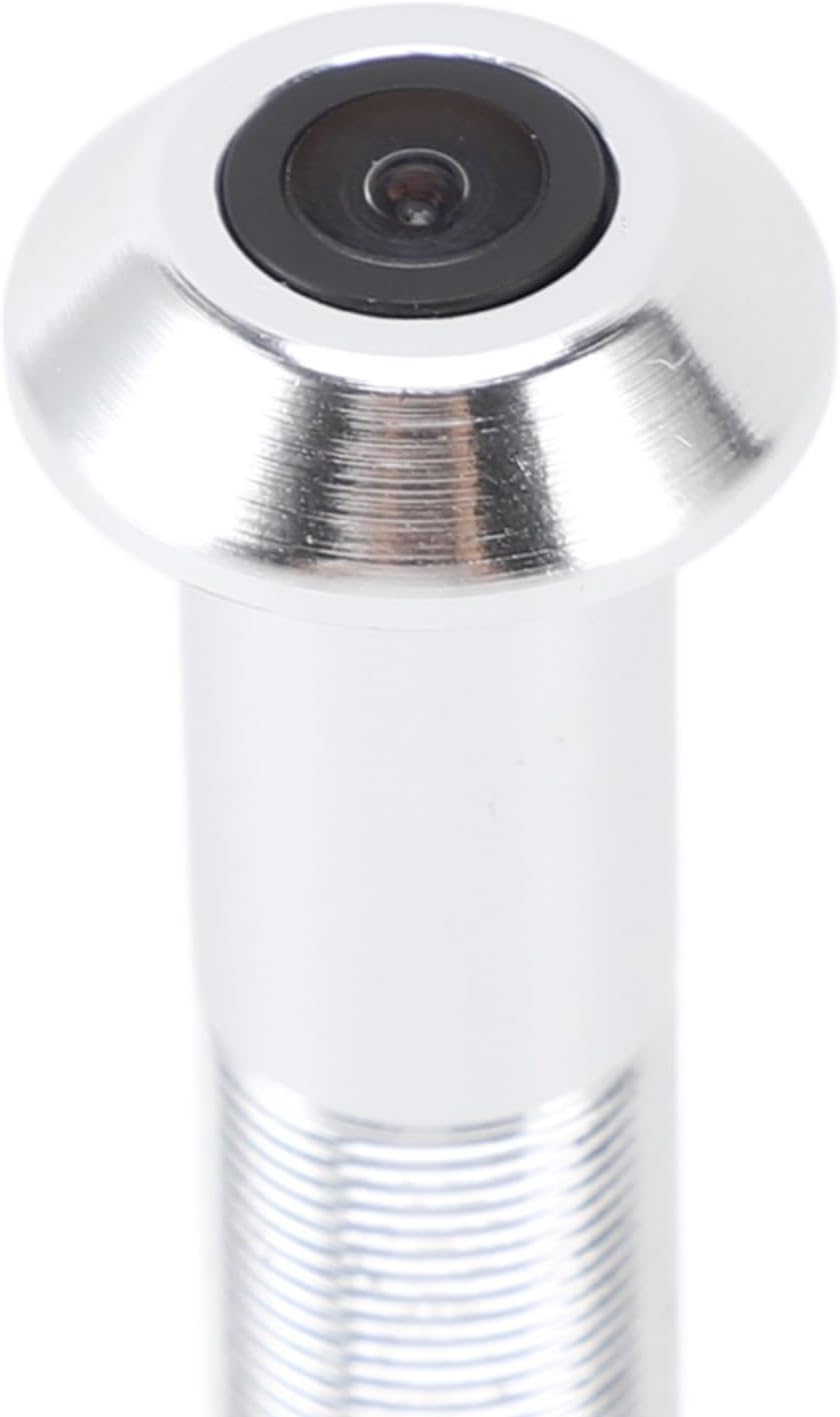
A detailed close-up of the camera lens, highlighting its compact and integrated design within the peephole unit.
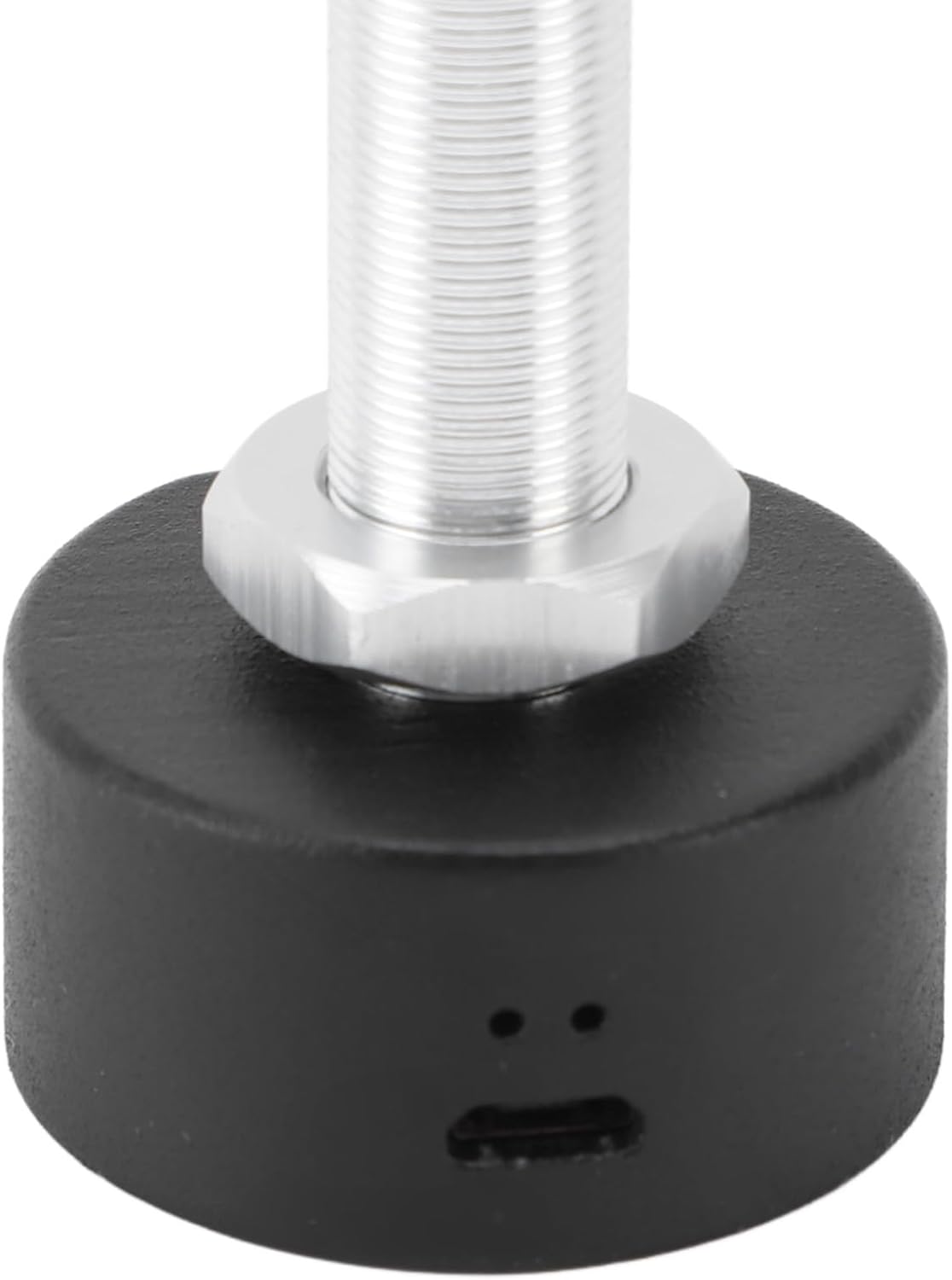
This image provides a clear view of the Micro USB port located at the base of the camera unit, used for connecting the power cable.

A detailed shot of the TF (MicroSD) card slot, where a memory card can be inserted for local video storage.
5. Setup
5.1 Door Compatibility
Before installation, ensure your door meets the following specifications:
- Door Thickness: Approximately 2-5.7 cm (0.8-2.2 inches).
- Peephole Opening Diameter: Approximately 14-20 mm (0.6-0.8 inches).
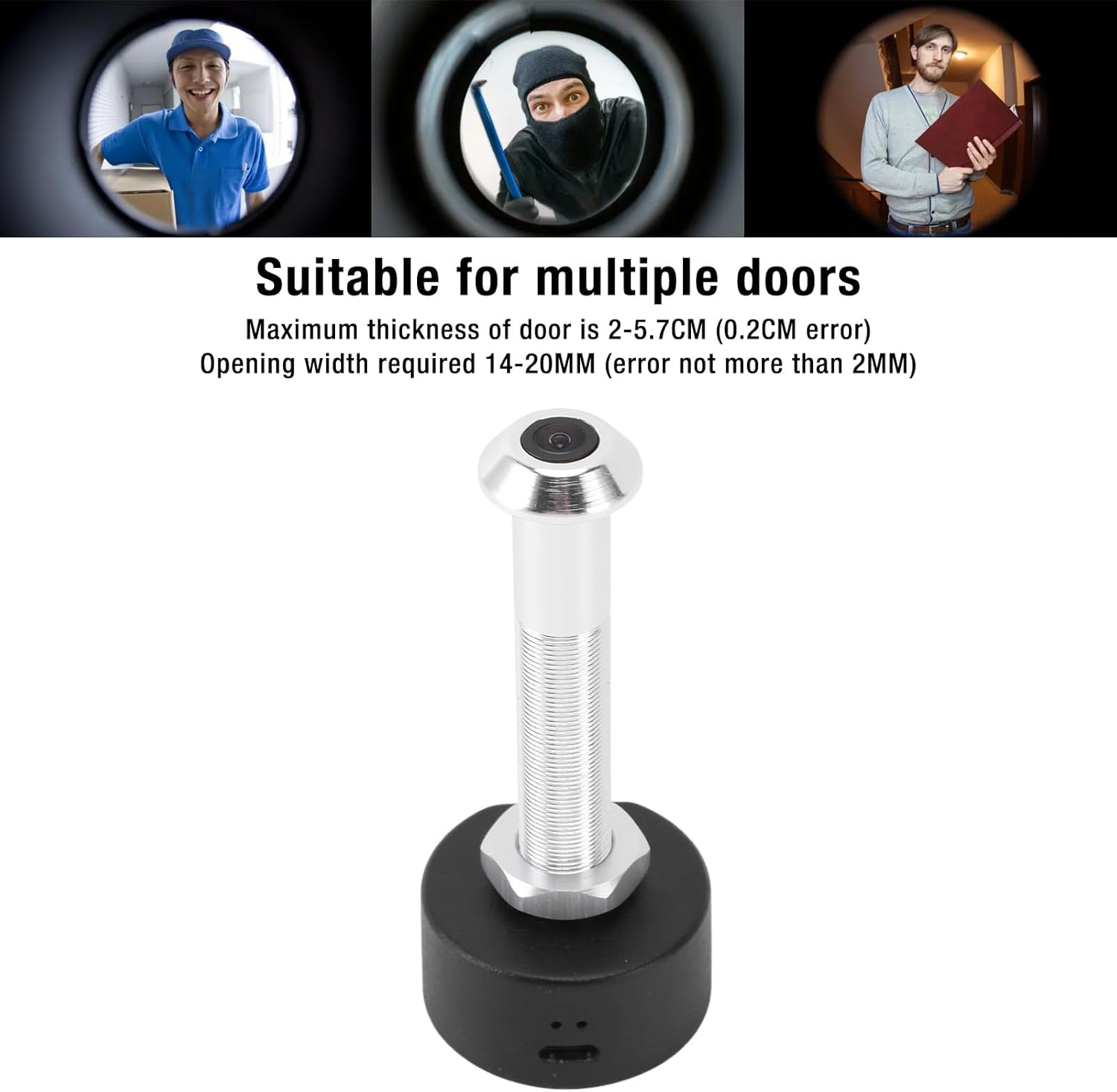
This image shows the specific dimensions required for door thickness (2-5.7 cm) and peephole opening width (14-20 mm) to ensure proper installation of the camera. It also visually depicts the camera's wide-angle view of visitors.
5.2 Physical Installation
Follow these steps to install the camera:
- Remove your existing peephole viewer from the door.
- Insert the camera unit through the peephole from the outside of the door.
- From the inside, secure the camera by screwing on the retaining nut until it is snug.
- Connect the power cable to the DC 5V port on the camera.
- Ensure the power source is stable. A red indicator light will confirm power connection.

This image shows a person using a traditional peephole, juxtaposed with the Plyisty WiFi Door Peephole Camera, to demonstrate how the new camera replaces the old peephole for an upgraded viewing experience.
5.3 App Setup (Tuya APP)
To connect your camera to your smartphone:
- Download the Tuya APP from your smartphone's app store (iOS or Android).
- Register or log in to your Tuya account.
- Tap '+' to add a new device. Select 'Security & Video Surveillance' > 'Smart Camera'.
- Follow the on-screen instructions to connect the camera to your 5.0 GHz WiFi network. This typically involves resetting the camera and scanning a QR code generated by the app.
- Once connected, you can access the live feed and settings through the app.
6. Operating Instructions
6.1 Live View and Monitoring
Open the Tuya APP on your smartphone to view the live feed from your door peephole camera. You can monitor your doorstep in real-time from anywhere with an internet connection.
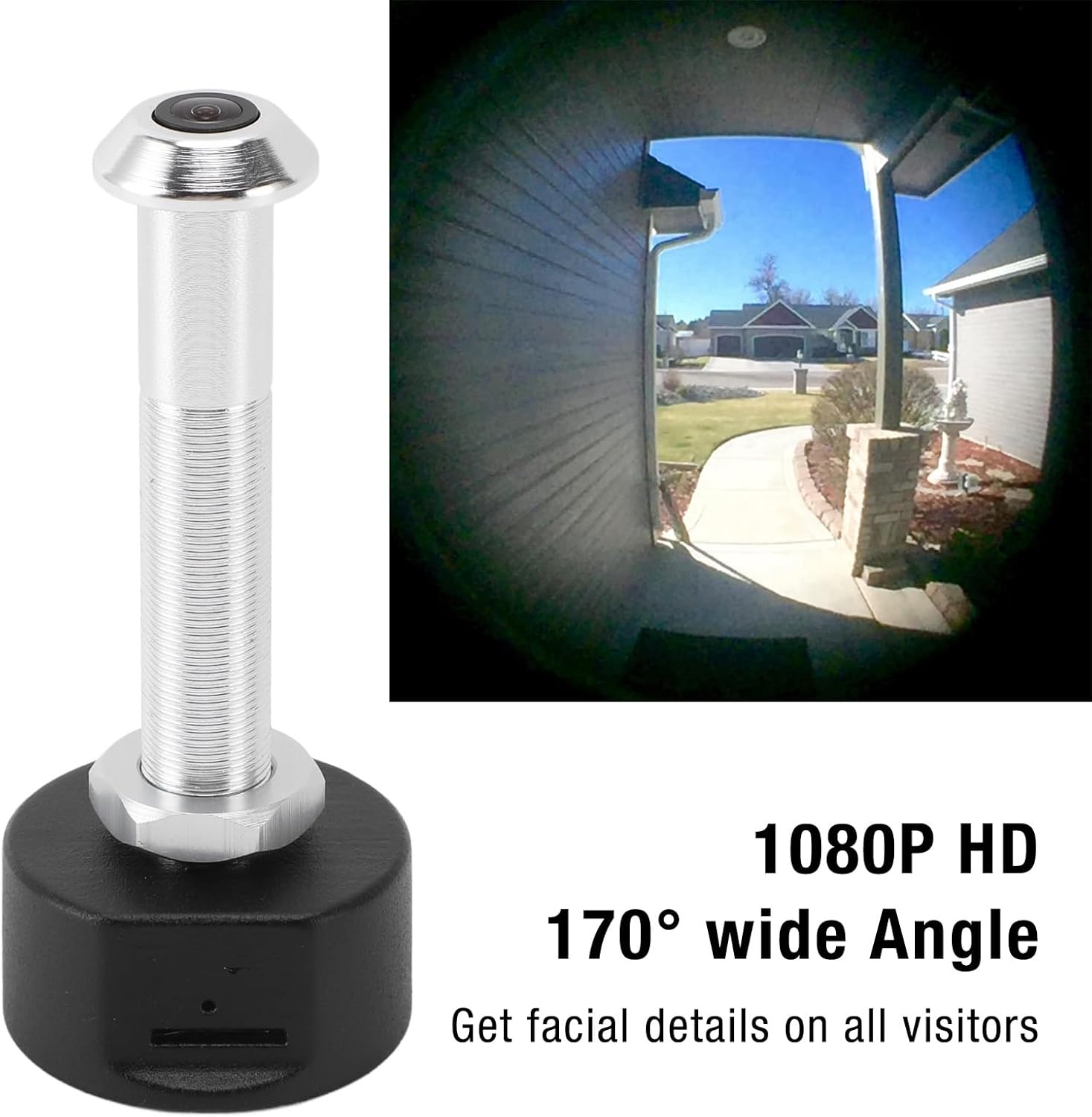
This image showcases the camera's ability to capture a 1080P HD video feed with a 170-degree wide-angle view, allowing users to see facial details of visitors and a broad area around their door.
6.2 Night Vision
The camera is equipped with powerful infrared night vision. It automatically switches between day and night mode using an ICR infrared filter, ensuring clear visibility even in low-light or dark conditions.
6.3 Recording and Storage
The camera supports two storage options:
- Cloud Storage: Video recordings can be stored in the cloud (subscription may be required, check Tuya APP for details).
- Memory Card Storage: Insert a TF (MicroSD) card (up to 128GB, not included) into the designated slot for local storage of recordings.
When motion is detected at your door, the camera will send a notification to your mobile phone and begin recording, enhancing your security.
7. Maintenance
- Regularly check the camera lens for dust or smudges and clean gently with a soft, lint-free cloth.
- Ensure the power cable is securely connected and not damaged.
- Periodically check the Tuya APP for firmware updates to ensure optimal performance and security.
- If using a memory card, consider formatting it periodically to maintain recording efficiency.
8. Troubleshooting
| Problem | Possible Cause | Solution |
|---|---|---|
| Camera not powering on. | Power cable loose or damaged; no power from outlet. | Check cable connection. Try a different power outlet or cable. Ensure the red indicator light is on. |
| Unable to connect to WiFi. | Incorrect WiFi password; camera too far from router; incompatible WiFi frequency (5.0 GHz required). | Verify WiFi password. Move camera closer to router. Ensure your router supports 5.0 GHz WiFi and the camera is connected to it. Reset the camera and try pairing again. |
| No notifications received. | App notifications disabled; motion detection settings incorrect. | Check notification settings in your phone and the Tuya APP. Adjust motion detection sensitivity in the app. |
| Poor image quality. | Dirty lens; low light conditions; network issues. | Clean the camera lens. Ensure adequate lighting or verify night vision is active. Check your internet connection speed. |
| Recordings not saving. | Memory card full or faulty; cloud storage not activated. | Check memory card status in the app, format or replace if necessary. Ensure cloud storage subscription is active if relying on it. |
9. Specifications
| Feature | Specification |
|---|---|
| Model Number | Plyistygi4kwto72x-12 |
| Resolution | 1920 x 1080 (1080P HD) |
| Lens Angle | 170° Wide Angle |
| Night Vision | Supported (ICR infrared filter) |
| Connectivity | WiFi (5.0 GHz) |
| App Name | Tuya APP |
| Storage Options | Cloud Storage, Memory Card (up to 128GB, not included) |
| Charging Port | Micro USB |
| Power | 1 Watt |
| Material | Aluminum Alloy + ABS |
| Compatible Door Thickness | Approx. 2-5.7 cm (0.8-2.2 inches) |
| Required Peephole Diameter | Approx. 14-20 mm (0.6-0.8 inches) |
| International Protection Rating | IP65 |
10. Warranty and Support
This product is covered by a standard manufacturer's warranty. For specific warranty details, please refer to the documentation provided with your purchase or contact the retailer.
If you encounter any issues or have questions not addressed in this manual, please contact Plyisty customer support through the retailer's platform or their official website for assistance.