
1. Introduction and Overview
The YUNZII YZ19 is a versatile 19-key wireless mechanical number pad designed for enhanced productivity and gaming. It features a tri-mode connection, hot-swappable switches, customizable RGB lighting, and a multifunctional knob, making it compatible with various operating systems and devices.

Figure 1: Overview of YUNZII YZ19 features, including its compact size (5.3x3.6x1.6 inches) and weight (0.2kg/0.44lb).
2. Package Contents
Please check the package contents upon unboxing to ensure all items are present:
- YUNZII YZ19 Wireless Mechanical Number Pad
- USB Cable (for wired connection and charging)
- Keycap Puller
- Switch Puller
- Additional Switches/Keycaps
- User Manual
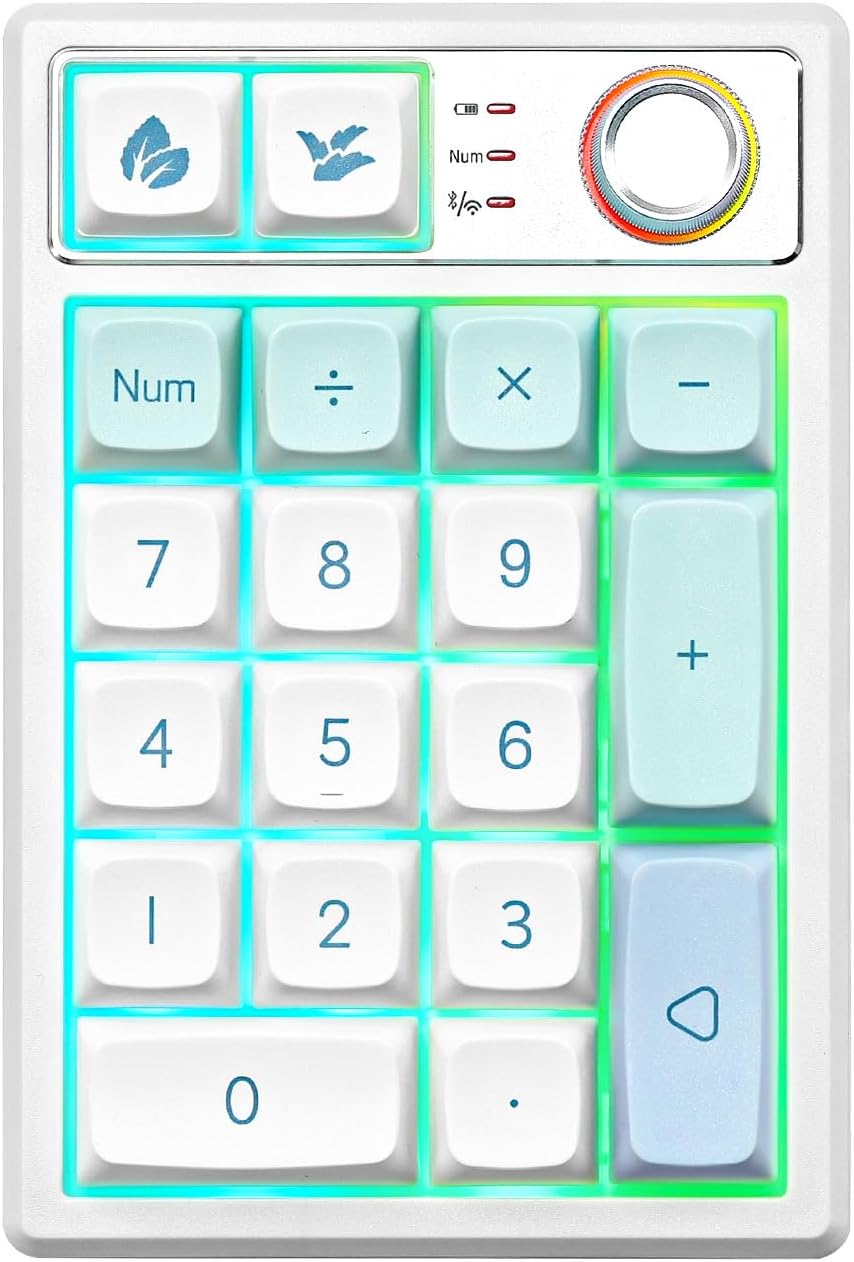
Figure 2: The YUNZII YZ19 Number Pad, highlighting its layout and design.
3. Setup
- Charging: Before first use, connect the number pad to a USB power source using the provided USB cable to ensure it is fully charged. The charging indicator light will show charging status.
- Power On/Off: Locate the power switch on the side or bottom of the number pad and slide it to the "ON" position to power on the device.
- Select Connection Mode: Choose your preferred connection method (2.4GHz Wireless, Bluetooth, or Wired) as detailed in the "Connectivity Modes" section.
4. Connectivity Modes
The YZ19 supports three connection modes for maximum compatibility and flexibility:
4.1. 2.4GHz Wireless Connection
For a stable and fast wireless connection, use the included 2.4GHz USB receiver. Plug the receiver into an available USB port on your computer. The number pad should automatically connect. Press FN + 4 to activate 2.4GHz wireless mode.
4.2. Bluetooth Connection
The YZ19 can connect to up to three Bluetooth devices. Press FN + 1, FN + 2, or FN + 3 to select a Bluetooth channel. The indicator light will flash, indicating pairing mode. On your device, search for "YZ19" in the Bluetooth settings and connect.
4.3. Wired Connection
Connect the number pad directly to your computer using the provided USB cable. This mode also charges the device. Press FN + 5 to activate wired mode.

Figure 3: Visual representation of the YZ19's tri-mode connectivity options.
5. Key Features and Operation
5.1. Hot-Swappable Design
The YZ19 features a full-key hot-swappable PCB, allowing users to easily change mechanical switches without soldering. It supports both 3-pin and 5-pin switches. This enables customization of typing feel and sound.
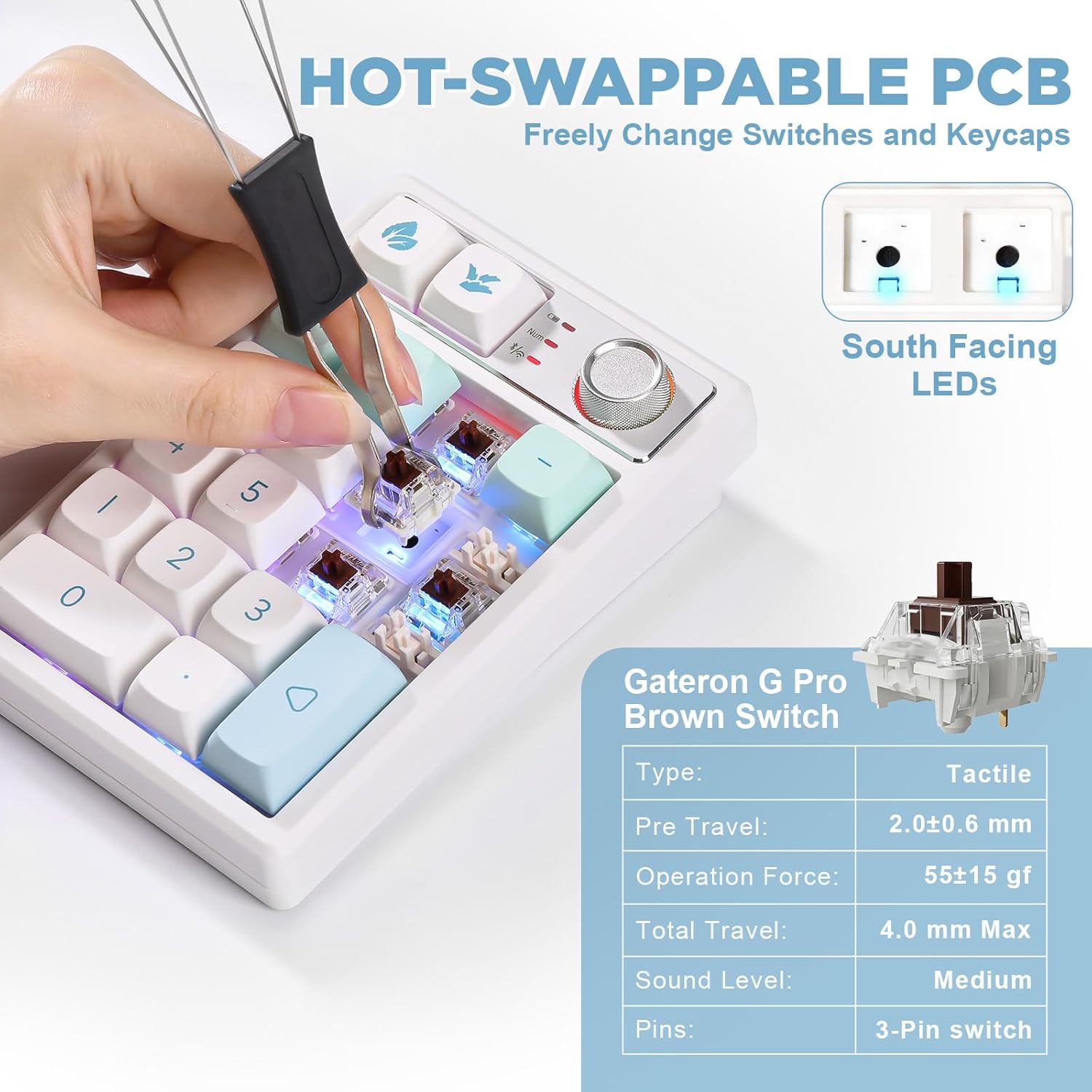
Figure 4: Demonstration of hot-swapping switches, with details on Gateron G Pro Brown Switch specifications (Tactile, 2.0±0.6 mm pre-travel, 55±15 gf operation force, 4.0 mm max total travel, medium sound level, 3-pin).
5.2. RGB Backlighting
The number pad features vibrant RGB backlighting with 18 light effects and 9 color options. These can be adjusted directly on the keyboard using shortcut keys or through the custom driver software.
- FN + 6: Switch Light Effects
- FN + 7: Switch Backlight Color
- FN + ÷: Decrease Light Speed
- FN + ×: Increase Light Speed
- FN + -: Switch Knob Light Effect
- FN + +: Switch Knob Color

Figure 5: RGB lighting controls and effects on the YZ19.
5.3. Multifunctional Knob
The integrated knob provides convenient control over various functions:
- Press Knob: Adjust Backlight (cycle through modes)
- Turn Left: Decrease Volume
- Turn Right: Increase Volume
- FN + Knob: ESC/Restore Volume Function (toggles knob function between volume and other modes)

Figure 6: Functions of the YZ19's multifunctional knob.
5.4. Gasket Structure and PBT Keycaps
The YZ19 utilizes a gasket-mounted structure, which provides a softer, more cushioned typing experience and a pleasing acoustic profile. Combined with premium PBT dye-sub keycaps, the number pad offers durability, resistance to shine, and a comfortable ergonomic typing surface.

Figure 7: Internal Gasket Structure of the YZ19, illustrating its layered design for enhanced typing feel.
6. Custom Software
The YZ19 Wireless Number Pad is supported by a dedicated driver software that allows for advanced customization. Users can program different shortcut functions, customize lighting effects, and remap keys to suit their workflow or gaming needs. This software enhances the functionality beyond the default settings.

Figure 8: The YZ19 custom software interface for advanced key and lighting customization.
7. Operating Instructions
7.1. Basic Usage
Once connected, the YZ19 functions as a standard numeric keypad. The 19 keys include numbers 0-9, arithmetic operators (+, -, ×, ÷), decimal point (.), Num Lock, and additional programmable keys. The knob provides quick access to volume and backlight adjustments.
7.2. Battery Saving Mode
To conserve battery life, the YZ19 features automatic power-saving functions:
- The backlight will turn off after 2 minutes of inactivity.
- The device will enter deep sleep mode after 30 minutes of inactivity.
- To manually activate power saving mode, press FN + Enter.
- To query the current battery level, press FN + . (decimal point key).

Figure 9: Battery saving features and battery level check for the YZ19.
7.3. Product Demonstration Video
Watch this official product video for a visual guide on unboxing, key features, and sound test of the YUNZII YZ19.
Video 1: YUNZII YZ19 Mint Keyboard Product Overview and Sound Test. This video demonstrates the unboxing, physical appearance, keycap and switch removal, and typing sound of the YZ19 numeric keypad.
8. Maintenance
- Cleaning: Use a soft, dry cloth to wipe the surface of the number pad. For deeper cleaning, use a keycap puller to remove keycaps and a brush or compressed air to clean dust and debris from between the switches.
- Switch Care: When hot-swapping switches, ensure proper alignment to avoid bending pins. Store extra switches and keycaps in a clean, dry place.
- Battery Care: Avoid fully discharging the battery frequently. For long-term storage, charge the battery to about 50% and store in a cool, dry place.
9. Troubleshooting
| Problem | Solution |
|---|---|
| Number pad does not power on. | Ensure the power switch is in the "ON" position. Connect the USB cable to charge the device; the battery might be depleted. |
| Cannot connect via 2.4GHz wireless. | Ensure the USB receiver is properly plugged into a USB port. Press FN + 4 to select 2.4GHz mode. Try a different USB port. |
| Cannot connect via Bluetooth. | Ensure Bluetooth is enabled on your device. Press FN + 1/2/3 to select a Bluetooth channel and enter pairing mode. Forget the device on your computer/phone and re-pair. Ensure the number pad is not connected to another device. |
| Keys are not responding or typing incorrectly. | Check if the number pad is properly connected in your chosen mode. If hot-swapping switches, ensure switches are fully seated. Try restarting the number pad. |
| RGB lighting is not working or stuck. | Press the knob to cycle through backlight modes. Use FN + 6 or FN + 7 to change effects or colors. Ensure the battery is not critically low. |
| Poor battery life. | Reduce RGB brightness or turn off lighting when not needed. Ensure the device enters sleep mode when inactive. Charge fully before use. |
10. Specifications
| Feature | Detail |
|---|---|
| Model Number | YZ19 |
| Product Dimensions | 5.3 x 3.6 x 1.6 inches |
| Item Weight | 12 ounces |
| Connectivity Technology | Wireless (2.4GHz), Bluetooth, Wired (USB-C) |
| Number of Keys | 19 |
| Keycap Material | PBT Dye-Sub (Cherry Profile) |
| Switch Type | Gateron G PRO Brown (Tactile, Hot-Swappable 3-pin/5-pin) |
| Backlighting | RGB (18 effects, 9 colors) |
| Special Features | Multifunctional Knob, Gasket Structure, Programmable via Software, NKRO |
| Compatible Devices | Laptop, PC, Tablet, Smartphone (Windows/Mac/Linux/Android/iOS) |
| Battery | 1 Lithium Ion battery (included) |
11. Warranty and Support
YUNZII products are manufactured to high quality standards. For warranty information, technical support, or any inquiries regarding your YZ19 Wireless Mechanical Number Pad, please refer to the official YUNZII website or contact their customer service directly. Keep your purchase receipt for warranty claims.
Official YUNZII Store: YUNZII Store on Amazon