
1. Product Overview
This Inefala Android CarPlay Radio is designed to upgrade the infotainment system in Peugeot 307, 307CC, and 307SW models from 2002 to 2013. It features a 9-inch touchscreen display, 2GB RAM, 64GB internal storage, and runs on Android 13. Key functionalities include wireless CarPlay and Android Auto, GPS navigation, Mirror Link, Bluetooth, FM/RDS radio, and support for a backup camera.

Image: The Inefala Android CarPlay Radio unit integrated into a Peugeot 307 dashboard, showcasing its 9-inch display and various feature icons. The image also illustrates compatibility with different dashboard configurations (low vs. high).
2. Installation Guide
2.1 Vehicle Compatibility
This unit is specifically designed for Peugeot 307, 307CC, and 307SW vehicles manufactured between 2002 and 2013. The package includes the main head unit, wiring harness cables, and a frame panel for a direct fit.
2.2 Steering Wheel Control (SWC) Wiring
- Without CANBUS Decoder: Locate the original car's SWC cable and connect it to the corresponding KEY cable on the power harness. Access the steering wheel settings on the head unit to map the buttons.
- With CANBUS Decoder: Connect the CANBUS decoder before powering on the radio. Navigate to Settings > Factory Setup (1234) > Can Settings. Select the correct brand and model year according to your vehicle to activate SWC functions.
2.3 Reversing Camera Wiring
Ensure the reverse input cable is always plugged in, even if the reverse camera is not in use, to prevent interference with Bluetooth and Wi-Fi signal reception.
- Red Cable (1): Connects to the positive terminal of the car's reverse light cable.
- Black Cable (2): Connects to the negative terminal of the car's reverse light cable.
- The other two red extension cables (3) and (4) do not require connection.

Image: Diagram illustrating the wiring connections for the reversing camera, showing the red and black cables connecting to the vehicle's reverse light terminals.
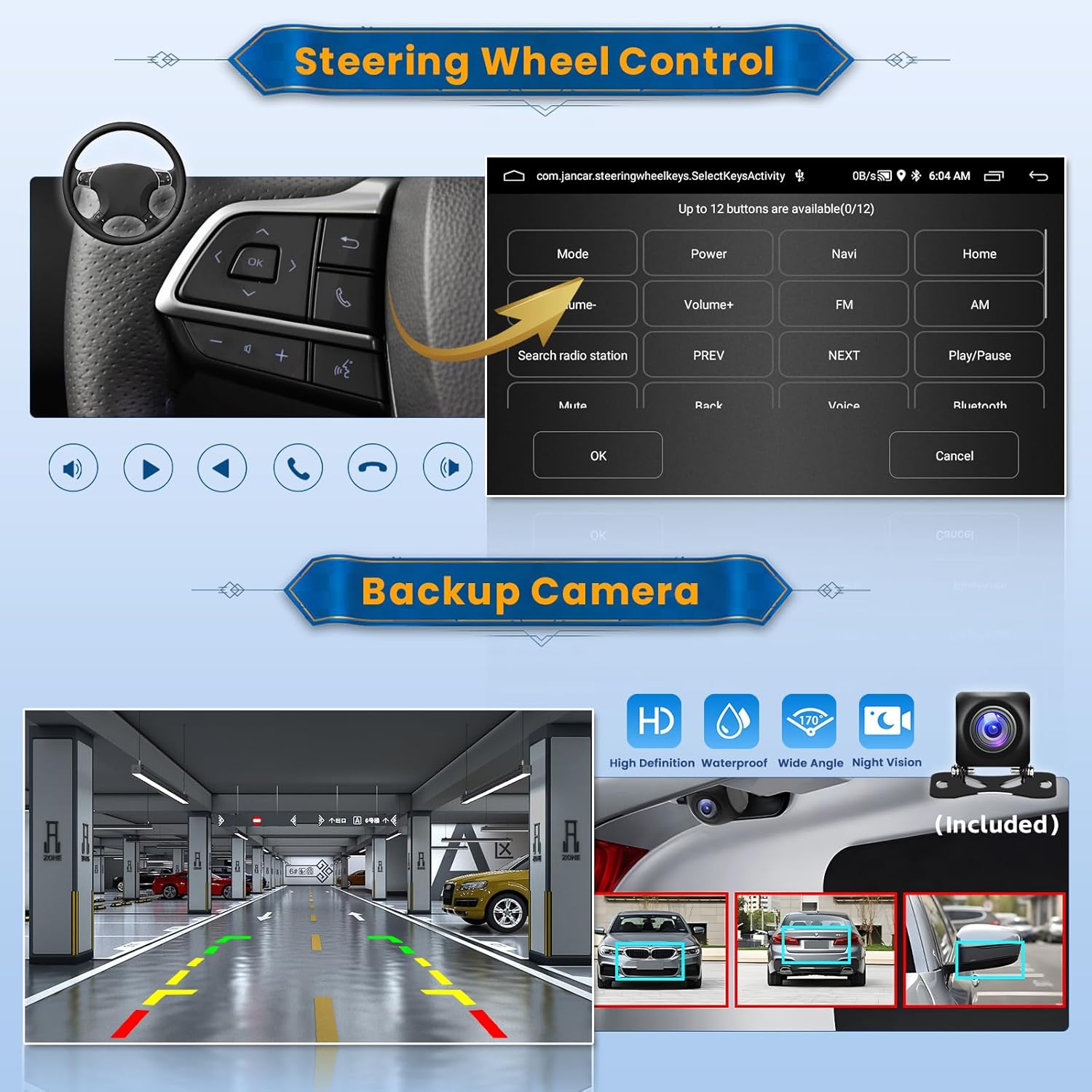
Image: The unit's interface for configuring steering wheel controls and a visual representation of the backup camera view with parking guidelines.
3. Operating Instructions
3.1 Wireless CarPlay and Android Auto
The unit supports both wireless and wired Apple CarPlay and Android Auto. Connect your smartphone via Wi-Fi hotspot or the original USB cable to access phone functions such as navigation, music, calls, and messages directly on the car's display. Voice control is supported.
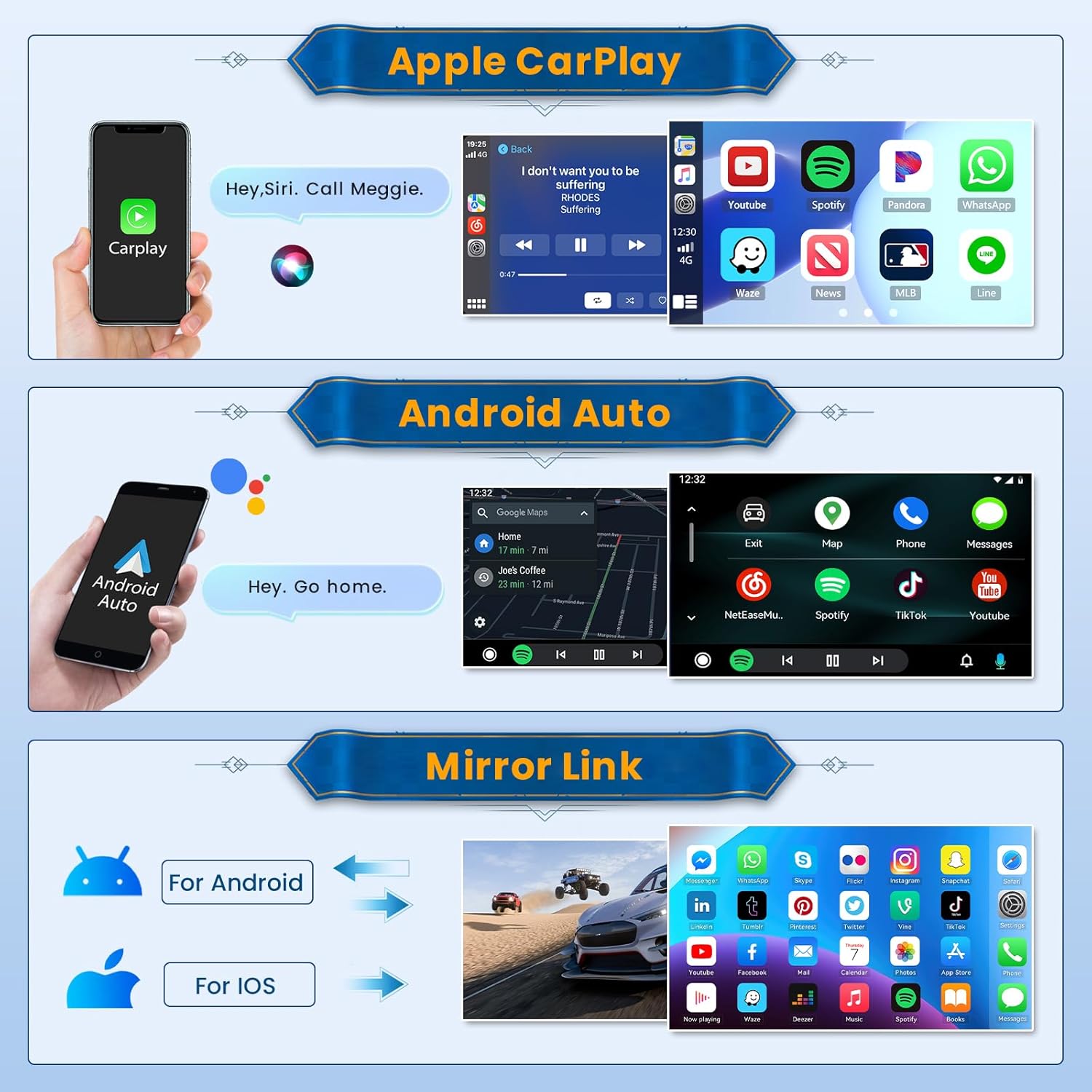
Image: Screenshots demonstrating the user interfaces for Apple CarPlay, Android Auto, and Mirror Link on the head unit, along with corresponding smartphone screens.
3.2 Mirror Link
Synchronize your mobile phone's content, including videos and navigation, to the larger car radio screen via the original USB cable. iOS phones support one-way control, while Android phones support two-way control (some Samsung phones may have restrictions).
3.3 GPS Navigation and WiFi Connection
The unit supports both offline maps (e.g., Waze) and online navigation. Connect to Wi-Fi to download additional applications like YouTube and TikTok, enhancing your in-car entertainment experience. The split-screen function allows simultaneous display of navigation and other features, such as the FM radio.

Image: Displays the GPS navigation interface with map details and icons for various navigation applications. Also shows a collection of app icons and a streaming video interface, illustrating Wi-Fi connectivity.
3.4 Audio Features and Display Customization
The unit offers adjustable equalization (EQ) effects, including presets like pop, rock, and jazz, for an enhanced listening experience. It supports 1080P video playback and features 28 customizable desktop themes for personalization.

Image: Screenshots showing various desktop themes, the detailed equalizer settings interface, and the HD split-screen functionality displaying two applications simultaneously.
3.5 Bluetooth and FM/RDS Radio
Utilize the built-in Bluetooth for hands-free calling and wireless audio streaming. The FM/RDS radio allows you to tune into your favorite stations and view station information where available.
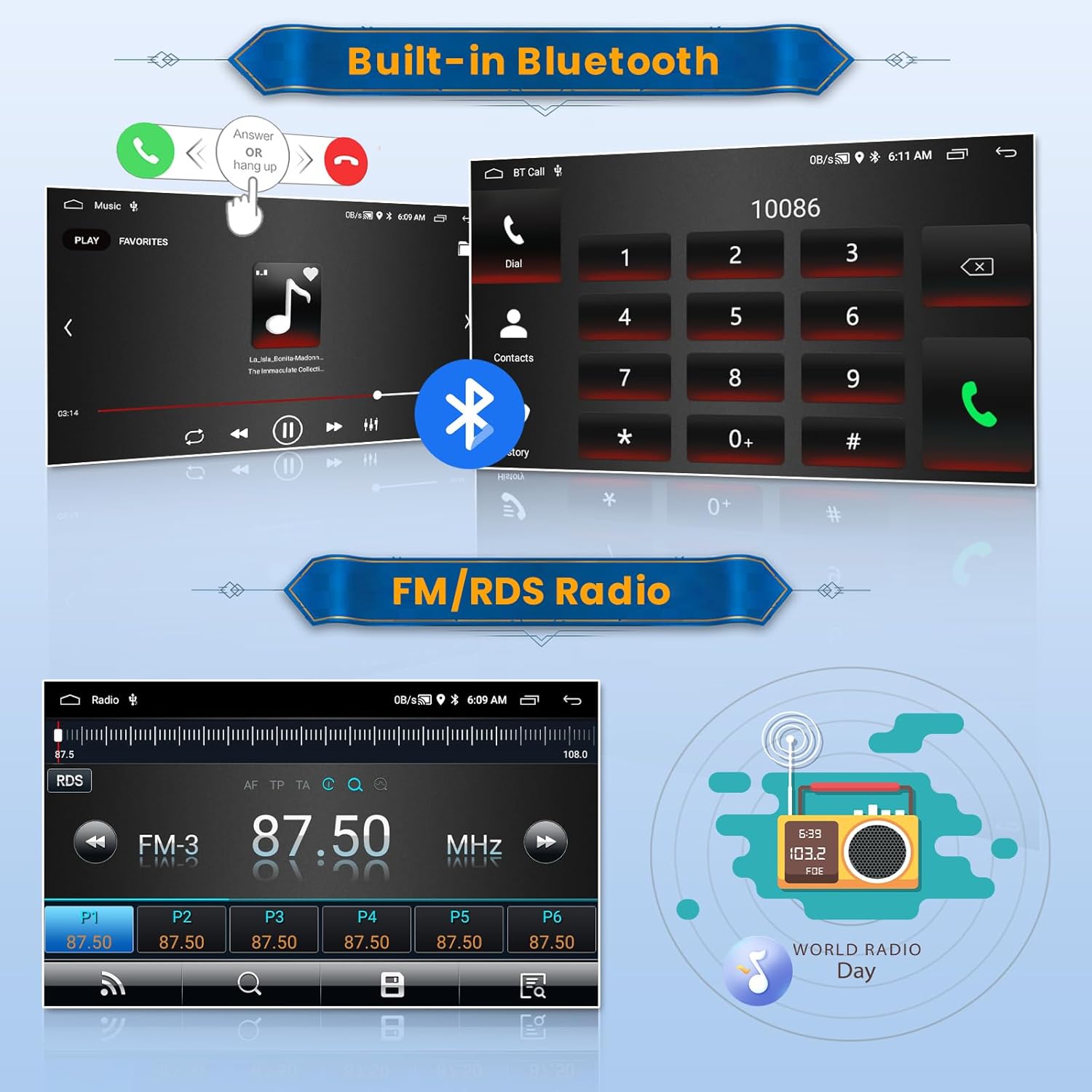
Image: Displays the Bluetooth interface for managing calls and playing music, alongside the FM/RDS radio interface showing frequency and station information.
4. Maintenance
- Cleaning: Use a soft, dry cloth to clean the screen and unit. Avoid abrasive cleaners or solvents.
- Software Updates: Periodically check for available software updates through the unit's settings menu to ensure optimal performance and access to new features.
- Environmental Conditions: Avoid exposing the unit to extreme temperatures, direct sunlight for prolonged periods, or excessive moisture.
5. Troubleshooting
- Steering Wheel Controls Not Responding: Verify that the SWC cables are correctly connected. If a CANBUS decoder is used, ensure it is properly configured in the factory settings. If no CANBUS is present, perform manual button mapping in the steering wheel settings.
- No Sound or Distorted Audio: Check all speaker wiring connections. Ensure the volume is not muted and EQ settings are not excessively altered. If issues persist, consult a professional installer.
- Bluetooth/Wi-Fi Signal Issues: Confirm that the reverse camera input cable is securely plugged in, even if the camera is not actively used, as this can affect signal reception.
- Unit Not Powering On: Check the power connections and fuses. Ensure the vehicle's ignition is on.
- Touchscreen Unresponsive: Try restarting the unit. If the issue persists, a factory reset might be necessary (note: this will erase all user data).
6. Specifications
| Feature | Specification |
|---|---|
| Brand | Inefala |
| Operating System | Android 13 |
| Screen Size | 9 Inches |
| Connections | Wi-Fi, Bluetooth, USB, FM RDS |
| Special Features | Wireless/Wired Apple CarPlay & Android Auto, Mirror Link, Bluetooth, FM RDS, Equalizer Settings, GPS Navigation, Wi-Fi Connection, Touch Screen, Steering Wheel Control, Rear Camera Support, Siri/Google Voice Assistant, 28 Desktop Themes |
| Compatible Devices | Smartphone |
| Audio Output Mode | APE/FLAC/WAV/MP3/WMA etc. |
| Mounting Type | Dashboard Mount |
| Model Number | Inefala-A7187A3195A4MI2IT53-C888 |
| Manufacturer | Inefala |
| Country of Origin | China |
7. Warranty and Support
This product comes with a 24-month manufacturer's warranty. Inefala provides lifetime online assistance for inquiries, with responses typically within 108 hours. For technical support or warranty claims, please refer to the contact information provided with your purchase or visit the official Inefala support channels.