1. Introduction
This manual provides detailed instructions for the setup, operation, and maintenance of your OYAYO MK03 MIDI Keyboard Controller. Please read this manual thoroughly to ensure proper use and to maximize your music production experience. The MK03 is a portable 25-key MIDI keyboard designed for seamless integration with various Digital Audio Workstations (DAWs) and devices, offering a versatile tool for musicians and producers.

Figure 1: OYAYO MK03 MIDI Keyboard Controller
2. Product Overview
The OYAYO MK03 MIDI Keyboard Controller is equipped with a range of features to enhance your music creation process:
- 25 Velocity-Sensitive Keys: Provides expressive control over your musical input.
- 8 RGB Backlit Velocity-Sensitive Pads: Ideal for drumming, triggering samples, and creating beats.
- 8 Assignable Rotary Encoders: Customize control over various parameters in your DAW.
- OLED Display: High-definition screen for real-time parameter viewing (arpeggio, velocity, speed, etc.).
- Knob Pitch Bend and Vibrato: For expressive modulation of sounds.
- Octave and Transpose Functions: Extend the playable range of the keyboard.
- Arpeggio, Note Repeat, and Chord Functions: Built-in tools to inspire creativity and streamline workflow.
- Intelligent Dynamic Scale Mode: Assists in playing essential bass lines, melodies, and leads without tuning issues.
- Portable Design: Rechargeable battery and compact size for on-the-go music production.
- Connectivity: Supports USB and Bluetooth MIDI data transmission.

Figure 2: Key Functions and Controls
3. Setup
3.1 Powering On and Connectivity
- USB Connection:
Connect the provided USB-C cable to the Type-C port on the back of the MK03 keyboard and the other end to your computer (PC or Mac). Ensure your computer has a compatible USB port. An adapter may be required for USB-A ports.

Figure 3: USB Connection Steps
- Bluetooth (BT) MIDI:
The MK03 supports wireless Bluetooth MIDI. To connect via Bluetooth, ensure the keyboard is powered on. On your device (Windows, Android, macOS, iOS), navigate to Bluetooth settings and pair with the OYAYO MK03. Refer to your device's operating system instructions for specific Bluetooth pairing procedures.
- Power On/Off:
Press and hold the power button located on the back panel to turn the device on or off. The OLED display will illuminate upon successful power-on.
3.2 DAW Integration
The OYAYO MK03 is compatible with a wide range of Digital Audio Workstations (DAWs) including, but not limited to, Ableton Live, Avid Pro Tools, FL Studio, MPC Beats, Reason, Studio One, and GarageBand. Follow these general steps for DAW integration:
- Connect the MK03 to your computer via USB or Bluetooth.
- Open your preferred DAW.
- Navigate to the DAW's preferences or settings menu (often found under "Options," "Preferences," or the DAW's name in the menu bar).
- Locate the MIDI/Sync or External Devices section.
- Enable the OYAYO MK03 as a MIDI input device. Some DAWs may automatically detect and configure the device.
- Create a new MIDI track and select the MK03 as its input.

Figure 4: Compatible DAWs and Devices
4. Operating Instructions
4.1 Keyboard and Pads
- 25 Velocity-Sensitive Keys: Play melodies, chords, and bass lines. The velocity sensitivity means the sound's intensity changes based on how hard you press the keys.
- 8 RGB Backlit Pads: Use these pads to trigger drum sounds, samples, or loops. The RGB backlighting provides visual feedback.
- Octave Buttons (OCT+/-): Adjust the octave range of the keys. Press OCT+ to shift up an octave, and OCT- to shift down.
- Transpose Buttons (TRANS+/-): Shift the pitch of the keys up or down in semitone increments.
4.2 Rotary Encoders and Joystick
- 8 Assignable Rotary Encoders: These knobs can be assigned to control various parameters within your DAW, such as volume, pan, filter cutoff, or effect send levels. Refer to your DAW's MIDI mapping instructions to assign these controls.
- Joystick: The joystick typically controls Pitch Bend (horizontal movement) and Modulation (vertical movement), allowing for expressive performance.

Figure 5: Adjusting Controls
4.3 Advanced Functions
- Arpeggiator (ARP): Activates the arpeggiator, which automatically plays a sequence of notes from a held chord. Use the OLED display and associated buttons to adjust arpeggiator parameters like mode, division, and swing.
- Note Repeat: When active, holding down a pad will repeatedly trigger the assigned sound at a set tempo.
- Chord Function: Allows you to trigger full chords by pressing a single key, simplifying chord progressions.
- Intelligent Dynamic Scale Mode: This mode helps you stay in key by mapping the keys to a selected musical scale, preventing off-key notes.

Figure 6: Utilizing Essential and Creative Features
5. Maintenance
- Cleaning: Use a soft, dry cloth to wipe down the surface of the keyboard. Avoid abrasive cleaners or solvents.
- Storage: Store the keyboard in a cool, dry place away from direct sunlight and extreme temperatures.
- Battery Care: For optimal battery life, avoid fully discharging the rechargeable battery frequently. Charge the device regularly, especially if it will be stored for an extended period.
- Cable Management: Ensure USB cables are not bent sharply or placed under heavy objects to prevent damage.
6. Troubleshooting
| Problem | Possible Cause | Solution |
|---|---|---|
| Keyboard not powering on. | Low battery or power cable not connected. | Charge the keyboard using the USB-C cable. Ensure the power button is pressed and held until the OLED screen illuminates. |
| No sound from DAW. | MIDI input not selected in DAW, incorrect instrument loaded, or volume too low. | Verify the MK03 is selected as a MIDI input in your DAW's preferences. Ensure a virtual instrument is loaded on the MIDI track and its volume is up. Check the master volume of your DAW and audio interface. |
| Pads are unresponsive or require excessive force. | Velocity sensitivity settings in DAW or on keyboard, or a potential hardware issue. | Check the velocity curve settings within your DAW or on the keyboard itself (if available via a menu setting). Ensure the pads are clean and free from debris. If the issue persists, contact customer support. |
| Bluetooth connection issues. | Interference, device not in pairing mode, or driver issues. | Ensure the keyboard is in Bluetooth pairing mode. Move closer to your device and away from other wireless interference sources. Try restarting both the keyboard and your device. Update Bluetooth drivers on your computer if necessary. |
7. Specifications
- Brand: OYAYO
- Model Name: MK03
- Number of Keys: 25
- Key Type: Semi-Weighted
- Connectivity Technology: USB, Bluetooth
- Connector Type: USB Type-C
- Hardware Interface: USB
- Compatible Devices: Tablet, Smartphone, Laptop, PC
- Supported Software: Ableton Live, Avid Pro Tools, FL Studio, MPC Beats, Reason, Studio One, GarageBand
- Platform: Mac, Windows, Android, iOS
- Item Dimensions (D x W x H): 13.6"D x 7"W x 2"H (346mm x 178mm x 51mm)
- Item Weight: 1.08 Kilograms
- Color: Black
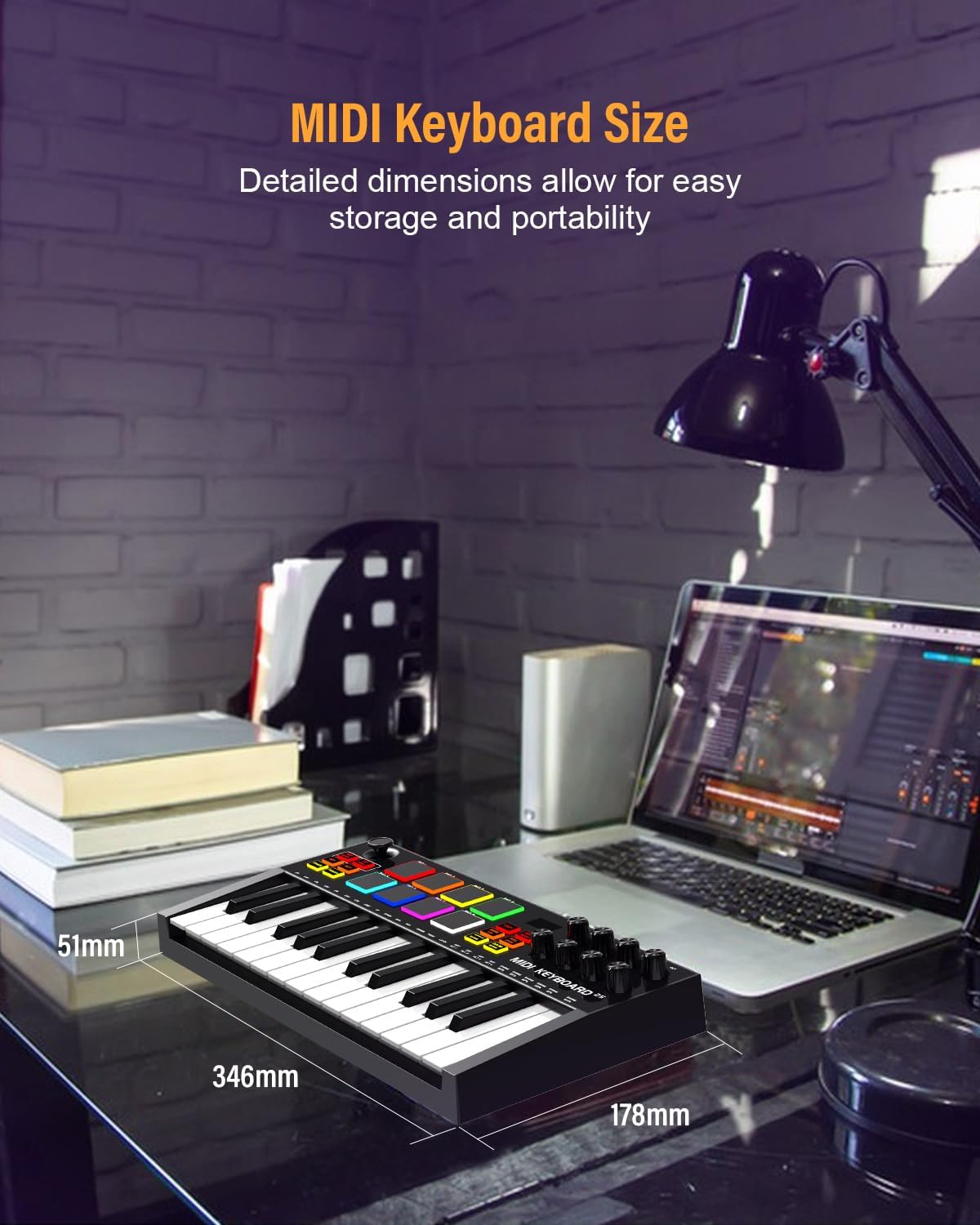
Figure 7: MIDI Keyboard Dimensions
8. Warranty and Support
Warranty Description: 1 year
For further assistance, technical support, or warranty inquiries, please visit the official OYAYO Store or contact their customer service.
OYAYO Store: https://www.amazon.com/stores/OYAYO/page/DDC087AE-319D-4272-91B2-8C25249F8BB9