
1. Introduction
The AJAZZ AJ159 APEX is a high-performance wireless gaming mouse designed for precision and speed. Featuring a lightweight design, advanced sensor technology, and versatile connectivity options, it is engineered to enhance your gaming experience. This manual provides detailed instructions for setting up, operating, maintaining, and troubleshooting your device.
2. Package Contents
- AJAZZ AJ159 APEX Wireless Gaming Mouse
- Magnetic Charging Dock with 8K Wireless Receiver
- USB-C Charging Cable
- User Manual

Image: The AJAZZ AJ159 APEX Wireless Gaming Mouse shown with its magnetic charging base.
3. Setup
3.1 Initial Connection
The AJ159 APEX offers three connectivity modes: 2.4GHz wireless, Bluetooth 5.2, and USB-C wired. Select the desired mode using the switch on the underside of the mouse.
- 2.4GHz Wireless Mode: Connect the magnetic charging dock to your computer via the USB-C cable. The dock acts as the 8K wireless receiver. Ensure the mouse is in 2.4GHz mode. The mouse will automatically pair with the receiver.
- Bluetooth 5.2 Mode: Switch the mouse to Bluetooth mode. On your device, search for Bluetooth devices and select "AJ159 APEX" to pair.
- USB-C Wired Mode: Connect the mouse directly to your computer using the provided USB-C cable. This mode also charges the mouse.
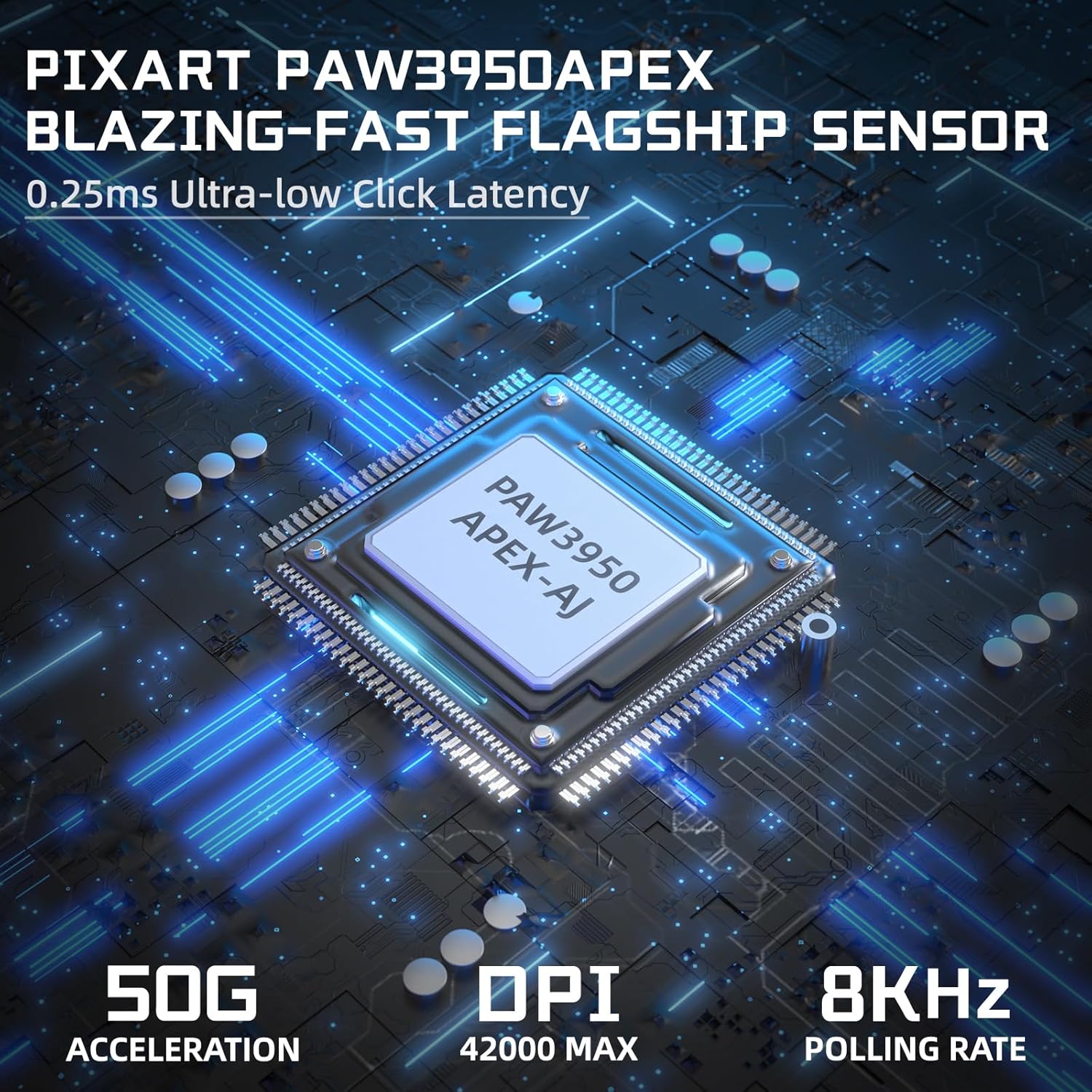
Image: Visual representation of the three connectivity modes: 2.4GHz wireless, Bluetooth 5.2, and USB-C wired.
3.2 Charging the Mouse
The AJ159 APEX can be charged using the magnetic charging dock or directly via the USB-C cable.
- Magnetic Charging Dock: Place the mouse onto the magnetic charging dock. The mouse will align automatically and begin charging. The smart color display on the dock will show the charging status and battery level. A 10-minute charge provides approximately 5 hours of use.
- USB-C Cable: Connect the USB-C cable to the front port of the mouse and to a USB power source or your computer.
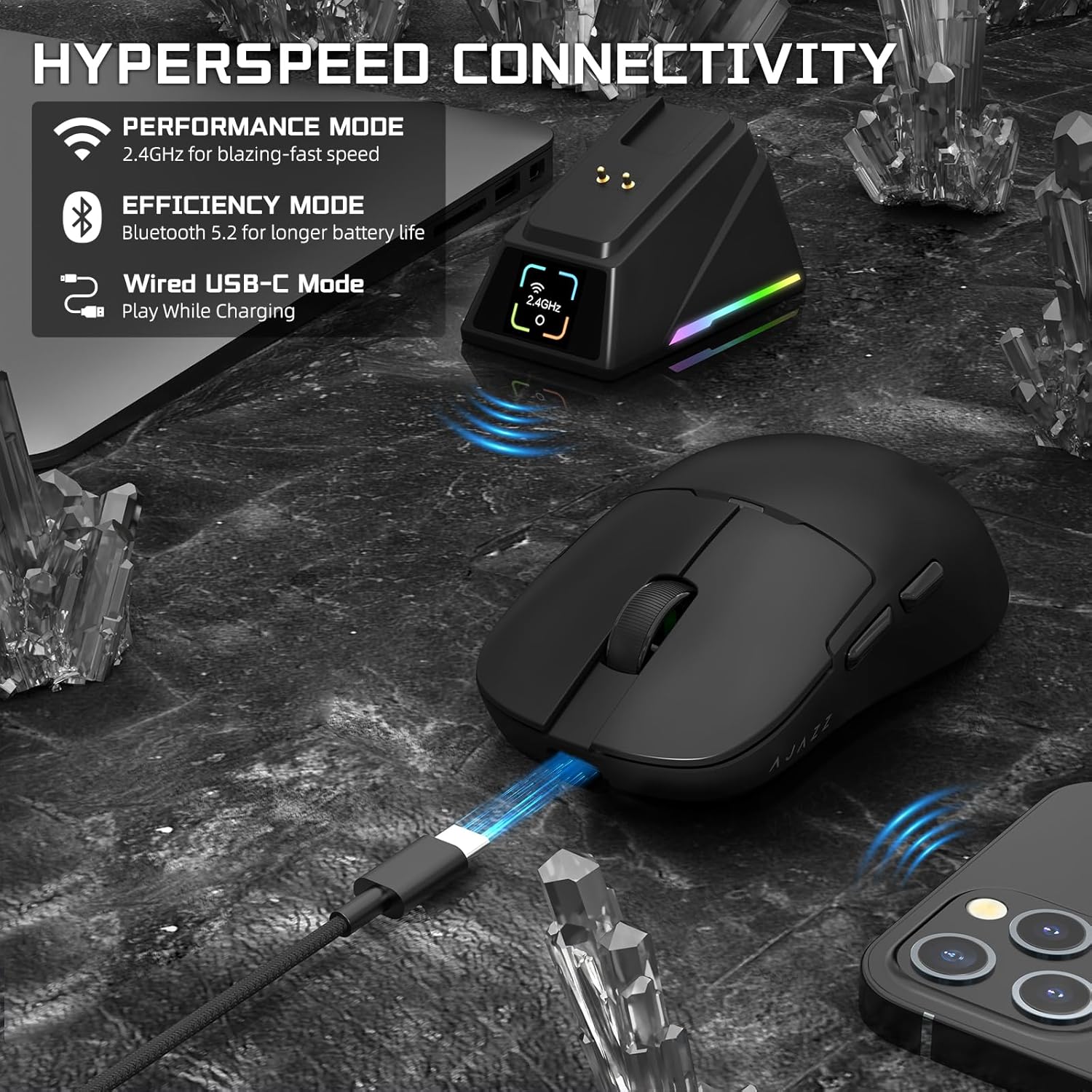
Image: The AJ159 APEX mouse positioned on its magnetic charging dock, illustrating the charging process.
3.3 Driver Software Installation
To fully customize your mouse settings, including programmable buttons, DPI, polling rate, lift-off distance, and GIF display on the dock, download and install the official driver software from the Yindiao website. Refer to the software's interface for detailed customization options.

Image: A view of the customization software interface, showing options for button programming, DPI settings, and other mouse parameters.
4. Operating Instructions
4.1 DPI Adjustment
The AJ159 APEX features a PAW3950APEX optical sensor capable of up to 42,000 programmable DPI. Use the dedicated DPI button on the mouse or adjust settings within the driver software to cycle through DPI levels to suit your preference and game requirements.
4.2 Polling Rate
Experience ultra-responsive cursor movements with an 8000Hz wireless polling rate, reducing response time to as low as 0.125ms. This high polling rate ensures minimal input lag for competitive gaming.

Image: A visual representation highlighting the 8000Hz wireless polling rate capability of the mouse.
4.3 Smart Color Display
The magnetic charging dock features a smart color display that provides real-time information. This display can show custom GIF images, current connection mode (2.4G, BT, Wired), battery level, date, and time. Customize the display settings via the driver software.
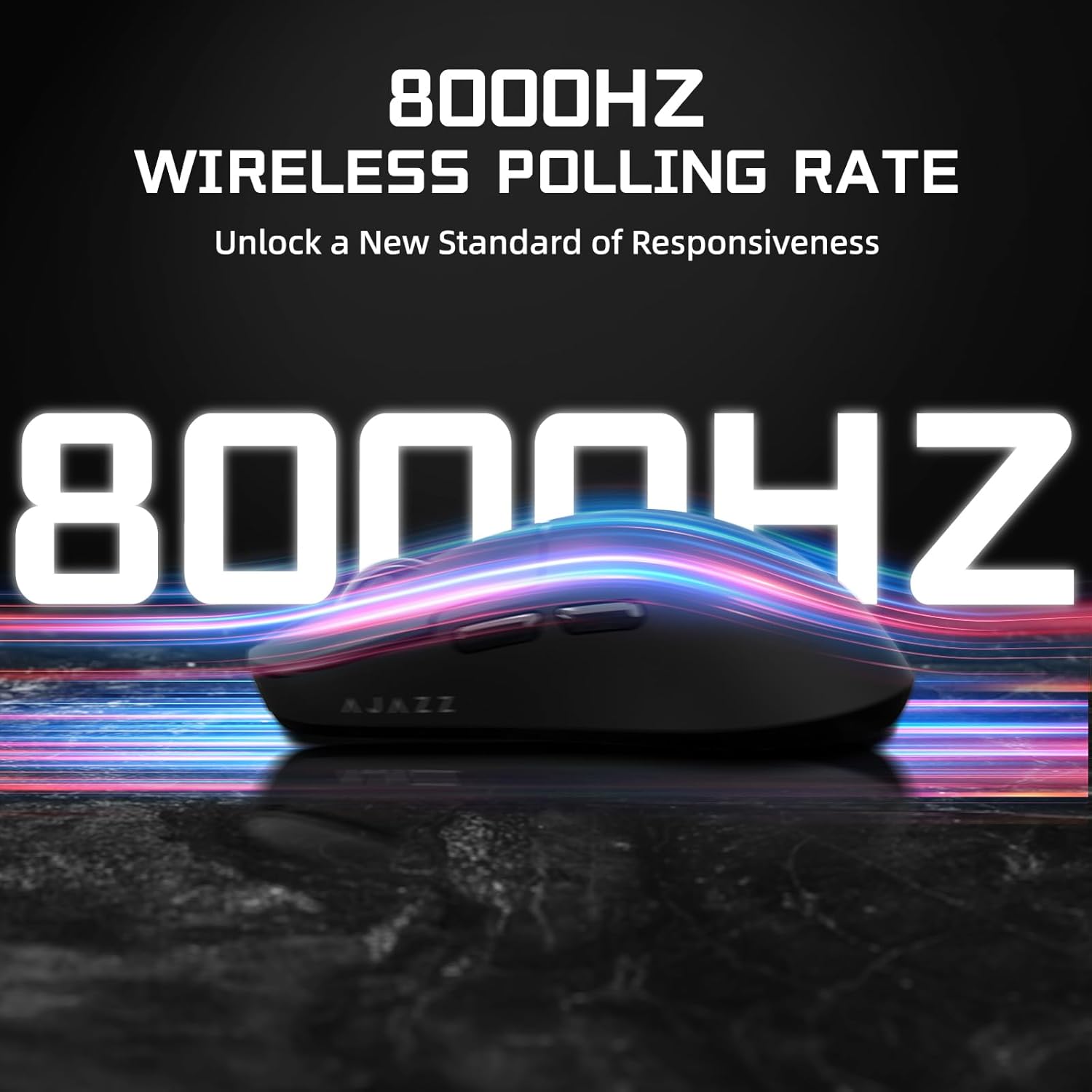
Image: A detailed view of the smart color display on the charging dock, showing various informational icons.
4.4 Programmable Buttons
The mouse features programmable buttons that can be assigned various functions, macros, or keybinds through the dedicated driver software. This allows for personalized control and optimized workflow or gaming performance.
5. Maintenance
5.1 Cleaning
To maintain optimal performance, regularly clean your mouse and charging dock. Use a soft, dry cloth to wipe down surfaces. For stubborn dirt, a slightly damp cloth can be used, ensuring no moisture enters the internal components. Avoid harsh chemicals or abrasive materials.
5.2 Battery Care
The mouse is equipped with a 400mAh battery. To prolong battery life, avoid fully discharging the mouse frequently. Store the mouse in a cool, dry place when not in use for extended periods.
5.3 Ice-Feel Coating
The mouse features an ice-feel coating designed to keep your grip cool and comfortable during intense gaming sessions. This coating requires no special maintenance beyond regular cleaning.
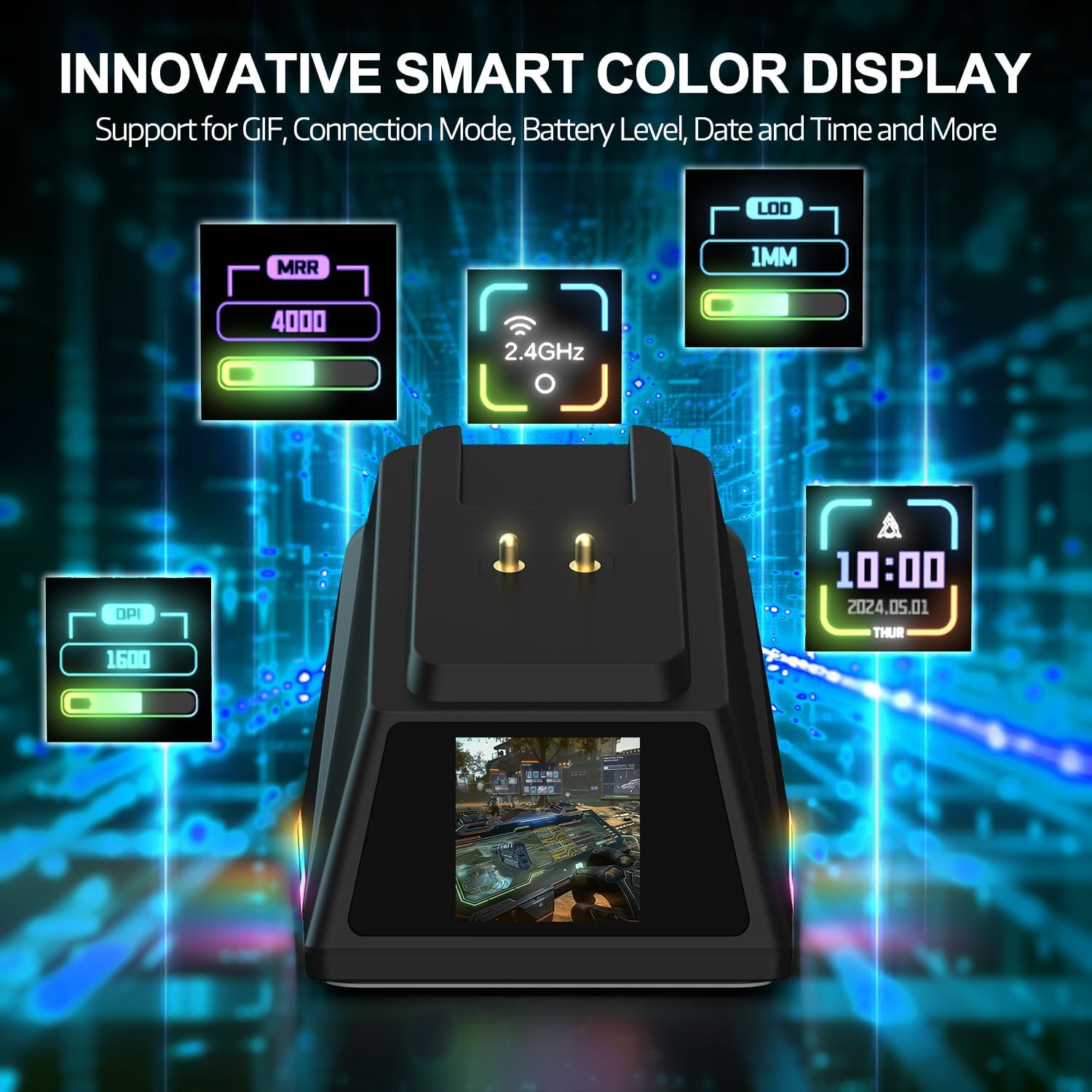
Image: A close-up view of the mouse surface, emphasizing the texture and finish of the ice-feel coating.
6. Troubleshooting
If you encounter any issues with your AJAZZ AJ159 APEX mouse, please refer to the following common solutions:
- Connectivity Issues: Ensure the mouse is in the correct mode (2.4GHz, Bluetooth, or Wired). For 2.4GHz, confirm the charging dock/receiver is properly connected to your computer. For Bluetooth, ensure your device's Bluetooth is enabled and the mouse is paired. Try reconnecting or re-pairing.
- Unresponsive Cursor/Lag: Check battery level. Ensure the wireless receiver is not obstructed and is close to the mouse. Try switching to wired mode to rule out wireless interference. Update mouse drivers and firmware.
- Charging Problems: Verify the USB-C cable is securely connected to both the dock/mouse and the power source. Ensure the magnetic contacts on the mouse and dock are clean and free of debris.
- Software Not Recognizing Mouse: Reinstall the driver software. Ensure your operating system is up to date.
If problems persist after attempting these solutions, please contact Yindiao customer support for further assistance.
7. Specifications
| Feature | Detail |
|---|---|
| Brand | Yindiao |
| Model Number | AJ159 APEX |
| Connectivity Technology | Bluetooth, USB-C Wired, 2.4G Wireless |
| Movement Detection Technology | Optical (PAW3950APEX Sensor) |
| Max DPI | 42,000 |
| Polling Rate | Up to 8000Hz (Wireless) |
| Click Latency | 0.25ms Ultra-low |
| Switches | HUANO (100 Million Clicks) |
| Weight | 56g (approx. 1.98 ounces) |
| Battery Capacity | 400mAh |
| Special Features | Magnetic Charging Dock, Smart Color Display, Ice-Feel Coating, Ergonomic Design |
| Package Dimensions | 7.01 x 6.42 x 2.13 inches |
| Country of Origin | China |
8. Official Product Videos
AJ159 APEX Wireless Gaming Mouse with Magnetic Charging Base
Video: This video demonstrates the key features of the AJ159 APEX mouse, including its wireless capabilities and the magnetic charging base. It highlights the ease of use and the innovative design of the charging solution.
AJ159 APEX 56g Lightweight Wireless Gaming Mouse for PC/Mac/Win
Video: This video showcases the lightweight design of the AJ159 APEX mouse and its compatibility with PC, Mac, and Windows operating systems. It provides a closer look at the mouse's form factor and its suitability for various gaming setups.
9. Warranty and Support
For warranty information and technical support, please refer to the documentation included with your product or visit the official Yindiao website. If you encounter any issues not covered in this manual, or require further assistance, please contact Yindiao customer service directly.