
UMIDIGI G1 Tab
UMIDIGI Kids Tablet G1 Tab User Manual
Model: G1 Tab
Product Overview
The UMIDIGI Kids Tablet G1 Tab is designed for children, featuring a durable build and a user-friendly Android 13 operating system. It comes with a 10.1-inch display, ample storage, and robust parental control features to ensure a safe and engaging digital experience.

Image: Front view of the UMIDIGI G1 Tab in pink, highlighting its key specifications on the screen.

Image: An infographic summarizing the main features of the UMIDIGI G1 Tab, including display size, camera specifications, memory, battery, and protective case.
Setup
Unboxing and Package Contents
Upon opening the package, ensure all components are present. The standard package includes:
- 1x UMIDIGI G1 Tab with EVA protective case
- 1x Tablet Case
- 1x Screen Protector (Pre-Applied)
- 1x Power Adapter
- 1x USB Type-C Cable
- 1x Quick Start Guide

Image: A visual guide to the tablet's physical features and the items included in the product box.
Initial Power On
To power on your UMIDIGI G1 Tab for the first time, press and hold the power button located on the side of the tablet until the UMIDIGI logo appears on the screen. Follow the on-screen prompts to complete the initial setup, including language selection, Wi-Fi connection, and Google account setup.
Charging the Tablet
Before first use, it is recommended to fully charge the tablet. Connect the provided USB Type-C cable to the tablet's charging port and the power adapter to a wall outlet. The charging indicator will illuminate. A full charge typically takes several hours.

Image: An illustration highlighting the 6000mAh battery capacity of the tablet.
Operating Instructions
Basic Navigation
The UMIDIGI G1 Tab operates on Android 13, offering intuitive touch-based navigation. Swipe across the screen to move between home screens, tap icons to open applications, and use pinch-to-zoom gestures for images and web pages. The power and volume buttons are located on the side for easy access.

Image: Rear view of the tablet, illustrating the camera placement and brand logo.
Connecting to Wi-Fi
To connect to a Wi-Fi network:
- Go to Settings.
- Tap Network & internet, then Internet.
- Select your desired Wi-Fi network from the list.
- Enter the password if prompted and tap Connect.
The tablet supports 2.4G and 5G dual-band Wi-Fi 6 (802.11ax) for stable and fast connections.
Parental Control Features (Kids Park)
The UMIDIGI G1 Tab includes a dedicated Kids Park application with comprehensive parental control features to manage your child's tablet usage:
- Password Protection: Prevents children from exiting the Kids Park environment without permission.
- Application Management: Select specific applications that your child can access.
- Website Management: Curate a list of safe and appropriate websites for browsing.
- Time Management: Set daily usage limits and break times to encourage healthy habits.
- Multiple Kids Accounts: Create customized profiles for each child with individual settings and content.

Image: A family interacting with the tablet, illustrating the various parental control options available.
Camera Usage
The tablet is equipped with an 8MP rear camera for capturing photos and an 8MP front camera for video calls and selfies. Open the Camera application to switch between modes and capture moments.
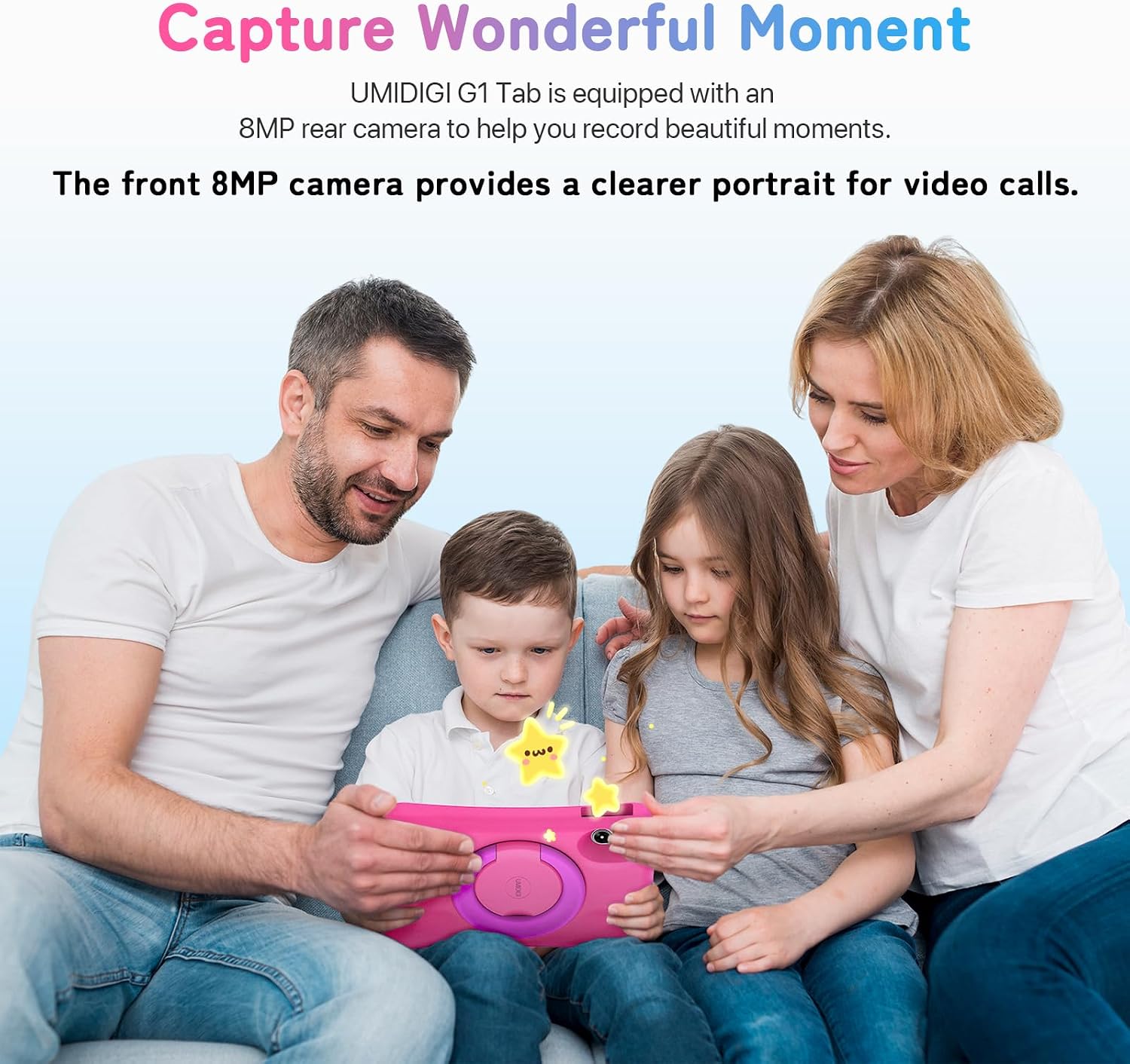
Image: A visual representation of the tablet's camera capabilities in a family setting.
Split Screen Function
The split-screen function allows you to run two applications simultaneously, enhancing multitasking. To activate, open an app, then swipe up from the bottom of the screen and hold to reveal recent apps. Drag one app to the top or bottom of the screen, then select another app for the remaining space.

Image: The tablet screen divided into two, showcasing the split-screen functionality.
Maintenance and Care
Proper care will extend the life of your UMIDIGI G1 Tab. Keep the tablet away from extreme temperatures, direct sunlight, and moisture. Use a soft, lint-free cloth to clean the screen and body. Avoid using harsh chemicals or abrasive materials.
Battery Care
The tablet is equipped with a 6000mAh battery. To maximize battery lifespan:
- Avoid fully discharging the battery frequently.
- Do not leave the tablet charging for extended periods after it reaches 100%.
- Store the tablet in a cool, dry place if not in use for a long time, with the battery charged to around 50%.

Image: An illustration of the tablet's durable design and protective features against drops.
Troubleshooting
If you encounter issues with your UMIDIGI G1 Tab, refer to the common problems and solutions below:
Tablet Not Turning On
- Ensure the battery is charged. Connect the charger and wait a few minutes before attempting to power on again.
- Press and hold the power button for at least 10-15 seconds to perform a forced restart.
Wi-Fi Connection Issues
- Check if Wi-Fi is enabled in Settings.
- Restart your Wi-Fi router.
- Forget the network in tablet settings and reconnect.
- Ensure you are within range of the Wi-Fi signal.
Applications Crashing or Freezing
- Close and reopen the application.
- Clear the app's cache and data in Settings > Apps > [App Name] > Storage & cache.
- Update the app to the latest version from the Google Play Store.
- Restart the tablet.
Slow Performance
- Close unnecessary background applications.
- Clear cached data regularly.
- Ensure sufficient storage space is available.
- Perform a factory reset as a last resort (this will erase all data).
Technical Specifications
| Feature | Specification |
|---|---|
| Display Size | 10.1 Inches |
| Display Resolution | 1920 x 1200 pixels |
| Operating System | Android 13 |
| Processor | MediaTek Quad-Core (RK3562) |
| RAM | 8GB (4GB LPDDR4X + 4GB Extended) |
| Internal Storage | 64GB |
| Expandable Storage | Up to 1TB (via microSD card) |
| Wi-Fi Standard | 802.11ax (Wi-Fi 6), 2.4G & 5G Dual-Band |
| Bluetooth | Bluetooth 5.0 |
| Battery Capacity | 6000mAh |
| Cameras | 8MP Rear, 8MP Front |
| Dimensions | 28.4 x 26.3 x 3.9 cm (Parcel Dimensions) |
| Weight | 1.22 kg (Parcel Weight) |
Warranty and Support
Your UMIDIGI Kids Tablet G1 Tab is covered by a return policy that allows for refund or replacement within 30 days of purchase, as per Amazon's policy. For specific warranty details beyond this period, please refer to the warranty card included in your package or contact UMIDIGI customer support directly.
For technical assistance or further inquiries, please contact the seller, UMIDIGI Official store, through the Amazon platform or refer to the contact information provided in the Quick Start Guide.
Note: Keep your purchase receipt and packaging for warranty claims.