1. Introduction
Thank you for choosing the Selore 13-in-1 USB-C Docking Station. This versatile docking station is designed to expand the connectivity of your laptop, providing multiple ports for enhanced productivity and convenience. Please read this manual carefully before use to ensure proper operation and to maximize the benefits of your device.

Figure 1: Selore 13-in-1 USB-C Docking Station overview.
2. Key Features
- Triple Display Output: Supports up to 4K@60Hz via HDMI 1 and DP, and 4K@30Hz via HDMI 2. Ideal for multi-monitor setups.
- High-Speed Data Transfer: Equipped with 3x USB 3.1 ports (10Gbps) and 2x USB 2.0 ports (480Mbps) for rapid file transfers and peripheral connectivity.
- 100W Power Delivery: Features a PD 3.0 port for fast charging your laptop (up to 85W output) while using the docking station.
- Gigabit Ethernet: Provides a stable and fast wired network connection up to 1000Mbps.
- SD/TF Card Readers: Supports simultaneous reading and writing for SD and Micro SD cards, with speeds up to 40MB/s.
- 3.5mm Audio Jack: For connecting headphones or microphones, offering clear audio quality.
- Wide Compatibility: Compatible with MacBook Pro/Air, iPad Pro/Air, iPhone 15 Pro/Pro Max, HP, Dell, and other USB-C enabled devices.

Figure 2: Detailed port layout and specifications.
3. Specifications
| Feature | Description |
|---|---|
| Model Number | UC0231 |
| Ports | 13 (2x HDMI, 1x DP, 3x USB 3.1, 2x USB 2.0, 1x USB-C PD, 1x RJ45 Ethernet, 1x SD, 1x TF, 1x 3.5mm Audio) |
| Video Output | HDMI 1 (4K@60Hz), HDMI 2 (4K@30Hz), DP (4K@60Hz) |
| Power Delivery | PD 3.0, up to 100W input (85W output to laptop) |
| USB Data Transfer | USB 3.1: 10Gbps; USB 2.0: 480Mbps |
| Ethernet | 1000Mbps Gigabit Ethernet |
| Card Reader Speed | SD/TF up to 40MB/s |
| Material | Plastic |
| Compatible OS | macOS, Windows, Chrome OS |
| Dimensions | 20.4 x 6.6 x 2 cm |
| Weight | 140 grams |
4. Setup Guide
4.1 Before You Begin
- Ensure your laptop has a full-function USB-C port that supports video output (DisplayPort Alt Mode) and Power Delivery. Refer to Figure 3 for port type verification.
- For optimal performance, especially with multiple displays and charging, use a 100W (or higher) power adapter with the docking station. Chargers and data cables are not included.
- If your laptop has a protective case, ensure it does not obstruct the USB-C ports, as this may prevent proper connection.

Figure 3: Verify your laptop's USB-C port type before purchase.
4.2 Connecting the Docking Station
- Connect the integrated USB-C cable from the docking station to a full-function USB-C port on your laptop.
- (Optional) Connect your laptop's power adapter to the PD (Power Delivery) USB-C port on the docking station to charge your laptop.
- Connect your external monitors to the HDMI and/or DisplayPort (DP) outputs on the docking station using appropriate cables.
- Connect any USB peripherals (keyboard, mouse, external hard drive, USB flash drive, etc.) to the available USB 3.1 or USB 2.0 ports.
- For a wired network connection, connect an Ethernet cable to the RJ45 port on the docking station.
- Insert SD or TF cards into the respective card reader slots for data access.
- Connect headphones or speakers to the 3.5mm audio jack.

Figure 4: Example setup with multiple displays and peripherals.
5. Operating Instructions
5.1 Display Modes (Windows)
For Windows systems, the docking station supports various display modes:
- Mirror Mode (A-AAA): All external displays mirror the laptop's screen.
- Extend Mode 1 (A-BBB): The laptop screen (A) is extended, and all external displays (B) show the same extended content.
- Extend Mode 2 (A-BCD): The laptop screen (A) is extended, and each external display (B, C, D) shows unique extended content. This mode is supported on Windows systems with DP 1.4.

Figure 5: Triple Display Modes for Windows.
5.2 Display Modes (macOS)
For macOS systems, due to Apple's limitations, the docking station supports:
- Mirror Mode (A-AAA): All external displays mirror the laptop's screen.
- Extend Mode (A-BBB): The laptop screen (A) is extended, and all external displays (B) show the same extended content. macOS does not support Multi-Stream Transport (MST), meaning unique extended displays (A-BCD) are not possible.

Figure 6: Display Modes for macOS.
5.3 Data Transfer and Charging
- USB Ports: Connect your USB devices to the USB 3.1 (10Gbps) or USB 2.0 (480Mbps) ports for data synchronization, connecting peripherals, or charging small devices.
- Card Readers: Insert your SD or TF cards into the corresponding slots. Data can be read and written simultaneously.
- Power Delivery: The PD port allows you to charge your laptop while using the docking station. Ensure your power adapter is sufficient (100W recommended).

Figure 7: High-speed data transfer via USB 3.1 ports.
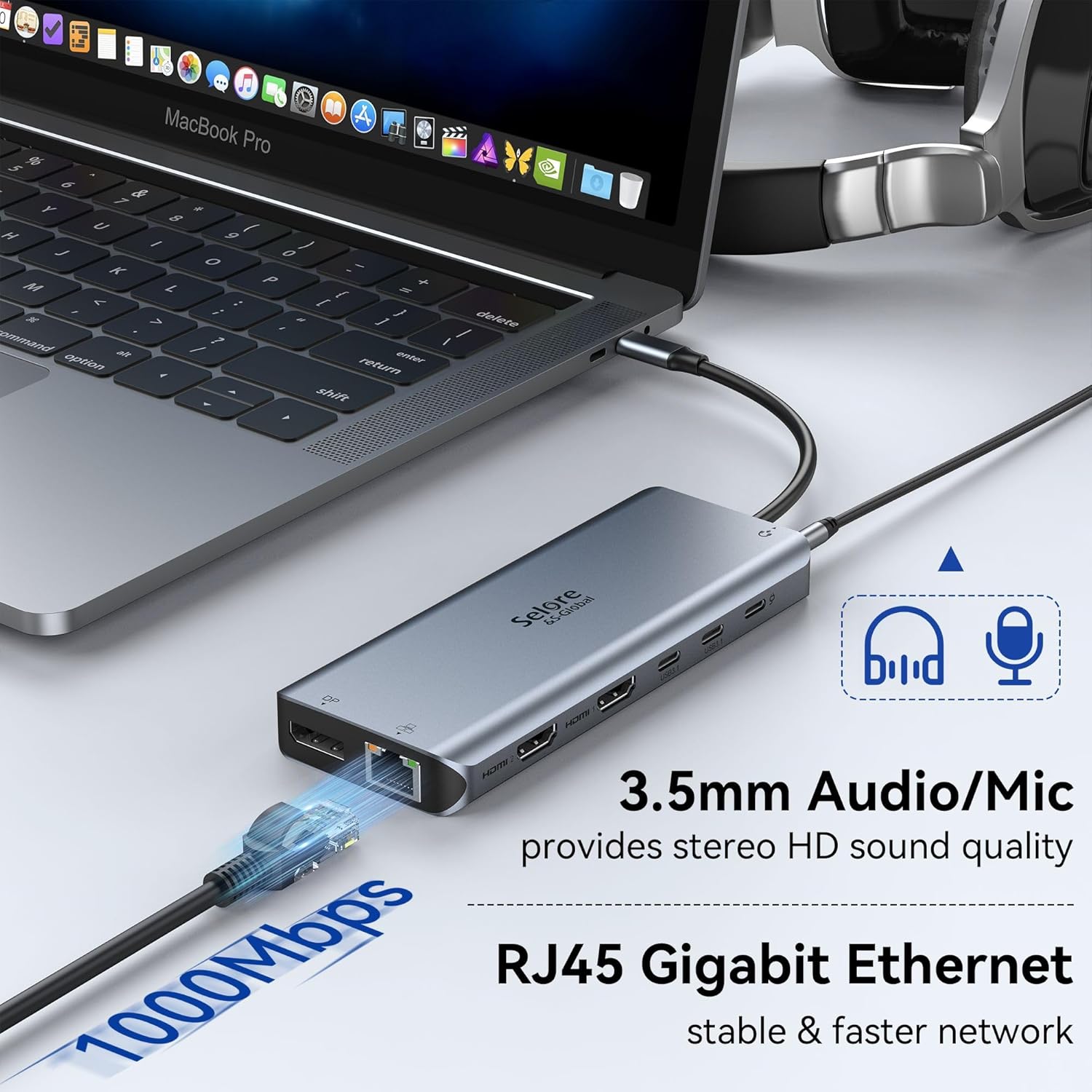
Figure 8: 100W Power Delivery functionality.
6. Maintenance and Care
- Keep the docking station clean by wiping it with a soft, dry cloth. Avoid using liquid cleaners or aerosols.
- Do not expose the device to extreme temperatures, humidity, or direct sunlight.
- Avoid dropping or subjecting the docking station to strong impacts.
- When not in use, disconnect the docking station from your laptop and store it in a cool, dry place.
- Ensure proper ventilation around the docking station during operation to prevent overheating.
7. Troubleshooting
| Problem | Possible Cause / Solution |
|---|---|
| No display output / External monitor not detected. |
|
| Laptop not charging. |
|
| USB devices not recognized. |
|
| Ethernet connection unstable or not working. |
|
| Slow performance (lagging screens, heavy mouse movement). |
|

Figure 9: Important tips for optimal performance and compatibility.
8. Warranty and Support
Selore & S-Global provides 24-month product support after purchase. For any questions or operational problems, please contact our customer service. We are here to assist you at any time.
For further assistance, please visit the official Selore & S-Global website or contact their support channels directly.


