Introduction
This manual provides detailed instructions for the ZKAIAI 360 Rotating Keyboard Case, designed for iPad Pro 12.9-inch models. It covers product features, setup, operation, maintenance, and troubleshooting to ensure optimal use of your device. The package includes a detachable wireless keyboard and a rechargeable Bluetooth mouse, enhancing your iPad's functionality for both productivity and entertainment.
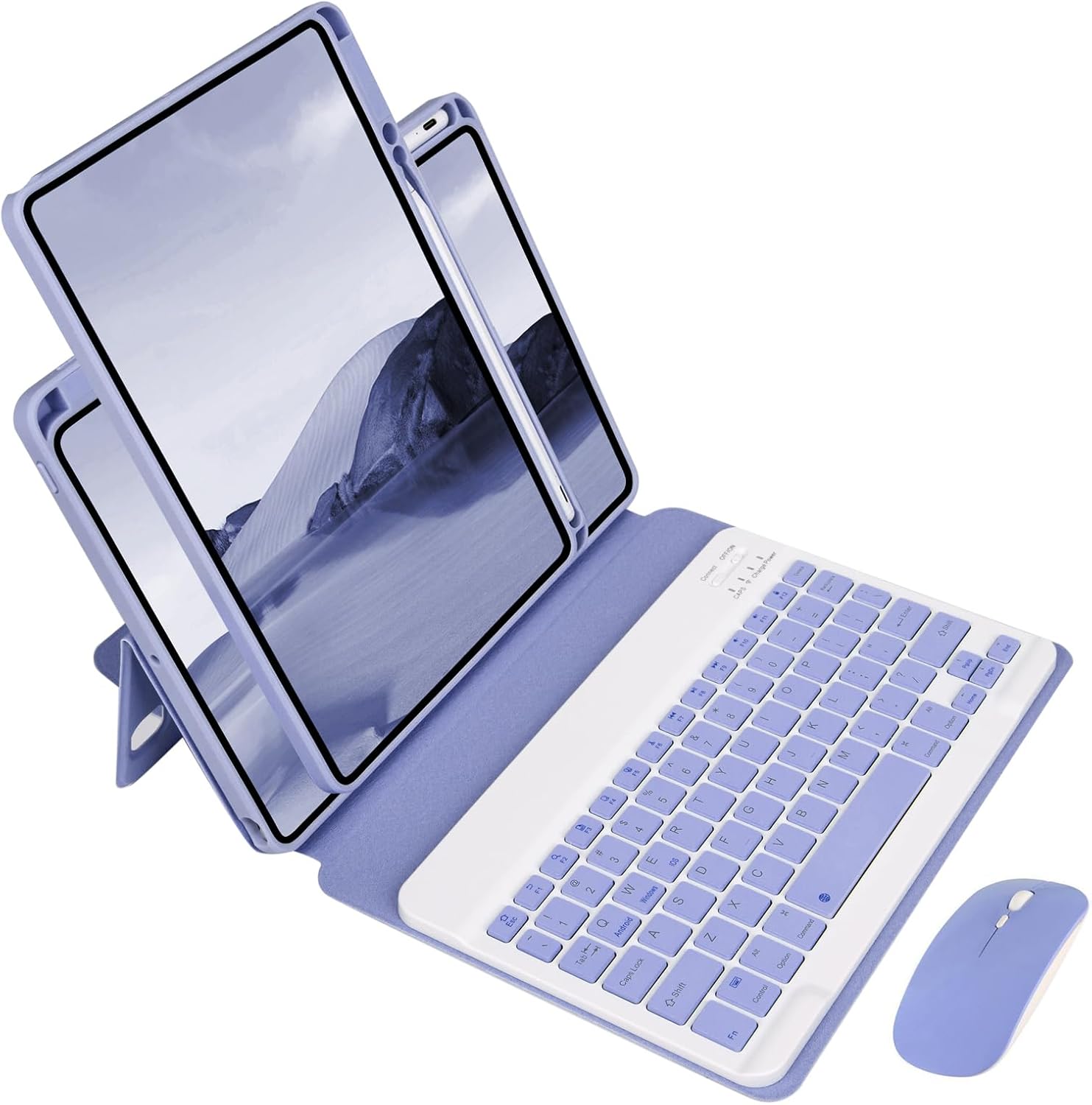
Image: The ZKAIAI 360 Rotating Keyboard Case in violet, showcasing the iPad in a stand, the detachable keyboard, and the accompanying Bluetooth mouse.
Compatible Models
This keyboard case is specifically designed for the following iPad Pro 12.9-inch models:
- iPad Pro 12.9-inch 6th Generation 2022: Models A2436, A2764, A2437, A2766
- iPad Pro 12.9-inch 5th Generation 2021: Models A2378, A2379, A2461, A2462
- iPad Pro 12.9-inch 4th Generation 2020: Models A2229, A2069, A2232, A2233
- iPad Pro 12.9-inch 3rd Generation 2018: Models A1876, A2014, A1895, A1983
Please verify the model number on the back of your iPad before purchase. Stylus not included.
Product Features
- 360-Degree Rotating Transparent Case: The case allows for 360-degree rotation, transforming into a versatile stand that supports both portrait and landscape orientations. The transparent hard back shell showcases your iPad's original design.
- Detachable Wireless Keyboard: The keyboard is magnetically attached to the case, allowing for easy removal when not needed. It connects wirelessly via Bluetooth and is compatible with iOS, Android, and Windows devices.
- Comprehensive Protection: Constructed from durable PU leather with an anti-slip rubber lining, the case provides full protection. The interior features a honeycomb grid pattern for improved heat dissipation, preventing overheating and extending your iPad's lifespan. Precise cutouts ensure easy access to all ports, camera, speakers, headphone jack, and volume controls.
- Rechargeable Bluetooth Keyboard & Mouse: The built-in rechargeable battery offers up to 100 hours of continuous use and 30 days of standby time on a full charge. The case also features a reserved space for wireless charging of the 2nd generation Apple Pencil without needing to remove the case.
- High-Speed Chip: Equipped with a high-speed chip for a more stable and efficient Bluetooth connection.

Image: Demonstrates the case's ability to function as a vertical stand, horizontal stand, and its protective back cover.

Image: Highlights the detachable magnetic keyboard feature, scissor switch key mechanism, long battery life, and compatibility with various operating systems.
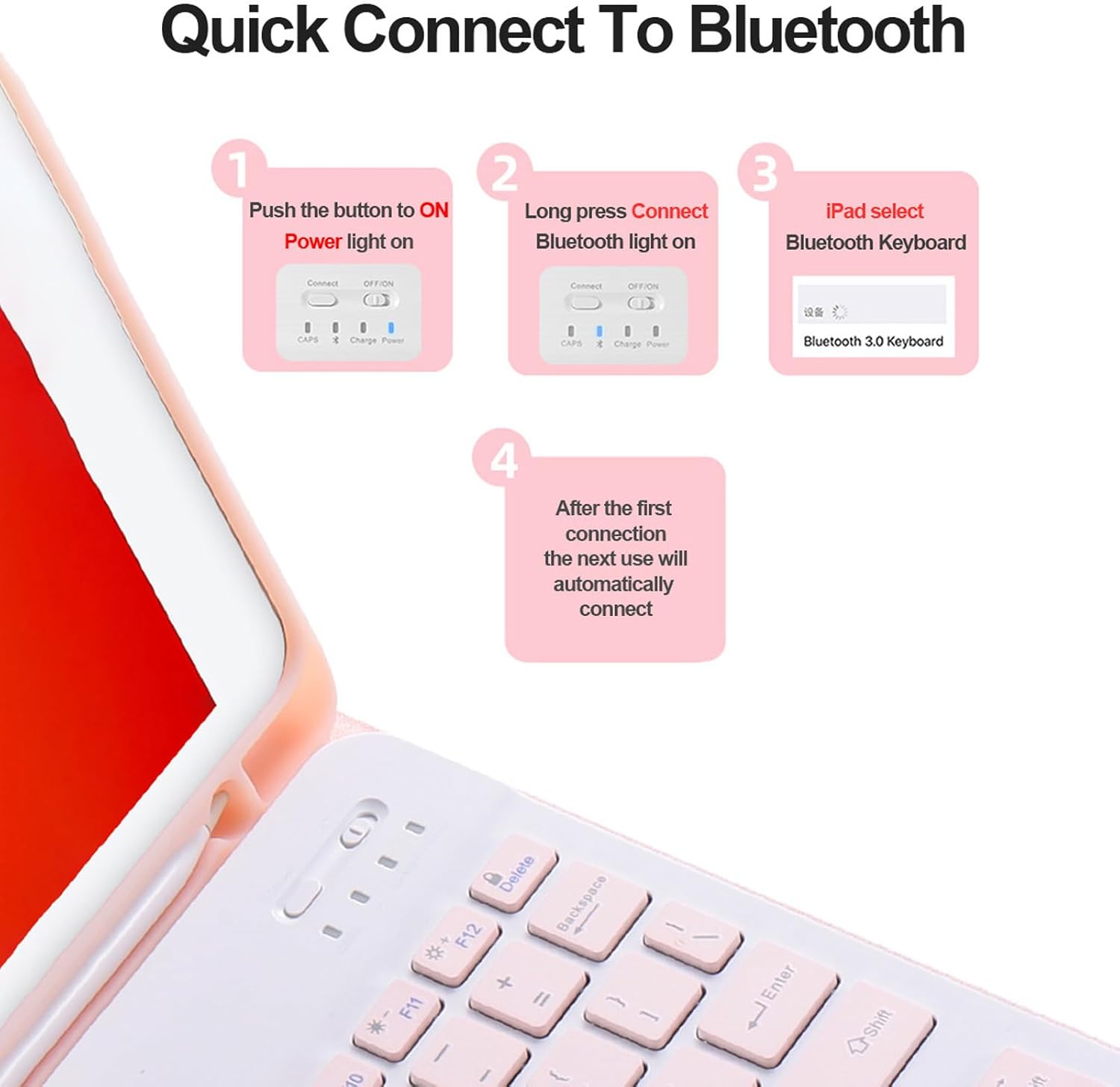
Image: Illustrates the precise cutouts for camera, ports, and buttons, ensuring full accessibility while the iPad is in the case.
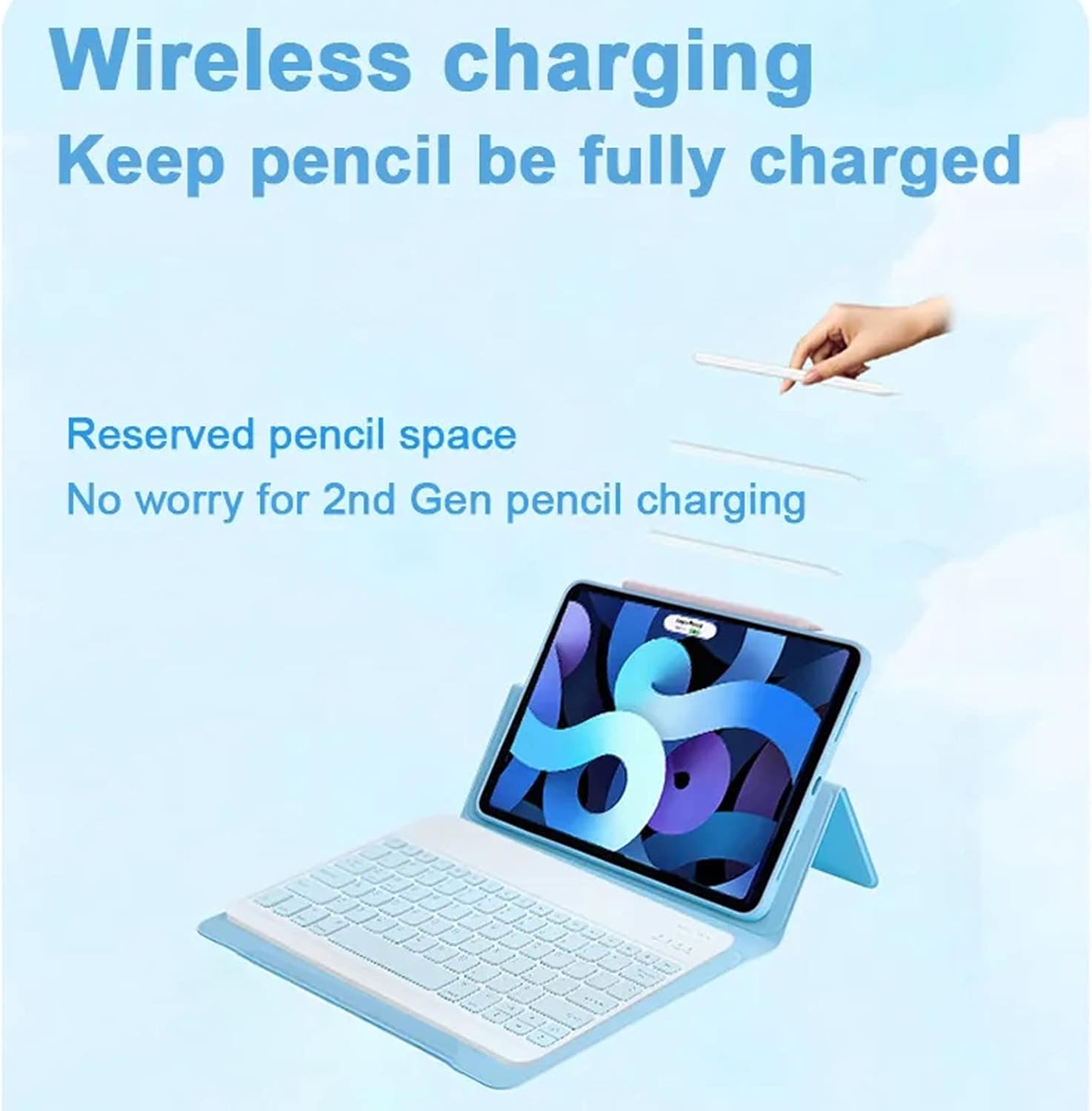
Image: Shows the dedicated space for the Apple Pencil, allowing for wireless charging while the iPad is in the case.

Image: A conceptual image representing the high-speed chip that ensures a stable and fast Bluetooth connection for the keyboard and mouse.
Setup Guide
1. Initial Keyboard Charging
Before first use, fully charge the keyboard for approximately 3 to 4 hours using the provided USB cable. The charge indicator light will turn off once charging is complete.
2. Installing Your iPad
- Gently align your iPad Pro 12.9-inch with the transparent back shell of the case.
- Press firmly around the edges to ensure the iPad is securely seated within the case. Ensure all cutouts align with your iPad's ports and buttons.
3. Connecting the Keyboard via Bluetooth
- Step 1: Turn on the keyboard by sliding the ON/OFF switch to the "ON" position. The Power light will illuminate.
- Step 2: Press the "Connect" button on the keyboard. The Bluetooth light will start blinking, indicating it's in pairing mode.
- Step 3: On your iPad, go to Settings > Bluetooth. Turn Bluetooth on.
- Step 4: Look for "Bluetooth 3.0 Keyboard" or a similar name in the "Other Devices" list and tap to connect.
- Step 5: Once connected, the Bluetooth light on the keyboard will stop blinking. The next time you use the keyboard, it will automatically connect to your iPad if Bluetooth is enabled on both devices.

Image: A visual guide demonstrating the four steps to quickly connect the keyboard to your iPad via Bluetooth.
4. Connecting the Mouse via Bluetooth
- Turn on the mouse.
- Press the Bluetooth pairing button on the mouse (usually on the bottom) until the indicator light blinks.
- On your iPad, go to Settings > Bluetooth.
- Select the mouse from the list of available devices and tap to connect.
Operating Instructions
1. Using the 360-Degree Rotating Stand
The transparent back shell allows your iPad to rotate freely within the case. You can adjust the iPad to various viewing angles using the three deep anti-slip grooves, supporting both portrait and landscape modes for typing, viewing, or drawing.
2. Using the Detachable Keyboard
The keyboard is held in place magnetically. You can easily detach it from the case if you prefer to use your iPad without the keyboard or if you need to use the keyboard at a distance from the iPad. To reattach, simply align the keyboard with the magnetic strip in the case.
- Function Keys: The keyboard includes function keys for quick access to iPad features. Refer to the keyboard layout for specific shortcuts (e.g., volume control, media playback).
- OS Switching: To switch keyboard compatibility for different operating systems:
- Android: Press Fn + Q
- Windows: Press Fn + W
- iOS: Press Fn + E
3. Using the Bluetooth Mouse
Once connected, the Bluetooth mouse functions like a standard computer mouse, providing precise navigation and control on your iPad's screen. Ensure the mouse is charged for optimal performance.
4. Apple Pencil Wireless Charging
The case is designed with a dedicated slot that allows for magnetic pairing and wireless charging of your 2nd generation Apple Pencil without needing to remove the iPad from the case.
Maintenance
- Cleaning the Case: Wipe the PU leather case with a soft, damp cloth. Avoid harsh chemicals or abrasive cleaners. For the transparent back shell, use a microfiber cloth to prevent scratches.
- Cleaning the Keyboard: Use a soft, dry cloth to clean the keyboard keys. For stubborn dirt, a slightly damp cloth can be used, ensuring no liquid enters the key gaps.
- Battery Care: To prolong battery life, avoid fully discharging the keyboard and mouse batteries frequently. Recharge them when the low battery indicator appears. If not in use for extended periods, charge them at least once every three months.
- Storage: Store the keyboard case in a cool, dry place away from direct sunlight and extreme temperatures.
Troubleshooting
| Problem | Possible Cause | Solution |
|---|---|---|
| Keyboard/Mouse not connecting to iPad. | Bluetooth is off on iPad or keyboard/mouse. Keyboard/Mouse battery is low. Not in pairing mode. Interference. | Ensure Bluetooth is enabled on both devices. Charge the keyboard/mouse. Put keyboard/mouse into pairing mode (press "Connect" button). Move closer to the iPad; turn off other Bluetooth devices. |
| Keyboard typing incorrectly or not responding. | Incorrect OS mode selected. Low battery. Connection issue. | Press Fn + E for iOS. Charge the keyboard. Disconnect and re-pair the keyboard. |
| Mouse cursor is erratic or unresponsive. | Low battery. Dirty sensor. Uneven surface. | Charge the mouse. Clean the optical sensor on the bottom of the mouse. Use on a flat, clean surface. |
| Keyboard/Mouse not charging. | Faulty cable or power adapter. Charging port issue. | Try a different USB cable and power adapter. Contact customer support if the port appears damaged. |
Specifications
| Feature | Detail |
|---|---|
| Brand | ZKAIAI |
| Model Name | iPad Pro 12.9-inch 6th/5th/4th/3rd Gen Keyboard Case |
| Connectivity Technology | Bluetooth |
| Color | Violet |
| Material | Thermoplastic Polyurethane (TPU) |
| Special Features | Kickstand, Heavy Duty Protection, Wireless, Universal, Travel |
| Keyboard Battery Life | Up to 100 hours continuous use, 30 days standby |
| Bluetooth Effective Range | Within 10 meters |
Warranty and Support
For warranty information and technical support, please refer to the contact details provided with your purchase or visit the official ZKAIAI website. Keep your purchase receipt for warranty claims.
Return Policy: This product typically comes with a 30-day refund/replacement policy. Please check with your retailer for specific return conditions.