
Introduction
Thank you for choosing the TKWSER 4K UHD Night Vision Binoculars. This device is designed for clear observation in both daytime and complete darkness, featuring 4K video recording, 36MP photo capture, and an impressive 600-meter (2000ft) night vision range. Please read this manual carefully to ensure proper use and optimal performance of your device.
Package Contents
Please check the package contents upon unboxing. If any items are missing or damaged, contact customer support.
- 1 x TKWSER Night Vision Binoculars
- 1 x Protective Case
- 1 x Neck Strap
- 1 x 32GB TF Card
- 1 x USB Cable
- 1 x Cleaning Cloth
- 1 x User Manual
Product Overview
Familiarize yourself with the main components and controls of your night vision binoculars.

Figure 1: Main view of the TKWSER 4K UHD Night Vision Binoculars, showing the objective lenses, display screen, and control buttons.
Key Features:
- 4K Ultra HD Effect: Experience clear visual impressions day and night.
- 600m (2000ft) Night Vision Range: Observe objects clearly in complete darkness.
- 8X Digital Zoom: Easily adjust and quickly focus on distant subjects.
- 5000mAh Rechargeable Battery: Provides up to 16 hours of daytime use or 8-10 hours of continuous infrared use.
- 4K Video & 36MP Photos: Capture high-resolution videos and still images with anti-shake functionality.
- 3-inch HD Display: Large screen for comfortable viewing.
- IP65 Waterproof Rating: Durable design for various outdoor conditions.
- Integrated Tactical Flashlight: For additional illumination when needed.
- 8-Level Adjustable Screen Brightness: Customize display brightness for optimal viewing comfort.

Figure 2: Comparison showing sharper imaging with 8X magnification (left owl) versus 5X magnification (right owl), highlighting the device's superior zoom.

Figure 3: A collage illustrating various applications for the night vision binoculars, including camping, farm monitoring, hunting, and wildlife observation.
Setup
1. Charging the Battery
The device is equipped with a built-in 5000mAh rechargeable Lithium-ion battery. Before first use, fully charge the device.
- Connect the provided USB cable to the device's charging port and to a standard USB power adapter (not included) or a computer USB port.
- The charging indicator light will illuminate.
- Charging is complete when the indicator light changes color or turns off (refer to device screen for battery status).
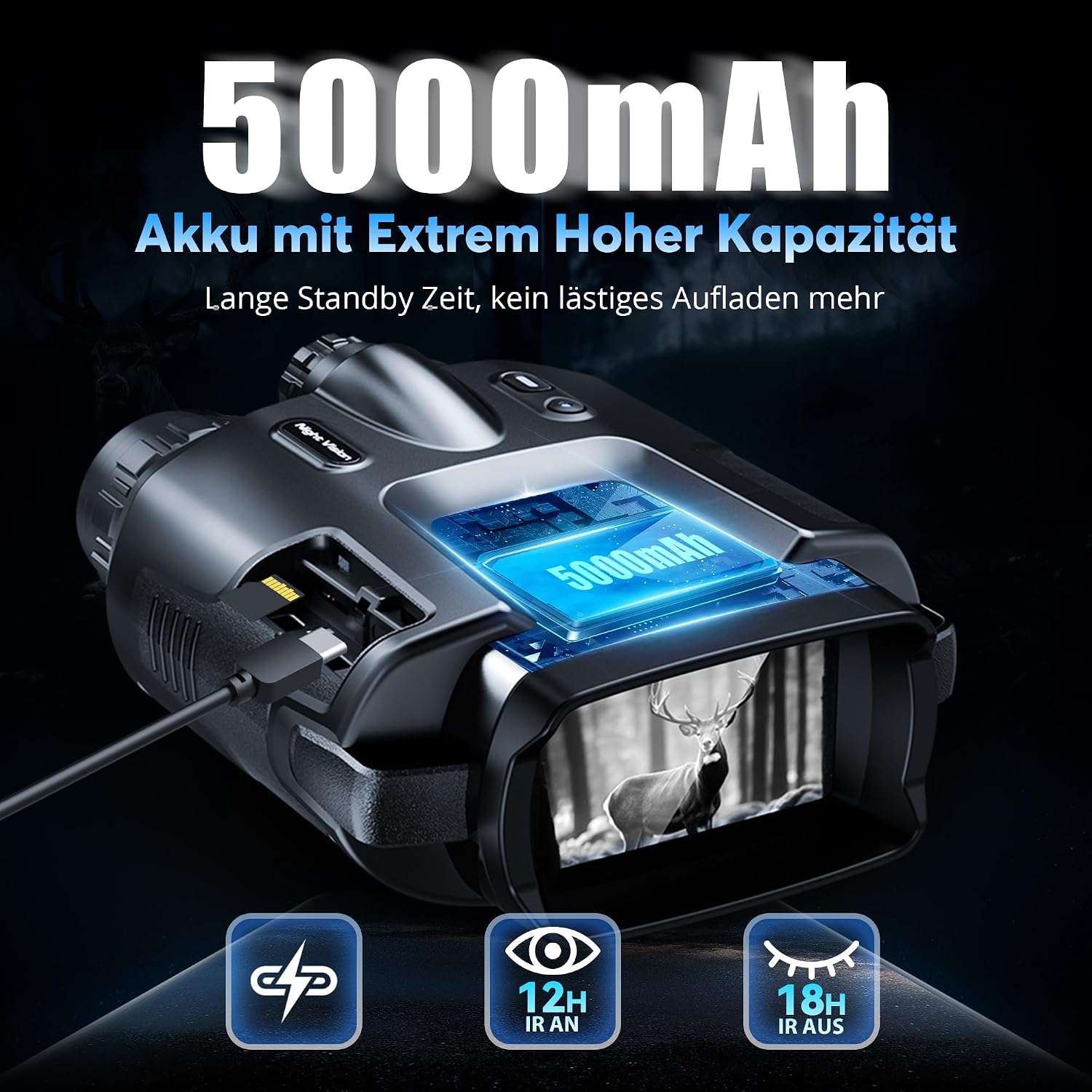
Figure 4: Illustration of the night vision binoculars being charged via USB, highlighting the 5000mAh battery capacity and estimated operating times.
2. Inserting the Memory Card
A 32GB TF card is included for storing photos and videos. Locate the TF card slot, usually protected by a rubber cover.
- Open the rubber cover protecting the memory card slot.
- Insert the TF card into the slot with the gold contacts facing down (or as indicated by a diagram on the device) until it clicks into place.
- To remove, gently push the card until it springs out.
3. Initial Power On
Press and hold the Power button for a few seconds until the screen illuminates.
Operating Instructions
1. Power On/Off
- Power On: Press and hold the Power button for approximately 3 seconds.
- Power Off: Press and hold the Power button for approximately 3 seconds until the screen turns off.
2. Mode Selection (Day/Night)
The device automatically adjusts to ambient light conditions. For optimal night vision, activate the infrared (IR) illuminator.

Figure 5: Comparison of daytime color vision and nighttime black-and-white infrared vision, demonstrating the 4K Ultra HD effect.

Figure 6: Illustration of the night vision binoculars' capability to observe objects up to 600 meters (2000 feet) in complete darkness, with a moonlit mountain landscape.
- In low light or complete darkness, press the IR button to cycle through IR levels (e.g., IR1, IR2, IR3, OFF). Higher IR levels provide greater visibility in darker conditions but consume more battery.
- For daytime use, ensure the IR illuminator is off.
3. Digital Zoom
The device features an 8X digital zoom to magnify distant objects.
- Use the Zoom In and Zoom Out buttons (often marked with '+' and '-' or magnifying glass icons) to adjust the magnification.
- The current zoom level will be displayed on the screen.

Figure 7: Visual representation of the 8X digital zoom capability, showing progressive magnification of a deer in night vision mode.
4. Capturing Photos and Videos
The binoculars can record 4K videos and capture 36MP photos.
- Switching Modes: Use the Mode button to switch between Photo, Video, and Playback modes.
- Taking a Photo: In Photo mode, press the Shutter button (often marked with a camera icon) to take a picture.
- Recording a Video: In Video mode, press the Record button (often marked with a video camera icon or red dot) to start recording. Press again to stop.
- Playback: In Playback mode, use the navigation buttons to browse your captured media.
5. Adjusting Screen Brightness
The display brightness can be adjusted to suit different viewing conditions and conserve battery.
- Access the menu or use dedicated brightness control buttons (if available) to adjust the screen brightness through 8 levels.

Figure 8: Demonstration of the 8 adjustable screen brightness levels, showing how the display can be optimized for various ambient light conditions.
6. Using the Tactical Flashlight
The integrated tactical flashlight provides additional illumination for close-range tasks.
- Locate the flashlight button, typically on the top or side of the device.
- Press the button to turn the flashlight on/off.

Figure 9: The night vision binoculars equipped with a tactical flashlight, illustrating its use for illuminating paths or nearby objects in dark environments.
Maintenance
Cleaning
- Use the provided cleaning cloth to gently wipe the lenses and display screen.
- For stubborn smudges, use a lens cleaning solution specifically designed for optical surfaces.
- Do not use abrasive materials or harsh chemicals, as they can damage the coatings.
- Wipe the body of the device with a soft, damp cloth.
Storage
- When not in use, store the binoculars in their protective case to prevent dust and scratches.
- Store in a cool, dry place away from direct sunlight and extreme temperatures.
- If storing for extended periods, ensure the battery is partially charged (around 50%) and recharge every few months to maintain battery health.
Troubleshooting
| Problem | Possible Cause | Solution |
|---|---|---|
| Device does not power on. | Low or depleted battery. | Charge the battery fully using the provided USB cable. |
| Poor image quality in night vision. | IR illuminator off or set too low; dirty lenses. | Activate or increase IR level. Clean the objective lenses and eyepiece. |
| Cannot capture photos/videos. | Memory card full or not inserted correctly; incorrect mode. | Check memory card insertion. Delete old files or replace card. Ensure device is in Photo or Video mode. |
| Screen is too bright/dim. | Screen brightness setting is incorrect. | Adjust the screen brightness using the dedicated controls or menu. |
| Device freezes or becomes unresponsive. | Software glitch. | Perform a soft reset by holding the Power button until it forces off, then restart. If problem persists, contact support. |
Specifications
| Model | B0D56PK5PK |
| Brand | TKWSER |
| Color | Black |
| Dimensions | 17 x 13 x 7 cm |
| Weight | 1.48 kg |
| Material | Plastic |
| Max Magnification | 8x (Digital Zoom) |
| Min Magnification | 8x (Optical/Digital) |
| Objective Diameter | 30 mm |
| Night Vision Range | Up to 600 meters (2000 feet) |
| Battery | Built-in 5000mAh Lithium-ion rechargeable |
| Operating Time | Up to 16 hours (daytime), 8-10 hours (IR mode) |
| Video Resolution | 4K HD |
| Photo Resolution | 36 MP |
| Display Screen | 3-inch HD TFT |
| Waterproof Rating | IP65 |
| Memory Card | Supports TF card (32GB included) |
| Mounting Type | 1/4" tripod mount |
Warranty and Support
Your TKWSER Night Vision Binoculars come with a 365-day warranty from the date of purchase.
If you encounter any issues or have questions regarding your device, please do not hesitate to contact our professional support team. We are available 24/7 to assist you.
Contact Information: Please refer to the contact details provided on the product packaging or the official TKWSER website for the most up-to-date support information.