
1. Introduction
This manual provides essential information for the safe and efficient operation of your Haier QLED 4K UHD Smart TV, model H55K705UG. This 55-inch television offers a premium viewing experience with its 4K HDR resolution and QLED technology, delivering vibrant colors and over 8 million pixels. Running on Android TV 11.0, it provides access to a wide range of content via Google Play, features integrated Google Assistant for voice control, Bluetooth 5.1 connectivity, and Chromecast functionality. Please read this manual thoroughly before using the television and retain it for future reference.
2. Safety Information
Observe the following safety precautions to prevent damage and ensure safe operation:
- Power Supply: Connect the TV only to an AC power source within the specified voltage range.
- Ventilation: Ensure adequate ventilation around the TV. Do not block ventilation openings.
- Water and Moisture: Do not expose the TV to rain or moisture. Avoid placing objects filled with liquids on the TV.
- Heat Sources: Keep the TV away from heat sources such as radiators, heat registers, stoves, or other heat-producing appliances.
- Cleaning: Unplug the TV before cleaning. Use a soft, dry cloth. Do not use liquid cleaners or aerosol cleaners.
- Placement: Place the TV on a stable, level surface. Avoid placing it in direct sunlight or near strong magnetic fields.
- Servicing: Do not attempt to service this product yourself. Refer all servicing to qualified service personnel.
3. Package Contents
Verify that all items are present in the package:
- Haier QLED 4K UHD Smart TV (H55K705UG)
- Smart Remote Control
- Power Cable
- TV Stand (Base)
- User Manual
4. Setup
4.1 Unpacking
Carefully remove the TV and all accessories from the packaging. Retain the packaging materials for future transport or service needs.
4.2 Stand Installation
To install the TV stand:
- Place the TV face down on a soft, flat surface to prevent screen damage.
- Align the stand components with the mounting holes on the bottom of the TV.
- Secure the stand using the provided screws. Ensure the stand is firmly attached.

Image: Haier QLED TV dimensions with stand. The image displays the television with its stand, showing overall dimensions: width 1229 mm, height with stand 774 mm, height without stand 710 mm, depth with stand 265 mm, and depth without stand 63 mm.
4.3 Wall Mounting (Optional)
If you choose to wall mount your TV, ensure you use a VESA-compatible wall mount kit (not included) and follow the instructions provided with the wall mount. Always consult a professional for wall mounting to ensure safety and proper installation.
4.4 Connecting Peripherals
Connect external devices such as Blu-ray players, game consoles, or sound systems to the TV's ports. This model features 4 HDMI 2.1 ports and 2 USB ports.
- HDMI: Use HDMI cables for high-definition audio and video connections.
- USB: Connect USB storage devices for media playback.
- Ethernet: For a wired internet connection.
- Power: Connect the power cable to the TV and then to a wall outlet.
4.5 Initial Power On
After connecting all cables, plug the TV into a power outlet. Press the power button on the remote control or on the TV itself. Follow the on-screen instructions for initial setup, including language selection, network connection (Wi-Fi or Ethernet), and Google account login.
5. Operating Your TV
5.1 Smart Remote Control
The Smart Remote Control allows for intuitive navigation and voice commands. Use the built-in microphone to interact with Google Assistant. Dedicated buttons provide quick access to popular streaming services and TV functions.
5.2 Android TV Interface
Your Haier TV runs on Android TV 11.0, providing access to a vast array of apps, movies, and shows via Google Play. Navigate through the home screen to find recommended content, installed applications, and settings.

Image: Android TV interface with Chromecast. The image shows the TV screen displaying the Android TV home interface with various app icons like Netflix, YouTube, Prime Video, and Google Play. A hand holding the smart remote control is visible in the foreground.

Image: Android TV features. This image highlights key features of the Android TV system, including access to a large app store, built-in Chromecast for casting content from mobile devices, integration with Google Home and Google Assistant for smart home control, and the open-source nature allowing for installation of various applications.
5.3 Chromecast Functionality
The built-in Chromecast allows you to cast content (videos, photos, music) from your compatible smartphone, tablet, or computer directly to your TV screen. Ensure your device and TV are connected to the same Wi-Fi network.
5.4 Bluetooth Connectivity
Utilize Bluetooth 5.1 to connect wireless headphones, soundbars, or other compatible Bluetooth devices to your TV for an enhanced audio experience.

Image: Key TV features. This graphic illustrates several important features: 4K HDR10 for enhanced picture quality with backlight control, Bluetooth 5.1 for connecting various devices, HDMI 2.1 for faster connections, lower latency, and better audio (supporting VRR, ALLM, eARC), and a very slim design.
5.5 Audio Settings (Dolby Audio, DBX TV)
Your TV features Dolby Audio technology, optimizing sound for clarity, realism, and power. Additionally, DBX TV sound calibration ensures an optimized audio experience. Access audio settings in the TV menu to customize sound profiles.

Image: Dolby Audio feature. The image shows a close-up of the TV screen edge with a blue light reflection, emphasizing the immersive audio experience provided by Dolby Audio. The text states "Dolby Audio" and "Let yourself be carried to the center of the action. Create more realistic and enveloping sound experiences."
5.6 Picture Settings (QLED, 4K HDR10)
The QLED technology delivers vibrant colors, deeper contrasts, and impressive image clarity. Combined with 4K HDR10, the TV provides over 8 million pixels for superior image definition. Adjust picture modes (e.g., Standard, Vivid, Movie) and advanced settings in the TV menu to suit your viewing preferences.
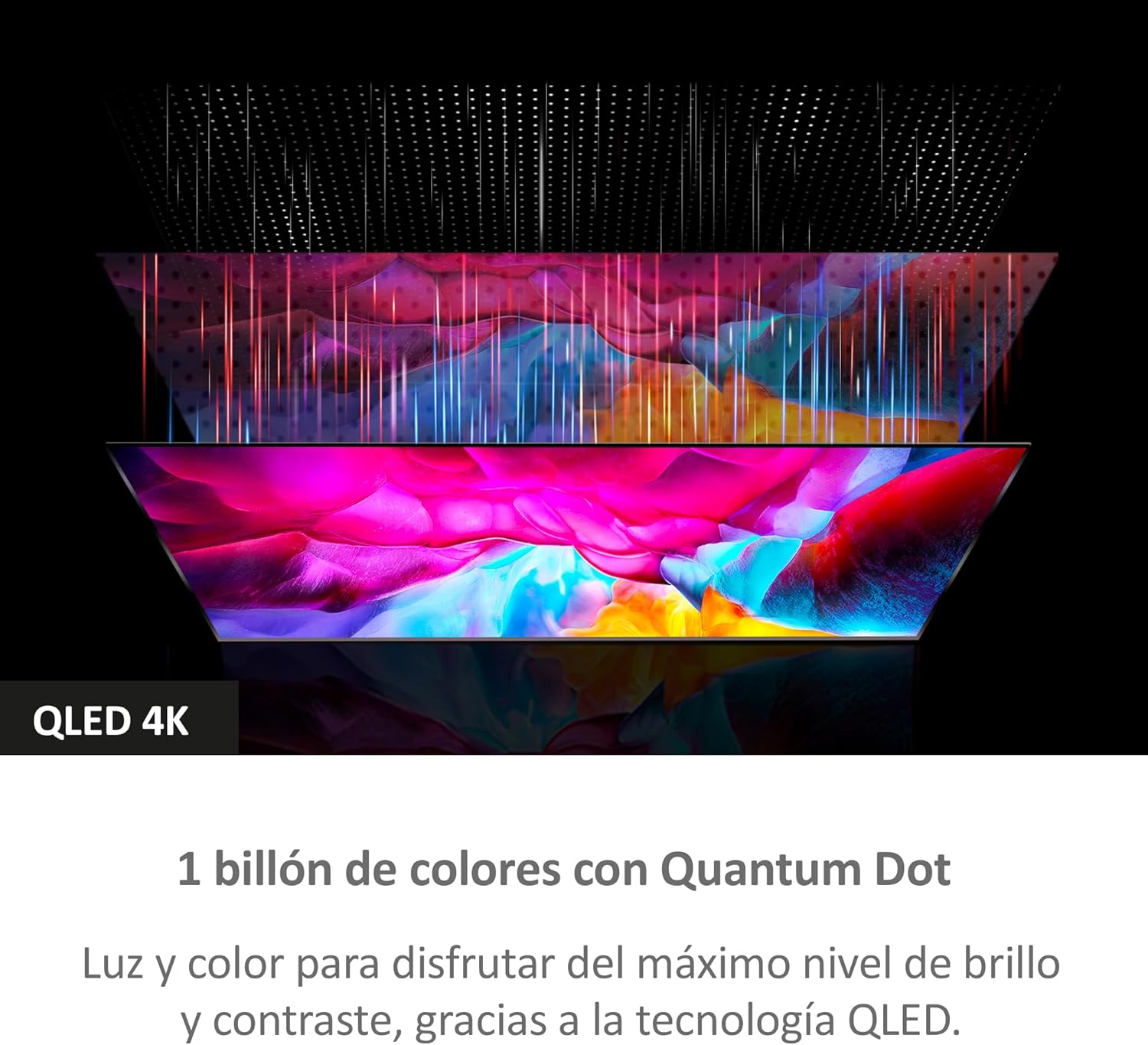
Image: QLED 4K technology. This image visually explains QLED 4K technology, showing layers of light and quantum dots creating a wide spectrum of colors. The text indicates "1 billion colors with Quantum Dot" and "Light and color to enjoy the maximum level of brightness and contrast, thanks to QLED technology."

Image: Front view of the Haier QLED 4K UHD Smart TV H55K705UG. The television displays a vibrant landscape image, highlighting its QLED and 4K UHD capabilities. The Haier logo and "2024 QLED androidtv" are visible on the screen.
5.7 HDMI 2.1 Features
The TV's HDMI 2.1 ports support advanced features such as Variable Refresh Rate (VRR), Auto Low Latency Mode (ALLM), and Enhanced Audio Return Channel (eARC), providing a smoother and more responsive experience for gaming and high-quality audio passthrough.
6. Maintenance
6.1 Cleaning the TV
To clean the screen, gently wipe it with a soft, lint-free cloth. For stubborn marks, slightly dampen the cloth with water or a specialized screen cleaner. Never spray cleaner directly onto the screen. For the TV casing, use a soft, dry cloth.
6.2 Software Updates
Your Android TV may receive software updates periodically. Ensure your TV is connected to the internet to receive these updates, which can improve performance and add new features. You can check for updates manually in the TV's settings menu.
7. Troubleshooting
If you encounter issues with your TV, refer to the following common problems and solutions:
| Problem | Possible Solution |
|---|---|
| No power | Check if the power cable is securely connected to the TV and the power outlet. Ensure the outlet is functional. |
| No picture, but sound is present | Verify the correct input source is selected. Check cable connections to external devices. |
| No sound, but picture is present | Check volume levels and mute settings. Ensure audio cables are correctly connected. If using external audio, check its power and input. |
| Remote control not working | Replace batteries. Ensure there are no obstructions between the remote and the TV. Re-pair the remote if it's a Bluetooth remote. |
| Cannot connect to Wi-Fi | Ensure your Wi-Fi router is on and working. Re-enter the Wi-Fi password. Try restarting both the TV and the router. |
| Apps are slow or crashing | Close unused apps. Clear app cache or data in settings. Restart the TV. Ensure sufficient internet speed. |
8. Specifications
| Feature | Detail |
|---|---|
| Brand | Haier |
| Model Number | H55K705UG (36200096) |
| Screen Size | 55 Inches |
| Display Technology | QLED |
| Resolution | 4K UHD (3840 x 2160) |
| HDR Support | HDR10 |
| Operating System | Android TV 11.0 |
| Audio Technology | Dolby Audio, DBX TV |
| Bluetooth | Bluetooth 5.1 |
| Wi-Fi | Yes |
| Ethernet | Yes |
| HDMI Ports | 4 (HDMI 2.1 with VRR, ALLM, eARC support) |
| USB Ports | 2 |
| Special Features | Chromecast Built-in, Google Assistant, Smart Remote Control, Frameless Design |
| Refresh Rate | 60 Hz |
| Dimensions (with stand) | 122.9 x 77.4 x 26.5 cm (approx. 48.4 x 30.5 x 10.4 inches) |
| Dimensions (without stand) | 122.9 x 71.0 x 6.3 cm (approx. 48.4 x 28.0 x 2.5 inches) |
9. Warranty and Support
For warranty information, please refer to the warranty card included with your product or visit the official Haier website. For technical support, troubleshooting assistance, or service inquiries, please contact Haier customer support through their official channels.