
1. Introduction
This manual provides detailed instructions for the installation, operation, and maintenance of your BXLIYER Android 13 Car Stereo. This unit is designed to enhance your driving experience with advanced features such as DAB+ digital radio, 4G LTE connectivity, Apple CarPlay, and Android Auto. Please read this manual thoroughly before use to ensure proper functionality and to maximize your product's potential.
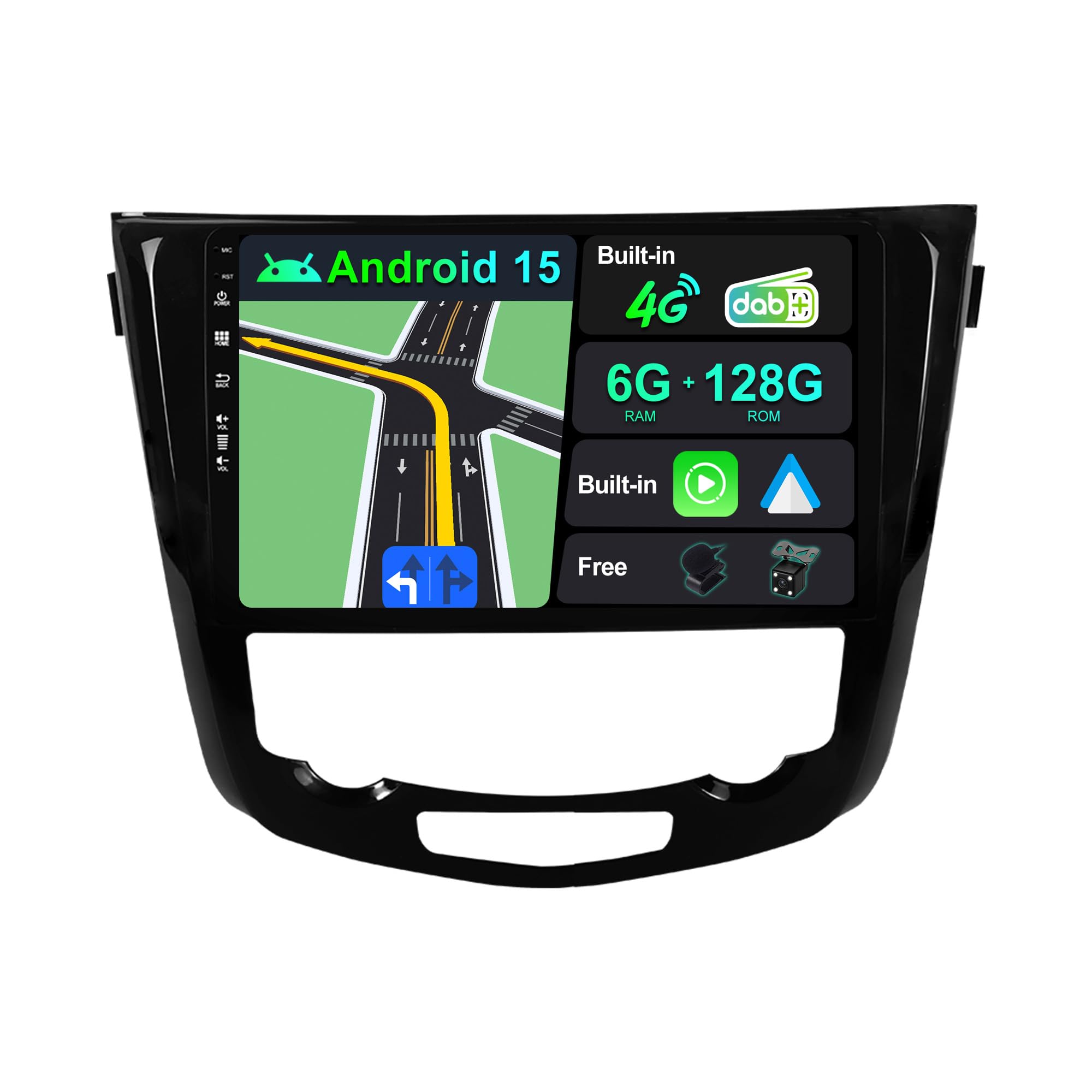
This is the main product image of the BXLIYER Android 13 Car Stereo, showcasing its 10.1-inch QLED display and sleek design.
2. Product Overview and Key Features
The BXLIYER Android 13 Car Stereo is an advanced infotainment system offering a range of functionalities:
- Operating System: Android 13 for a modern and intuitive user interface.
- Processor: Octa-Core Rockchip AC8257 A53 CPU (64-bit, 2.0GHz) for smooth performance.
- Memory & Storage: 6GB DDR3 RAM and 128GB ROM for efficient multitasking and ample storage.
- Display: 10.1-inch QLED multi-touch screen with 1280x720 resolution and 178-degree full viewing angle for vibrant visuals.
- Audio: Built-in Digital Sound Processor (DSP) with 64-band graphic equalizer and Class D amplifier (TDA7808) for superior sound quality, 4x50W max output.
- Radio: Integrated DAB+ tuner for digital radio and AM/FM tuner with RDS.
- Connectivity: Global 4G LTE module (SIM card slot available), Dual-band WiFi (2.4G/5G), Bluetooth 5.0 for hands-free calls and audio streaming.
- Smartphone Integration: Supports wireless and wired Apple CarPlay and Android Auto, as well as Mirror Link functionality.
- Navigation: Online and offline GPS navigation capabilities.
- Camera Support: Includes a 4-LED rear camera and supports optional 360-degree panoramic parking cameras.
- Additional Features: Split-screen mode, HDMI output, 4K video playback, OBD2 support, steering wheel control compatibility, external microphone, and multi-language support.

This image summarizes the core specifications and advanced components of the car stereo, including Android 13 OS, 4G LTE, 6GB RAM + 128GB ROM, DAB+, QLED display, wireless/wired connectivity, cooling fan, AKM7739 DSP, and a durable zinc alloy full metal construction.
3. Compatibility
This car stereo unit is fully compatible with the following vehicle models:
- Nissan X-Trail (2014-2018)
- Nissan Qashqai J11 (2014-2018)
- Nissan Rogue (2014-2018)
For precise fitment verification, it is recommended to compare your vehicle's dashboard with the product images or contact customer support with photos of your dashboard.
4. Setup and Installation
4.1 Included Components
The package typically includes the following items:
- Car Stereo Head Unit
- Power Cable Harness (Vehicle Specific)
- RCA Output Cables
- GPS Antenna
- USB Cables
- External Microphone
- Rear Camera (4-LED)
- Installation Brackets
- 4G Antenna
- DAB Antenna
- User Manual
4.2 Wiring Diagram
Refer to the diagram below for correct wiring connections. Ensure all connections are secure before powering on the unit.

This image details installation tips, including a comprehensive wiring diagram for connecting the car stereo and a visual guide to all included accessories such as power sockets, antennas, USB cables, and cameras.
4.3 Installation Steps (General)
- Preparation: Disconnect the vehicle's battery before starting installation.
- Remove Old Unit: Carefully remove the factory car stereo and trim panels.
- Connect Wiring: Connect the provided power harness, RCA cables, GPS antenna, 4G antenna, DAB antenna, USB cables, and external microphone to the new head unit. Refer to the wiring diagram for specific connections.
- Rear Camera Installation: Install the rear camera according to its separate instructions and connect its video cable to the head unit's camera input.
- Mounting: Secure the new head unit using the provided installation brackets.
- Test: Reconnect the battery and perform a functional test of all features before reassembling the dashboard.
- Final Assembly: Reinstall all trim panels.
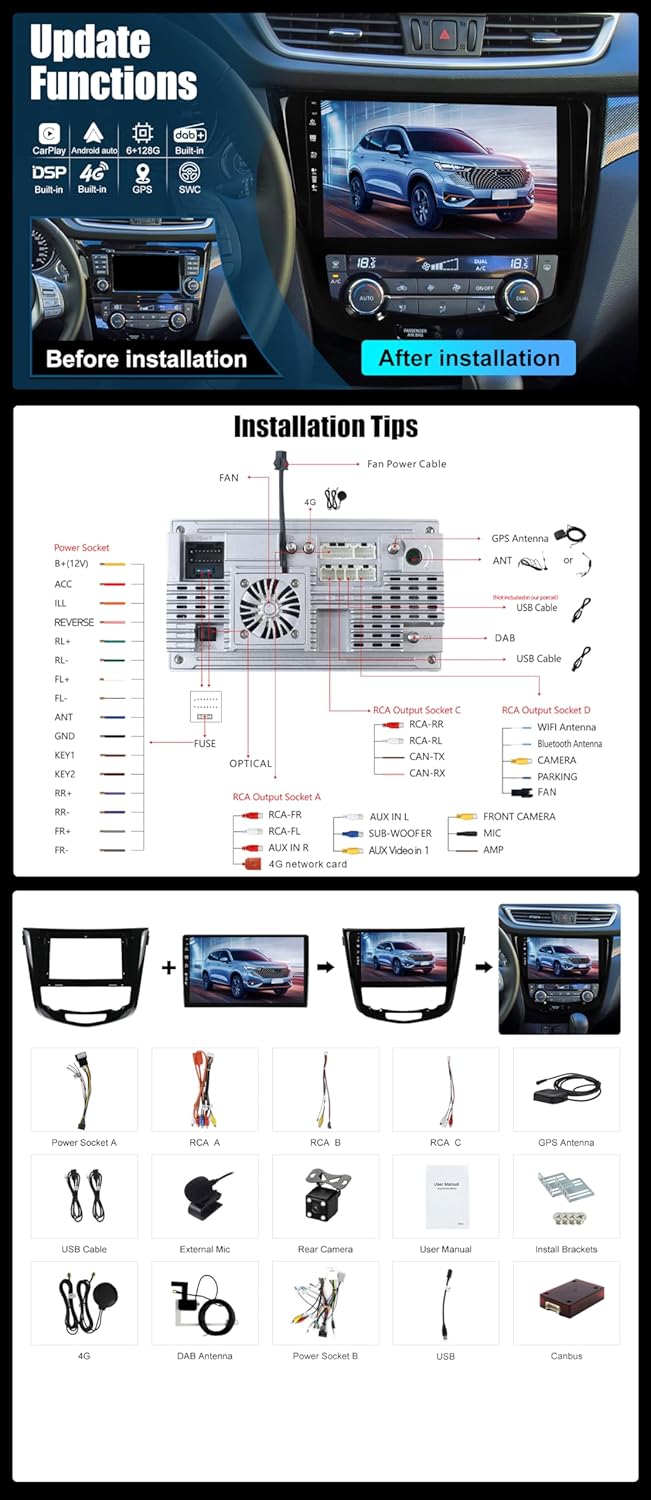
This image illustrates the car stereo's updated functions and provides a visual comparison of the dashboard before and after installation, highlighting the integrated display.
5. Operating Instructions
5.1 Basic Operation
- Power On/Off: The unit powers on automatically with the vehicle's ignition. Press and hold the power button (if available) for manual power control.
- Touch Screen: Navigate the interface using the multi-touch QLED display.
- Volume Control: Adjust volume using the on-screen controls or steering wheel buttons.
5.2 Radio Functions (DAB+/AM/FM)
- DAB+: Access the DAB+ application to scan for digital radio stations. Enjoy improved sound quality and a wider selection of channels.
- AM/FM: Use the radio application to tune into analog AM/FM frequencies. RDS (Radio Data System) provides station information where available.
5.3 4G LTE Connectivity
Insert a compatible SIM card into the designated slot to enable 4G LTE connectivity. This allows for internet access, online navigation, and streaming services directly on the head unit.
5.4 Apple CarPlay & Android Auto
Connect your smartphone via USB or wirelessly (Bluetooth/WiFi) to use Apple CarPlay or Android Auto. This integrates your phone's essential features like navigation, music, calls, and messages onto the car stereo display.
5.5 Mirror Link
Mirror Link allows you to display your smartphone's screen directly on the car stereo. For Android phones, connect via USB or WiFi. For iPhones, connect via WiFi (AirPlay).
5.6 GPS Navigation
The unit supports both online and offline navigation. Pre-installed maps or downloadable map applications can be used for turn-by-turn directions.
5.7 Bluetooth 5.0
Pair your Bluetooth-enabled device for hands-free calling, contact synchronization, and audio streaming.
5.8 Digital Sound Processor (DSP)
Utilize the built-in DSP with its 64-band graphic equalizer to customize audio output to your preference. Adjust sound field and time delay settings for an optimized listening experience.
5.9 Camera Functions
- Rear Camera: The system automatically switches to the rear camera view when the vehicle is put into reverse gear, providing visual assistance for parking.
- 360° Camera (Optional): If an optional 360-degree panoramic camera system is installed, the unit can display a comprehensive view around the vehicle for enhanced parking and maneuvering.

This image highlights key features: the built-in 4G module for global connectivity, an efficient cooling fan for stable operation, integrated DAB for digital radio, and support for wireless/wired Apple CarPlay, Android Auto, and Mirror-link.

This image showcases the WiFi and GPS navigation capabilities, the high-resolution QLED display, the built-in Digital Sound Processor (DSP) for audio customization, optional 360-degree camera support, and the included rear camera for reversing assistance.
6. Specifications
| Feature | Specification |
|---|---|
| Brand | BXLIYER |
| Model Number | BXLIYER-563-K05-BX |
| Operating System | Android 13 |
| CPU | Rockchip AC8257 A53 Octa-Core, 64-bit, 2.0GHz |
| RAM | 6GB DDR3 |
| ROM | 128GB |
| Display Type | QLED Multi-touch Screen |
| Display Resolution | 1280 x 720 pixels |
| Audio Output Power | 4 x 50W Max |
| DSP Chip | AKM7739 |
| Amplifier Chip | TDA7808 (Class D) |
| Connectivity | USB, Wi-Fi (Dual-band), Bluetooth 5.0, 4G LTE |
| HDMI Ports | 1 |
| Supported Video Encoding | H.264, H.265/HEVC |
| Supported Internet Services | Spotify (and others via Android apps) |
| Control Method | Touch, App Control |
| Item Weight | 2.3 Kilograms |
7. Troubleshooting
This section addresses common issues you might encounter. For more complex problems, please contact customer support.
- No Power:
- Check all power connections, including the main power harness and vehicle's fuse box.
- Ensure the vehicle's battery is properly connected and charged.
- No Sound:
- Verify speaker connections.
- Check volume levels on the unit and ensure mute is not activated.
- Confirm audio source selection is correct.
- GPS Signal Loss:
- Ensure the GPS antenna is properly installed and has a clear view of the sky.
- Check antenna cable connections.
- Bluetooth Connection Issues:
- Ensure Bluetooth is enabled on both the car stereo and your device.
- Delete previous pairings and attempt to re-pair the device.
- Move the device closer to the head unit.
- Rear Camera Not Displaying:
- Verify the camera's power and video signal connections.
- Ensure the reverse trigger wire is correctly connected to the vehicle's reverse light circuit.
- Steering Wheel Controls Not Working:
- Check the CANBUS decoder connection (if applicable).
- Access the steering wheel control settings in the unit's menu to program or calibrate the buttons.
8. Maintenance
Proper maintenance ensures the longevity and optimal performance of your car stereo.
- Cleaning the Screen: Use a soft, lint-free cloth to gently wipe the QLED screen. For stubborn smudges, slightly dampen the cloth with water or a screen-safe cleaner. Avoid harsh chemicals or abrasive materials.
- Software Updates: Periodically check for software updates through the unit's settings or the manufacturer's website to ensure you have the latest features and bug fixes.
- Cooling System: The unit features a built-in cooling fan. Ensure that the ventilation areas are not obstructed to prevent overheating.
- Cable Connections: Occasionally check that all cables are securely connected and free from damage.
9. Warranty and Support
For warranty information, please refer to the warranty card included with your product or visit the official BXLIYER website. If you encounter any issues not covered in this manual or require technical assistance, please contact BXLIYER customer support. Have your model number and purchase details ready when contacting support.


