
1. Product Overview
The AMIR Projection Alarm Clock is designed to provide clear time display and convenient alarm functions. It features a large 7.9-inch LED display, a 180-degree rotatable projector for displaying time on walls or ceilings, and adjustable brightness levels. The clock supports multiple alarm modes and a snooze function for flexible wake-up routines. It can be powered via USB or AAA batteries.

Image 1.1: Front view of the AMIR Projection Alarm Clock with icons indicating features like time, alarm, 12/24H, snooze, projection, 4-level brightness, temperature, and night mode.
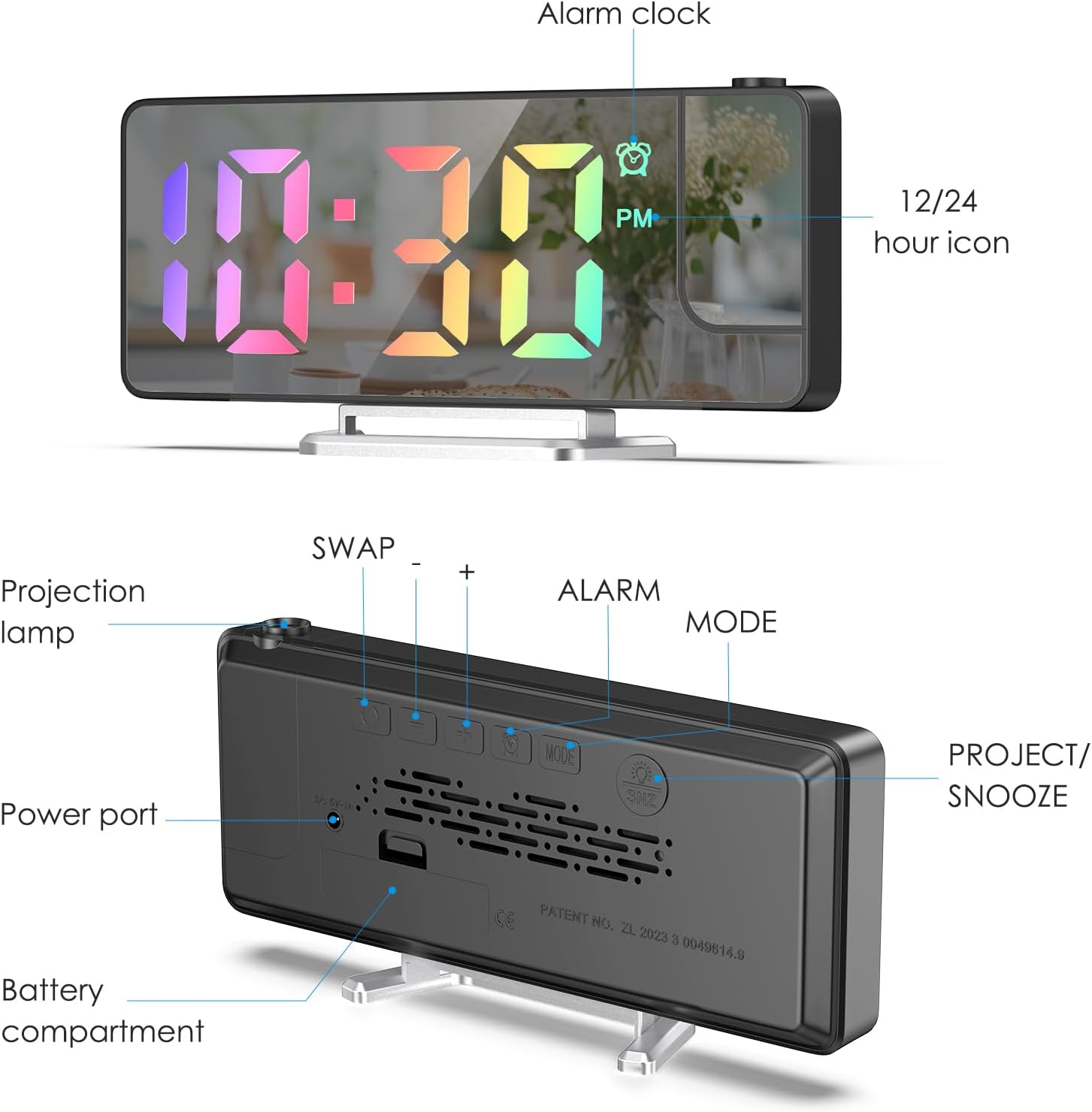
Image 1.2: Rear view of the alarm clock, detailing the projection lamp, power port, battery compartment, and control buttons (SWAP, +, -, ALARM, MODE, PROJECT/SNOOZE).
2. Setup Instructions
2.1 Unpacking and Initial Inspection
Carefully remove all components from the packaging. Ensure the alarm clock, USB charging cable, and removable support block are present. Remove any protective film from the display screen before use.

Image 2.1: The AMIR Projection Alarm Clock, its packaging, USB cable, and stand, illustrating the items included in the box.
2.2 Powering the Device
The alarm clock offers two power options:
- USB Cable Power: Connect the provided 1.5-meter USB cable to the power port on the back of the clock and to a USB power adapter (not included). The LED screen will remain continuously on when powered via USB.
- Battery Power: For backup or portable use, insert 3 AAA batteries (not included) into the battery compartment. Battery power retains settings during power outages but does not keep the LED screen continuously on.
2.3 Attaching the Support Block
Attach the removable support block to the bottom of the alarm clock to ensure stable placement on a flat surface.
3. Operating Instructions
3.1 Setting the Time
- Press and hold the MODE button.
- Use the + or - buttons to adjust between 12-hour and 24-hour formats.
- Single press MODE to set the hour, then use + or - to adjust.
- Single press MODE again to set the minutes, then use + or - to adjust.

Image 3.1: Visual guide for setting the time, including selecting 12/24H format, adjusting hours, and adjusting minutes using the MODE, + and - buttons.
3.2 Setting the Alarm
- Press and hold the ALARM button for 3 seconds.
- Use the + or - buttons to adjust the alarm hour.
- Single press ALARM to set the alarm minutes, then use + or - to adjust.
- Single press ALARM again to set the snooze time (1-60 minutes), then use + or - to adjust.
- Single press ALARM once more to select the alarm mode:
- Monday to Friday (1-5)
- Monday to Saturday (1-6)
- Every day (1-7)

Image 3.2: Visual guide for setting the alarm, including adjusting hours, minutes, snooze duration, and selecting one of three alarm modes (Monday-Friday, Monday-Saturday, Everyday).
3.3 Snooze Function
When the alarm sounds, press the PROJECT/SNOOZE button to activate the snooze function. The alarm will temporarily stop and sound again after the set snooze interval (1-60 minutes).
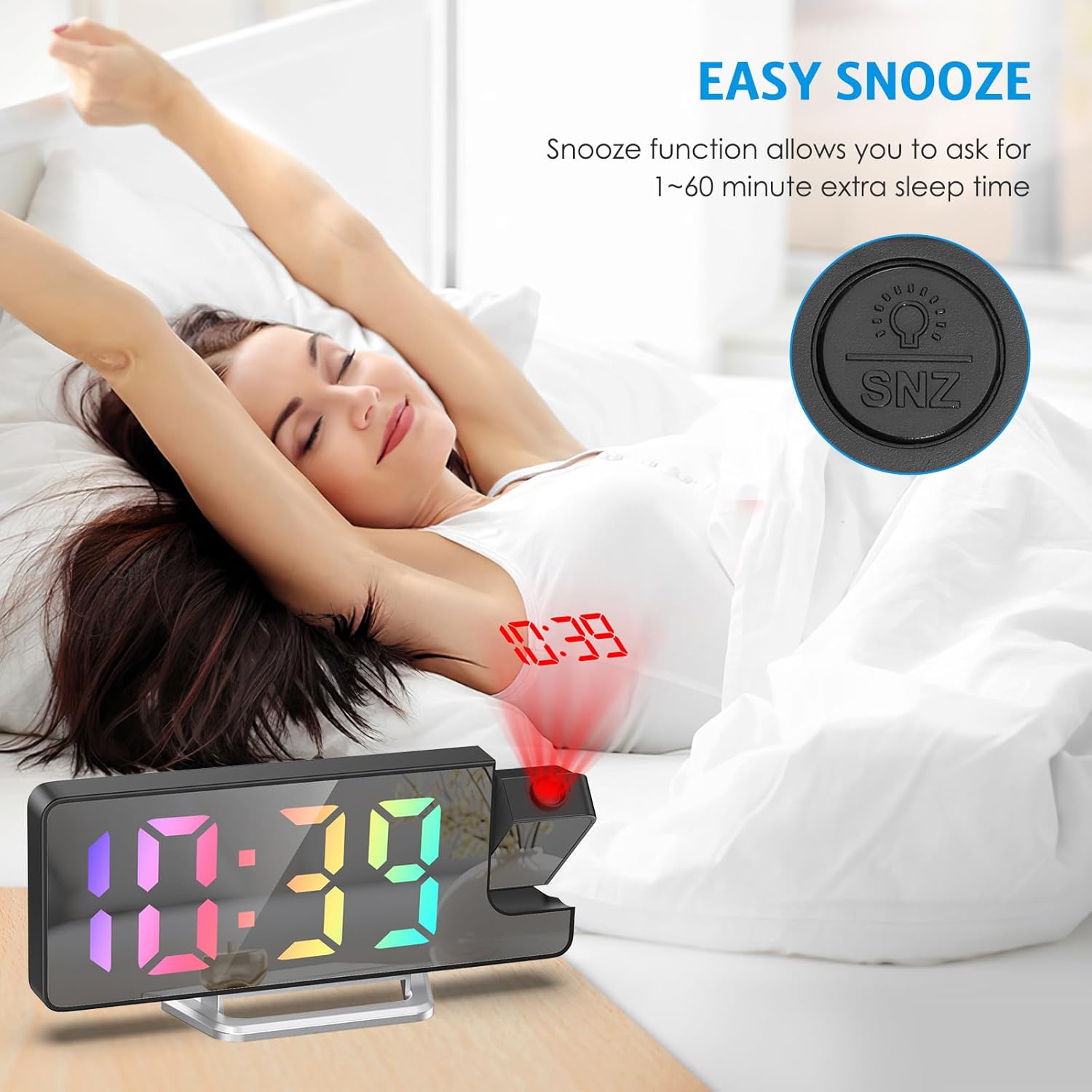
Image 3.3: A woman stretching in bed, with the alarm clock displaying time and projecting it onto the wall, illustrating the ease of using the snooze function.
3.4 Adjusting Display Brightness
The 7.9-inch LED display has 4 levels of brightness. Use the dedicated brightness control button (often labeled with a sun icon or integrated with +/- buttons) to cycle through bright, medium, low, and off settings.

Image 3.4: The alarm clock display shown at four different brightness levels: Bright Light, Medium Light, Low Light, and OFF, demonstrating the adjustable display intensity.
3.5 Projection Function
- Activating/Deactivating: The projector can be turned on or off by adjusting the projection lamp.
- Adjusting Projection Angle: The 180-degree rotatable projector allows you to adjust the angle to project the time onto a wall or ceiling.
- Projection Flip: If the projected digits appear upside down, press the dedicated flip button (often a circular arrow icon) to correct the orientation.
- Optimal Projection Distance: The optimum projection distance is between 1.6 feet and 16 feet for clear visibility.

Image 3.5: The alarm clock projecting time onto a wall, illustrating the projection distance range of 1.6-16 feet and the 180-degree flip projection feature.

Image 3.6: The alarm clock demonstrating its 180-degree flip projection capability, allowing the projected time to be viewed correctly from various angles.
3.6 Night Mode
Activate Night Mode for automatic dimming of the display. When enabled, the display brightness will automatically reduce to a low-light state from 18:00 (6 PM) to 6:00 (6 AM) by default, conserving energy and reducing light disturbance during sleep.

Image 3.7: The alarm clock in a bedroom setting at night, with the display dimmed and time projected, illustrating the Night Mode feature.
3.7 Time, Date, and Temperature Display Rotation
The multi-function display can show time, date, and temperature in rotation. This feature keeps you informed at a glance. The display can also be switched between 12-hour and 24-hour formats.

Image 3.8: The alarm clock displaying both 12-hour and 24-hour time formats, highlighting the flexibility to switch between them based on user preference.
Video 3.9: This video demonstrates the AMIR Projection Alarm Clock's features, including its 3 levels of brightness adjustment, rotation through time, date, and temperature, and manual adjustment of the projection angle. It also shows the one-touch on/off projection and 180-degree projection rotation.
4. Maintenance
4.1 Cleaning the Device
To clean the alarm clock, gently wipe the surfaces with a soft, dry cloth. Avoid using abrasive cleaners, solvents, or chemical sprays, as these can damage the display and casing.
4.2 Battery Replacement
If using AAA batteries for backup, replace them when the display or functions become erratic. Open the battery compartment on the back of the unit, remove old batteries, and insert new ones, ensuring correct polarity.
5. Troubleshooting
- Display Not On: Ensure the USB cable is securely connected to a power source, or that fresh AAA batteries are installed. The LED screen is continuously on only when charged via USB.
- Projection Upside Down: Press the dedicated flip button (circular arrow icon) on the back of the clock to rotate the projection 180 degrees.
- Time Not Holding: If the time resets frequently, ensure the device is consistently powered via USB or that the backup AAA batteries are fresh.
- Projection Unclear: Adjust the distance of the clock from the projection surface (optimal 1.6-16ft). Ensure the projection lens is clean.
- Alarm Not Sounding: Verify that the alarm is set correctly, the volume is not muted, and the correct alarm mode (1-5, 1-6, or 1-7) is selected for the desired days.
6. Product Specifications
| Brand | AMIR |
| Model Number | WA146B&C-AMUS |
| Display Type | Digital LED |
| Display Size | 7.9 inches |
| Projection | 180° Rotatable, 1.6-16ft distance |
| Brightness Levels | 4-Level Adjustable |
| Alarm Modes | Monday-Friday, Monday-Saturday, Everyday |
| Snooze Function | Adjustable (1-60 minutes) |
| Power Source | USB Cable (main), 3x AAA Batteries (backup) |
| Dimensions (W x H) | 4.13"W x 1.25"H |
| Weight | 0.21 Kilograms |
| Material | Acrylonitrile Butadiene Styrene (ABS) |
7. Warranty and Support
7.1 Warranty Information
This AMIR Projection Alarm Clock comes with a Lifetime Warranty. Please retain your proof of purchase for warranty claims.
7.2 Customer Support
For any questions, technical assistance, or warranty claims, please contact AMIR customer support through the retailer where the product was purchased or refer to the official AMIR website for contact details.