
Introduction
This manual provides comprehensive instructions for the EIMSOAH 12 Key Programmable Mini Keyboard with Knob. Designed to enhance efficiency, this compact mechanical keypad allows users to program custom shortcut keys and media controls, streamlining various tasks in office, gaming, laboratory, and industrial control environments. Please read this manual thoroughly before using the product to ensure proper operation and longevity.
Package Contents
Upon unpacking, please verify that all items listed below are present and in good condition:
- 1 x EIMSOAH 12 Key Programmable Mini Keyboard with Knob
- 1 x USB Cable (Type-C to USB-A)

Image: The programmable mini keyboard shown with its USB connection cable.
Product Overview
The EIMSOAH mini keyboard features 12 mechanical keys and two rotary knobs, all of which are programmable. It connects via a Type-C to USB interface, offering plug-and-play functionality after initial programming. The device stores its settings internally, allowing it to be used across various operating systems without re-programming.
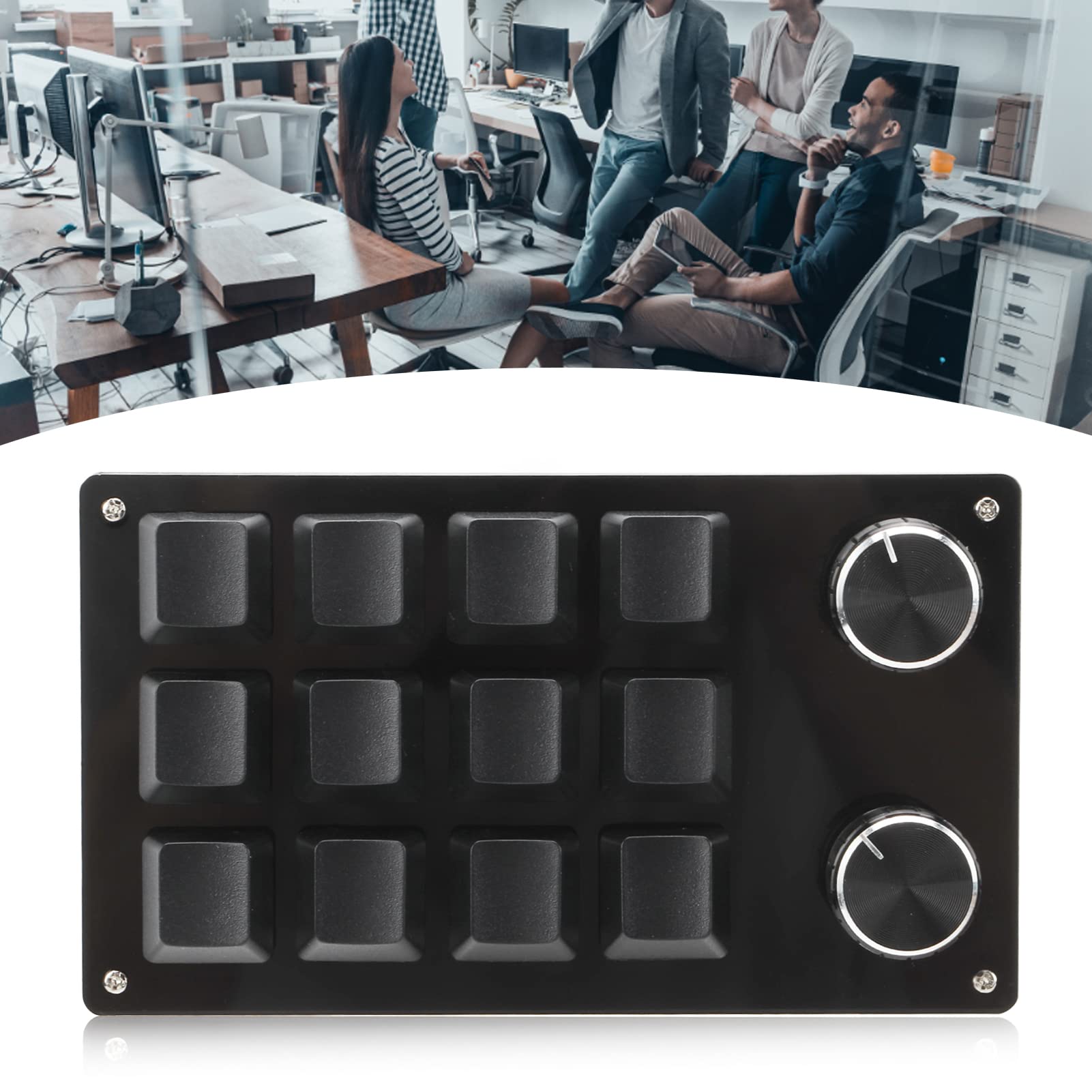
Image: The EIMSOAH 12 Key Programmable Mini Keyboard with Knob.
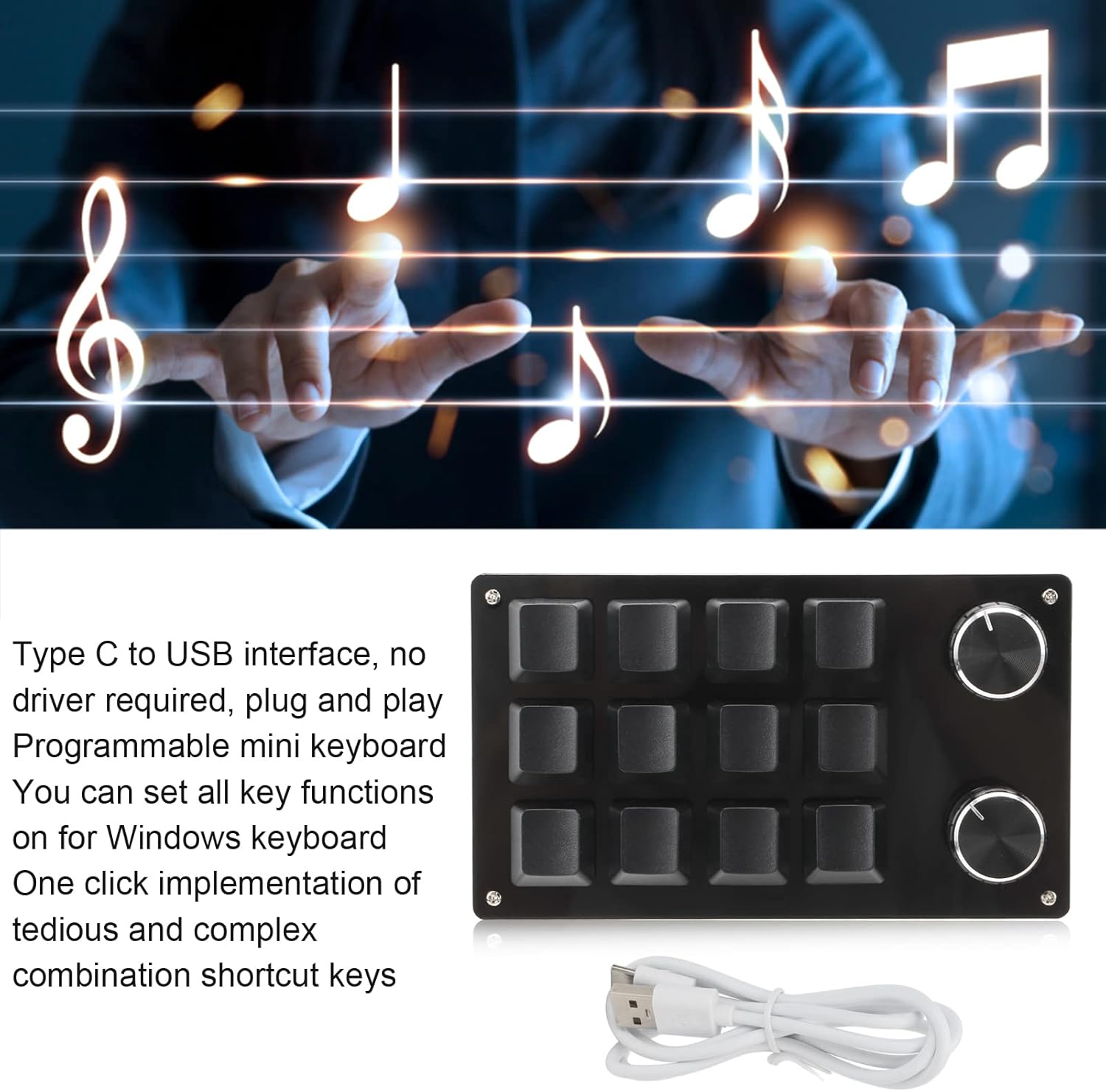
Image: The keyboard's Type-C to USB interface for easy connection.
The keyboard's compact design makes it suitable for various applications, including:
- Office Use: For quick access to frequently used functions.
- Gaming: Assign complex macros or in-game actions to single keys.
- Media Control: Easily manage audio and video playback.
- Industrial Control & Laboratory: For specialized tasks requiring specific key sequences.

Image: Keyboard in an office environment.

Image: Keyboard in a laboratory setting.
Setup
Follow these steps to set up your EIMSOAH mini keyboard:
- Connect the Keyboard: Plug the Type-C end of the provided USB cable into the mini keyboard and the USB-A end into an available USB port on your computer. The keyboard is plug-and-play for basic functionality once programmed.
- Download Programming Software: For custom key assignments, you will need to download the dedicated programming software. This software is currently compatible only with Windows operating systems. Please visit the official EIMSOAH website for the latest software download link.
- Run the Software: The setting software does not require installation; it can be run directly after opening. If your antivirus software prompts a warning, please allow the program as a trusted file to proceed.
Operating Instructions
The EIMSOAH mini keyboard features 12 programmable keys and 2 adjustable knobs. Once programmed on a Windows system, the settings are stored internally and can be used on any system supporting USB protocol, including Linux and OS X, without needing the software again.
Programming Keys
- Open the custom software on your Windows computer.
- In the software interface, locate and click on the 'Key Setting area' or 'Knob setting area'. Then, select the specific key (Key1-Key12) or knob (Knob 1 or Knob 2) you wish to program. The selected key/knob will highlight in red to indicate it's ready for assignment.
- Choose the desired function from the simulated keyboard within the software. For example, if you want to set Key 1 as the shortcut for 'Copy' (Ctrl+C), first select Key1, then click 'Ctrl' and 'C' on the software's virtual keyboard.
- Click the 'Download' button in the software to save the new settings to the keyboard. A 'Download successful' message will confirm that the custom keypad can now be used with the new assignments.
Programming Knobs
The two rotary knobs can also be programmed for various functions, primarily media controls. These include playing the previous song, next song, increasing volume, decreasing volume, pause, and play.

Image: The programmable knobs and their functions.
To program a knob, follow the same steps as programming a key, but select the desired knob in the software's 'Knob setting area' and assign the media control function.
Memory Function

Image: Explanation of the keyboard's memory function.
The keyboard incorporates a memory function. Once you have configured your desired key and knob settings using the Windows-based software, these settings are saved directly onto the keyboard's internal memory. This allows the keyboard to retain its custom functions when connected to other systems that support the USB protocol, such as Linux or OS X, without requiring the programming software to be installed or run on those systems.
Maintenance
To ensure the longevity and optimal performance of your EIMSOAH mini keyboard, follow these maintenance guidelines:
- Cleaning: Use a soft, dry cloth to gently wipe the surface of the keyboard. For light dust or smudges, a slightly damp cloth can be used, but ensure no liquid enters the key switches or USB port. Avoid using harsh chemicals, abrasive cleaners, or solvents, as these can damage the plastic material and key legends.
- Storage: Store the keyboard in a cool, dry place away from direct sunlight, excessive heat, or extreme cold. When not in use for extended periods, it is advisable to disconnect it from your computer.
- Handling: Avoid dropping the keyboard or exposing it to excessive force, as this may damage the mechanical switches, internal components, or the casing.
Troubleshooting
If you encounter issues with your EIMSOAH mini keyboard, refer to the following troubleshooting steps:
- Keyboard Not Responding:
- Ensure the USB cable is securely connected to both the keyboard and your computer's USB port.
- Try connecting the keyboard to a different USB port on your computer.
- Test the keyboard on another computer to determine if the issue is with the keyboard itself or your computer's USB port/drivers.
- Programming Software Not Running (Windows):
- Ensure your Windows operating system is up to date.
- Temporarily disable your antivirus software or add the programming software as an exception, as it might be blocking its execution.
- Download the software again from the official source to ensure you have an uncorrupted file.
- Keys Not Performing Assigned Functions:
- Re-open the programming software and verify that the desired functions are correctly assigned to each key and knob.
- Ensure you clicked the 'Download' button in the software to save the new settings to the keyboard.
- If using on a non-Windows system (e.g., Linux, OS X), remember that programming must be done on a Windows PC first, and the settings are then retained by the keyboard's internal memory.
Specifications

Image: Dimensions of the mini keyboard.
| Feature | Detail |
|---|---|
| Brand | EIMSOAH |
| Model Number | EIMSOAHx0tq3v7bgc-12 |
| Connectivity Technology | USB-C |
| Number of Keys | 12 |
| Knobs | 2 (Programmable) |
| Switch Type | Mechanical |
| Material | Plastic |
| Compatible OS (Programming) | Windows |
| Compatible OS (Usage) | Windows, Linux, OS X (systems supporting USB protocol) |
| Dimensions (L x W x H) | 132mm x 77mm x 38mm (approx. 5.2in x 3in x 1.5in) |
| Included Components | Keyboard, USB Cable |
Warranty and Support
For detailed warranty information, technical assistance, or customer support regarding your EIMSOAH 12 Key Programmable Mini Keyboard, please refer to the official EIMSOAH website or contact their customer service department directly. It is recommended to retain your purchase receipt as proof of purchase for any warranty claims.