
Winnes 4GTK913 (Battery 1500mah)
Winnes TK913 Mini GPS Tracker User Manual
Model: 4GTK913 (Battery 1500mah)
1. Introduction
This user manual provides comprehensive instructions for the Winnes TK913 Mini GPS Tracker. It covers setup, operation, maintenance, and troubleshooting to ensure optimal performance and longevity of your device. The Winnes TK913 is a compact and portable 4G GPS tracker designed for real-time tracking of vehicles, children, motorcycles, and other valuable assets. It features a strong magnetic attachment and is waterproof, offering reliable anti-theft and anti-lost capabilities.
Key features include real-time tracking via APP/PC, 180-day history route playback, geo-fence alerts, over-speed alerts, vibration alerts, and low-battery alerts. The device is powered by a rechargeable battery and supports managing multiple trackers within a single application, accessible on both iOS and Android systems.

Image: The Winnes TK913 GPS tracker, shown held in a hand, alongside a blue car and a smartphone displaying a detailed historical route map. This illustrates the device's compact size and its primary function of vehicle tracking and route history.
2. Package Contents
Please verify that all items are present in your package:
- 1x Winnes TK913 GPS Tracker
- 1x USB Charging Cable
- 1x User Manual (this document)
- 1x SIM Card (pre-installed or included for subscription activation)
3. Product Overview and Specifications
3.1. Key Features
- Real-time Tracking: Monitor location via dedicated mobile application or web platform.
- Historical Route Playback: Access up to 180 days of location history.
- Geo-fence Alerts: Receive notifications when the device enters or exits predefined safe zones.
- Vibration/Shock Alerts: Instant notifications for attempted theft or suspicious movement.
- Over-speed Alerts: Get notified if the tracked object exceeds a set speed limit.
- Low-Battery Alerts: Receive warnings when the device battery is low.
- Magnetic Attachment: Strong built-in magnet for easy and discreet installation.
- Rechargeable Battery: Internal 1500mAh battery for portable use.
- Multi-device Management: Manage multiple trackers from a single account.
- Wide Compatibility: Supports both iOS and Android applications.

Image: The Winnes TK913 GPS tracker depicted with various applications, including tracking vehicles (car, motorcycle, boat), pets (dog, cat), and people, highlighting its versatility for multiple tracking needs.
3.2. Technical Specifications
| Feature | Detail |
|---|---|
| Model Number | 4GTK913 (Battery 1500mah) |
| Dimensions | 2.2" x 1.4" x 0.8" / 55 x 36 x 21mm |
| Item Weight | 9.6 ounces |
| Connectivity | 4G/2G Cellular Network, GPS |
| Battery | 1500mAh Rechargeable Battery |
| Standby Time | 3-7 days (depending on frequency settings) |
| Location Accuracy | Up to 5-10 meters |
| Special Features | Alert Notification, Geo-Fence, Location History, Real Time Tracking, Rechargeable, Magnetic |
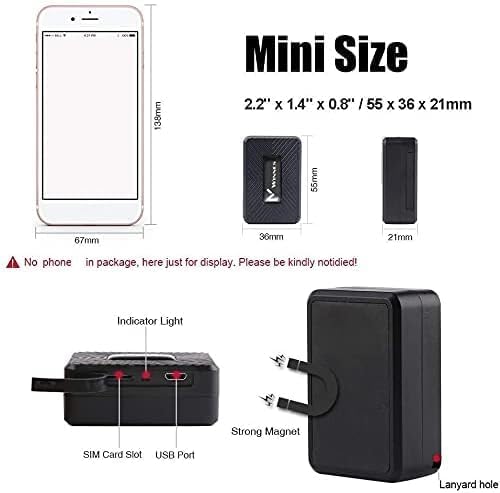
Image: A detailed diagram illustrating the compact size and physical features of the Winnes TK913 GPS tracker, including its dimensions, indicator light, SIM card slot, USB port, strong magnet, and lanyard hole.
4. Setup Guide
4.1. Charging the Device
Before first use, fully charge the GPS tracker. Connect the provided USB charging cable to the tracker's USB port and plug the other end into a standard USB power adapter (not included) or a computer's USB port. The indicator light will show charging status and turn off or change color when fully charged.
4.2. SIM Card Activation and Subscription
The Winnes TK913 GPS tracker requires a SIM card for cellular connectivity to transmit location data. A SIM card is included with your purchase. To activate tracking services, a subscription plan is required.
- Charge the device: Ensure the tracker is fully charged before proceeding.
- Register online: Follow the instructions provided with the SIM card or refer to the Winnes official website for online registration and subscription plan selection. Available plans include monthly, yearly, and two-year options.
- Recharge the SIM card: Ensure the SIM card has an active data plan.
- No APN reset needed: The device is pre-configured; manual APN settings are generally not required.
Important Note: This GPS tracker can only use the complimentary SIM card provided. Do not attempt to use other SIM cards as they may not be compatible or may require complex configuration.

Image: A mobile phone screen displaying various subscription options for the GPS tracker, detailing monthly, yearly, and two-year plans, along with instructions for charging, online registration, and SIM card activation.
4.3. App Installation
Download the official Winnes tracking application from the Apple App Store (for iOS devices) or Google Play Store (for Android devices). Search for "Winnes GPS" or refer to the QR code provided in the quick start guide (if applicable).
4.4. Device Activation and Login
After installing the app and activating your subscription:
- Open the Winnes tracking application.
- Log in using the credentials provided during your online registration.
- Your device should appear on the app's interface once it connects to the network.
5. Operating the GPS Tracker
5.1. Real-time Tracking
Once the device is active and connected, you can view its real-time location on the map within the mobile application or web platform. The location updates automatically based on your chosen frequency settings.

Image: A visual representation of real-time GPS tracking, showing a car on a multi-lane road with a tracking pin indicating its current position, emphasizing the immediate location monitoring capability.
5.2. Historical Route Playback
The application allows you to review the device's travel history for up to 180 days. This feature is useful for analyzing routes, monitoring past movements, or verifying travel logs.
- Navigate to the "Historical Route" section in the app.
- Select the desired date range.
- The route will be displayed on the map, often with speed and time indicators.

Image: A laptop and a smartphone side-by-side, both displaying the historical route of a GPS tracker on a map, demonstrating the accessibility of route history across different devices.
5.3. Setting Up Geo-fences
A geo-fence is a virtual boundary you can set around a specific area. When the tracker enters or exits this area, you will receive an alert notification.
- Go to the "Geo-fence" section in the application.
- Draw or select the desired area on the map.
- Name the geo-fence and configure alert settings (e.g., entry alert, exit alert).
- Save the geo-fence.

Image: An illustration depicting a geo-fence, a virtual boundary set on a map, with a notification icon, signifying that an alert will be triggered if the tracker enters or leaves this designated safe area.
5.4. Alert Management
The Winnes TK913 supports various alerts to keep you informed:
- Vibration Alerts: Configurable sensitivity for detecting movement or tampering.
- Over-speed Alerts: Set a maximum speed limit, and receive an alert if exceeded.
- Low-Battery Alerts: Notifies you when the battery level is critical, prompting a recharge.
Manage these alert settings within the application's "Alert Settings" or "Device Settings" menu.
6. Maintenance
To ensure the longevity and optimal performance of your Winnes TK913 GPS tracker, follow these maintenance guidelines:
- Regular Charging: Charge the device regularly, especially when low-battery alerts are received, to prevent deep discharge and prolong battery life.
- Cleanliness: Wipe the device with a soft, dry cloth. Avoid using harsh chemicals or abrasive cleaners.
- Water Resistance: While the device is waterproof, avoid prolonged submersion or exposure to high-pressure water jets. Ensure the USB port cover is securely closed.
- Storage: When not in use for extended periods, store the tracker in a cool, dry place. Charge it periodically (e.g., every 3 months) to maintain battery health.
- Software Updates: Keep the mobile application updated to the latest version to benefit from new features and performance improvements.
7. Troubleshooting
If you encounter issues with your Winnes TK913 GPS tracker, refer to the following common problems and solutions:
| Problem | Possible Cause | Solution |
|---|---|---|
| Device not showing online/no location data. | Low battery; SIM card not active/no data; poor cellular signal; device turned off. | Charge the device; verify SIM card subscription and data balance; move to an area with better signal; ensure device is powered on. |
| Inaccurate location. | Weak GPS signal (e.g., indoors, underground); interference. | Move the device to an open area with clear sky view; ensure no large metal objects are obstructing the signal. |
| Alerts not received. | Alert settings not configured correctly in app; app notifications disabled on phone; device offline. | Check alert settings in the app; enable notifications for the app in your phone's settings; ensure device is online. |
| Short battery life. | Frequent location updates; extreme temperatures; aging battery. | Adjust location update frequency in app to a longer interval; avoid extreme temperatures; if battery life significantly degrades, contact support. |
If the problem persists after trying these solutions, please contact Winnes customer support for further assistance.
8. Warranty and Support
8.1. Warranty Information
The Winnes TK913 GPS Tracker comes with a standard manufacturer's warranty. Please refer to the warranty card included in your package or visit the official Winnes website for detailed warranty terms and conditions. The warranty typically covers manufacturing defects and malfunctions under normal use.
8.2. Customer Support
For any questions, technical assistance, or warranty claims, please contact Winnes customer support:
- Email: Refer to the contact information provided in your package or on the official Winnes website.
- WhatsApp: +8613517470657 (as mentioned in product features)
- Online Resources: Visit the Winnes official website for FAQs, updated manuals, and support forums.
When contacting support, please have your product model number (4GTK913) and purchase details ready.
Related documents4GTK913 (Battery 1500mah)


Ask a question about this manual
Ask about setup, troubleshooting, compatibility, parts, safety, or missing instructions. Manuals+ will review the question and use this page’s manual context to help answer it.