
JJGJ P80
JJGJ P80 Android 14 11-inch Tablet User Manual
Model: P80
1. Introduction
This manual provides comprehensive instructions for the safe and efficient use of your JJGJ P80 Android 14 11-inch Tablet. Please read this manual thoroughly before operating the device to ensure optimal performance and longevity. The JJGJ P80 tablet operates on the Android 14 system, offering enhanced privacy settings and permission controls. It features an octa-core processor, 12GB RAM, 256GB internal storage, and supports up to 1TB external storage expansion. The device includes an 11-inch IPS display, dual cameras (13MP rear, 5MP front), and an 8000mAh battery.
2. Package Contents
Verify that all items listed below are present in your package. If any items are missing or damaged, please contact customer support.
- 1 x JJGJ P80 11-inch Tablet
- 1 x Keyboard
- 1 x Mouse
- 1 x Stylus
- 1 x Protective Case
- 1 x User Manual
- 1 x USB Charger
- 1 x Type-C Cable
- 1 x OTG Cable
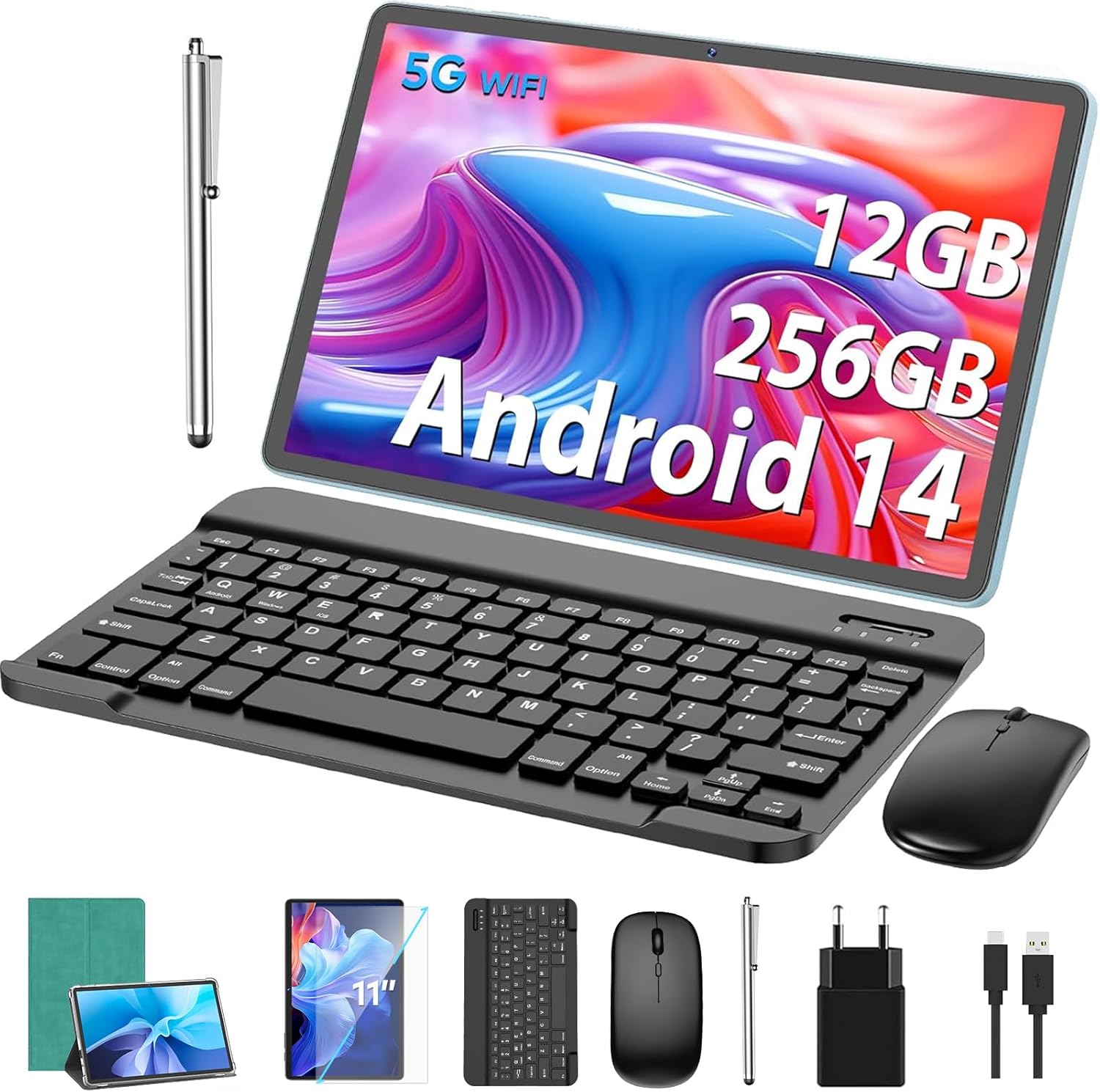
Image: The JJGJ P80 tablet displayed with its full set of accessories, including the detachable keyboard, mouse, stylus, charging adapter, and various cables.
3. Product Overview
3.1. Physical Components
The JJGJ P80 tablet features an 11-inch IPS display with a resolution of 1280 x 800 pixels, providing clear visuals. It is equipped with a 5MP front camera for video calls and a 13MP rear camera for photography.

Image: A detailed view of the tablet's 11-inch IPS display, highlighting its clarity and vibrant color reproduction.
3.2. Ports and Buttons
The tablet includes essential ports for connectivity and expansion:
- USB Type-C Port: For charging and data transfer.
- Micro SD Card Slot: For expanding storage up to 1TB.
- Headphone Jack: For audio output.
- Microphone: For audio input during calls or recordings.
4. Setup
4.1. Initial Power On and Charging
- Charge the Tablet: Before first use, connect the tablet to the USB charger using the provided Type-C cable. Allow the tablet to charge fully.
- Power On: Press and hold the power button (usually located on the side or top edge) until the JJGJ logo appears on the screen.
- Initial Setup: Follow the on-screen prompts to select your language, connect to Wi-Fi, and set up your Google account.
4.2. Connecting Accessories
The JJGJ P80 tablet comes with a keyboard, mouse, and stylus for enhanced productivity.
- Keyboard: The keyboard typically connects via Bluetooth. Enable Bluetooth on your tablet (Settings > Connected devices > Bluetooth), then put the keyboard in pairing mode and select it from the list of available devices.
- Mouse: Similar to the keyboard, the mouse usually connects via Bluetooth. Follow the same Bluetooth pairing steps.
- Stylus: The stylus may connect automatically or require Bluetooth pairing depending on its type. Refer to the stylus's specific instructions if pairing is needed.

Image: A user engaged in a video conference, demonstrating the tablet's use with the external keyboard and mouse.
4.3. Wi-Fi Connection
- Go to Settings > Network & internet > Wi-Fi.
- Toggle Wi-Fi On.
- Select your desired Wi-Fi network from the list. The tablet supports both 2.4G and 5G networks.
- Enter the network password if prompted, then tap Connect.
5. Operating Instructions
5.1. Android 14 Features
Your JJGJ P80 tablet runs on Android 14, which offers an optimized user experience with enhanced privacy controls and permission management.
- Privacy Dashboard: Monitor and manage app permissions for location, camera, microphone, and more.
- App Store Access: Download a wide range of applications from the pre-installed App Store, including social media, streaming services, and productivity tools.

Image: A visual representation of the Android 14 operating system, showcasing its responsive design, privacy features, and efficient performance across multiple applications.
5.2. Storage Management
The tablet provides ample storage for your files and applications.
- Internal Storage: 256GB ROM for system files, apps, and user data.
- RAM: 12GB (6GB physical + 6GB virtual) for smooth multitasking.
- Expandable Storage: Insert a Micro SD card (up to 1TB) into the dedicated slot to expand your storage capacity for photos, videos, and documents.

Image: Displays the tablet's significant storage capabilities, including 12GB RAM, 256GB ROM, and support for 1TB expansion, alongside examples of applications that can be stored.
5.3. Camera Usage
Capture moments and conduct video calls using the tablet's dual cameras.
- Rear Camera: 13MP for high-resolution photos and videos.
- Front Camera: 5MP suitable for selfies and online meetings.
- Access the camera app from the home screen or app drawer to start capturing.

Image: Demonstrates the tablet's camera functionality, showing users capturing images and participating in video calls, highlighting both the 13MP rear and 5MP front cameras.
5.4. Battery Management
The 8000mAh battery provides extended usage time.
- Charging: Use the provided 18W charger and Type-C cable for optimal charging speed.
- Battery Life: The tablet is designed for long battery life, suitable for extended periods of entertainment or work.
- Battery Saver: Enable Battery Saver mode in Settings to extend battery life when needed.

Image: Illustrates the tablet's 8000mAh battery and fast charging capability, alongside examples of its endurance for video playback, gaming, and standby time.
6. Maintenance
6.1. Cleaning
- Use a soft, lint-free cloth to clean the screen and body of the tablet.
- Avoid using harsh chemicals or abrasive materials.
- Ensure the tablet is powered off and unplugged before cleaning.
6.2. Software Updates
Regularly check for and install software updates to ensure your tablet has the latest features, security patches, and performance improvements.
- Go to Settings > System > System update.
- Follow the on-screen instructions to download and install any available updates.
7. Troubleshooting
If you encounter issues with your tablet, try the following basic troubleshooting steps:
- Tablet not turning on: Ensure the tablet is charged. Connect it to the charger and wait a few minutes before attempting to power it on again.
- Screen unresponsive: Restart the tablet by holding down the power button until it reboots.
- Wi-Fi connection issues: Check if Wi-Fi is enabled in settings. Restart your router and the tablet. Forget the network and reconnect.
- Accessories not connecting: Ensure Bluetooth is enabled on the tablet and the accessory is in pairing mode. Check battery levels of accessories.
- Apps crashing or freezing: Close and reopen the app. Clear the app's cache (Settings > Apps > [App Name] > Storage & cache > Clear cache). If the issue persists, uninstall and reinstall the app.
8. Specifications
| Feature | Detail |
|---|---|
| Model Name | P80 |
| Operating System | Android 14 |
| RAM | 12GB (6GB physical + 6GB virtual) |
| Internal Storage (ROM) | 256GB |
| External Storage | Supports Micro SD card up to 1TB |
| Display Size | 11 inches |
| Display Resolution | 1280 x 800 IPS |
| Rear Camera | 13MP |
| Front Camera | 5MP |
| Battery Capacity | 8000mAh |
| Connectivity | Wi-Fi (2.4G/5G), Bluetooth 5.0, Hotspot, FM |
| Interfaces | USB Type-C, Micro SD slot, Headphone jack |
| Dimensions (L x W x H) | 11 x 6 x 1.5 cm |
| Weight | 1.54 Kilograms |

Image: The energy label for the JJGJ P80 tablet, indicating its energy efficiency class and estimated battery performance.
For detailed product information, refer to the EPREL database.
9. Warranty and Support
- Warranty Period: The product comes with a 12-month warranty from the supplier.
- Spare Parts Availability: Information regarding spare parts availability is currently unavailable.
- Software Updates: Information regarding guaranteed software updates is currently unavailable.
- For further assistance or technical support, please refer to the contact information provided with your purchase documentation or visit the official JJGJ website.

Image: A product data sheet providing detailed technical specifications and regulatory information for the tablet.