
HUPEJOS V7
HUPEJOS V7 4-Channel Dash Cam User Manual
Model: V7
Brand: HUPEJOS
1. Introduction
The HUPEJOS V7 is an advanced 4-channel dash camera designed to provide comprehensive surveillance for your vehicle. With its ultra-wide-angle lenses and 360° field of view, it simultaneously monitors the front, interior, and rear of the vehicle, offering either 1080Px4 audio or 2K front + 1080Px2 inside recording. This manual provides detailed instructions for setup, operation, and maintenance to ensure optimal performance and longevity of your device.

Image: The HUPEJOS V7 dash cam, showcasing its multi-camera setup, included memory card, and connectivity with a smartphone application for viewing recordings.

Image: An overview of the V7 dash cam's features, including 3.16" IPS screen, 4*FHD 1080P recording, audio recording, 256G Micro Card support, G-Sensor Lock, APP WiFi, Radar Parking Monitor, and Loop Recording, highlighting its compact design.
2. What's in the Box
Please check the contents of your package to ensure all items are present:
- V7 Dash Cam Unit
- Rear Camera
- User Manual
- Suction Cup Bracket
- 3M Adhesive Mount
- Car Wire Trim Tool
- Type-C Power Cable
- 24.6ft Rear Camera Cable
- Electrostatic Sticker
- 64GB SD Memory Card
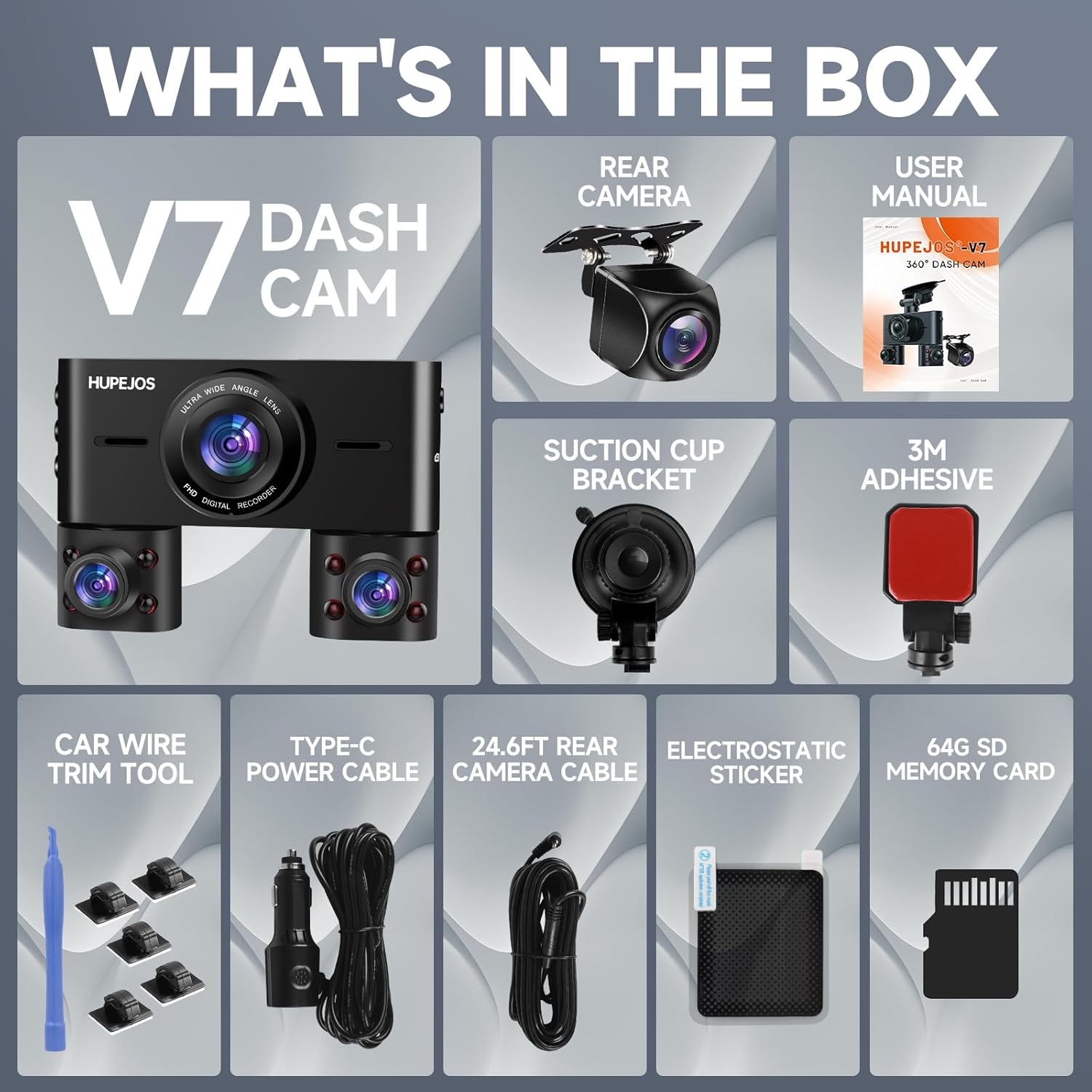
Image: A visual representation of all components included in the HUPEJOS V7 Dash Cam package, laid out for easy identification.
3. Setup and Installation
Follow these steps to properly install your HUPEJOS V7 Dash Cam:
3.1. Prepare the Memory Card
- Insert the included 64GB SD card into the dash cam's SD card slot. The V7 supports up to 256GB SD cards.
- It is recommended to format the SD card within the dash cam's settings before first use to ensure compatibility and optimal performance.
3.2. Mount the Dash Cam
- Clean the windshield area where you intend to mount the dash cam. Ensure it does not obstruct your view.
- Attach the electrostatic sticker to the windshield first, then attach the suction cup bracket or 3M adhesive mount to the sticker for easier removal and residue prevention.
- Securely attach the V7 dash cam unit to the mounted bracket.

Image: A size comparison demonstrating the compact nature of the V7 dash cam, indicating it is smaller than a typical smartphone and designed to be discreetly hidden.
3.3. Connect Power
- Connect the Type-C Power Cable to the dash cam.
- Plug the other end of the power cable into your vehicle's cigarette lighter socket.
- Route the cable neatly along the windshield edge and trim using the provided car wire trim tool to avoid obstruction and ensure a clean installation.
3.4. Install Rear Camera (Optional)
- Mount the rear camera on your rear windshield, ensuring a clear view.
- Connect the rear camera to the main dash cam unit using the 24.6ft Rear Camera Cable. Route the cable discreetly.
4. Operating Instructions
4.1. Power On/Off
The dash cam will automatically power on and begin recording when your vehicle's ignition is turned on. It will power off automatically when the ignition is turned off.
4.2. 4-Channel Recording and View Adjustment
The V7 dash cam features four channels (front, left, right, rear) with 150°*4 field of view, providing 360° full protection. The four channels can be rotated and adjusted for optimal angles. It supports simultaneous recording of 1080Px4 audio or 2K front + 1080Px2 inside.

Image: An illustration detailing the extensive 360-degree coverage provided by the V7 dash cam's four channels, including individual views from the front, rear, right, and left cameras, each recording at 1080P resolution.
4.3. Loop Recording
The dash cam records video in 3-minute segments. When the SD card is full, the oldest unlocked videos will be automatically overwritten by new recordings. This ensures continuous recording without manual intervention.
4.4. G-Sensor (Emergency Lock)
The built-in G-sensor automatically detects sudden shakes or collisions. When an impact is detected, the current video footage is automatically locked and saved to a protected folder, preventing it from being overwritten by loop recording. This ensures critical event footage is preserved.
4.5. 24-Hour Parking Mode
When your vehicle is parked and the ignition is off, the dash cam can automatically switch to parking mode for continuous 24-hour surveillance. This feature requires a hardwire kit (ASIN: BOBV2CJ5SW, sold separately) to provide constant power. The time-delay recording function allows for continuous recording with low power consumption and a low frame rate.

Image: Visual explanations of key dash cam functions: Loop Recording, which overwrites old files; G-Sensor, which automatically locks important footage during collisions; and 24-Hour Parking Mode, which provides continuous surveillance when the vehicle is off (requires separate hardwire kit).
4.6. Super Night Vision & WDR Technology
The V7 dash cam features an F/1.8 aperture lens with 6 layers of optical glass and 8 IR lights, combined with WDR (Wide Dynamic Range) technology. This system automatically balances light and dark areas, enabling clear capture of details like license plates even in low-light conditions or at night. To manually control the IR lights, navigate to Menu-IRLED- ON/OFF in the dash camera settings.

Image: A visual representation of the dash cam's Super Night Vision capabilities, highlighting the F1.8 big aperture, 8 IR lights, and WDR technology that ensure clear video capture in various lighting conditions, including dark environments and inside the cabin.
4.7. Built-in Wi-Fi & TsCam App
The dash cam features built-in Wi-Fi for seamless connection to your smartphone via the TsCam App (available for iOS and Android). This allows you to:
- View live footage from the dash cam.
- Playback recorded videos.
- Download videos directly to your smartphone.
- Take photos.
- Easily share recordings on social media.
To connect: Download the TsCam App, turn on Wi-Fi on your dash cam, and connect your phone to the dash cam's Wi-Fi network (SSID and password usually displayed on the dash cam screen).

Image: A smartphone screen showing the TsCam app, illustrating its features like live view, video download, and photo capture, along with icons for various social media platforms to which content can be shared.
5. Maintenance
5.1. Cleaning the Device
Use a soft, dry cloth to clean the dash cam's lens and screen. Avoid using abrasive cleaners or solvents that could damage the surfaces.
5.2. SD Card Care
Regularly format the SD card (once a month is recommended) to maintain optimal recording performance and prevent data corruption. Back up any important files before formatting.
5.3. Firmware Updates
Check the HUPEJOS official website periodically for any available firmware updates. Keeping your dash cam's firmware updated can improve performance and add new features.
6. Troubleshooting
If you encounter issues with your HUPEJOS V7 Dash Cam, refer to the following common problems and solutions:
6.1. Dash Cam Not Turning On
- Ensure the power cable is securely connected to both the dash cam and the vehicle's power outlet.
- Check if the vehicle's power outlet is functioning (e.g., by plugging in another device).
- Try a different power cable if available.
6.2. Recording Issues (e.g., "SD Card Full" error, no recording)
- Format the SD card within the dash cam's settings.
- Ensure the SD card is inserted correctly and is not damaged.
- Use a high-speed (Class 10 or U3) SD card from a reputable brand, supporting up to 256GB.
- Check if loop recording is enabled in the settings.
6.3. Poor Video Quality
- Clean the camera lenses with a soft cloth.
- Ensure the protective film has been removed from the lenses.
- Check video resolution settings in the dash cam menu; ensure it's set to the highest available (e.g., 1080P or 2K).
6.4. Wi-Fi Connection Problems
- Ensure Wi-Fi is enabled on the dash cam.
- Restart both the dash cam and your smartphone.
- Ensure you are within close proximity to the dash cam for a stable connection.
- Reinstall the TsCam App on your smartphone.
7. Specifications
| Feature | Detail |
|---|---|
| Brand | HUPEJOS |
| Model | V7 |
| Connectivity Technology | Wi-Fi |
| Video Capture Resolution | 1080p (4-channel), 2K Front + 1080Px2 Inside |
| Field of View | 150° x 4 channels |
| Display Features | Wireless |
| Color | Black |
| Mounting Type | Suction Mount |
| Control Method | App |
| Flash Memory Type | SD (supports up to 256GB) |
| Included Components | Memory Card (64GB included) |
| Special Features | Loop Recording, G-Sensor, 24 Hours Parking Mode, Super Night Vision, WDR Technology |
8. Warranty and Support
8.1. Return Policy
This product is eligible for a refund or replacement within 30 days of purchase, in accordance with the seller's return policy.
8.2. Customer Support
For any questions, technical assistance, or warranty claims, please contact the seller directly through the platform where the product was purchased. Detailed contact information can usually be found on your order details page or the seller's store page.
Related Documents - V7
 |
HUPEJOS V80 Dash Cam: Installation, Features, and Troubleshooting Guide Comprehensive guide for the HUPEJOS V80 Dash Cam, covering installation of the hardwire kit, mobile app connection, Wi-Fi setup, app operation, GPS video playback, PC GPS functionality, specifications, warm tips, maintenance, and troubleshooting. |
 |
HUPEJOS V7 Dash Cam Installation and User Guide Comprehensive guide for installing and using the HUPEJOS V7 Dash Cam, covering memory card installation, camera mounting, hardwire kit connection, mobile app integration, and troubleshooting. |
 |
HUPEJOS V7 360° Dash Cam User Manual Comprehensive user manual for the HUPEJOS V7 360° Dash Cam, covering installation, app connection, parking mode setup, and troubleshooting. |
 |
HUPEJOS V80 360° Dash Cam User Manual - Installation, Settings, and Operation Comprehensive user manual for the HUPEJOS V80 360° Dash Cam. Learn about installation, voice commands, settings, recording features, playback, and troubleshooting. |
 |
HUPEJOS V80 360° Dash Cam: User Manual, Installation, and App Guide Detailed user manual for the HUPEJOS V80 360° Dash Cam. Learn about voice commands, 24-hour parking monitoring, mobile app connection (TsCam), WiFi setup, GPS playback, and file management with GXPlayer. |
 |
HUPEJOS V7 360° Dash Cam User Manual Comprehensive user manual for the HUPEJOS V7 360° Dash Cam. Learn about installation, operation, features like WiFi and parking mode, maintenance, and troubleshooting. Contact HUPEJOS for support. |
Ask a question about this manual
Ask about setup, troubleshooting, compatibility, parts, safety, or missing instructions. Manuals+ will review the question and use this page’s manual context to help answer it.