
1. Product Overview
The SmartSee Anycast Wireless Display Adapter and Wireless USB C Transmitter and Receiver Kit allows for wireless mirroring or streaming of content from your mobile device, laptop, or PC to an HDTV, projector, or monitor. This device supports both wireless display and screen extension functionalities, including the ability to cast content from encrypted applications like Netflix, Hulu, and HBO.

Image: SmartSee Anycast Wireless Display Adapter and USB C Transmitter and Receiver Kit components.

Image: Diagram illustrating how the SmartSee Wireless Display Adapter connects various devices (tablet, computer, smartphone) to an HDTV, monitor, or projector.
2. Package Contents
- Anycast Wireless Display Adapter (Receiver)
- Wireless USB C Transmitter
- USB Power Cable
- User Manual
3. Setup Instructions
The SmartSee Wireless Display Adapter is designed for a plug-and-play experience, requiring no drivers or applications for basic mirroring. Simply connect the components as described below.
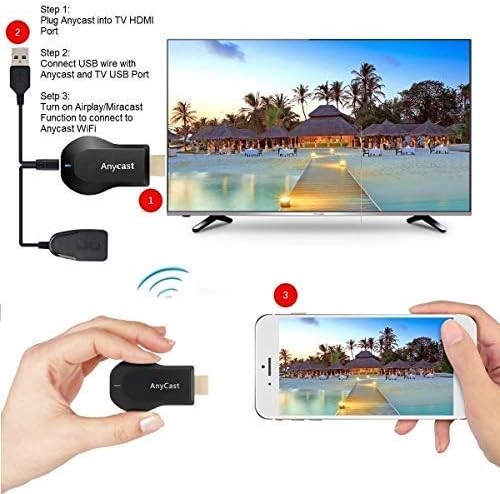
Image: Step-by-step diagram for connecting the Anycast device to a TV and initiating screen mirroring from a smartphone.
3.1 Basic Connection
- Plug the Anycast Wireless Display Adapter (receiver) into an available HDMI port on your TV, projector, or monitor.
- Connect the USB power cable to the Anycast adapter and then to a USB power source (e.g., TV USB port, USB wall adapter).
- Plug the Wireless USB C Transmitter into the USB-C port of your source device (smartphone, laptop, tablet).
- The screen of your source device should automatically mirror to the display within seconds.
3.2 Connecting with iOS Devices (iPhone/iPad)
For iOS devices, use the AirPlay feature for screen mirroring.
- Ensure the Anycast device is powered on and connected to your display.
- On your iOS device, swipe down from the top-right corner (or up from the bottom for older models) to open Control Center.
- Tap 'Screen Mirroring'.
- Select the Anycast device from the list (e.g., 'AnyCast 285E5AA6' or 'Mirascreen-8D42D932').
- If prompted, enter the AirPlay code displayed on your TV screen into your iOS device.
- Your iOS device screen will now be mirrored to the connected display.
Video: Operation Demonstration for iOS Devices, showing the steps to connect an iPhone to the Anycast adapter for screen mirroring.
Video: Anycast mirrors screen for iPhone to TV/HD Monitor, demonstrating iPhone screen mirroring functionality.
3.3 Connecting with Android Devices
For Android devices, use the Miracast or Smart View feature for screen mirroring.
- Ensure the Anycast device is powered on and connected to your display.
- On your Android phone, navigate to Settings and look for 'Smart View', 'Screen Mirroring', 'Wireless Display', or 'Cast'. The exact name may vary by device manufacturer.
- Select the Anycast device (e.g., 'Anycast-BFE1E9C3' or 'Mirascreen-8D42D932') from the list of available devices.
- Confirm the connection on your phone if prompted.
- Your Android device screen will now be mirrored to the connected display.
Video: Operation Demonstration for Android Devices, illustrating the process of connecting an Android phone to the Anycast adapter for screen mirroring.
Video: Anycast Connection on Android phone in Miracast Mode, showing a quick guide to connecting via Miracast.
3.4 Connecting with Windows Devices
For Windows devices, use the built-in wireless display feature.
- Ensure the Anycast device is powered on and connected to your display.
- On your Windows computer, press the 'Windows key + P' simultaneously.
- Select 'Connect to a wireless display'.
- Choose the Anycast device from the list of available wireless displays.
- Your Windows screen will now be mirrored or extended to the connected display.
Video: Wireless Display from Windows device to TV Wirelessly, demonstrating how to connect a Windows device for screen mirroring.
4. Operating Modes
The SmartSee Wireless Display Adapter supports two primary operating modes:
4.1 Wireless Display (Mirroring Mode)
In mirroring mode, the content displayed on your small screen (phone, tablet, laptop) is duplicated onto the larger connected display. This mode is ideal for sharing videos, photos, presentations, or any content directly as it appears on your source device. It supports casting from encrypted applications like Netflix, Hulu, and HBO.

Image: Illustration of the powerful wireless HDMI transmitting system, highlighting its ability to mirror content from various streaming apps.

Image: A family enjoying content cast wirelessly from a small screen to a large television, demonstrating home entertainment use.
4.2 Wireless Extend Screen Mode
This mode allows you to extend your laptop's screen to a second display wirelessly, providing more screen real estate for multitasking. This is particularly useful for productivity in meetings or for managing multiple applications simultaneously. Note: PC needs to support extending function.

Image: Comparison of Mirroring Mode (same content displayed) and Extending Mode (different content displayed) for screen usage.

Image: A meeting scenario where a laptop screen is wirelessly projected onto a large display for efficient presentation.
5. Specifications
| Feature | Description |
|---|---|
| Brand | SmartSee |
| Model Name | SmartSee Anycast Wireless Display Adapter |
| Color | Black |
| Connectivity Technology | HDMI, USB |
| Connector Type | HDMI, Micro USB |
| Resolution | 1080p @ 60Hz |
| Supported Internet Services | Hulu, Netflix (and other encrypted apps in Wireless Display Mode) |
| Controller Type | App Control (via device's native mirroring features) |
| Form Factor | Dongle or small adapter |
| Wireless Compatibility | 2.4G and 5G WiFi |
6. Maintenance
To ensure the longevity and optimal performance of your SmartSee Anycast Wireless Display Adapter, please follow these maintenance guidelines:
- Cleaning: Use a soft, dry cloth to clean the device. Avoid liquid cleaners or aerosols.
- Storage: Store the device in a cool, dry place away from direct sunlight and extreme temperatures.
- Handling: Handle the device with care. Avoid dropping it or subjecting it to strong impacts.
- Ventilation: Ensure the device has adequate ventilation when in use to prevent overheating.
7. Troubleshooting
If you encounter issues with your SmartSee Anycast Wireless Display Adapter, refer to the following common troubleshooting steps:
- No Signal on Display:
- Ensure the Anycast adapter is securely plugged into the HDMI port and receiving power via the USB cable.
- Verify that your display is set to the correct HDMI input source.
- Try plugging the adapter into a different HDMI port or using a different USB power source.
- Device Not Found for Mirroring:
- Confirm that your source device's Wi-Fi is enabled and connected to the Anycast device's Wi-Fi network (if applicable for initial setup).
- Ensure your source device's mirroring feature (AirPlay, Smart View, Miracast) is activated.
- Restart both the Anycast adapter and your source device.
- Lagging or Poor Quality Display:
- Ensure your source device and the Anycast adapter are within close proximity to each other and the Wi-Fi router (if connected to a home network).
- Minimize interference from other wireless devices.
- Check if your Wi-Fi network is stable and has sufficient bandwidth. Connecting to a 5GHz Wi-Fi network (if available) can improve performance.
- Cannot Cast Encrypted Apps:
- The SmartSee kit is designed to overcome limitations with encrypted apps in Wireless Display Mode. Ensure you are using the correct operating mode and your device is properly connected.
- Verify that the app itself is updated to its latest version.
8. Warranty and Support
For warranty information, technical support, or further assistance, please refer to the documentation included with your product or contact SmartSee customer service through their official channels. Keep your purchase receipt for warranty claims.