
1. Product Overview
The BYINTEK U4 Mini Projector is a smart wireless projector designed for versatile use, from home theater to business presentations. It features an Android 9.0 TV system, 260 ANSI lumens brightness, and a fully sealed dustproof optical engine for enhanced durability and clear projection. Its compact and portable design allows for easy setup in various environments.

Figure 1.1: Front view of the BYINTEK U4 Mini Projector, showcasing its compact design and lens.
Key Features:
- Fully Sealed Optical Engine: Prevents dust from entering, maintaining lens clarity and extending product lifespan.
- Large Projection Screen: Capable of projecting a screen size up to 200 inches (optimal projection distance 0.8~5 meters), suitable for various applications.
- Electronic Focus & Keystone Correction: Features remote control electronic focus and supports horizontal, vertical, and corner keystone correction for easy image adjustment.
- Wireless Connectivity: Compatible with iOS and Android mobile phones, tablets, and laptops for wireless screen projection.
- Android 9.0 TV System: Equipped with a smart Android 9.0 TV system, pre-installed with various online video programs. Users can install additional applications as needed. Note: Do not upgrade pre-installed software to avoid errors.
- Multi-language Support: System language can be switched to Arabic and other national languages.
- Integrated Audio: Built-in 3W Hi-Fi stereo speakers with low noise operation.
- Versatile Use: Ideal for classroom teaching, home theater, business meetings, gaming, and watching sports.
2. Setup Guide
2.1 Unboxing and Initial Inspection
Carefully remove all components from the packaging. Ensure the following items are present:
- BYINTEK U4 Mini Projector
- Power Adaptor
- Remote Control
- User Manual (this document)
Inspect the projector and accessories for any signs of damage. If any damage is found, contact customer support immediately.
2.2 Power Connection
- Connect the power adaptor to the DC IN port on the projector.
- Plug the power adaptor into a suitable electrical outlet.
- Press the power button on the projector or remote control to turn on the device.
2.3 Placement and Projection
Place the projector on a stable, flat surface. Ensure there are no obstructions in front of the lens. For optimal viewing, project onto a white wall or a dedicated projector screen.

Figure 2.1: The BYINTEK U4 Mini Projector positioned on a table, demonstrating its portable size.
2.4 Focus and Keystone Correction
After powering on, the projector may automatically adjust focus. If the image appears blurry or distorted, use the remote control to manually adjust:
- Electronic Focus: Use the dedicated focus buttons on the remote to sharpen the image.
- Keystone Correction: Adjust horizontal, vertical, or corner keystone settings to correct trapezoidal image distortion, ensuring a rectangular projection.
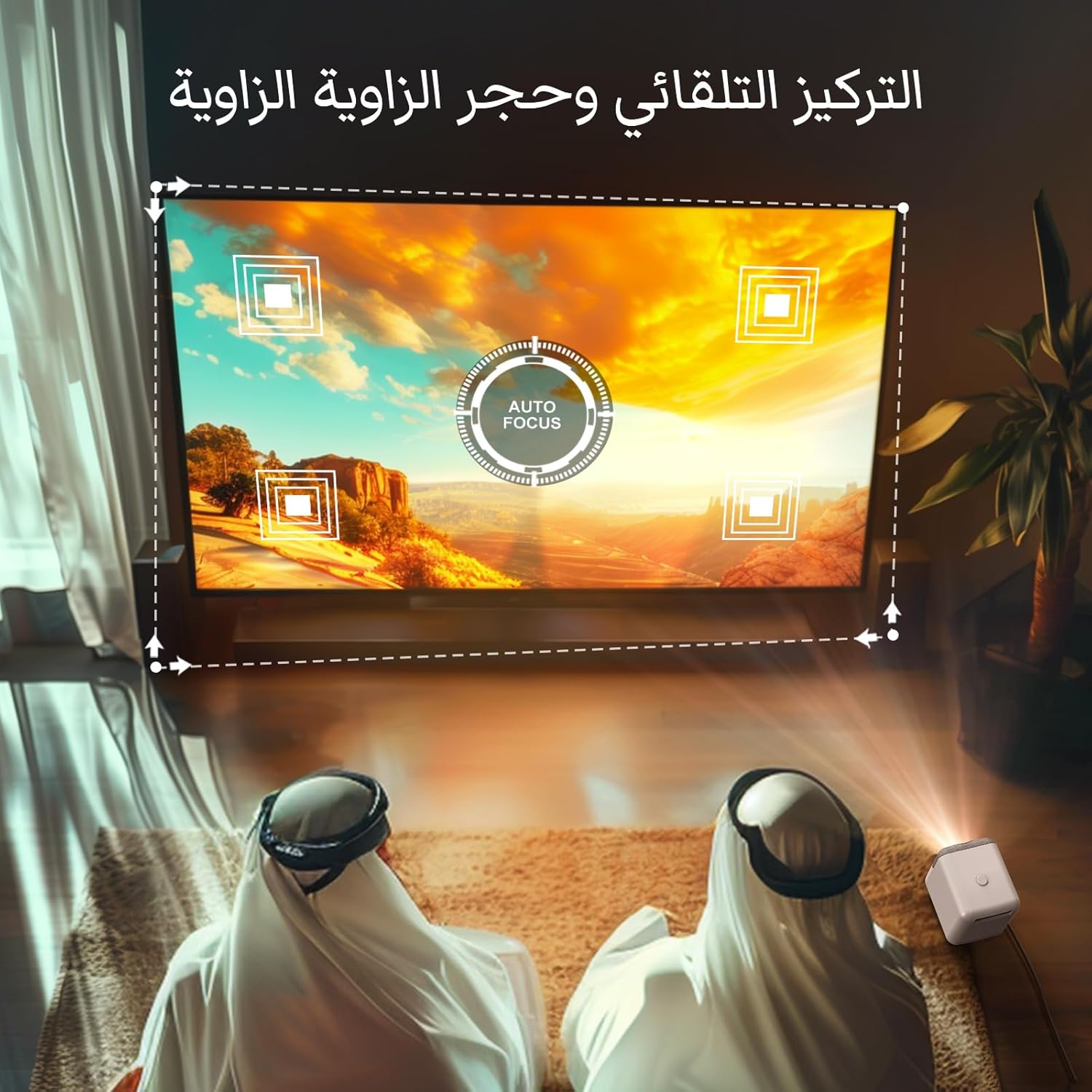
Figure 2.2: Visual representation of the auto-focus and keystone correction capabilities, showing how the projector adjusts the image corners.
3. Operating Instructions
3.1 Navigating the Android 9.0 TV System
The BYINTEK U4 runs on Android 9.0, providing a smart TV experience. Use the remote control to navigate the interface:
- Use the directional pad to move between icons and options.
- Press the 'OK' button to select an item.
- Use the 'Back' button to return to the previous screen.
- The 'Home' button will take you to the main Android TV interface.
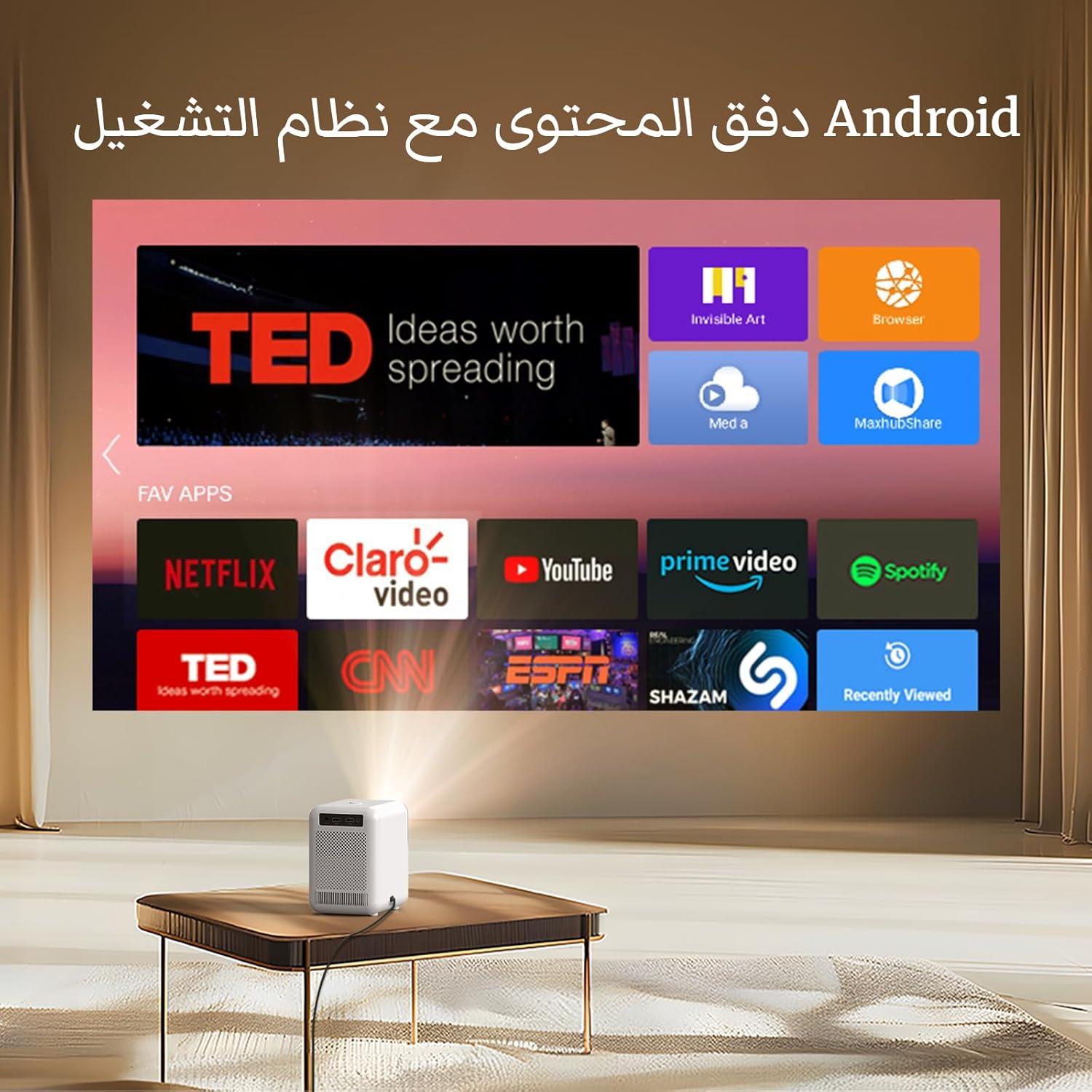
Figure 3.1: The Android TV operating system interface as projected by the U4, showing various pre-installed applications.
3.2 Connecting Devices
The projector supports multiple connectivity options:
- Wi-Fi Display (Screen Mirroring): Connect your iOS or Android mobile phone, tablet, or laptop wirelessly to mirror its screen. Refer to your device's screen mirroring instructions (e.g., AirPlay for iOS, Miracast for Android).
- HDMI: Connect devices like laptops, gaming consoles, or TV sticks using an HDMI cable to the HDMI port.
- USB: Insert USB drives into the USB port to play media files directly.
- AV: Use the AV port for older devices requiring analog input.

Figure 3.2: Rear panel of the BYINTEK U4 Mini Projector, highlighting the available connectivity ports including USB, HDMI, and AV.
3.3 Application Management
The projector comes with pre-installed applications. You can download and install additional apps from the app store within the Android system. Ensure you have a stable internet connection for downloads.
Important: Do not attempt to upgrade the pre-installed software or firmware outside of official BYINTEK updates, as this may lead to system errors or malfunction.
4. Maintenance
4.1 Dust Prevention
The BYINTEK U4 features a fully sealed optical engine designed to prevent dust ingress. This significantly reduces the need for internal cleaning and helps maintain image clarity over time.

Figure 4.1: Illustration demonstrating the effectiveness of the fully sealed dustproof optical engine in preventing dust accumulation compared to a non-sealed system.
4.2 General Cleaning
- Exterior: Wipe the exterior of the projector with a soft, dry cloth. For stubborn marks, slightly dampen the cloth with water and mild soap, then wipe dry.
- Lens: Use a lens cleaning cloth or a soft, lint-free cloth specifically designed for optical surfaces. Gently wipe the lens in a circular motion. Avoid using abrasive materials or harsh chemicals.
- Ventilation: Ensure the ventilation openings are clear of dust and debris to prevent overheating. Use a soft brush or compressed air to gently clear the vents.
5. Troubleshooting
This section addresses common issues you might encounter with your BYINTEK U4 projector. If the problem persists, please contact customer support.
| Problem | Possible Cause | Solution |
|---|---|---|
| No image or blurry image | Power issue, incorrect focus, keystone distortion, input source not selected. | Check power connection. Adjust focus using remote. Correct keystone settings. Ensure correct input source is selected (HDMI, USB, Wi-Fi Display). |
| No sound | Volume too low, mute enabled, external audio device not connected properly. | Increase volume. Check if mute is enabled. If using external speakers, ensure they are connected and powered on. |
| Wi-Fi display not connecting | Network issue, device compatibility, incorrect settings. | Ensure both projector and device are on the same Wi-Fi network. Restart both devices. Check device's screen mirroring settings. |
| Remote control not working | Low batteries, obstruction, incorrect pairing. | Replace batteries. Ensure no obstruction between remote and projector. Re-pair remote if necessary (refer to specific pairing instructions if applicable). |
| Projector overheating | Blocked ventilation, prolonged use in hot environment. | Ensure ventilation ports are clear. Operate in a well-ventilated area. Turn off and allow to cool down if excessively hot. |
6. Specifications
Detailed technical specifications for the BYINTEK U4 Mini Projector:
| Feature | Specification |
|---|---|
| Brand | BYINTEK |
| Model Number | U4 |
| Package Dimensions | 29 x 23.5 x 22.5 cm |
| Item Weight | 1.95 Kilograms |
| Color | White |
| Form Factor | Portable |
| Screen Resolution | 1280 x 720 |
| Display Resolution Maximum | 1280 x 720 |
| Wattage | 3 watts (speakers) |
| Connectivity Technology | USB, Wi-Fi, HDMI |
| Special Features | Built-in Wi-Fi, Dustproof Optical Engine |
| Included Components | Adaptor |
7. Warranty and Support
BYINTEK projectors come with after-sales protection. If you encounter any problems or require assistance, please do not hesitate to contact BYINTEK customer support. They are committed to providing satisfactory solutions and professional services.
For support inquiries, please refer to the contact information provided with your purchase or visit the official BYINTEK website.