1. Introduction
This manual provides detailed instructions for the installation, operation, and maintenance of your Biorunn Android Car Stereo. Please read this manual thoroughly before using the product to ensure proper function and safety. This unit is designed for Mazda 2 and CX-3 models manufactured between 2014 and 2021.
2. Safety Information
- Always operate the vehicle safely. Distracted driving can lead to accidents.
- Do not attempt to install or repair the unit if you are not qualified. Consult a professional installer.
- Ensure all wiring connections are secure and properly insulated to prevent short circuits.
- Avoid exposing the unit to extreme temperatures, direct sunlight for prolonged periods, or excessive moisture.
- Keep the volume at a level that allows you to hear external traffic sounds.
3. Compatibility and Pre-Installation Check
This car stereo is compatible with Mazda 2 (2014-2021) and Mazda CX-3 (2014-2021) vehicles equipped with the original touch screen. Before installation, it is crucial to identify your vehicle's center console type. Please refer to the image below to determine if your console matches type A or type B.

Figure 3.1: Top image displays the Biorunn car stereo after installation in a vehicle dashboard. The bottom left image shows a 'Before installation' view of a Mazda center console labeled 'A'. The bottom right image shows another 'Before installation' view of a Mazda center console labeled 'B'. Identifying your console type is essential for correct installation.
4. Installation Guide
4.1 Wiring Connections
Refer to the detailed wiring diagram below for proper connection of the car stereo to your vehicle's electrical system. Ensure all connections are secure and match the corresponding labels.

Figure 4.1: This diagram illustrates the various input and output connections on the rear of the car stereo. Key connections include power (ACC, B+, GND), speaker outputs (FR, FL, RR, RL), USB ports (USB1, USB2), camera input, GPS antenna, and a multifunctional plug for audio/video and CANBUS (if required). A cooling fan is also visible.
- Power Connections: Connect ACC (Accessory), B+ (Battery Positive), and GND (Ground) wires to the corresponding vehicle wires.
- Speaker Connections: Connect the Front Right (FR), Front Left (FL), Rear Right (RR), and Rear Left (RL) speaker wires.
- USB Ports: Utilize USB1 and USB2 for external devices or media.
- GPS Antenna: Connect the GPS antenna for navigation functionality.
- Camera Input: Connect a reversing camera (not included) to the dedicated camera input.
- CANBUS: If your vehicle requires CANBUS integration, connect the appropriate cable to the multifunctional plug.
4.2 Mounting the Unit
Carefully remove the original head unit from your vehicle. Install the Biorunn Android Car Stereo into the dashboard opening, ensuring all cables are properly routed and secured. Fasten the unit using the provided mounting brackets and screws.
5. Operating Instructions
5.1 Initial Setup
Upon first power-on, the system will guide you through initial setup steps, including language selection, time zone, and Wi-Fi connection. Connect to a stable Wi-Fi network to enable online features and app downloads.

Figure 5.1: The main user interface of the Biorunn Android car stereo. It displays a music player widget, radio frequency, and icons for various applications such as Waze, Spotify, Music, Settings, and YouTube.
5.2 Radio Function (FM RDS)
The unit features an FM RDS radio with 18 preset stations. You can perform automatic searches for available channels or manually tune to specific frequencies. Drag and drop icons to organize your channel list.

Figure 5.2: The FM RDS Radio interface. It shows the current frequency (87.5 MHz), preset buttons (P1-P6), and controls for automatic search (AS) and local/distance reception (DX).
5.3 Bluetooth Function (BT 5.0)
The integrated Bluetooth 5.0 module supports hands-free calling, phonebook download, and music streaming. Pair your smartphone with the car stereo to access these features.
- Pairing: Go to the Bluetooth settings on the car stereo and your phone. Select the car stereo from your phone's available devices and confirm the pairing code.
- Hands-Free Calling: Once paired, you can make and receive calls directly from the car stereo's interface. The phonebook can be synchronized for easy contact access.
- Music Streaming: Play audio from your phone through the car stereo's speakers.
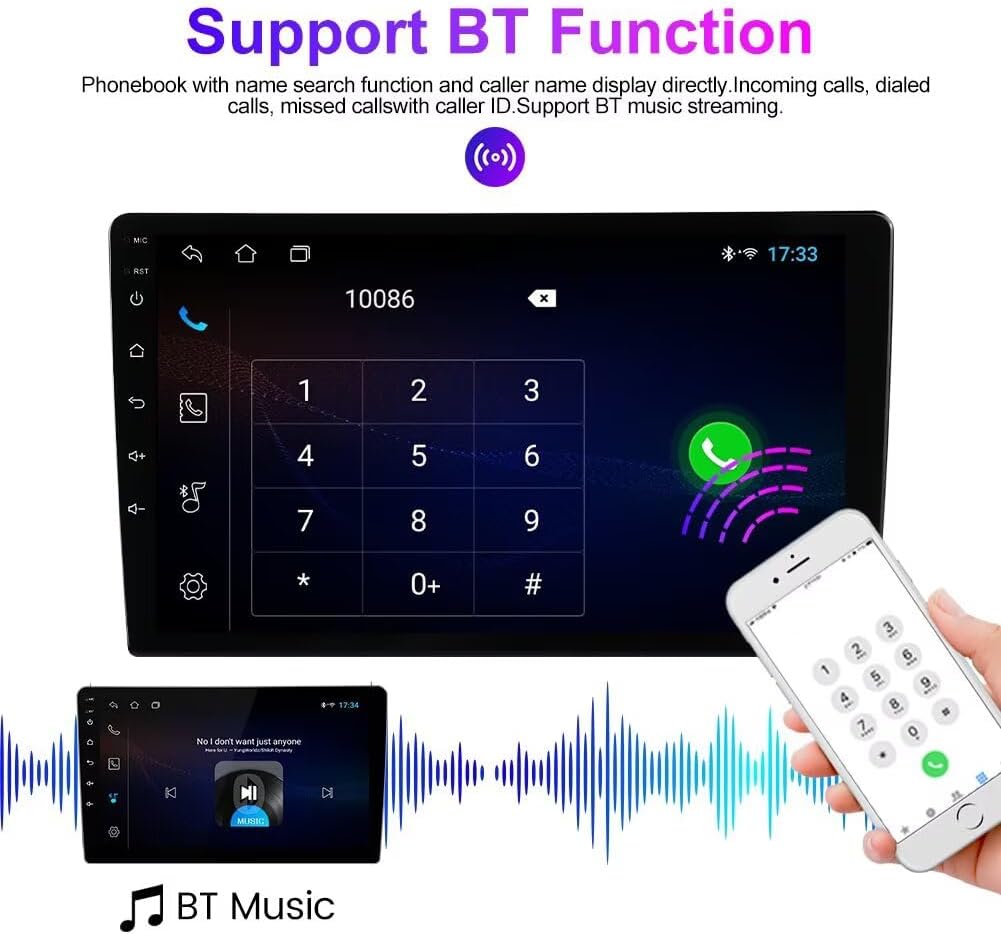
Figure 5.3: The Bluetooth function interface. The top part shows a dial pad for making calls and an incoming call notification. The bottom part illustrates Bluetooth music streaming with album art and playback controls.
5.4 Wireless Car-Play / Android Auto
The unit supports both wireless and wired Car-Play and Android Auto. Connect your compatible smartphone to access navigation, music, messages, and calls safely while driving.
- Wireless Connection: Ensure Bluetooth and Wi-Fi are enabled on your phone and the car stereo. Follow the on-screen prompts to establish a wireless connection.
- Wired Connection: Connect your phone to one of the USB ports using a certified USB cable.
5.5 GPS Navigation
The car stereo includes a built-in global positioning system (GPS) for navigation. After connecting the GPS antenna, you can use pre-installed navigation apps or download others from the app store.
5.6 Split Screen Function
The split-screen feature allows two applications to be displayed simultaneously on the screen, enhancing multitasking capabilities. For example, you can view navigation maps while controlling music playback.

Figure 5.4: The split-screen display. On the left, a video player is active, showing playback controls. On the right, a navigation map is displayed, indicating streets and points of interest. This allows for simultaneous use of two applications.
5.7 Steering Wheel Control
The unit supports original steering wheel controls, allowing you to manage audio and other functions without taking your hands off the wheel. Configuration may be required in the system settings.
5.8 Reversing Video Input
The car stereo supports a reversing video input. When a compatible reversing camera (not included) is connected and the vehicle is in reverse gear, the display will automatically switch to the camera feed.

Figure 5.5: This image illustrates the reversing video function. The car stereo screen displays a rear view with dynamic parking guidelines. A car is shown in the process of backing up, indicating the camera's utility for parking assistance. Please note that the camera is not included with the stereo unit.
6. Maintenance
- Cleaning: Use a soft, dry cloth to clean the screen and unit. Avoid abrasive cleaners or solvents.
- Software Updates: Periodically check for system software updates via the settings menu to ensure optimal performance and access to new features.
- Temperature: Do not leave the unit in direct sunlight or extreme temperatures for extended periods.
7. Troubleshooting
Common Issues and Solutions:
- No Power: Check all power connections (ACC, B+, GND). Ensure the vehicle's ignition is on. Check fuses.
- No Sound: Verify speaker connections. Check volume settings. Ensure no audio source is muted.
- GPS Signal Loss: Ensure the GPS antenna is properly connected and has a clear view of the sky.
- Bluetooth Connection Issues: Ensure Bluetooth is enabled on both devices. Try unpairing and re-pairing. Clear Bluetooth cache on your phone.
- Touchscreen Unresponsive: Try restarting the unit. If the issue persists, a factory reset might be necessary (note: this will erase all user data).
8. Specifications
| Feature | Specification |
|---|---|
| Operating System | Android |
| Core | 4 Core |
| Screen Size | 9 Inch IPS Touch Screen |
| RAM | 2GB |
| ROM | 32GB |
| Resolution | 1280 x 720 |
| Bluetooth Version | 5.0 |
| Connectivity | Wi-Fi, USB |
| Special Features | Wireless Car-Play, Android Auto, Split Screen, GPS, FM RDS, Steering Wheel Control |
| Audio Formats | MP3, WMA, AAC, RM, FALC, etc. |
| Video Formats | MPEG-1/2/4, H264, H263, VC1, RV, RMVB, DivX, Sorenson SparK, Spark, VP8, AVS Stream |
9. Warranty Information
This Biorunn Android Car Stereo comes with a 1-year manufacturer's warranty from the date of purchase. The warranty covers defects in materials and workmanship under normal use. It does not cover damage caused by improper installation, accident, misuse, abuse, unauthorized modifications, or normal wear and tear. Please retain your proof of purchase for warranty claims.
10. Customer Support
If you encounter any issues not covered in this manual or require further assistance, please contact the seller or visit the official Biorunn website for support. Provide your product model number and a detailed description of the issue for efficient service.