
Talking Keyboards The Wireless Dual
User Manual: Dual Keyboard - Standard & Mini Speech Generating Wireless Portable AAC Device
Brand: Talking Keyboards | Model: The Wireless Dual
1. Product Overview
The Talking Keyboards Wireless Dual is a portable and travel-friendly speech-generating device designed for easy communication. It combines a compact palm-sized keyboard and a standard wireless keyboard, offering a cost-effective Augmentative and Alternative Communication (AAC) solution for individuals with speech impairments or post-operative needs. This device facilitates direct text-to-speech conversion, enabling users to express themselves verbally by typing.
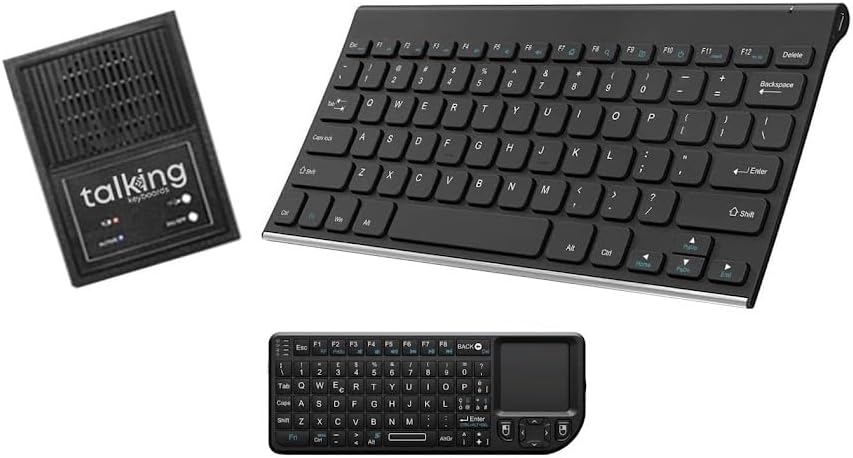
Figure 1.1: The Wireless Dual system components, including the speech-generating unit, standard keyboard, and mini keyboard.
Key features include:
- Portable and Travel-Friendly: Compact design for on-the-go communication.
- Multiple Device Compatibility: Works with telephone or speakerphone devices without needing a PC.
- Plug-and-Play Functionality: No complex setup; turn on and start typing to speak.
- Customizable User Phrases: Program up to 30 phrases for quick communication.
- Multilingual Speech: Supports English and Spanish languages with male or female voices.
- User-Friendly Design: Sleek, lightweight, and easy to use for all ages.
- Enhanced Accessibility Modes: Features "alphabet-only" and "sticky key" modes.

Figure 1.2: Visual representation of the Talking Keyboard's core features.
2. What's in the Box
Upon unboxing your Wireless Dual device, please ensure all the following components are present:
- Speech-Generating Unit (Speaker)
- Standard Wireless Keyboard
- Mini Wireless Keyboard
- Remote Control
- Power Adapter (for speaker)
- User Manual (this document)
3. Setup Guide
The Wireless Dual device is designed for plug-and-play functionality, requiring minimal setup. Follow these steps to get started:
- Charge the Speaker Unit: Connect the provided power adapter to the speech-generating unit and a power outlet. Allow the unit to fully charge before first use. The unit can also be powered by battery for portability.
- Insert Batteries into Keyboards: Ensure fresh batteries are inserted into both the Standard and Mini Wireless Keyboards according to their respective battery compartments.
- Power On the Speaker Unit: Locate the ON/OFF switch on the speech-generating unit and slide it to the "ON" position. An indicator light will illuminate, signifying the unit is active.
- Connect Keyboards: The keyboards are pre-paired with the speech-generating unit. Simply turn them on, and they should automatically connect. If connection issues occur, refer to the troubleshooting section.
- Test Functionality: Type a simple phrase on either keyboard, such as "Hello, how are you?". The speech-generating unit should vocalize the typed text.

Figure 3.1: Connection flow from keyboard input to audio output and phone call integration.
For telephone or speakerphone device compatibility, simply place the speech-generating unit near the microphone of your phone. The unit's audio output will be picked up by the phone's microphone, allowing for seamless communication during calls.
4. Operating Instructions
4.1 Basic Text-to-Speech
To generate speech, simply type your desired message on either the Standard or Mini Wireless Keyboard. As you type, the speech-generating unit will convert the text into spoken words. Pressing the "Enter" key will typically finalize the phrase and ensure clear pronunciation.
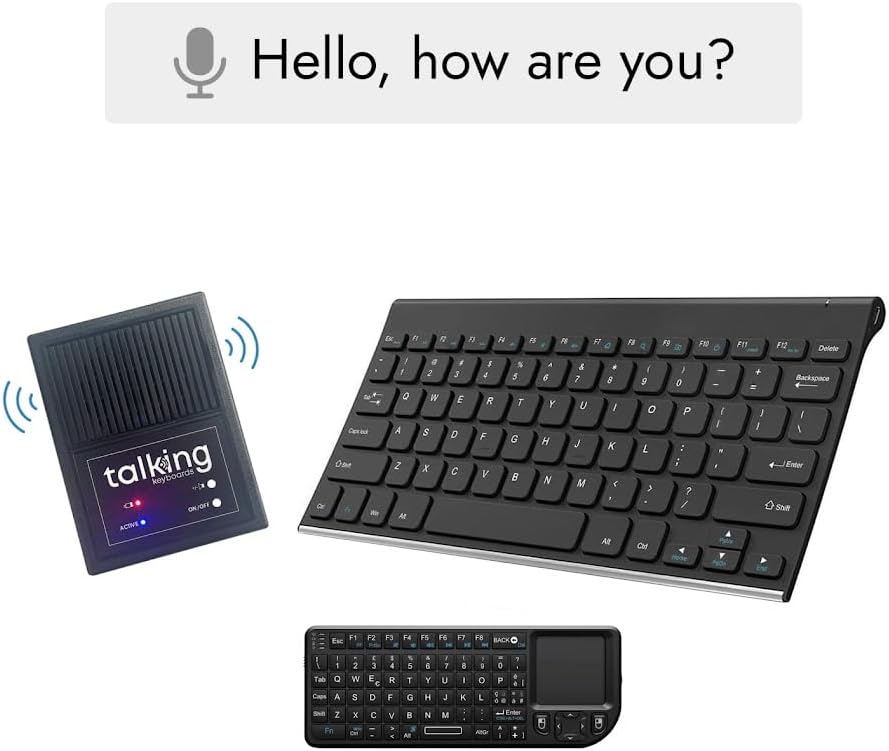
Figure 4.1: Example of text-to-speech functionality.
4.2 User-Defined Phrases
The device allows you to program up to 30 user-defined phrases for quick access. This feature is ideal for frequently used sentences or responses. Refer to the specific instructions provided with your device for programming these phrases, typically involving a combination of function keys and number inputs.
4.3 Multilingual Support
The Wireless Dual supports both English and Spanish languages. You can switch between languages and select male or female voices. Consult your device's quick start guide for the specific key combinations or menu options to change language and voice settings.
4.4 Accessibility Modes
The device includes enhanced accessibility modes to cater to different typing needs:
- Alphabet-Only Mode: This mode restricts input to only alphabetical characters, simplifying the keyboard layout for users who may find special characters or numbers distracting.
- Sticky Key Mode: This mode allows modifier keys (like Shift, Ctrl, Alt) to remain active after being pressed, eliminating the need to hold them down simultaneously with another key. This is beneficial for users with limited dexterity.
Instructions for activating and deactivating these modes are typically found in the device's quick reference guide or by pressing specific function key combinations.

Figure 4.2: The device enables direct text-to-speech conversion for users.
5. Maintenance
5.1 Cleaning
To maintain the longevity and performance of your Wireless Dual device, follow these cleaning guidelines:
- Speaker Unit: Wipe the exterior with a soft, dry, lint-free cloth. For stubborn marks, a slightly damp cloth with mild soap can be used, ensuring no liquid enters the speaker grille or ports.
- Keyboards: Use a soft, dry cloth to wipe the keys and surface. For dust between keys, use compressed air. Avoid spraying cleaning solutions directly onto the keyboards.
- General: Do not use abrasive cleaners, solvents, or strong chemicals, as these can damage the device's finish and internal components.
5.2 Battery Care
The speech-generating unit is battery-powered and rechargeable. The keyboards use replaceable batteries.
- Speaker Unit: Recharge the unit regularly to maintain battery health. Avoid fully depleting the battery frequently. If storing the device for an extended period, ensure it is partially charged (around 50%) and recharge every few months.
- Keyboards: Replace batteries when performance degrades or the low battery indicator (if present) illuminates. Use only the recommended battery type.
Always dispose of batteries responsibly according to local regulations.
6. Troubleshooting
| Problem | Possible Cause | Solution |
|---|---|---|
| No sound from speaker unit. | Unit is off, battery is low, volume is too low, or not connected to keyboard. | Ensure unit is ON. Charge the unit. Increase volume. Verify keyboard connection. |
| Keyboard input not generating speech. | Keyboard is off, batteries are dead, or not paired with speaker unit. | Turn keyboard ON. Replace batteries. Re-pair keyboard (refer to setup guide or quick start guide for pairing instructions). |
| Speech is unclear or distorted. | Low battery, interference, or incorrect voice settings. | Charge the speaker unit. Move away from other electronic devices. Check language and voice settings. |
| Cannot program user phrases. | Incorrect key sequence or memory full. | Refer to the specific programming instructions in your quick start guide. Delete old phrases if memory is full. |
If you encounter issues not listed here or if the suggested solutions do not resolve the problem, please contact customer support.
7. Product Specifications
| Feature | Detail |
|---|---|
| Brand | Talking Keyboards |
| Model | The Wireless Dual |
| ASIN | B0D4TM46W3 |
| Connectivity Technology | RF (Radio Frequency) |
| Keyboard Description | Standalone (Standard & Mini) |
| Recommended Uses | Everyday Use, AAC Communication |
| Special Feature | Lightweight, Portable, Text-to-Speech |
| Color | Black |
| Style | Modern |
| Included Components | Speech-Generating Unit, Standard Keyboard, Mini Keyboard, Remote Control |
| Power Source | Battery Powered (Rechargeable for speaker) |
| Keyboard Layout | QWERTY |
| Package Dimensions | 13 x 8 x 5 inches |
| Manufacturer | Talking keyboard |
| Date First Available | May 22, 2024 |
8. Warranty and Support
8.1 Return Policy
This product is eligible for a refund or replacement within 30 days of purchase, in accordance with the seller's return policy.
8.2 Protection Plans
Extended protection plans are available for purchase to cover your device beyond the standard return period. These include:
- 4-Year Protection Plan: A one-time purchase plan providing extended coverage for 48 months.
- Complete Protect: A monthly subscription plan that covers all eligible past and future purchases.
For details on these plans, please refer to the product listing or contact the seller.
8.3 Customer Support
For any questions, technical assistance, or support regarding your Talking Keyboards Wireless Dual device, please visit the official Talking Keyboards Store on Amazon or contact their customer service directly.
Ask a question about this manual
Ask about setup, troubleshooting, compatibility, parts, safety, or missing instructions. Manuals+ will review the question and use this page’s manual context to help answer it.