
1. Introduction
Thank you for choosing the YOUDO Smart Lock PCB43 Doorknob. This smart lock provides secure and convenient keyless entry solutions for your home, apartment, bedroom, or hotel. It offers multiple unlocking methods including a keypad, Bluetooth app, and IC cards, along with advanced security features and easy installation.
Please read this manual carefully before installation and operation to ensure proper use and to maximize the product's lifespan.
2. Package Contents
Verify that all components are present in your package:
- Keypad Door Lock (Exterior and Interior Assemblies) x 1
- IC Card x 3
- Mechanical Key x 2
- Instruction Manual x 1
- Installation Hardware (screws, latch, strike plate)
3. Specifications
| Feature | Description |
|---|---|
| Brand | YOUDO |
| Model Number | PCB10EBL43 |
| Lock Type | Keypad, Electronic Doorknob |
| Unlocking Methods | Password, Bluetooth App, IC Card, Mechanical Key |
| Special Features | Anti-Peeping Password, Auto-Lock, Silent Mode, 360° Spin Handle |
| Connectivity | Bluetooth (Remote unlocking via optional WiFibox Gateway) |
| Material | Zinc Alloy, Stainless Steel, Plastic |
| Color | Black |
| Door Thickness Compatibility | 1.38" - 2.36" (35-60mm) |
| Backset Compatibility | 2.36" - 2.75" (60-70mm) |
| Power Supply | 3 x AAA Batteries (not included) |
| Battery Life | Up to 1 year |
| Emergency Power | USB charging port (for power bank) |
| Operating Temperature | -30°C to 60°C (-22°F to 140°F) |
| IP Rating | IP65 (Install on doors with eaves for best protection) |
| Certifications | ANSI/BHMA Grade 2 |
4. Installation
The YOUDO Smart Lock is designed for easy installation, typically requiring only a screwdriver and about 10 minutes. Ensure your door meets the specified dimensions before beginning.
4.1 Door Requirements
- Door Thickness: 1.38" - 2.36" (35-60mm)
- Backset (distance from door edge to center of bore hole): 2.36" - 2.75" (60-70mm)
- Environment: Install on doors with eaves to protect from direct weather exposure, despite IP65 rating.
4.2 Installation Dimensions Overview

Image: Detailed diagram illustrating the installation dimensions for the YOUDO Smart Lock. It shows the exterior and interior lock components, the latch mechanism, and the strike plate, with all critical measurements in both inches and millimeters. Key dimensions include the lock body length (155mm / 6 7/64"), width (82mm / 3 15/64"), and the adjustable backset (60mm / 2 23/64" or 70mm / 2 3/4"). The compatible door thickness range is also indicated as 33-50mm (1 1/8" to 21/6").
4.3 General Installation Steps (Refer to included manual for detailed diagrams)
- Prepare the door: Ensure the door has the correct bore holes and backset.
- Install the latch: Insert the latch into the door edge and secure it with screws.
- Install the exterior assembly: Route the cable through the door and align the exterior unit.
- Install the interior assembly: Connect the cable from the exterior unit to the interior unit. Secure the interior unit to the door with mounting screws.
- Install batteries: Insert 3 AAA batteries into the battery compartment of the interior unit.
- Test the lock: Verify that the mechanical key and the handle operate smoothly.
5. Setup and Programming
After installation, you will need to set up your lock, including administrator and user codes, and connect it to the mobile application.
5.1 Initial Programming (Administrator Code)
Follow the instructions in your included manual to set the initial administrator password directly on the lock's keypad. This administrator code is essential for managing other user codes and settings.
5.2 Mobile App Setup
The YOUDO Smart Lock can be managed via a mobile application, offering enhanced control and features.
- Download the App: Scan the QR code on the lock or in the manual, or visit https://download.we-lock.com/app/dl/71a6d3a390ba7f43a8cdb2296272c9b4 to download the official YOUDO Smart Lock app.
- Pairing: Open the app, create an account, and follow the in-app instructions to pair your smart lock via Bluetooth. Ensure Bluetooth is enabled on your smartphone and you are within range of the lock.

Image: This image illustrates the process of setting up user codes. The lock supports one administrator code and up to nine user codes directly on the device. The accompanying smartphone screen shows the mobile application interface for adding passwords, including options to set start and end times for temporary access, allowing for numerous additional user codes to be managed via the app.
5.3 User Management (Codes and IC Cards)
- Keypad Codes: You can set 1 administrator password and up to 9 user passwords directly on the lock's keypad.
- App-Generated Codes: Use the mobile app to create additional user passwords and temporary passwords with specific validity periods.
- IC Cards: Follow the app or lock instructions to register the included IC cards for quick access.
6. Operating the Smart Lock
The YOUDO Smart Lock offers multiple convenient ways to unlock your door.
6.1 Unlocking Methods

Image: This image displays the three primary methods for unlocking the YOUDO Smart Lock: entering a code on the keypad, scanning an RFID card, and using the Bluetooth mobile application. It also shows the USB charging port for emergency power and the remote unlock feature which requires a separate gateway.
- Keypad Code: Enter your programmed password on the keypad. For enhanced security, you can enter random numbers before and after your actual password (anti-peeping function).
- IC Card: Present a registered IC card to the card reader area on the lock.
- Bluetooth App: Use the YOUDO Smart Lock app on your smartphone to unlock the door when within Bluetooth range.
- Mechanical Key: In case of emergency or battery depletion, use one of the provided mechanical keys.
- Remote Unlocking (Requires Gateway): By connecting to an optional YOUDO WiFibox Gateway (purchased separately), you can unlock the door remotely via the app, even when not near the lock. The gateway also enables integration with voice assistants like Amazon Alexa for voice-controlled unlocking.
6.2 Auto-Locking Function
The lock features an adjustable auto-locking function. You can set the automatic locking time between 5 and 14 seconds according to your preference. After unlocking, the door will automatically re-lock after the set duration.
6.3 Silent Mode
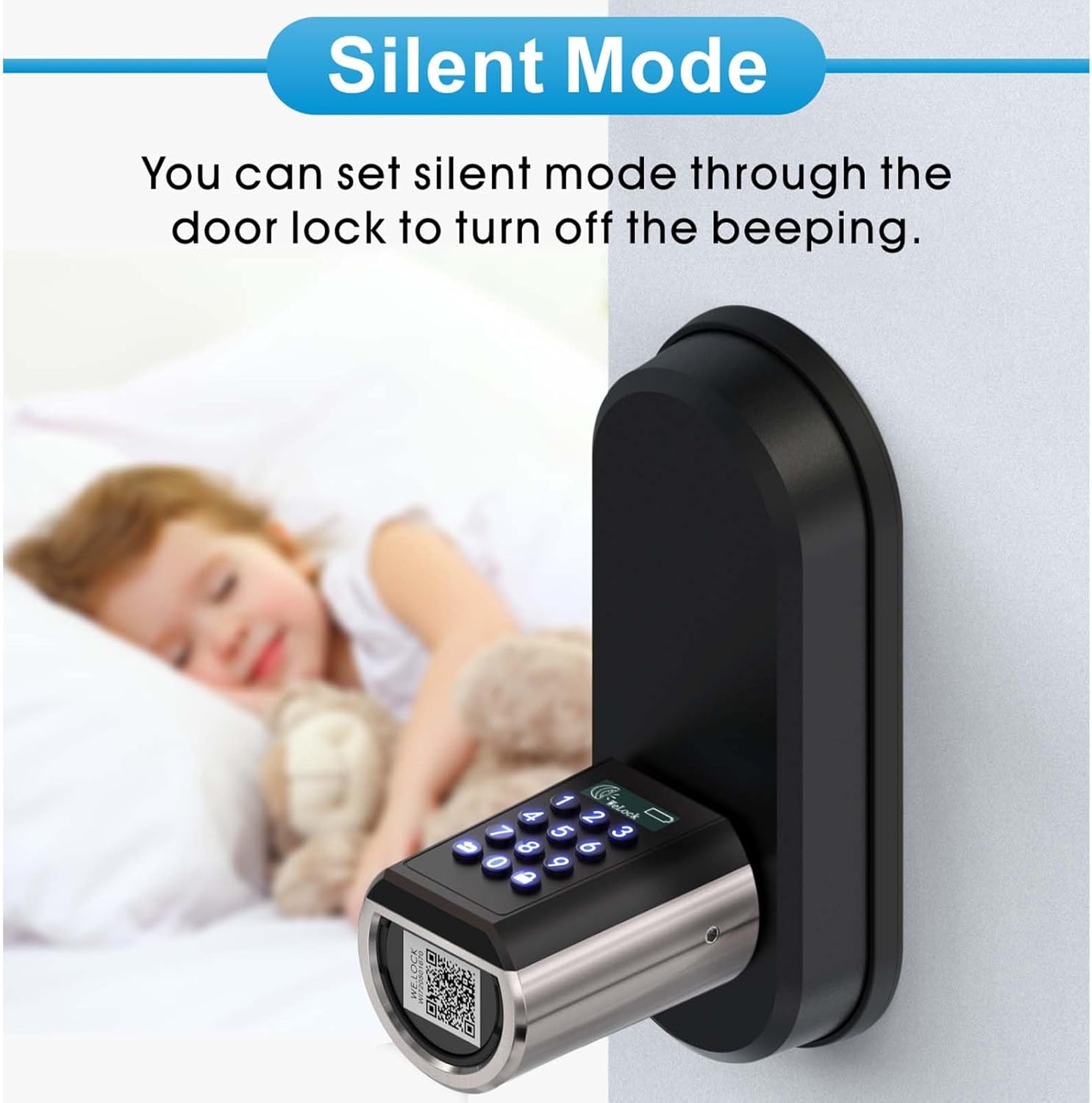
Image: This image highlights the 'Silent Mode' feature of the YOUDO Smart Lock. When activated, the lock operates without beeping sounds, making it ideal for environments where quiet operation is desired, such as near sleeping family members or in quiet office spaces.
To avoid disturbing others, you can activate the silent mode through the door lock settings. This will turn off the beeping sounds during operation.
6.4 Enhanced Security Features

Image: This image demonstrates two key security features: the 360° spinning handle and enhanced brute force resistance. Once the door is locked, the handle can freely spin 360°, preventing forced entry by turning the handle. A comparison shows the smart lock resisting a hammer attack, unlike a traditional doorknob, indicating higher security. Note: When used with a deadbolt, the smart lock does not automatically throw the deadbolt.
- Anti-Peeping Password: Enter random digits before or after your actual password to prevent others from guessing your code by observing your finger movements.
- Incorrect Entry Lockout: If an incorrect password is entered 5 times consecutively, the keypad will suspend unlocking functions for 3 minutes. Unlock records can be reviewed in the app.
- 360° Spinning Handle: After the door is locked, the handle can be freely spun 360°. This prevents the lock from being opened by brute force attempts to turn the handle.
7. Maintenance
7.1 Battery Replacement
The lock is powered by 3 AAA batteries, which typically last up to 1 year. The lock will provide a low battery alert when the power drops below 20%.
- When the low battery alert appears, replace all 3 AAA batteries promptly.
- Batteries are not rechargeable through the lock and are not included in the package.
7.2 Emergency Power
If the batteries completely run out and you cannot unlock the door, you can temporarily restore power by connecting a power bank to the USB charging port located on the exterior unit (as shown in the unlocking methods image). This will provide enough power to enter a code or use an IC card to unlock the door.
7.3 Cleaning
Wipe the lock's surface with a soft, dry cloth. Avoid using abrasive cleaners or solvents, as they may damage the finish or electronic components.
8. Troubleshooting
- Lock not responding: Check battery levels. If low, replace batteries or use emergency USB power.
- Keypad locked out: If 5 incorrect passwords are entered, the keypad will be temporarily disabled for 3 minutes. Wait for the lockout period to expire.
- Cannot pair with app: Ensure Bluetooth is enabled on your phone and you are within close proximity to the lock. Restart the app and try again.
- IC card not working: Ensure the IC card is properly registered in the system. Try re-registering it via the app.
- Remote unlock not working: Verify that the optional WiFibox Gateway is properly installed, powered on, and connected to your home Wi-Fi network. Ensure the lock is paired with the gateway.
- Handle spins but door doesn't unlock: This is a security feature when the door is locked. Ensure the lock is disengaged (unlocked via code, app, or card) before attempting to turn the handle to open the door.
For further assistance, please refer to the contact information in the Warranty and Support section.
9. Warranty and Support
YOUDO is committed to providing high-quality products and excellent customer service.
- Return Policy: We offer a 30-day no-reason return service.
- Product Warranty: This product comes with a 2-year warranty.
- Customer Service: If you have any questions regarding your YOUDO Smart Lock, including technical support, replacement parts, or operational queries, please do not hesitate to contact us. We aim to respond to all inquiries within 24 hours.
Please refer to your purchase documentation or the YOUDO official website for specific contact details.