
Introduction
This manual provides detailed instructions for the installation, operation, and maintenance of your Inefala 2+64G Android 15 Car Stereo. This unit is designed for Toyota Hilux and Fortuner models manufactured between 2005 and 2014, supporting both manual and auto A/C systems. Please read this manual thoroughly before installation and use to ensure proper function and to maximize your experience.
Setup and Installation
1. Vehicle Compatibility
This head unit is compatible with Toyota Fortuner and Hilux models from 2005 to 2014. It supports vehicles with both manual and automatic air conditioning controls. Ensure the power cable port on the stereo matches your original car's wiring before proceeding with installation.

Image: Examples of compatible Toyota Hilux and Fortuner dashboards.
2. Pre-Installation Check
Before full installation, perform a quick test:
- Combine the red and yellow wires of the car stereo and connect them to the positive pole of a 12V battery.
- Connect the black wire to the negative pole of the battery.
- If the stereo functions normally and the screen lights up, it indicates the unit is working. If not, recheck the wiring and connections.
3. Wiring and Connections
The stereo comes with an in-dash head unit, wiring harness cables, and a frame panel. Ensure all connections are secure.
- Power Cable: Connect the main power harness to the vehicle's power supply.
- RCA Harness: For audio/video input and output connections.
- GPS Antenna: Connect for navigation functionality. Position in a location with clear sky view.
- External Microphone: Connect for hands-free calling and voice commands.
- USB Cables: For connecting external devices or for wired CarPlay/Android Auto.
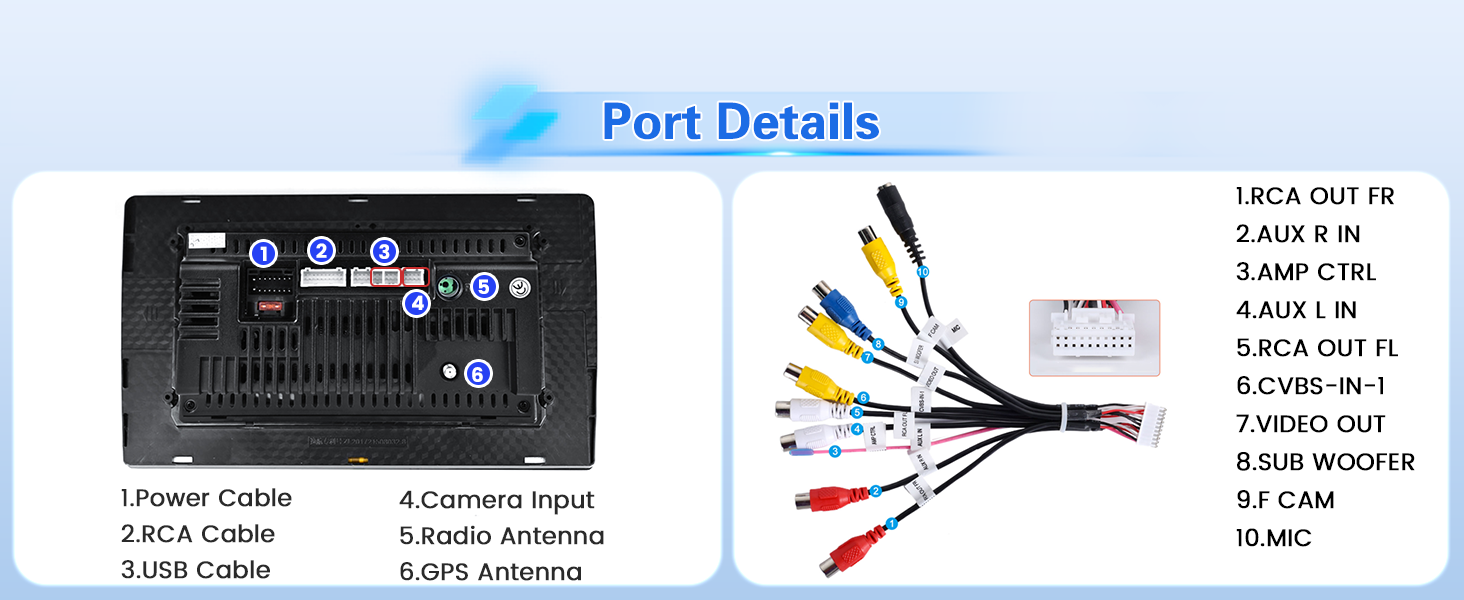
Image: Rear port details and wiring connections.
4. Backup Camera Connection
The unit supports an AHD backup camera. Follow these steps for connection:
- Connect cable 1 and cable 5 to the positive pole of the car's reversing light cable.
- Connect cable 2 to the negative pole of the car's reversing light cable.
- Connect cable 3 and cable 4 to the reverse trigger wire of the power cable (labeled "Reverse/Back"). This connection is necessary even if a reversing camera is not used, as it affects WiFi and Bluetooth signals.

Image: Backup camera wiring diagram.
Operating Instructions
1. User Interface and Themes
The Android 15 system features a 2.5D 1024x600 touchscreen display. You can switch between 28 different desktop themes and various backgrounds. To change themes, long-press on an empty space on the desktop.

Image: Multiple desktop themes and EQ settings.
2. CarPlay & Android Auto (Wireless/Wired)
Connect your smartphone for voice-assisted controls and access to navigation, music, calls, and messages.
- Wireless Connection:
- Turn on your phone's Bluetooth, search for the car stereo's Bluetooth, and pair it.
- Click the "CPLink" / "Android Auto" app on the car stereo. (If using Android, you may need to install the "Android Auto" app in advance).
- Wait a few seconds for the CarPlay/Android Auto wireless connection to establish.
- After the first successful connection, simply turn on Bluetooth, and it will start automatically.
- Wired Connection:
- Connect your iOS/Android cell phone via the original USB cable.
- Click the "CPLink" / "Android Auto" app on the car stereo. (If using Android, you may need to install the "Android Auto" app in advance).
- Wait a few seconds for the CarPlay/Android Auto wired connection to establish.
Note: Some Samsung and Huawei phones may not support Android Auto and Mirror Link functionality. Ensure your phone supports Google Services and has the "Android Auto" app installed for Android Auto functionality.

Image: Apple CarPlay, Android Auto, and Mirror Link features.
3. Mirror Link (iOS/Android)
Mirror Link allows you to display your phone's screen on the car stereo. Connect via WiFi hotspot or your phone's original USB cable.
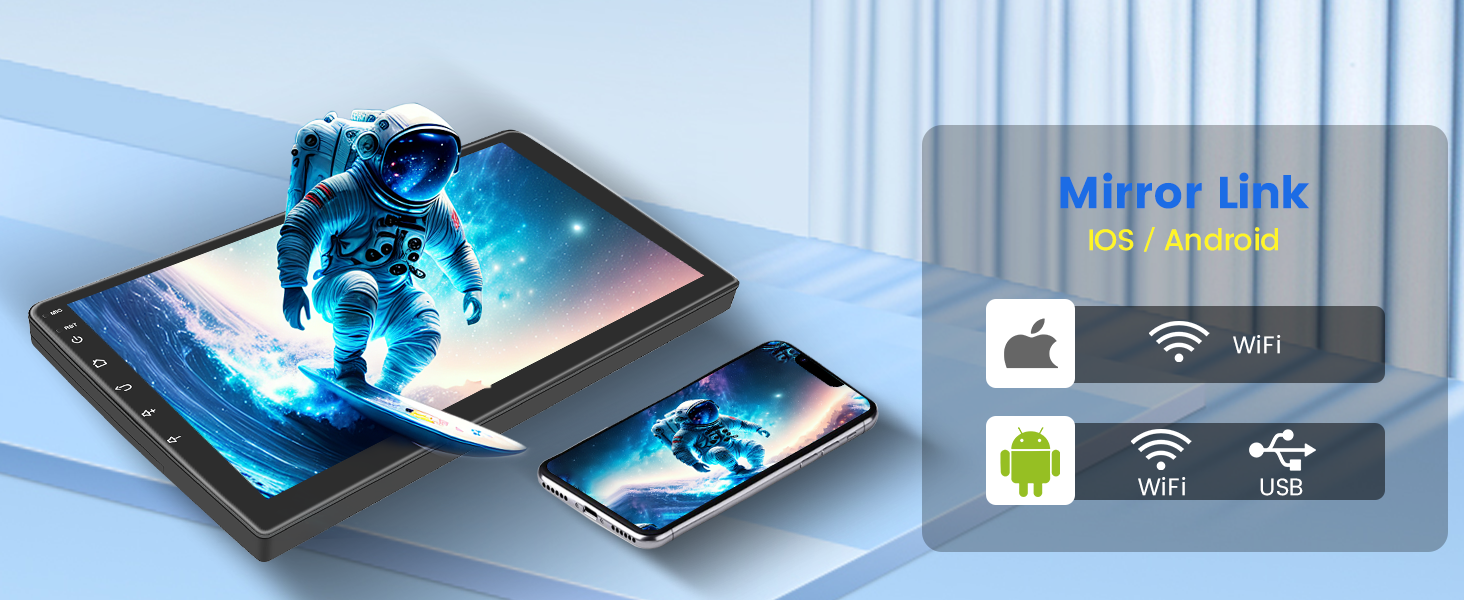
Image: Mirror Link functionality for iOS and Android devices.
4. GPS Navigation & WiFi Hotspot
The unit includes online and offline navigation capabilities. Connect to a WiFi hotspot to download additional apps like YouTube, TikTok, and more.

Image: GPS Navigation and WiFi connectivity for app downloads.
5. Bluetooth & FM/RDS Radio
- Bluetooth: Supports hands-free calling, phone book download, and music playback.
- FM/RDS Radio: The stable FM/RDS radio allows you to preset up to 18 stations, providing channel broadcast information, weather forecasts, and real-time road conditions.

Image: Bluetooth hands-free calling and FM/RDS radio interface.
6. EQ Settings
Customize your audio experience with the 32-band EQ options. Adjust frequencies to match your preferences and vehicle acoustics.

Image: Detailed EQ settings interface.
7. Split Screen Functionality
The unit supports split-screen mode, allowing you to run two applications simultaneously, such as navigation and music playback.
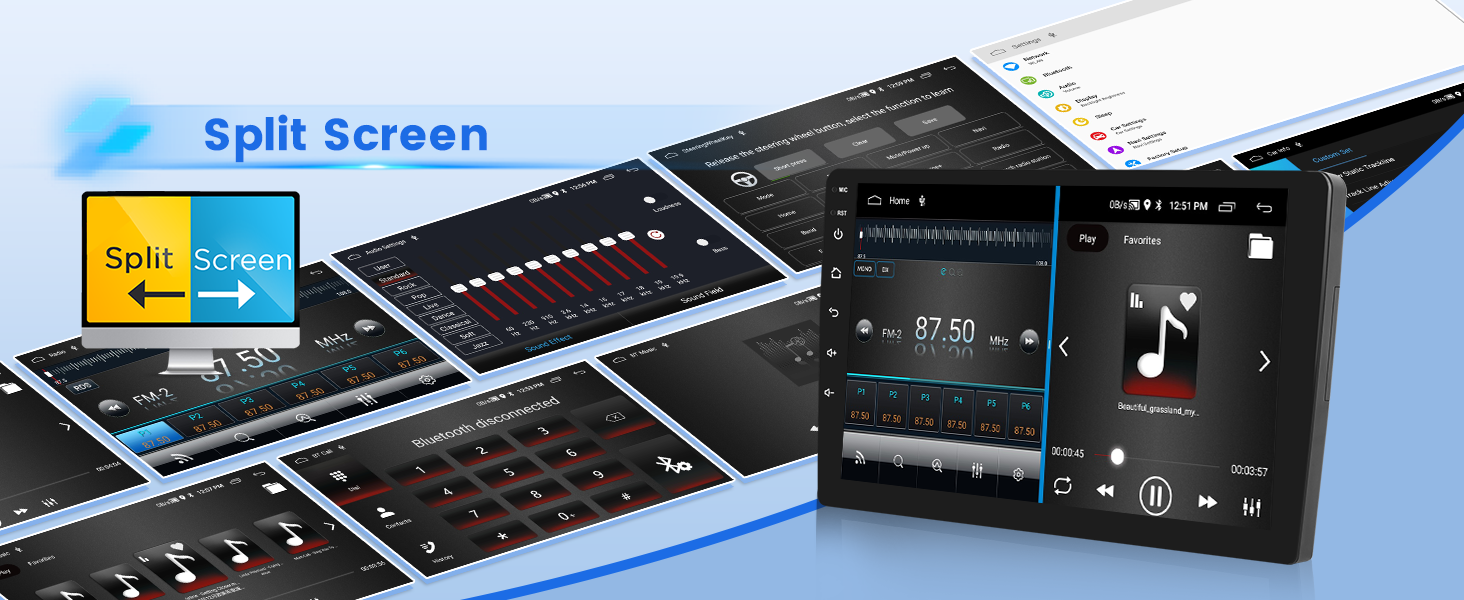
Image: Split screen mode in operation.
8. Steering Wheel Control
The stereo supports steering wheel controls for convenience. The method of activation depends on whether your vehicle has a CANBUS box:
- Without CANBUS box: Activation of steering wheel controls requires key learning in the settings menu.
- With CANBUS box:
- Connect the 20-pin white port in the power cable to the CANBUS itself.
- Connect the remaining 8-pin white port to the corresponding port on the back of the radio.
- Match the car model in the CANBUS Matching Path: Settings > Factory Setup (Password 1234) > Can Settings.

Image: Steering wheel control interface for button mapping.
9. USB DVR Support
The unit supports USB DVR (Digital Video Recorder) functionality. An optional USB DVR can be connected to record driving footage.
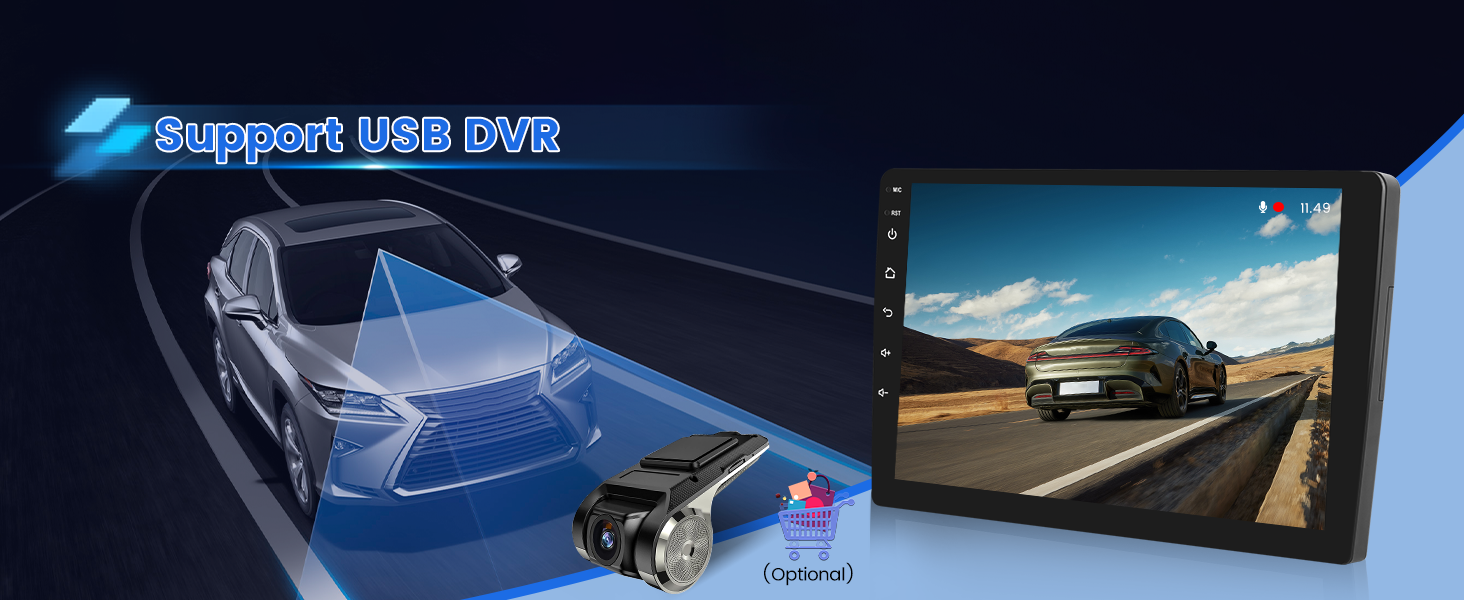
Image: USB DVR support and display.
10. Video Demonstration
Video: A demonstration of the Android car radio's upgrade function interface, showcasing various features and user interactions.
Maintenance
To ensure the longevity and optimal performance of your Inefala car stereo, follow these general maintenance guidelines:
- Cleaning: Use a soft, dry cloth to clean the screen and exterior surfaces. Avoid abrasive cleaners or solvents that could damage the display or finish.
- Software Updates: Periodically check for available software updates to ensure you have the latest features and performance improvements.
- Environmental Conditions: Avoid exposing the unit to extreme temperatures, direct sunlight for prolonged periods, or excessive moisture.
Troubleshooting
If you encounter issues with your car stereo, refer to the following tips:
- No Power/Unit Not Turning On:
- Double-check the power cable connections. Ensure the red and yellow wires are correctly connected to a 12V power source and the black wire to ground.
- Verify the vehicle's fuse for the stereo is intact.
- No Sound:
- Check speaker wire connections.
- Ensure the volume is not muted or set to minimum.
- Verify audio output settings in the stereo menu.
- Poor Radio Reception:
- Check the antenna connection.
- Ensure the antenna is properly installed and not obstructed.
- Bluetooth/WiFi Issues:
- Ensure the reverse trigger wire is connected, even if no backup camera is used, as it affects wireless signals.
- Restart the stereo and your mobile device.
- Clear Bluetooth/WiFi settings on both devices and attempt to re-pair/reconnect.
- CarPlay/Android Auto Not Working:
- For wired connections, use the original USB cable.
- Ensure the "CPLink" or "Android Auto" app is selected on the stereo.
- Verify your phone's compatibility and that necessary apps (e.g., Android Auto) are installed.
- Some Samsung and Huawei phones may have limited compatibility.
- Steering Wheel Controls Not Responding:
- Perform key learning in the settings if your vehicle does not have a CANBUS box.
- If equipped with CANBUS, ensure correct wiring and car model matching in Settings > Factory Setup (Password 1234) > Can Settings.
Specifications
| Brand | Inefala |
| Model Number | 2+64G |
| Operating System | Android 15 |
| Memory Storage Capacity | 64 GB |
| RAM | 2 GB |
| Screen Size | 9 Inches |
| Display Type | LCD, Capacitive Touchscreen |
| Resolution | 1024 x 600 |
| Connectivity Technology | Bluetooth, USB, Wi-Fi, Wireless |
| Supported Navigation System | GPS (North America, Worldwide maps) |
| Audio Output Mode | Stereo |
| Special Features | 1080P Video Playback, 32-band EQ Setting, 28 Desktop Themes, Hands-free Bluetooth, FM/RDS Radio, Reverse Input Support, Steering Wheel Learning, Wireless/Wired CarPlay & Android Auto & Mirror Link, Siri/Voice Assistant, WiFi/Hotspot Connection |
| Compatible Devices | Smartphone |
| Control Method | Touch, Voice |
| Mounting Type | Dashboard Mount |
What's in the Box
The package includes the following components:
- Inefala Android Radio for Toyota Fortuner Hilux
- 1 x Power Cable
- 1 x RCA Harness
- 1 x GPS Antenna
- 1 x AHD Backup Camera
- 1 x Rear Camera Input Cable
- 1 x External Microphone
- 2 x USB Cable
- 1 x Installation Tool & Accessories

Image: Package contents list.
Warranty Information
Your Inefala car stereo comes with a 1-Year Warranty from the date of purchase. This warranty covers manufacturing defects and ensures product quality. For any warranty claims or issues, please contact customer support.
Customer Support
For technical assistance, troubleshooting, or any questions regarding your Inefala car stereo, please reach out to our customer support team.
You can contact us by:
- Email: inefalaservices@163.com
- Amazon: Visit the product page, click on 'Inefala Direct' (the seller name), and then click 'Ask a question'.
Please provide relevant pictures or videos when contacting support to help us resolve your issue faster.
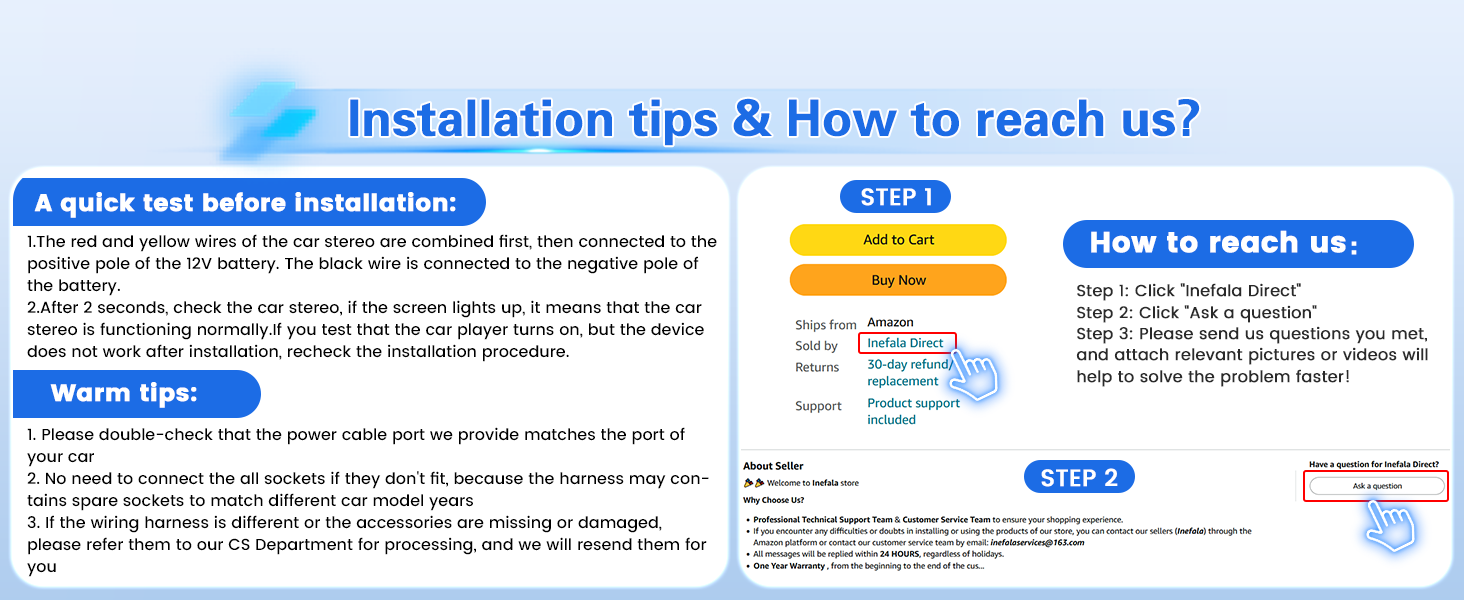
Image: Customer support contact information.