Introduction
Welcome to the user manual for your Logitech Wave Keys Wireless Ergonomic Keyboard. This keyboard is designed to provide a comfortable and natural typing experience, promoting better posture and reducing strain during long periods of use. Its unique wavy design and cushioned palm rest are engineered for ergonomic support, making it an ideal choice for multi-device users seeking enhanced comfort and productivity.
The Logitech Wave Keys keyboard offers versatile connectivity options, including Bluetooth and the Logi Bolt Receiver, allowing seamless switching between multiple devices. It is compatible with a wide range of operating systems, including Windows, macOS, iPadOS, and ChromeOS.

Figure 1: Logitech Wave Keys Wireless Ergonomic Keyboard, Graphite model, featuring its distinctive wavy keyframe and integrated cushioned palm rest.
Setup Guide
Follow these steps to set up your Logitech Wave Keys keyboard:
- Power On: Ensure the keyboard has sufficient battery life. The keyboard requires 1 Lithium Polymer battery (included).
- Choose Your Connection Method:
- Logi Bolt Receiver: Insert the Logi Bolt USB receiver into an available USB port on your computer. The keyboard should automatically connect.
- Bluetooth:
- Turn on Bluetooth on your device (laptop, tablet, or smartphone).
- On the keyboard, press and hold one of the Easy-Switch keys (F1, F2, or F3) for 3 seconds until the LED light above the key starts blinking rapidly. This indicates pairing mode.
- On your device, select "Logitech Wave Keys" from the list of available Bluetooth devices to complete the pairing process.
- Install Logi Options+ App (Recommended): For full customization and to unlock all features, download and install the Logi Options+ App from the official Logitech website. This app allows you to personalize shortcuts and optimize your workflow.
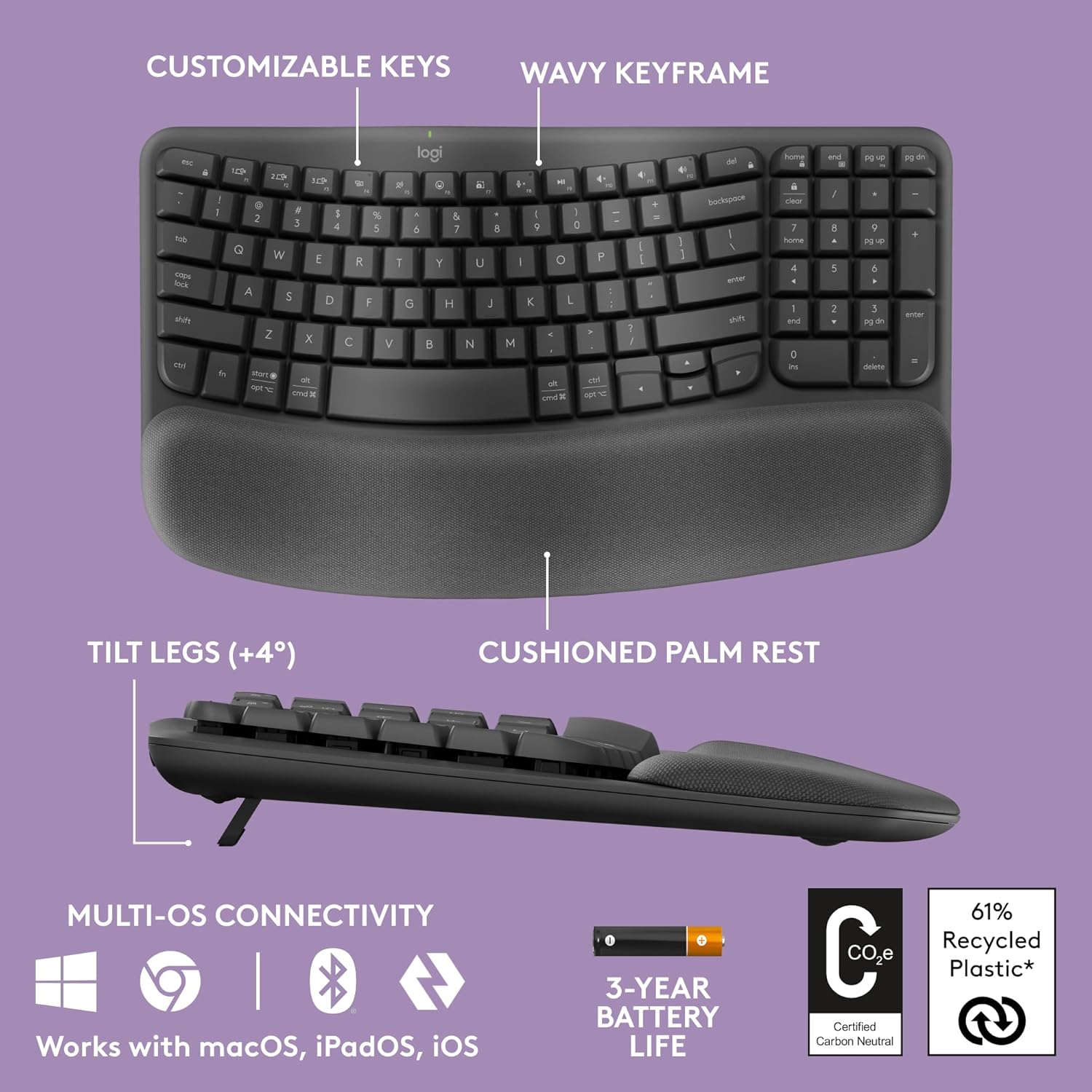
Figure 2: Key features of the Logitech Wave Keys keyboard, highlighting its ergonomic design elements and connectivity options.
Operating Instructions
Ergonomic Design and Comfort
The Logitech Wave Keys keyboard is designed with your comfort in mind:
- Wavy Keyframe: The unique wavy design naturally positions your hands, wrists, and forearms for a more relaxed typing posture.
- Cushioned Palm Rest: The integrated memory foam palm rest provides continuous support, reducing pressure on your wrists during extended typing sessions.
- Compact Size: The compact layout allows you to position your mouse closer to your body, promoting a more natural shoulder alignment compared to full-sized keyboards.

Figure 3: The cushioned palm rest provides essential support for your wrists, enhancing comfort during typing.
Easy-Switch Functionality
The Easy-Switch feature allows you to seamlessly switch between up to three connected devices (e.g., laptop, tablet, smartphone). Simply press the corresponding Easy-Switch key (F1, F2, or F3) to instantly connect to your desired device.
Logi Options+ App Customization
Enhance your productivity by customizing your keyboard with the Logi Options+ App. This application allows you to:
- Assign custom shortcuts to function keys.
- Adjust keyboard settings.
- Monitor battery status.

Figure 4: Personalize your workflow and keyboard settings using the Logi Options+ App.
Maintenance
To ensure the longevity and optimal performance of your Logitech Wave Keys keyboard, follow these maintenance guidelines:
- Cleaning: Use a soft, lint-free cloth slightly dampened with water or a mild cleaning solution to wipe down the keys and surfaces. Avoid harsh chemicals or abrasive materials. For the palm rest, gently wipe with a damp cloth and allow to air dry.
- Dust Removal: Use compressed air to remove dust and debris from between the keys.
- Battery Replacement: The keyboard has an estimated battery life of up to 3 years. When the battery indicator light signals low power, replace the Lithium Polymer battery as per the instructions in the battery compartment.
- Storage: When not in use for extended periods, store the keyboard in a cool, dry place away from direct sunlight and extreme temperatures.
Troubleshooting
If you encounter issues with your Logitech Wave Keys keyboard, refer to the following common solutions:
| Problem | Solution |
|---|---|
| Keyboard not connecting via Bluetooth. |
|
| Keyboard not responding with Logi Bolt Receiver. |
|
| Keys are sticky or unresponsive. |
|
| Short battery life. |
|
Specifications
| Feature | Detail |
|---|---|
| Product Dimensions | 14.8 x 8.62 x 1.18 inches |
| Item Weight | 2.16 pounds |
| Model Number | 2023 |
| Batteries | 1 Lithium Polymer battery required |
| Brand | Logitech |
| Compatible Devices | Laptop, Tablet, Smartphone |
| Connectivity Technology | Bluetooth, Logi Bolt Receiver |
| Keyboard Description | Membrane |
| Special Feature | Wrist Rest, Ergonomic Design, Easy-Switch |
| Color | Graphite |
| Number of Keys | 104 |
| Material | Plastic (61% certified post-consumer recycled plastic for Graphite model) |
| Included Components | 1 product (Keyboard) |
| Certifications | United States Ergonomics Approved, Carbon Neutral Certified |
Warranty and Support
This product is part of the Amazon Renewed program, meaning it has been professionally inspected and tested to work and look like new. Amazon Renewed products are eligible for replacement or refund under the Amazon Renewed Guarantee if you are not satisfied with your purchase.
For further support, product registration, or to access the latest drivers and software (such as Logi Options+), please visit the official Logitech support website. You can also find additional FAQs and community forums there.
For specific inquiries regarding your Amazon Renewed purchase, please refer to your Amazon order details or contact Amazon customer service directly.


