
1. Product Overview
The WUIUHOU Q8 is a 7-inch Android tablet designed for general use, featuring a quad-core processor, 4GB RAM, and 32GB internal storage, expandable up to 1TB. It includes dual cameras, Wi-Fi 6, Bluetooth, and a 3000 mAh battery. The tablet operates on the Android OS and comes with a pre-installed screen protector.

Image 1.1: Front view of the WUIUHOU Q8 tablet, illustrating its 7-inch display, Android OS, IPS screen, 2.0MP/8.0MP cameras, 4GB RAM, 32GB ROM, and 2.4G Wi-Fi capabilities.
2. Getting Started
2.1. Package Contents
Verify that all items are present in the package:
- WUIUHOU 7-inch Android Tablet Q8
- Charging Cable
- Pre-installed Screen Protector
2.2. Device Layout
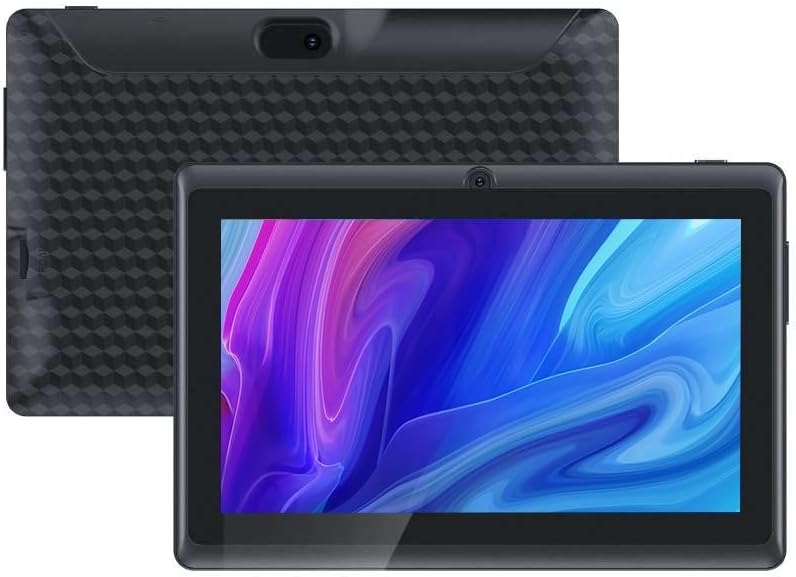
Image 2.1: Front and rear views of the WUIUHOU Q8 tablet, showing the display, front camera, rear camera, and textured back panel.
Familiarize yourself with the tablet's physical features:
- Front Camera: Located above the screen.
- Rear Camera: Located on the back panel.
- Power Button: Typically on the side.
- Volume Buttons: Typically on the side.
- Charging Port: For connecting the charging cable.
- Headphone Jack: For audio output.
- Microphone Jack: For audio input.
- MicroSD Card Slot: For storage expansion.
2.3. Initial Charging
Before first use, fully charge the tablet. Connect the charging cable to the tablet's charging port and plug the other end into a power adapter (not included) or a USB port. The battery indicator on the screen will show charging status.
3. Setup
3.1. Powering On/Off
- To Power On: Press and hold the Power button until the screen lights up.
- To Power Off: Press and hold the Power button, then select "Power off" from the options on the screen.
- To Restart: Press and hold the Power button, then select "Restart" from the options.
3.2. Initial Setup Wizard
Upon first power-on, the tablet will guide you through an initial setup process. Follow the on-screen prompts to:
- Select your language.
- Connect to a Wi-Fi network.
- Set up your Google account (required for Google Play Store access).
- Set date and time.
- Configure screen lock options.
3.3. Wi-Fi Connection
To connect to a Wi-Fi network:
- Go to Settings > Network & internet > Wi-Fi.
- Toggle Wi-Fi On.
- Select your desired network from the list.
- Enter the password if prompted, then tap Connect.
4. Operating the Tablet
4.1. Android Operating System
The WUIUHOU Q8 runs on the Android operating system, providing access to a wide range of applications via the Google Play Store. The system is GMS-certified, ensuring compatibility with Google services.

Image 4.1: The tablet screen showing the Android 12.0 OS interface with various application icons, indicating a smooth user experience.
4.2. Display Features
The tablet features a 7-inch IPS touchscreen with a resolution of 1024x600. It is designed to reduce glare and blue light emissions, contributing to eye comfort during extended use.

Image 4.2: The tablet display showcasing vibrant colors and clarity, emphasizing the 7-inch IPS HD screen with 1024x600 resolution.
4.3. Camera Usage
The tablet is equipped with a 2MP front camera and a 5MP rear camera for photos and video calls.
- Open the Camera application.
- Tap the camera icon to switch between front and rear cameras.
- Tap the shutter button to take a photo or start/stop video recording.

Image 4.3: The tablet being used to take a photo, demonstrating the functionality of its dual cameras (2MP front, 5MP rear).
4.4. Storage and Performance
The tablet comes with 4GB RAM (including 2GB virtual memory) and 32GB internal storage. Storage can be expanded up to 1TB using an external MicroSD card (not included).

Image 4.4: The tablet displaying a video streaming application, illustrating its capacity for smooth operation with 4GB RAM and 32GB ROM.
4.5. Connectivity
- Wi-Fi 6 (802.11ax): For high-speed wireless internet connection.
- Bluetooth: For connecting wireless accessories like headphones or speakers.
4.6. Pre-installed Applications
The tablet includes Google Play Store, allowing access to a wide range of applications. Common social media and streaming apps are supported.
5. Maintenance
5.1. Battery Care
- Avoid extreme temperatures.
- Do not allow the battery to fully discharge frequently.
- Use only the provided charging cable.
5.2. Cleaning the Tablet
Use a soft, lint-free cloth to clean the screen and body of the tablet. Avoid abrasive materials or harsh chemicals. Do not spray cleaners directly onto the screen.
5.3. Software Updates
Periodically check for system updates to ensure optimal performance and security. Go to Settings > System > System update.
6. Troubleshooting
| Problem | Solution |
|---|---|
| Tablet does not power on. | Ensure the tablet is charged. Connect it to a power source for at least 30 minutes, then try powering on again. |
| Cannot connect to Wi-Fi. |
|
| Tablet is running slow. |
|
| Apps are crashing. |
|
7. Specifications
| Feature | Detail |
|---|---|
| Brand | WUIUHOU |
| Model Name | Q8 |
| Operating System | Android |
| Screen Size | 7 Inches |
| Screen Resolution | 1024x600 IPS |
| RAM | 4GB (including 2GB virtual memory) |
| Internal Storage | 32GB |
| Expandable Storage | Up to 1TB via MicroSD card |
| Front Camera | 2MP |
| Rear Camera | 5MP |
| Wireless Type | 802.11ax (Wi-Fi 6) |
| Bluetooth | Yes |
| Battery | 3000 mAh Lithium Ion (included) |
| Dimensions (LxWxH) | 7.2 x 4.3 x 0.37 inches |
| Item Weight | 14.9 ounces |
8. Warranty and Support
For warranty information and technical support, please refer to the documentation included with your purchase or contact WUIUHOU customer service directly. Details for contacting support are typically available on the manufacturer's official website or through your retailer.
Please retain your proof of purchase for warranty claims.