
1. Introduction
The VQP EQ231 is a professional-grade 31-band dual channel digital equalizer designed to provide precise control over audio frequencies. Featuring DSP technology, a 1U rack-mount chassis, and an LED spectrum display, this equalizer enhances sound quality, reduces noise, and offers versatile connectivity options for various audio environments.
This manual provides essential information for setting up, operating, and maintaining your EQ231 to ensure optimal performance and longevity.
2. Product Features
- Dual Channel Synchronized Control: Allows precise adjustment and control over two audio channels simultaneously.
- 31-Band Digital Equalizer: Provides detailed and customizable sound shaping across a wide frequency range for optimal audio quality.
- 1U Ultra-Thin Chassis: Rugged 1U rack-mount design with a large digital screen and versatile interface options (TRS6.35/RCA Lotus/XLR CANNON balanced interface).
- Stereo Graphic EQ: Delivers accurate equalization for stereo sound systems, ensuring balanced and immersive audio playback.
- Noise Reduction: Effectively reduces unwanted background noise, enhancing clarity and fidelity in audio output.
- LED Spectrum Display: Offers real-time visual feedback of audio signals, making it easy to monitor and adjust settings.
- PC Control: Allows connection to a computer for advanced control and configuration.
3. Package Contents
- 1 x VQP EQ231 31-Band Digital Equalizer
- 1 x Power Cord
- 1 x User Manual (this document)
4. Specifications
| Specification | Value |
|---|---|
| Model | EQ231 |
| Voltage | AC 110V |
| Frequency Response | 80Hz-15kHz |
| Sound Transmission Gain | -1dB~11dB |
| SNR | 82dB |
| Input Impedance | 15KΩ |
| Output Impedance | 300Ω |
| Power Consumption | 30W |
| Dimensions | 19 x 6.9 x 1.9 inches (48.26 x 17.53 x 4.83 cm) |
| Weight | 4.85 lbs (2.2 kg) |
| Connector Type | TRS, RCA, XLR |
5. Product Overview
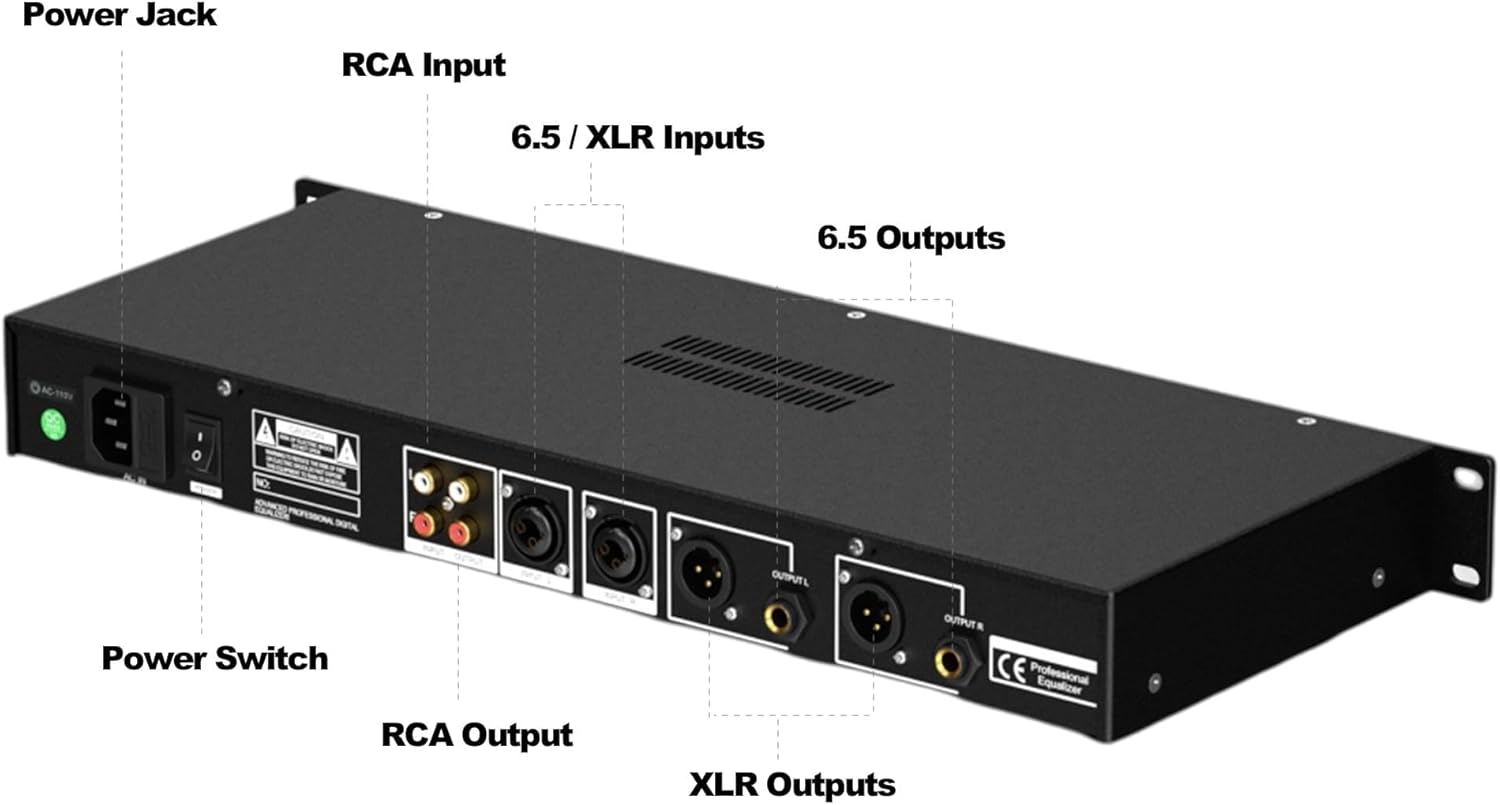
Familiarize yourself with the VQP EQ231's front and rear panels to understand its controls and connectivity.

6. Setup and Installation
Proper setup is crucial for optimal performance. Follow these steps to integrate your EQ231 into your audio system.
6.1 Physical Installation
- The EQ231 is designed for 1U rack mounting. Secure it in a standard audio rack using appropriate screws.
- Ensure adequate ventilation around the unit to prevent overheating.
6.2 Audio Connections
The EQ231 offers flexible input and output options:
- Inputs: Connect your audio source (e.g., mixer, preamplifier) to the EQ231 using TRS 6.35mm, RCA, or XLR cables. Use the LEFT INPUT and RIGHT INPUT ports.
- Outputs: Connect the EQ231's outputs to your amplifier or powered speakers using TRS 6.35mm, RCA, or XLR cables. Use the LEFT OUTPUT and RIGHT OUTPUT ports.
6.3 Power Connection
- Connect the provided power cord to the AC 110V power inlet on the rear panel.
- Plug the other end of the power cord into a suitable power outlet.
- Turn on the power switch located on the rear panel. The front panel LED display should illuminate.
7. Operating Instructions
The EQ231 offers intuitive controls for precise audio adjustment.
7.1 Front Panel Controls
- Volume/Gain Knob: Adjusts the overall output volume or gain for each channel.
- 31-Band Faders: Each fader corresponds to a specific frequency band (20Hz to 20KHz). Move faders up to boost or down to cut frequencies.
- LED Spectrum Display: Provides real-time visual feedback of the audio signal levels across the 31 bands.
- Control Knobs: Used to select target frequency bands and adjust their level values.
- Save/Recall Buttons: Allows saving and recalling custom EQ settings. The EQ231 supports up to 10 professional presets.
- Bypass Button: Engages or disengages the equalizer effect, allowing for a direct signal path without EQ processing.
7.2 PC Control
For advanced control and precise adjustments, connect the EQ231 to a computer:
- Use a USB cable to connect the EQ231's USB 2.0 port to your computer.
- Install the provided configuration software (often included on a USB drive or available for download).
- The software allows real-time debugging, fine-tuning of frequency bands, noise reduction settings, and management of presets.
7.3 Noise Reduction
The EQ231 features 7-band noise filtering for studio-level noise management. Fine-tune noise reduction from -3dB to -9dB for optimal clarity using the control knobs and display.
7.4 Preset Management
The unit supports 10 professional preset effect adjustments. Use the SAVE button to store your custom settings and the RECALL button to quickly access them. Rotate the control knob after pressing RECALL to select modes 1-10.
8. Maintenance
To ensure the longevity and optimal performance of your VQP EQ231, follow these maintenance guidelines:
- Cleaning: Use a soft, dry cloth to clean the exterior of the unit. Avoid using harsh chemicals or abrasive cleaners.
- Ventilation: Ensure that the ventilation slots are clear of dust and debris to prevent overheating.
- Storage: When not in use for extended periods, store the equalizer in a cool, dry place away from direct sunlight and extreme temperatures.
- Cable Management: Keep all cables neatly organized and free from kinks or excessive tension to prevent damage.
9. Troubleshooting
If you encounter any issues with your EQ231, refer to the following common troubleshooting steps:
- No Power:
- Check if the power cord is securely connected to both the unit and the power outlet.
- Ensure the power switch on the rear panel is in the 'ON' position.
- Verify the power outlet is functional by plugging in another device.
- No Sound Output:
- Check all audio cable connections (inputs and outputs) for proper seating and correct routing.
- Ensure the volume/gain knobs on the EQ231 are not set to minimum.
- Verify that the connected amplifier or powered speakers are powered on and functioning correctly.
- If using the Bypass function, ensure it is disengaged if you want EQ processing.
- Distorted Sound:
- Reduce the input gain or output volume to prevent clipping (indicated by red lights on the spectrum display).
- Check the audio source for distortion.
- Ensure all cables are in good condition and not damaged.
- PC Control Issues:
- Ensure the USB cable is properly connected.
- Verify that the PC control software is correctly installed and updated.
- Check your computer's device manager to ensure the EQ231 is recognized.
10. Warranty and Support
For warranty information, technical support, or service inquiries, please refer to the contact details provided with your purchase or visit the official VQP product support website. Keep your proof of purchase for warranty claims.