Introduction
The Kensington Pro Fit Ergo KB675 EQ TKL Rechargeable Keyboard is designed for professionals seeking enhanced comfort and productivity during long typing sessions. Its ergonomic design and curved key layout promote natural hand and wrist posture, reducing strain. This keyboard offers versatile connectivity options, robust security features, universal compatibility, and a long-lasting rechargeable battery, making it an ideal addition to any modern workspace.
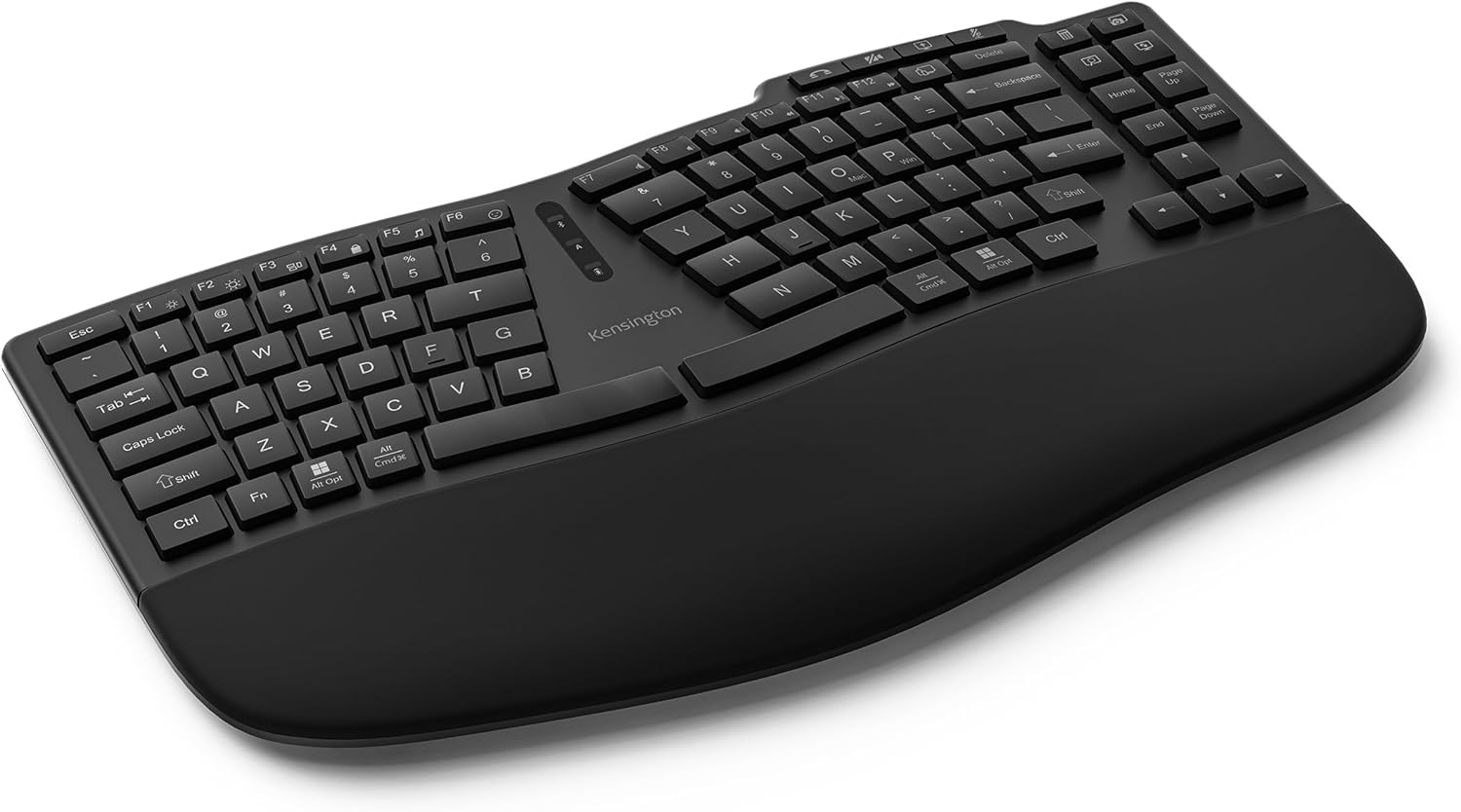
Image: The Kensington Pro Fit Ergo Wireless Keyboard KB675, showcasing its ergonomic design and black finish.
Key Features
- Ergonomic Design: Features a compact curved key layout, built-in wrist pad, and front keyboard legs to support optimal hand and wrist positioning for all-day comfort.
- Sustainability Focused: Contains certified recycled content, conforming to SCS Recycled Content Standard V8-0 for a minimum 65% post-consumer recycled content of the total plastic components.
- Multiple Connection Options: Supports up to three devices via two Bluetooth connections and one 2.4GHz USB receiver with 128-bit AES government-grade encryption security.
- Universal Compatibility: Compatible with both Windows and macOS operating systems.
- Customizable Keys: Personalize your experience by programming keys, creating macros, adjusting key mappings, and managing profiles using the optional Kensington Konnect software.
- Swift Pair Technology: Enhances Bluetooth connection technology to reduce pairing hassles and simplify connections for Windows devices.
- Productivity Enhancing Keys and Lights: Includes RGB indicators for connection status, caps lock, and battery life, along with dedicated video conferencing keys.
- Long-Lasting Rechargeable Battery: Equipped with a built-in 500mAh rechargeable battery and includes a USB-C charging port and cable.
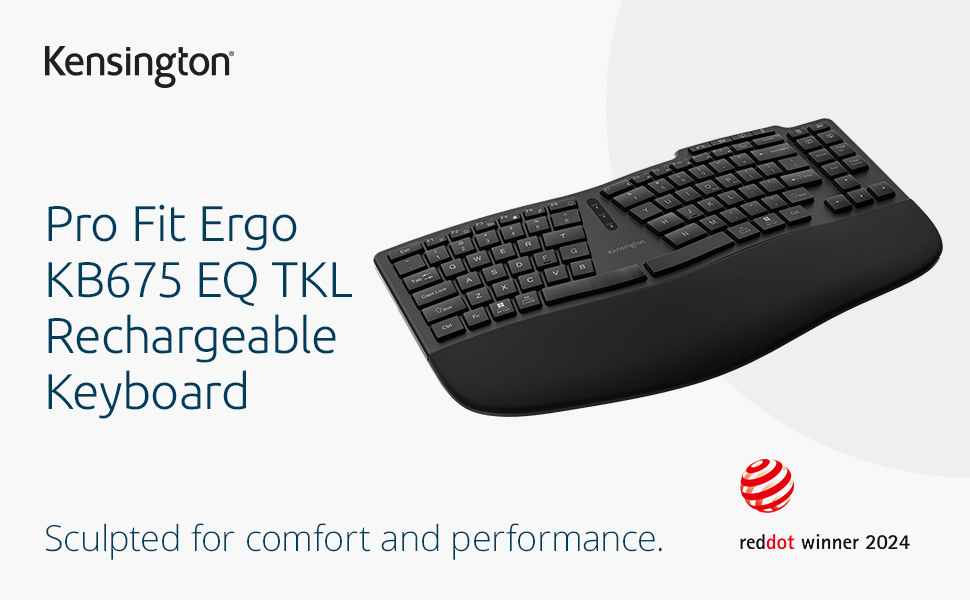
Image: A user's hands positioned comfortably on the ergonomic, curved layout of the Kensington keyboard, highlighting its design for reduced strain.

Image: The keyboard displayed alongside a graphic indicating its sustainability attributes, including minimum 45% post-consumer recycled content.
Package Contents
Upon unboxing your Kensington Pro Fit Ergo Wireless Keyboard KB675, please ensure all the following items are present:
- Kensington Pro Fit Ergo Wireless Keyboard KB675
- 1.8m (6’) USB-C to USB-A cable
- Instruction guide
- Warranty card
Setup Guide
1. Initial Charging
Before first use, it is recommended to fully charge your keyboard. Connect the provided 1.8m (6’) USB-C to USB-A cable to the keyboard's USB-C port and the other end to a USB-A power source (e.g., computer USB port, wall adapter). The battery indicator light will show charging status.

Image: The side profile of the keyboard highlighting its USB-C charging port and the 500mAh battery capacity.
2. Connecting Your Keyboard
The keyboard offers multiple connectivity options for up to three devices:
- 2.4GHz USB Receiver Connection:
Locate the 2.4GHz USB receiver, typically stored in a compartment on the underside of the keyboard. Insert the USB receiver into an available USB-A port on your computer. The keyboard should automatically connect. This connection provides 128-bit AES government-grade encryption security.
- Bluetooth Connection (up to 2 devices):
To pair via Bluetooth, ensure your device's Bluetooth is enabled. On the keyboard, select one of the Bluetooth channels (e.g., by pressing a dedicated Bluetooth pairing button or key combination, refer to the instruction guide for specific key). The keyboard will enter pairing mode. On your device, search for "Kensington KB675" or similar in the Bluetooth settings and select to pair. For Windows devices, Swift Pair Technology simplifies this process.

Image: The keyboard shown in a workspace, illustrating its capability to connect to multiple devices via Bluetooth and 2.4GHz USB receiver.

Image: A close-up of the keyboard in use, highlighting the Swift Pair Technology feature for easy Windows device connections.
Operating Instructions
Ergonomic Use
The keyboard's split and sloped design, along with the integrated wrist rest, is engineered to promote a natural hand, wrist, and forearm posture. Position your hands so that your wrists rest comfortably on the wrist pad, allowing your fingers to naturally align with the curved key layout. This helps minimize strain during extended typing periods.
Programmable Keys and Customization
Enhance your workflow by customizing the keyboard's keys. With the optional Kensington Konnect software, you can:
- Program individual keys for specific functions.
- Create and assign macros for complex tasks.
- Adjust key mappings to suit your preferences.
- Manage multiple user profiles for different applications or users.
RGB Indicators and Video Conferencing Keys
The keyboard features RGB indicators that provide visual feedback on:
- Connection status (e.g., Bluetooth, 2.4GHz).
- Caps Lock activation.
- Battery life status.
Dedicated video conferencing keys allow for quick access to common functions during online meetings, such as muting your microphone or toggling your camera. Refer to the instruction guide for the exact location and function of these keys.

Image: A detailed view of the keyboard's RGB indicators for connection status, caps lock, and battery life, along with the dedicated video conferencing keys.
Maintenance
Battery Care
The keyboard is equipped with a built-in rechargeable Lithium Ion battery. To maximize battery life:
- Charge the keyboard fully before first use.
- Use the provided USB-C to USB-A cable for charging.
- Avoid exposing the keyboard to extreme temperatures.
- If the keyboard will not be used for an extended period, store it with a partial charge (around 50%) and recharge every few months.
Cleaning
To clean your keyboard:
- Disconnect the keyboard from all devices and power sources.
- Use a soft, lint-free cloth slightly dampened with water or a mild, non-abrasive cleaning solution.
- Avoid spraying liquids directly onto the keyboard.
- Do not use harsh chemicals, solvents, or abrasive cleaners.
Troubleshooting
| Issue | Possible Cause | Solution |
|---|---|---|
| Keyboard not responding or intermittent connection. | Low battery; out of range; interference; incorrect pairing. |
|
| Keys are not registering immediately after inactivity (wake-up time). | Power-saving mode. |
|
| Kensington Konnect software not recognizing keyboard. | Software not installed or outdated; connection issue. |
|
Specifications
| Attribute | Detail |
|---|---|
| Brand | Kensington |
| Model Number | SC-K75491US |
| Operating System Compatibility | Mac OS, Windows |
| Item Weight | 1.32 pounds |
| Product Dimensions (LxWxH) | 14.8 x 8.7 x 1.38 inches |
| Color | Black |
| Power Source | Battery Powered |
| Batteries | 1 Lithium Ion battery required (included) |
| Connectivity Technology | Bluetooth, USB (2.4GHz receiver) |
| Keyboard Description | Accessible |
| Recommended Uses | Everyday Use |
| Special Features | Ergonomic, Programmable Keys, Rechargeable |
| Number of Keys | 93 |
| Style | Rechargeable keyboard |
Warranty and Support
Your Kensington Pro Fit Ergo Wireless Keyboard KB675 comes with a warranty. Please refer to the included Warranty Card in your package for detailed information regarding warranty terms, conditions, and duration.
For technical support, frequently asked questions, and additional resources, please visit the official Kensington support website. You can also find updated drivers and software (like Kensington Konnect) there.
Kensington Official Website: www.kensington.com


