
Introduction
This manual provides essential information for the proper setup, operation, and maintenance of your iiyama G-Master GB2770HSU-B6 27-inch Full HD LED Monitor. Please read this manual thoroughly before using the product to ensure optimal performance and safety. Keep this manual for future reference.

Image: Front view of the iiyama G-Master GB2770HSU-B6 monitor, showcasing its 27-inch display, G-Master branding, and key features like 180Hz refresh rate and Fast IPS panel.
Setup
1. Unpacking and Package Contents
Carefully remove all components from the packaging. Ensure all items listed below are present:
- iiyama G-Master GB2770HSU-B6 Monitor
- Monitor Stand (Base and Neck)
- Power Cable
- USB Cable
- HDMI Cable
- DisplayPort Cable
- User Manual (this document)

Image: The essential cables included with the monitor: Power, USB, HDMI, and DisplayPort, necessary for connecting the monitor to a power source and a computer.
2. Assembling the Stand
- Attach the stand neck to the monitor panel. Ensure it clicks securely into place or is fastened with screws if provided.
- Attach the stand base to the stand neck. Tighten the thumb screw or screws at the bottom of the base to secure it.

Image: Side view of the iiyama G-Master GB2770HSU-B6 monitor, illustrating the assembled stand and the monitor's profile.
3. Connecting the Monitor
Connect the monitor to your computer and power source using the provided cables.
- Power Connection: Connect one end of the power cable to the monitor's power input and the other end to a power outlet.
- Video Connection: Connect either the HDMI cable or the DisplayPort cable from your computer's graphics card to the corresponding input port on the monitor.
- USB Connection (Optional): Connect the USB upstream cable from your computer to the monitor's USB upstream port to enable the monitor's USB hub functionality.

Image: Rear view of the iiyama G-Master GB2770HSU-B6 monitor, highlighting the various input ports including power, HDMI, DisplayPort, and USB ports for connectivity.

Image: A close-up view of the monitor's USB ports, demonstrating the available connectivity for peripherals.
Operating Instructions
1. Power On/Off
Press the power button located on the monitor to turn it on or off. The power indicator light will illuminate when the monitor is on.
2. On-Screen Display (OSD) Menu Navigation
The OSD menu allows you to adjust various monitor settings. Use the control buttons, typically located on the back or bottom right of the monitor, to navigate the menu.

Image: Rear view of the iiyama G-Master GB2770HSU-B6 monitor, indicating the location of the OSD control buttons for menu navigation and settings adjustments.
3. Basic Adjustments
- Brightness/Contrast: Adjust these settings to optimize image visibility.
- Input Selection: Manually select the input source (HDMI or DisplayPort) if the monitor does not auto-detect.
- Picture Modes: Select from various preset picture modes (e.g., Standard, Game, Text) for different viewing scenarios.
- Color Settings: Fine-tune color temperature, gamma, and individual RGB levels.
Maintenance
1. Cleaning the Monitor
- Screen: Gently wipe the screen with a soft, lint-free cloth. For stubborn marks, use a screen cleaning solution specifically designed for LCD/LED displays, applied to the cloth, not directly to the screen.
- Casing: Wipe the monitor casing with a soft, dry cloth. Avoid using abrasive cleaners or solvents.
2. General Care
- Avoid placing the monitor in direct sunlight or near heat sources.
- Ensure adequate ventilation around the monitor.
- Do not block ventilation openings.
Troubleshooting
If you encounter issues with your monitor, refer to the following common problems and solutions:
- No Power:
- Check if the power cable is securely connected to both the monitor and the power outlet.
- Verify the power outlet is functional.
- No Signal:
- Ensure the video cable (HDMI or DisplayPort) is firmly connected to both the monitor and your computer.
- Select the correct input source using the OSD menu.
- Check if your computer is powered on and outputting a video signal.
- Distorted or Unclear Image:
- Adjust the resolution and refresh rate settings on your computer to match the monitor's native resolution (1920 x 1080) and supported refresh rates.
- Perform an auto-adjustment via the OSD menu if available.
- Check for any physical damage to the video cable.
- Buttons Not Responding:
- Ensure the monitor is not in a locked mode. Refer to the OSD section for unlocking procedures if applicable.
- Power cycle the monitor by unplugging it for a few seconds and then plugging it back in.
Specifications
Key technical specifications for the iiyama G-Master GB2770HSU-B6 monitor:
| Feature | Specification |
|---|---|
| Model Number | GB2770HSU-B6 |
| Screen Size | 27 inches (68.6 cm) |
| Resolution | 1920 x 1080 (Full HD) |
| Aspect Ratio | 16:9 |
| Panel Type | Fast IPS (implied from product image) |
| Refresh Rate | 180 Hz (implied from product image) |
| Response Time | 0.2 ms MPRT (implied from product image) |
| Image Contrast Ratio | 2000:1 |
| Total USB Ports | 4 |
| Product Dimensions (W x H x D) | 24.13 x 16.04 x 8.39 inches |
| Item Weight | 11.88 pounds |
| Voltage | 240 Volts |
| Energy Efficiency Class (SDR) | D |
| On mode power demand (SDR) | 16.3 W |
| Off mode power demand | 0.3 W |
| Standby mode power demand | 0.3 W |

Image: The energy label for the iiyama GB2770HSU-B6 monitor, indicating its energy efficiency class D and power consumption of 16 kWh/1000h.
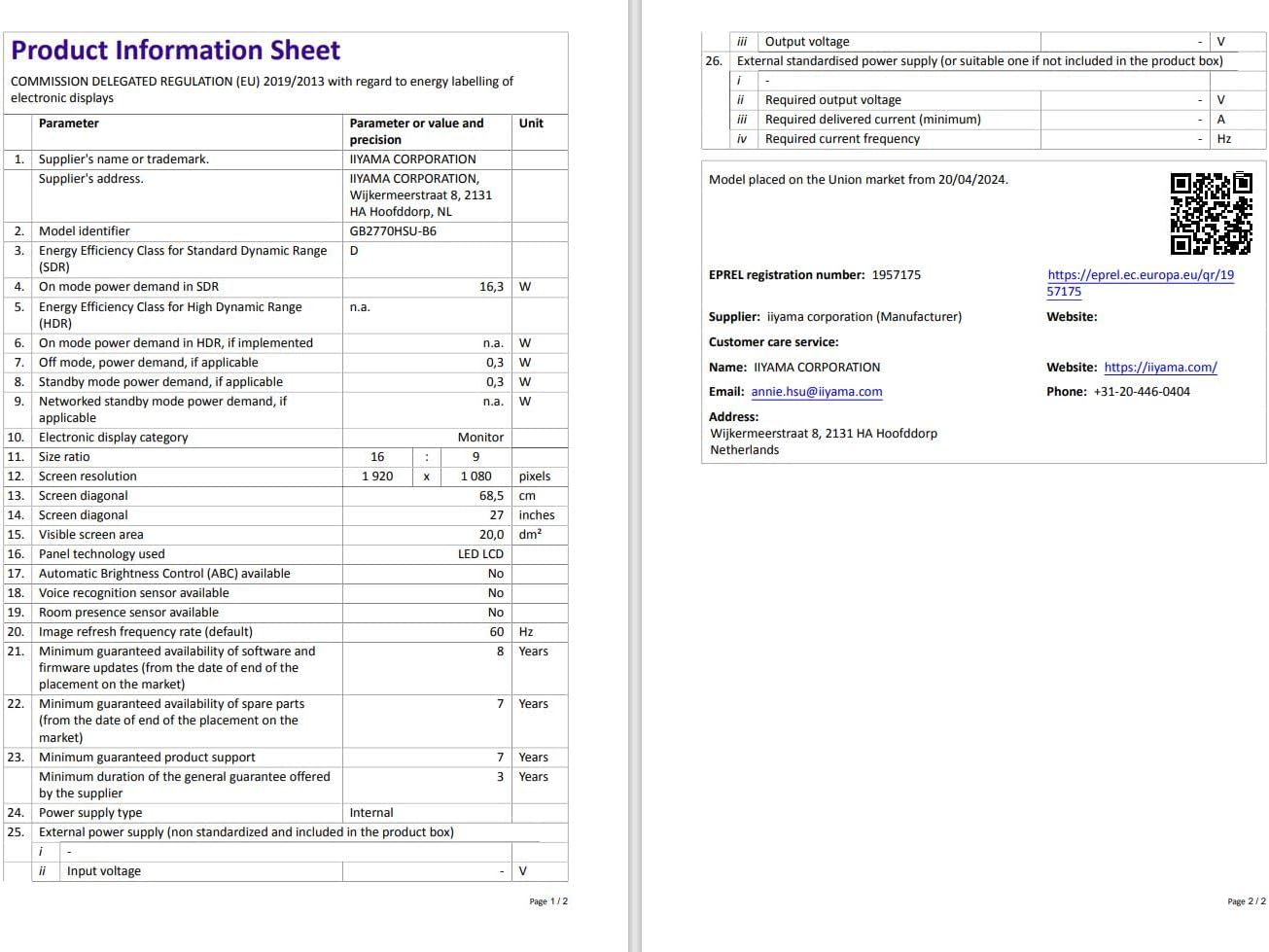
Image: A detailed Product Information Sheet for the iiyama GB2770HSU-B6, providing comprehensive technical data and compliance information.
Warranty and Support
iiyama provides support and warranty services for its products.
- General Guarantee: The minimum duration of the general guarantee offered by the supplier is 3 years.
- Product Support: Minimum guaranteed product support is 7 years.
- EPREL Registration: For detailed product information and compliance, refer to the EPREL database: https://eprel.ec.europa.eu/qr/1957175
Customer Service Contact:
For technical assistance or warranty claims, please contact iiyama customer service:
- Email: annie.hsu@iiyama.com
- Phone: +31-20-446-0404
- Address: Wijkermaatstraat 8, 2131 HA Hoofddorp, Netherlands